Free trial
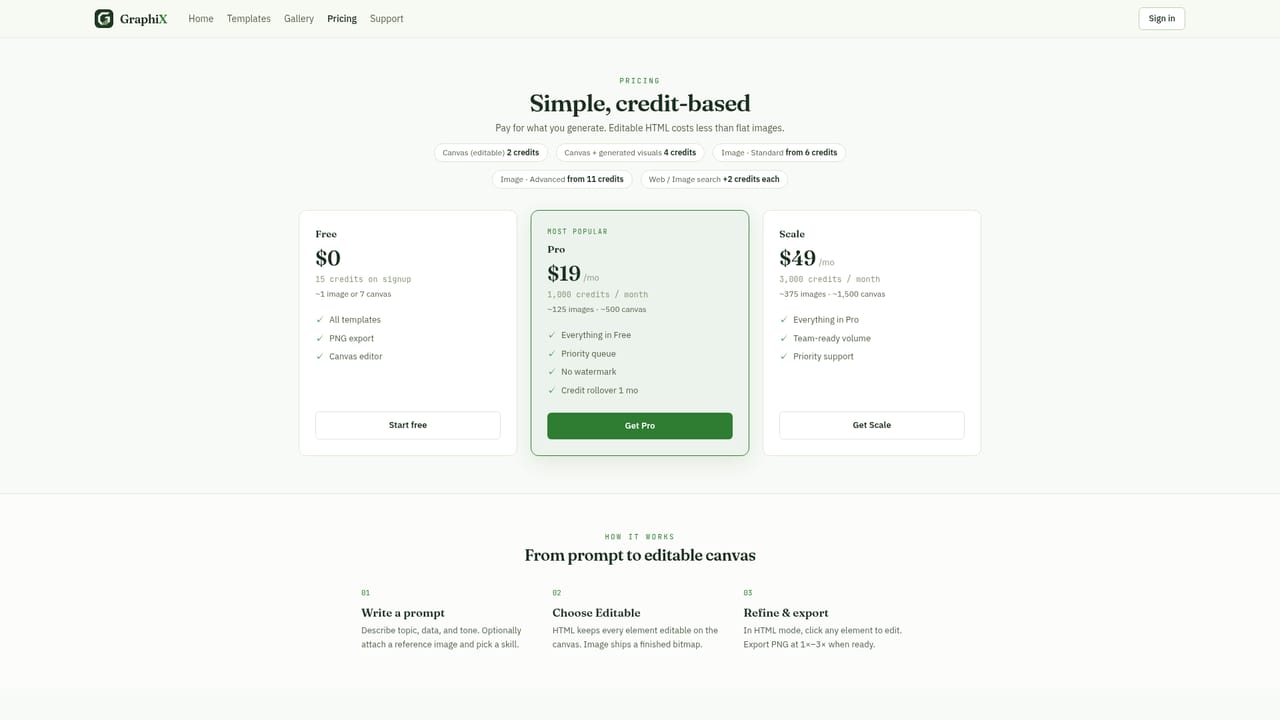
New users get 15 credits on signup with no card required, enough to try canvas and image generation before paying.
Learn moreTurn a sentence into a fully editable infographic.

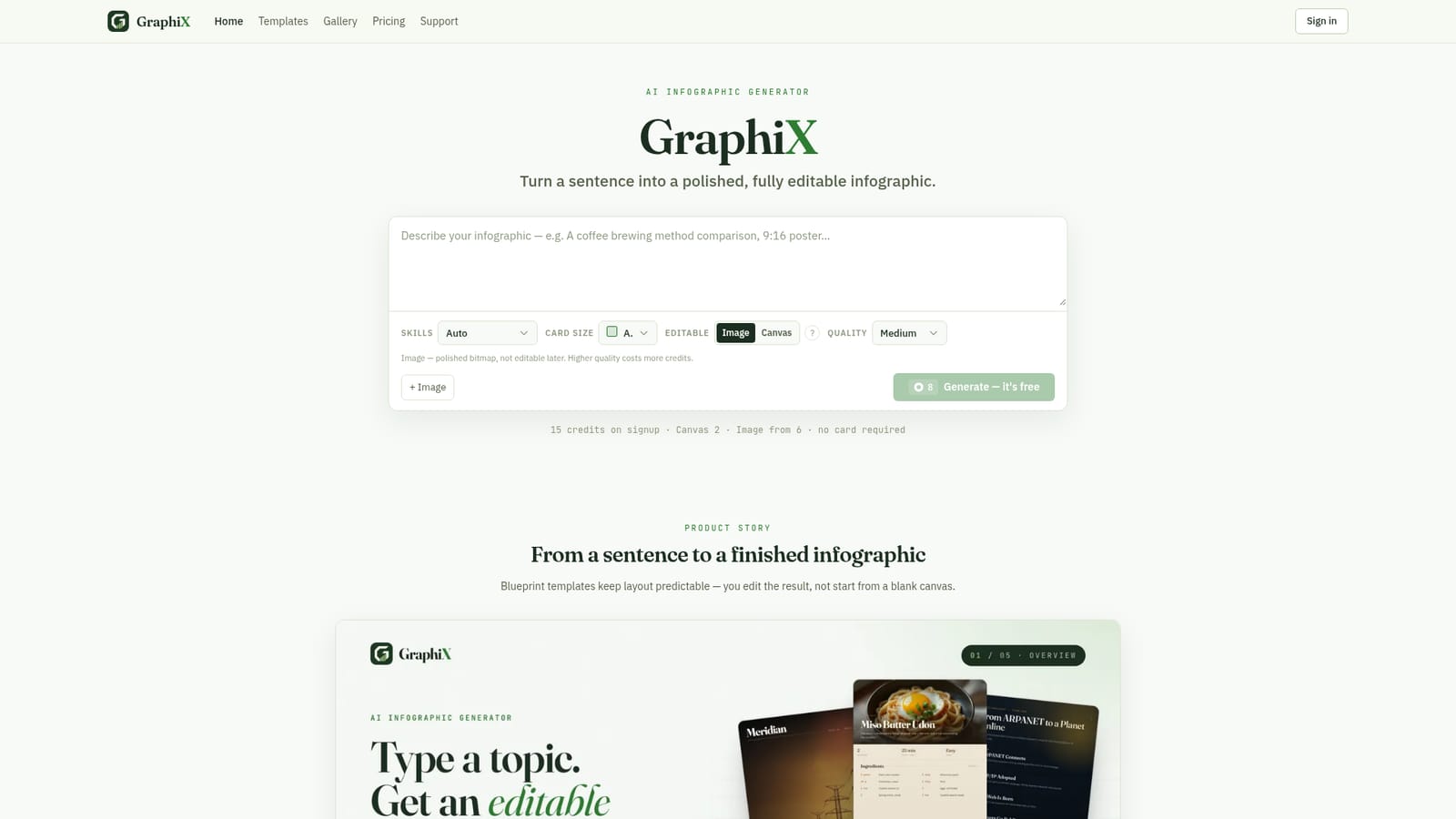
Graphix is a generative image tool that turns a sentence into a fully editable infographic. GraphiX is an AI infographic generator that turns a short text prompt into a fully editable infographic on a live canvas. Blueprint templates keep layouts predictable, the agent can also design freely, and finished work exports as PNG at up to 3x resolution.
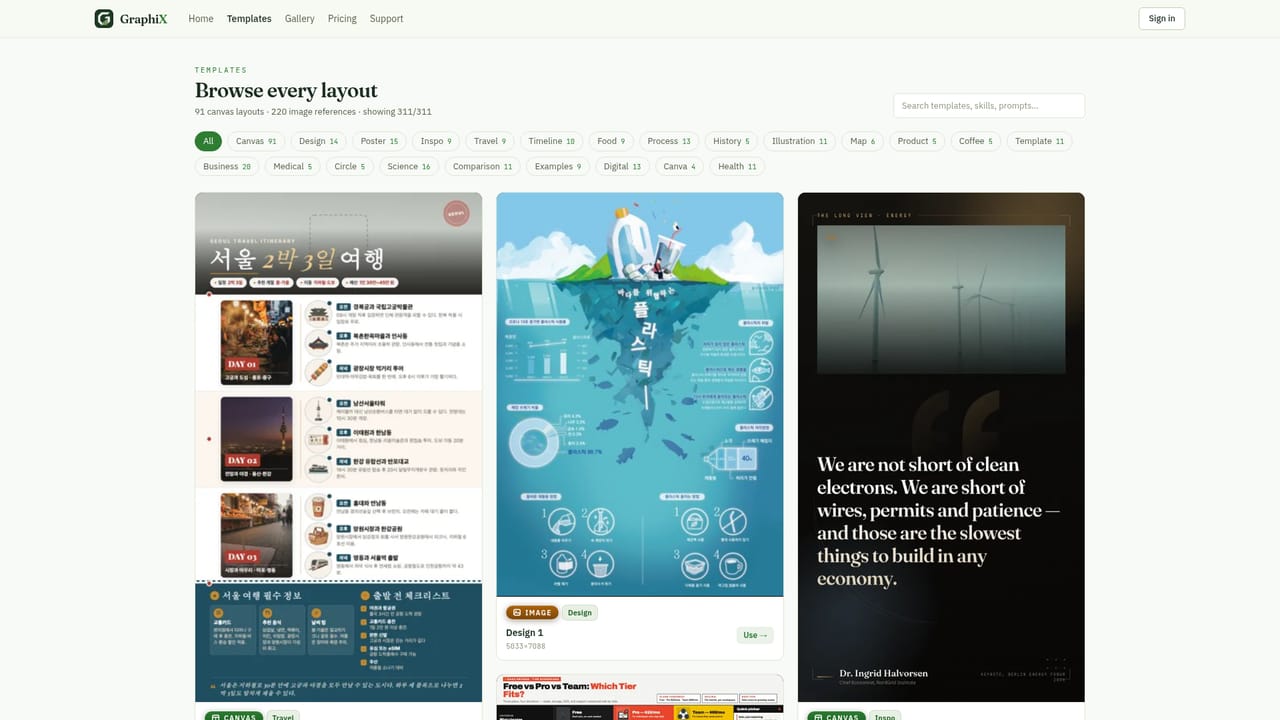
GraphiX is an AI infographic studio that takes a plain sentence or a short brief and returns a finished, editable infographic. Instead of starting from a blank canvas or hunting for a template that roughly matches the data, you describe the topic and the agent picks the structure, the color palette and the chart types on its own. The result lands on a live canvas where every text block, icon, image and shape can be clicked and changed directly, so the output behaves like a document rather than a flattened picture. The workflow splits into two paths. Blueprint templates lock the layout into familiar formats such as KPI channels and goals, comparison A versus B, process stage rows, funnel conversion and timeline history, which keeps the result predictable when the same visual has to be reused. The free design route skips the blueprint and lets the agent compose the whole thing, which suits one-off explainers. Both paths share the same editing canvas, and generated images or icons can be dropped in inline or swapped for uploaded assets. Exports are PNG at 1x, 2x or 3x resolution, so the same file can serve a slide deck, a blog header or a print-ready handout. The template gallery leans toward common infographic subjects including travel, history, food, health, maps, design and process, and the aspect ratio is selectable per template (9:16, 16:9 and 1:1 all appear in the gallery). GraphiX sits alongside general design tools and dedicated chart builders. It is a reasonable fit for marketers, analysts, teachers and small teams that need a clear visual fast without a designer in the loop, and less of a fit for anyone who needs data binding to a live spreadsheet, since the input is a description rather than a connected dataset.
New users get 15 credits on signup with no card required, enough to try canvas and image generation before paying.
Learn moreCanvas generation costs 2 credits and image generation starts from 6 credits, with higher image quality costing more. New accounts receive 15 credits on signup without a card. Plans and a FAQ sit on the pricing page.
Learn morePrompt-to-infographic generation with an agent that chooses structure, colors and charts. Blueprint templates for KPI, comparison, process, funnel and timeline layouts. A live editing canvas where text, colors, images and icons are all selectable. Inline image and icon generation or asset upload. PNG export at 1x, 2x or 3x. Canvas and image output modes.
 AI Angels400+ customizable AI girlfriends for NSFW chat, voice calls, and roleplay
 Candy AIExperience the future of companionship with AI friends who chat, role-play, and connect with you on a human level.
 ourdream.aiA vast AI roleplay platform with millions of characters for chat, images, video and voiceAI Angels400+ customizable AI girlfriends for NSFW chat, voice calls, and roleplayCandy AIExperience the future of companionship with AI friends who chat, role-play, and connect with you on a human level.ourdream.aiA vast AI roleplay platform with millions of characters for chat, images, video and voice