ImageToVideo AI.org

Multi-model AI video workspace for turning text, images or keyframes into clips

Beginner
Screenshot of ImageToVideo AI.org, Multi-model AI video workspace for turning text, images or keyframes into clips

What is ImageToVideo AI.org?

ImageToVideo AI.org is a generative video tool. A web workspace that generates video from text, images or keyframes using several AI video models, with controls for duration, resolution, aspect ratio and audio. Aimed at marketers, sellers and creators making ads and social clips.

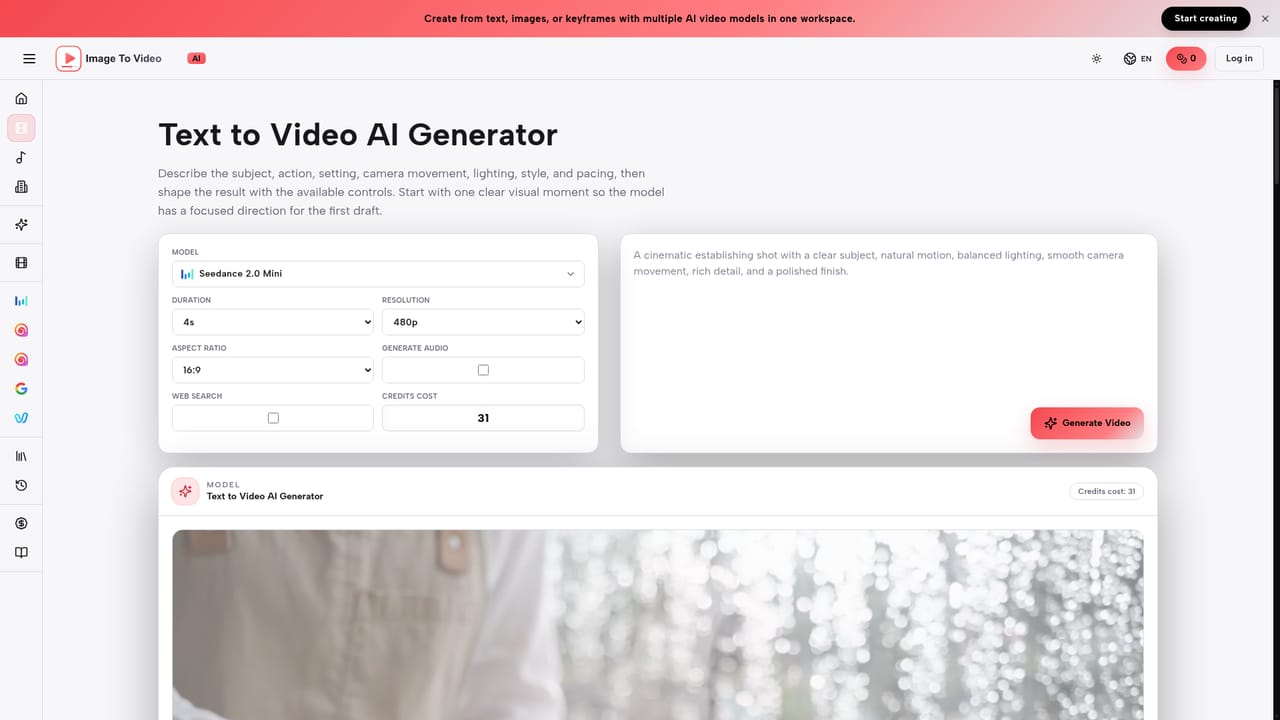
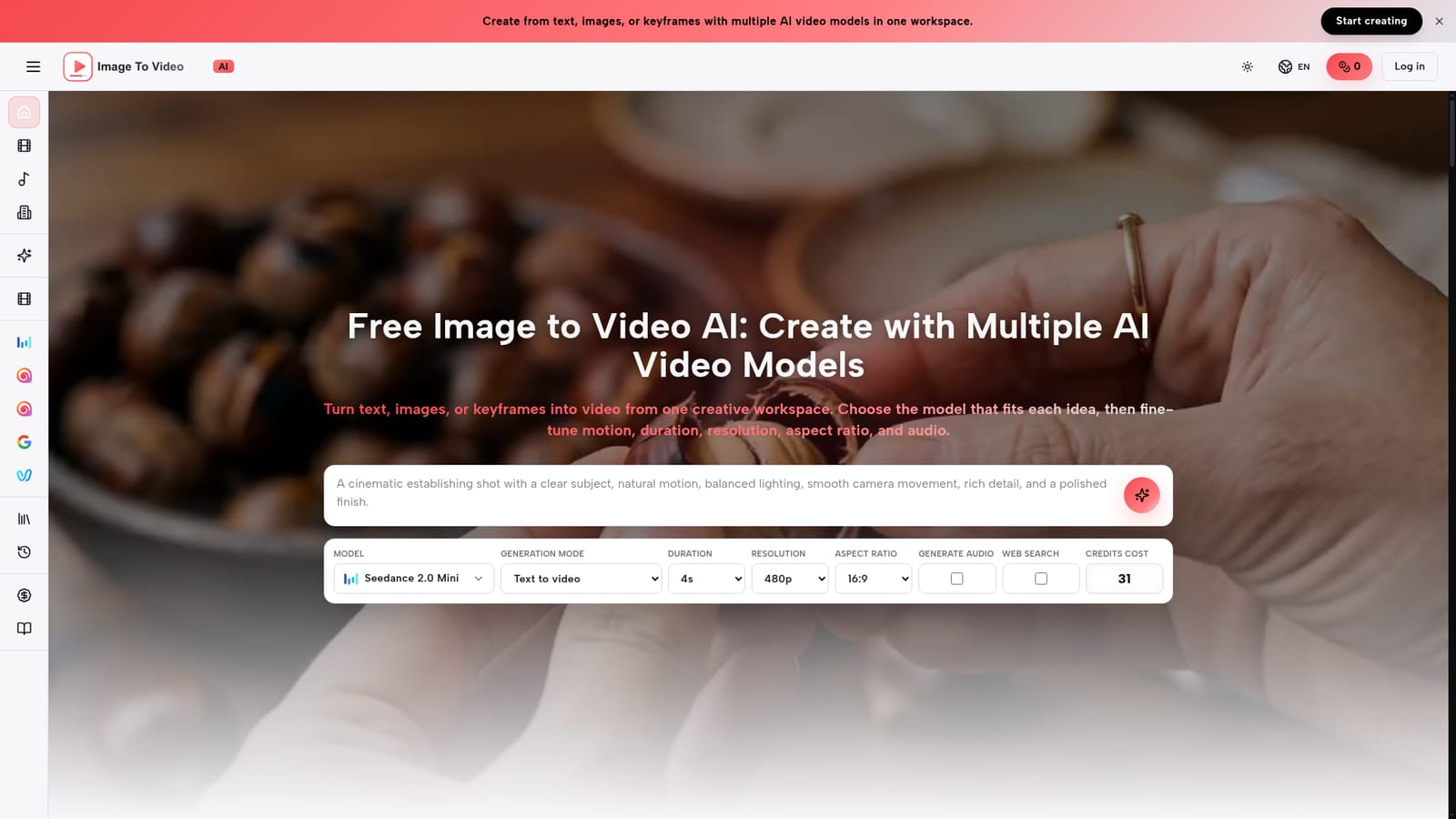
ImageToVideo AI.org is a browser-based video generation workspace that gathers several AI video models behind a single interface. Users can start from a written prompt, a reference image or keyframes, then pick the model that suits the job. Controls vary by model but can include duration, resolution, aspect ratio, audio generation and generation mode. The homepage shows Seedance 2.0 Mini as an example, with text-to-video and reference-image modes, durations from 4 to 15 seconds, 480p and 720p output, and a range of aspect ratios including 16:9, 9:16, 1:1 and 21:9. The workflow is short. A user enters a prompt, optionally attaches a product photo, portrait, illustration or campaign visual, describes the subject, action, camera movement, lighting and pacing, and selects a model. Each generation shows a credit cost before it runs, and finished clips are saved to a Library for playback, review and download. For people without a usable starting image, the site links to a Nano Banana image generator for creating a first frame, and to a dedicated text-to-video page for prompt-only work. The audience is mostly commercial. The site highlights product image to ad video as its lead use case, along with social reels, e-commerce motion assets, lesson visuals for educators, and concept exploration for designers and agencies. A small blog covers prompt templates for beauty and beverage products and notes on keeping a product stable while the camera and background move. The FAQ says generated videos can be used in commercial projects, while advising users to check each model's terms and their rights to prompts and reference assets. Among alternatives, the platform competes less on a proprietary model and more on aggregation: it resembles other multi-model generators that let creators compare engines without managing separate accounts. Buyers who want one specific model's full feature set may prefer that vendor's own product, while teams that test several looks for the same brief will find the single workspace more convenient. The model lineup is described as expandable over time.
How do you use ImageToVideo AI.org?

  1. 1Open the workspace and pick a mode
    Start on the homepage and choose between text to video and reference images to video. Images and keyframes are optional for modes that support them.
    ImageToVideo AI.org — Open the workspace and pick a mode
  2. 2Prepare a source image if needed
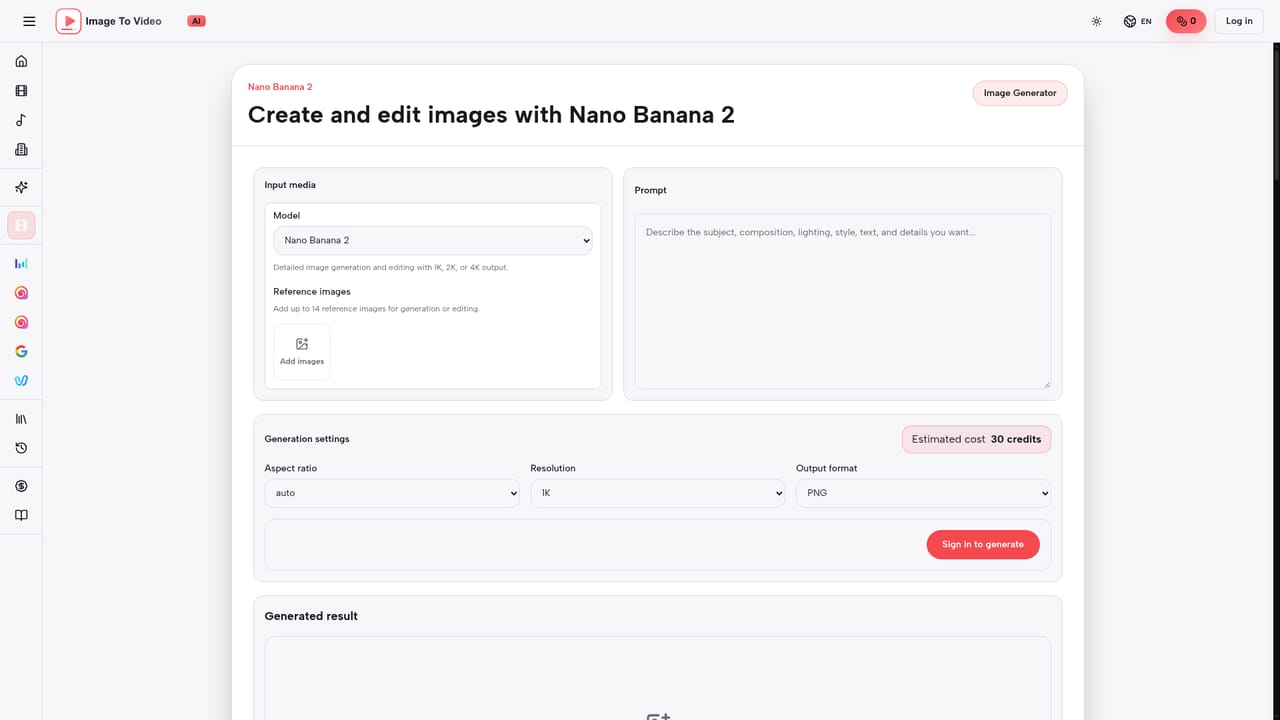
    If there is no strong first frame, generate a source image with Nano Banana, then return to the video workspace to direct its motion.
    ImageToVideo AI.org — Prepare a source image if needed
  3. 3Write a focused prompt
    Describe the subject, action, camera movement, lighting, style and pacing in one to three sentences. Add a product photo or visual only when the result should follow it.
    ImageToVideo AI.org — Write a focused prompt
  4. 4Choose a model and settings
    Select the model that fits the speed and look needed, then set duration, resolution, aspect ratio and audio. Check the credit cost shown before generating.
    ImageToVideo AI.org — Choose a model and settings
  5. 5Review and download from the Library
    Finished videos are saved to the Library, where they can be played, reviewed and downloaded for ads, product pages or social posts.

Pros and cons

Pros

  • Several video models in one workspace, so a user can match the engine to each ideaAI
  • Supports text, reference images and keyframes as starting pointsAI
  • Per-model controls for duration, resolution, aspect ratio and audioAI
  • Credit cost is shown before generating, and finished clips are saved to a LibraryAI
  • Product-photo-to-ad workflow with guides and prompt templates for beauty and beverage itemsAI

Cons

  • Available settings depend on the chosen model, so controls are not uniform across the lineupAI
  • Credit-based generation means heavier use will consume credits, and exact allowances are not shown on the homepageAI
  • Commercial use depends on each model's own terms, which users must review themselvesAI
  • Testimonials are unverified and the homepage gives no output quality benchmarks or comparisonsAI
  • Homepage example resolutions top out at 720p, which may limit high-end production useAI

How much does ImageToVideo AI.org cost?

Free trial

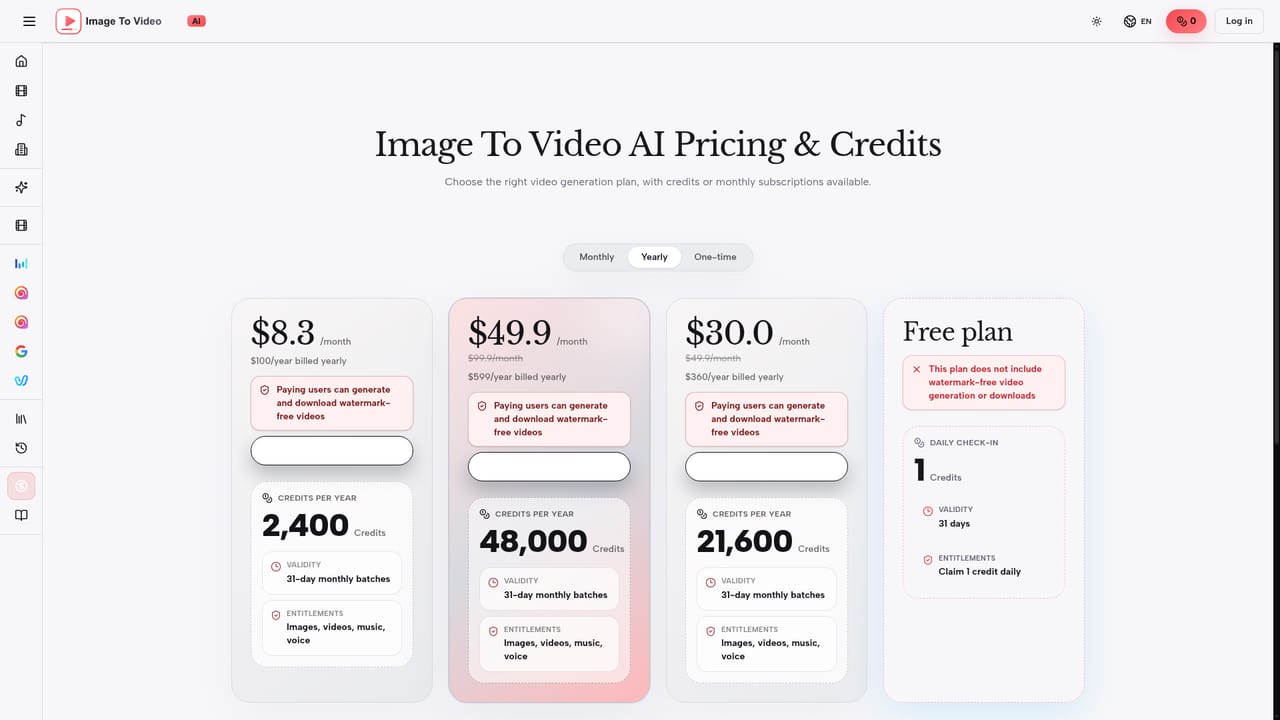
The site offers a "Start free" option and describes itself as a free image to video generator, but the homepage does not specify the free allowance.

Learn more

Pricing

The homepage advertises a free start and a credit system, with a per-generation credit cost displayed in the workspace (31 credits in the Seedance 2.0 Mini example). Plan prices are not stated on the homepage.

Learn more

Features

Multi-model video generation from text, images or keyframes. Controls for model variant, duration, resolution, aspect ratio and audio. Credit cost preview, automatic Library saving with playback and download, a Nano Banana source-image generator, and guides for product promo videos.

Frequently asked questions about ImageToVideo AI.org

  • How much does ImageToVideo AI.org cost?
    The homepage advertises a free start and a credit system, with a per-generation credit cost displayed in the workspace (31 credits in the Seedance 2.0 Mini example). Plan prices are not stated on the homepage.
  • Does ImageToVideo AI.org offer a free trial?
    The site offers a "Start free" option and describes itself as a free image to video generator, but the homepage does not specify the free allowance.
  • How do you use ImageToVideo AI.org?
    The walkthrough on this page covers 5 steps: 1. Open the workspace and pick a mode 2. Prepare a source image if needed 3. Write a focused prompt 4. Choose a model and settings 5. Review and download from the Library.
  • What platforms does ImageToVideo AI.org support?
    ImageToVideo AI.org is available on Web App.
  • What are the limitations of ImageToVideo AI.org?
    Available settings depend on the chosen model, so controls are not uniform across the lineup. Credit-based generation means heavier use will consume credits, and exact allowances are not shown on the homepage. Commercial use depends on each model's own terms, which users must review themselves.

Status

StatusActive
Views0
Outbound clicks0
Added10/18/2026

Platforms

Web App

Pricing

Freemium