Pricing
The Generate button displays a point cost (12 in the page capture), which suggests a credit-based system, but the page gives no plan names or prices.
Learn moreBrowser-based image-to-image AI for remixing photos with prompts

ImgGen is an image editing tool. ImgGen offers a web-based image-to-image generator where users upload a photo, write a prompt and pick an aspect ratio to restyle or recompose it, with a model option advertising 2K and 4K output and an example gallery.
ImgGen's image-to-image page is a web tool for transforming an existing picture into a new one using a text prompt. A user uploads a JPG, PNG or WEBP file of up to 10MB, by dragging it in, using the upload button, or pasting from the clipboard, then describes the change they want. The output can be a restyled version of the original, a new composition built on it, or a conversion such as sketch to image or image to sketch. The workspace is deliberately compact. A model selector sits at the top, with GPT Image 2 Plus listed as the highlighted option and described as offering 2K and 4K image-to-image output. Below it are aspect ratio presets (1:1, 3:4, 4:3, 16:9 and 9:16), a prompt box that accepts up to 5,000 characters, and an "Inspire me" button for users who want a suggested prompt. A Generate button shows a point cost, which indicates the service runs on a credit system, though the page does not explain how credits are obtained or priced. A Reset control clears the form, and a History tab keeps earlier creations. The page also carries a gallery of example results, including AI wedding photos, smile and comic-style portraits, and sketch conversions. Some entries show view counts and ratings, and an "Apply Case" action suggests an example can be used as a starting point. ImgGen suits casual creators, social media users and small marketing teams who want quick restyles or portrait variations without installing software or learning layers and masks. It is a prompt-driven editor, so it trades the precision of tools like Photoshop for speed and simplicity. Compared with other image-to-image generators, its visible draw is access to a higher-resolution model and a template-style gallery. Anyone needing documented pricing, an API or team features will need to look beyond this page, since none of that is described on it.
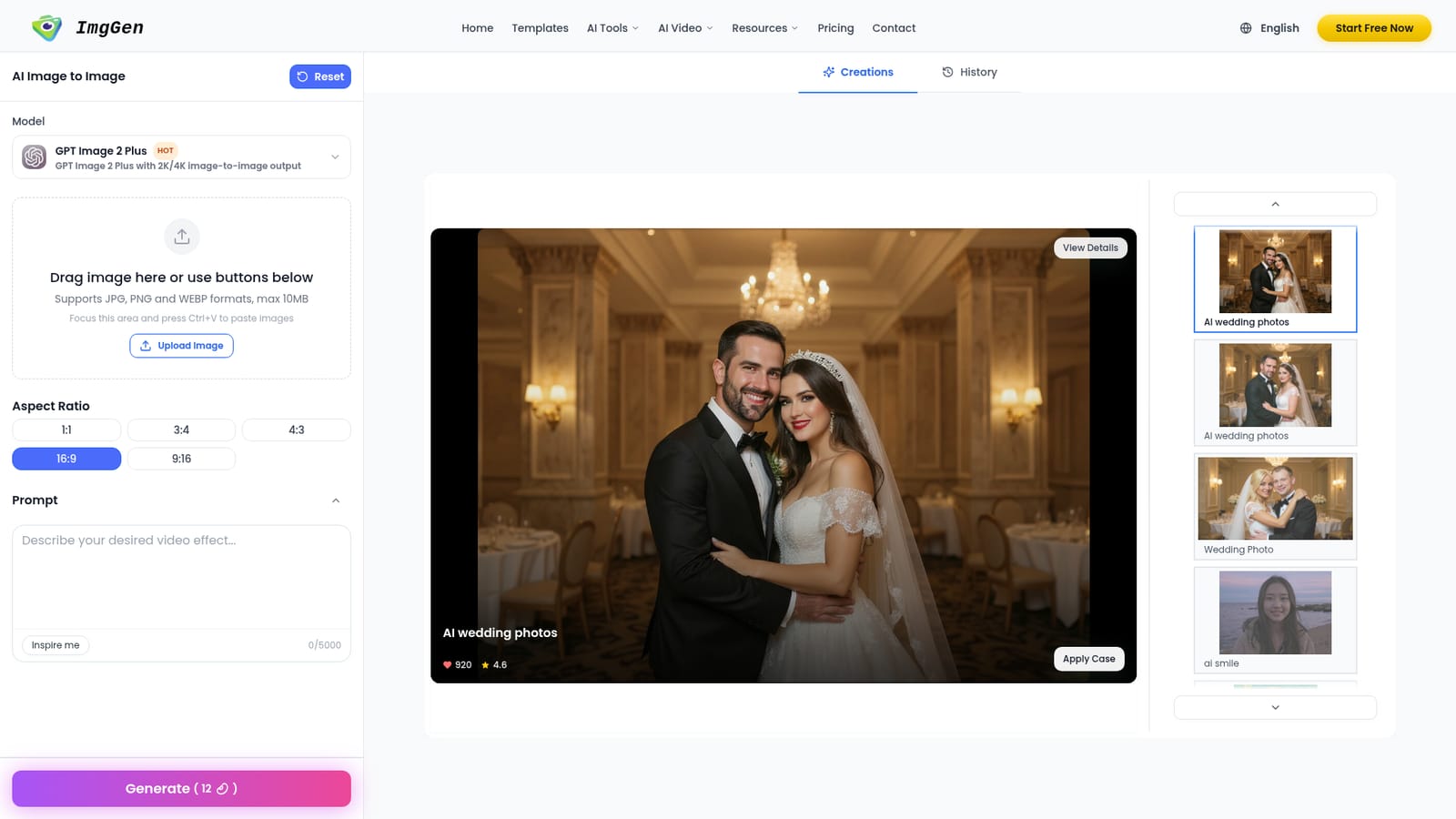
The Generate button displays a point cost (12 in the page capture), which suggests a credit-based system, but the page gives no plan names or prices.
Learn moreImage-to-image generation from JPG, PNG or WEBP uploads up to 10MB, model selection with a 2K/4K option, five aspect ratios, a 5,000-character prompt box, Inspire me prompt suggestions, generation history and an example gallery.


