Support
Support details are not described on the homepage. A sales contact page is available for commercial enquiries, and documentation covers the CLI, DevTools, recording links, custom logs, Sentry, webhooks and MCP.
Learn moreScreen recorder that bundles console logs and network requests with every bug report.

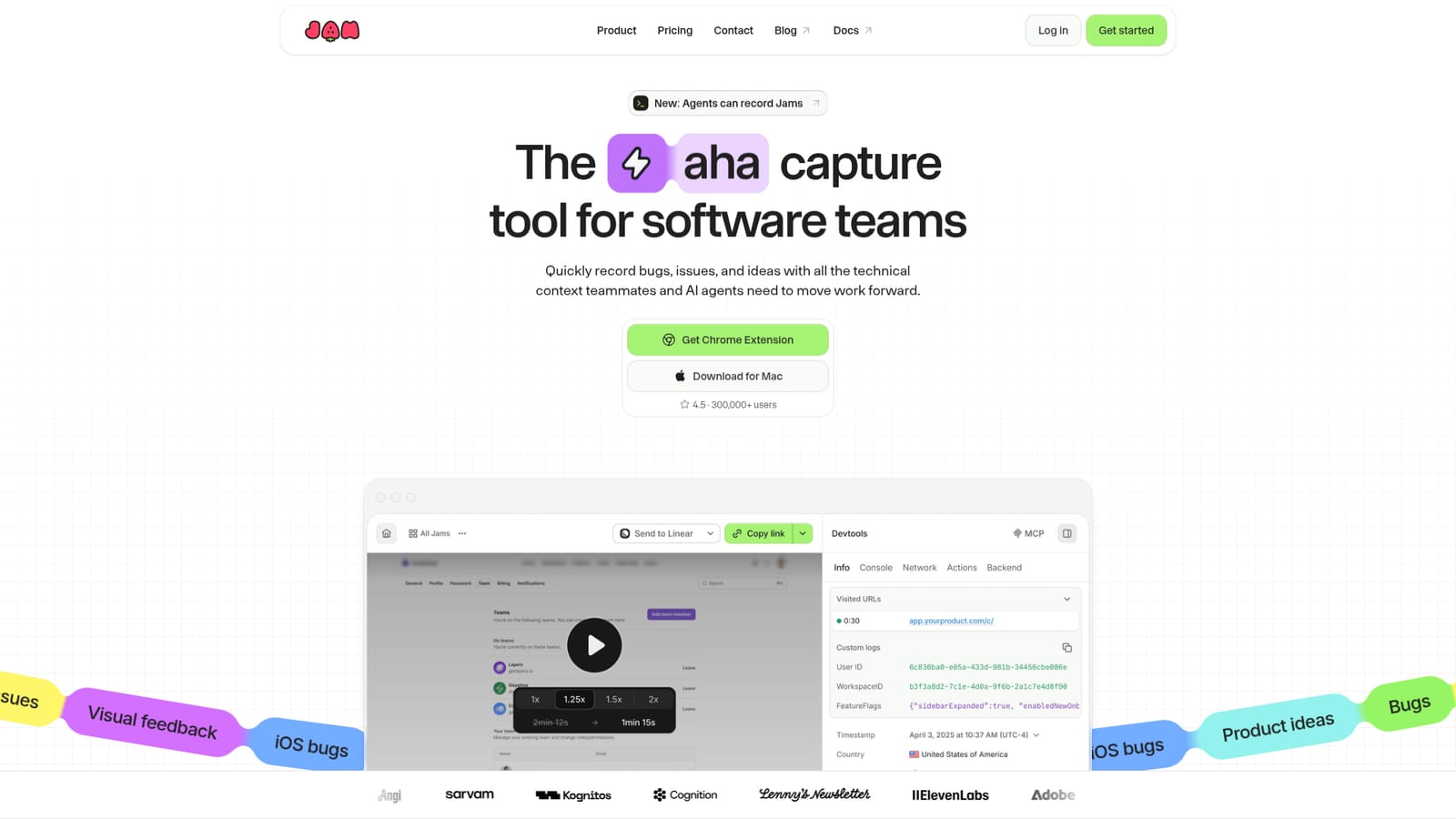
Jam records your screen while collecting console logs, network requests and device details, producing a bug report that developers and AI agents can act on.
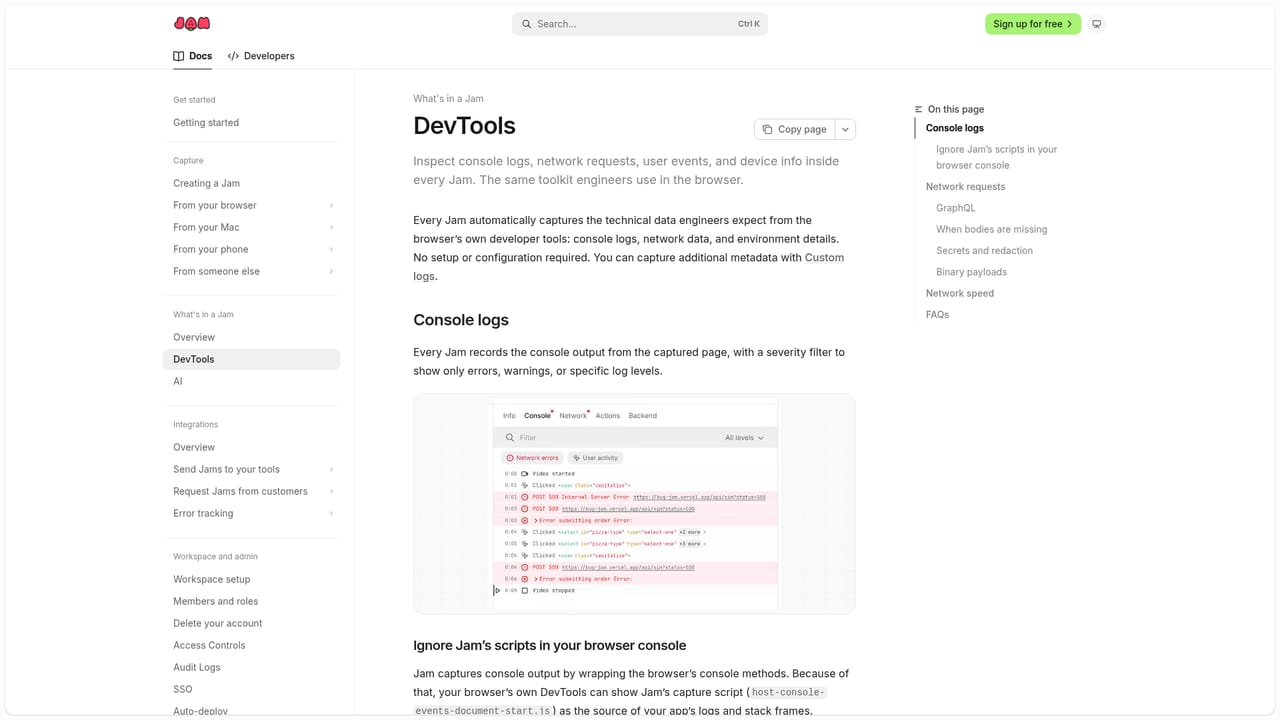
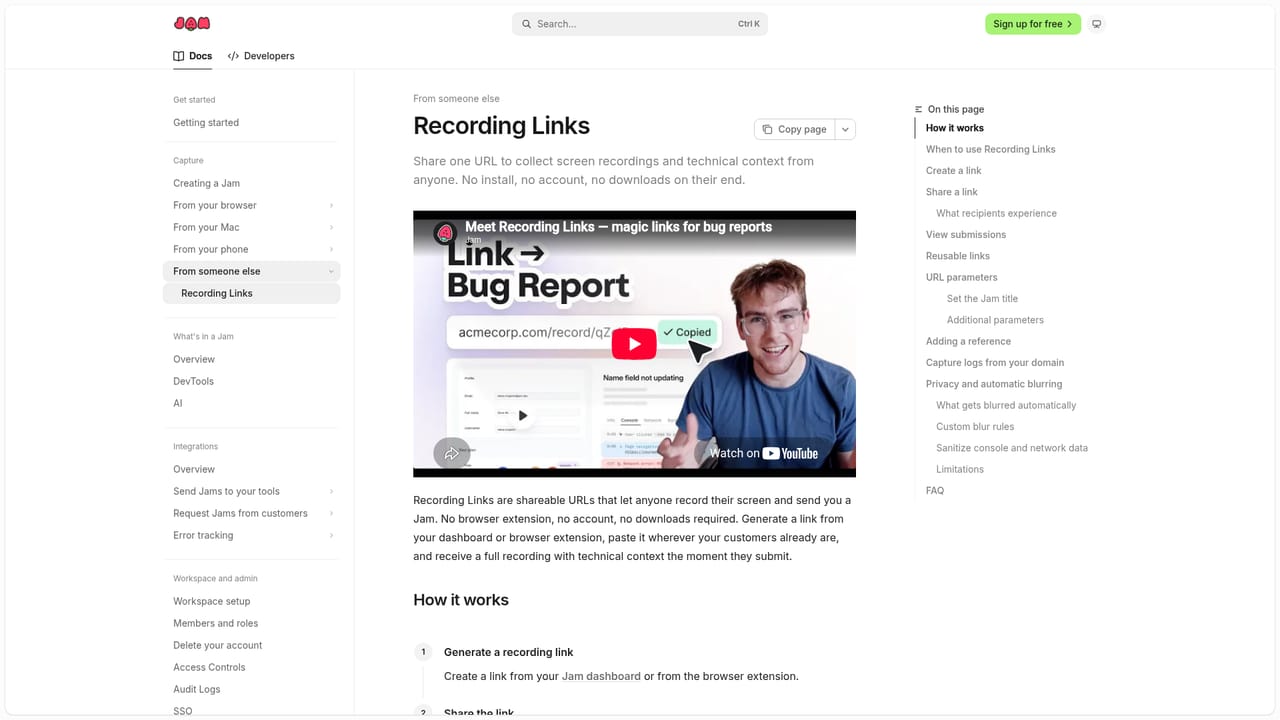
Jam is a screen recording tool built for software teams that need more than a video when something goes wrong. The Chrome extension captures the screen while collecting console logs, network requests, device details and user events, so a single Jam holds the visual moment and the technical trail behind it. The result is a shareable link that a developer, a designer or an AI agent can open and act on without a follow up meeting. The workflow is deliberately light. A tester or support agent records the problem as it happens, and Jam attaches the available diagnostics automatically. Jam AI suggests a title, and the recording link can be passed into issue trackers, chat threads or agent pipelines. Because the context travels with the recording, the usual back and forth about browser version or failing request is skipped. Jam fits teams shipping web and iOS software, where bug reports often arrive as vague screenshots. It sits alongside traditional screen recorders and issue trackers rather than replacing them: the recording is the artifact, and the context is the differentiator. CLI and MCP options extend the same capture model to automated agents, which can record Jams without a person driving the browser. Pricing details are not stated on the homepage, so buyers should confirm plan limits directly. The product is most useful for QA, product, support and engineering groups that already report bugs in writing and want faster reproduction.
Support details are not described on the homepage. A sales contact page is available for commercial enquiries, and documentation covers the CLI, DevTools, recording links, custom logs, Sentry, webhooks and MCP.
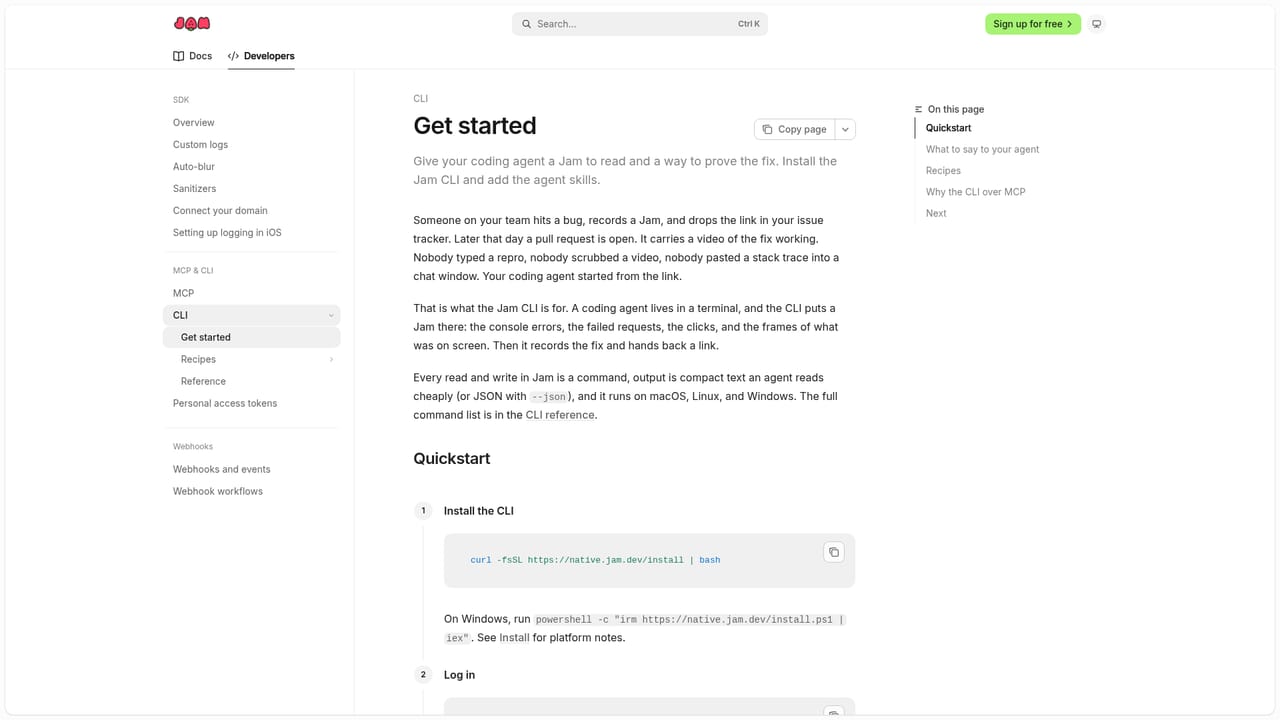
Learn moreDocumented integrations include a CLI for agent driven recording, MCP for agent access, Sentry, custom logs and webhooks. Other connections may exist but are not detailed on the homepage.
Learn moreScreen and screenshot capture through a Chrome extension and Mac app, with available console logs, network requests, device details and user events bundled into each Jam. Jam AI suggests titles, and recording links can be shared with teammates or AI agents. CLI and MCP integrations extend capture to automated workflows.
 AI Angels400+ customizable AI girlfriends for NSFW chat, voice calls, and roleplay
 Candy AIExperience the future of companionship with AI friends who chat, role-play, and connect with you on a human level.
 ourdream.aiA vast AI roleplay platform with millions of characters for chat, images, video and voiceAI Angels400+ customizable AI girlfriends for NSFW chat, voice calls, and roleplayCandy AIExperience the future of companionship with AI friends who chat, role-play, and connect with you on a human level.ourdream.aiA vast AI roleplay platform with millions of characters for chat, images, video and voice


