Support
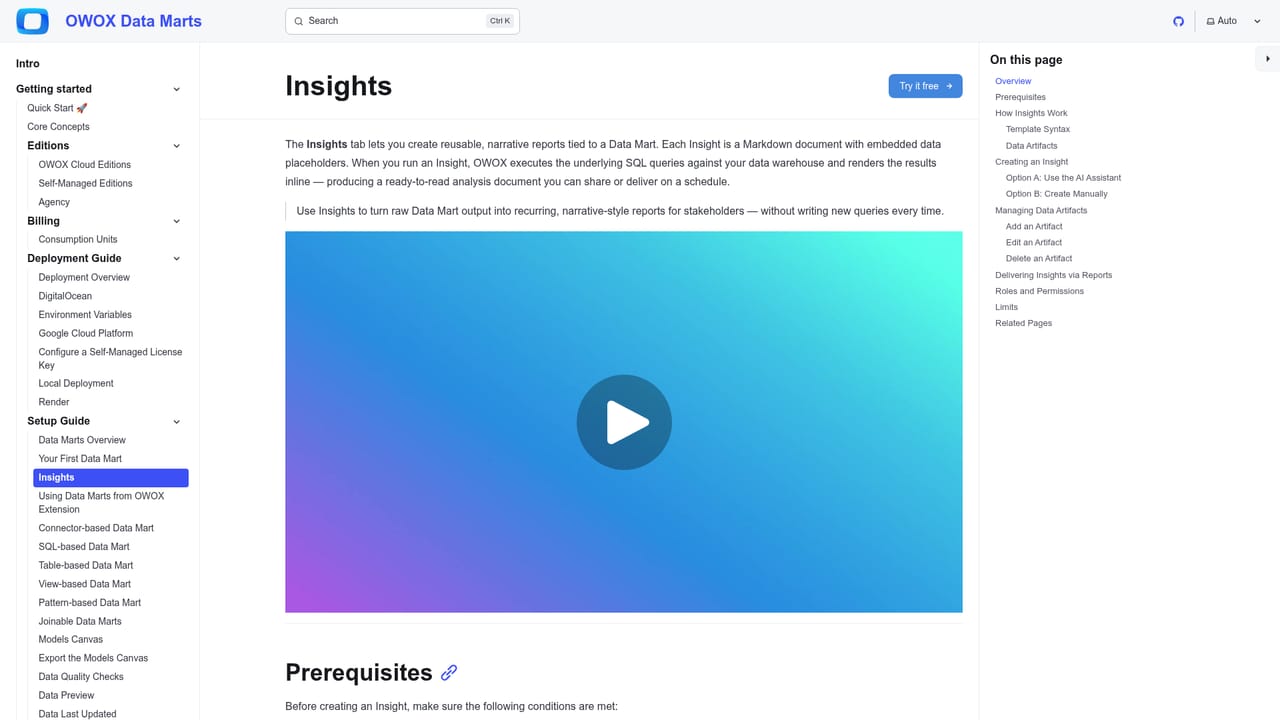
Getting-started documentation covers the Insights setup process, and a changelog tracks product updates. A call booking page is available for direct contact.
Learn moreScheduled SQL-backed write-ups where every number is traceable

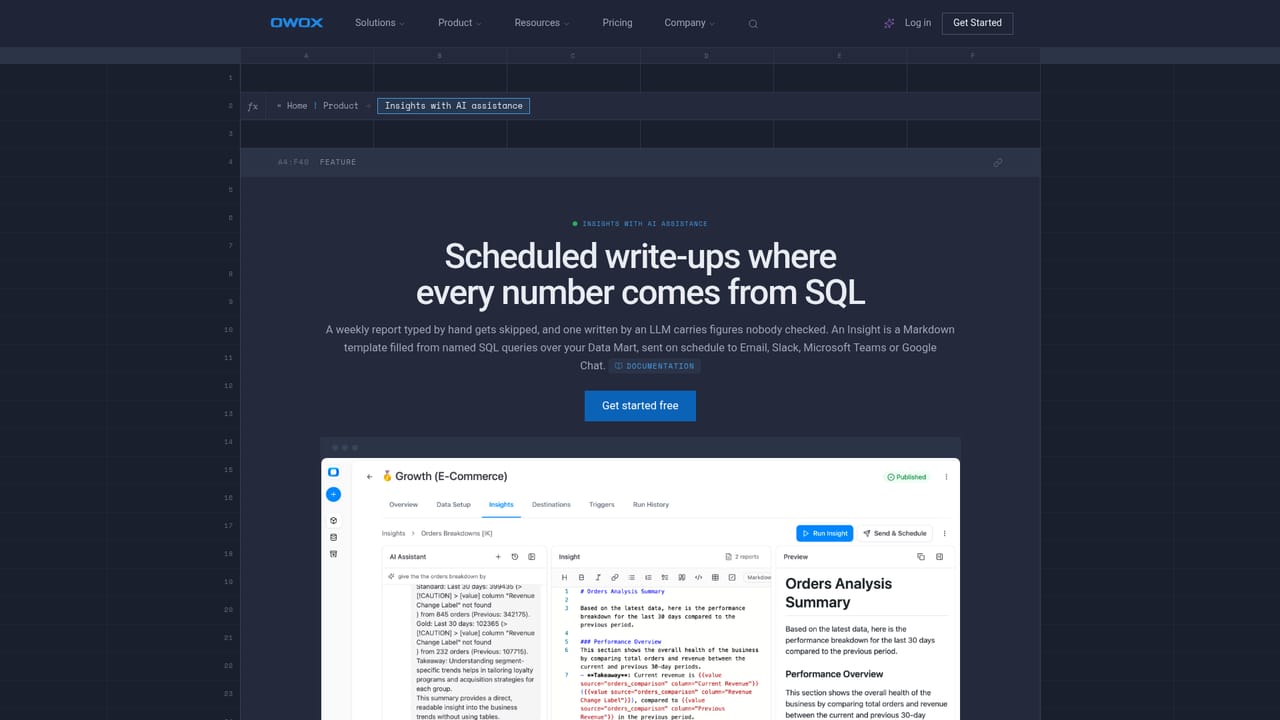
OWOX is an analytics tool. OWOX Insights turns Markdown templates plus named SQL queries into recurring reports delivered to Email, Slack, Microsoft Teams or Google Chat. Every figure comes from a saved query rather than a language model, and an AI Assistant drafts SQL and template changes that you approve before saving.
OWOX Insights (often approached through its SQL Copilot product page) solves a narrow but common reporting problem: the recurring written update that a stakeholder expects on a calendar, with figures that have to be correct. Rather than asking a model to summarize data and trusting the output, the tool separates the text from the numbers. You write a Markdown template, attach up to five saved SQL queries as Data Artifacts, and drop their results into the text with {{value}} and {{table}} placeholders. On send, the saved queries run against your Data Mart and the rendered document goes out with the words you wrote and the figures the warehouse returned. The workflow is built for two distinct audiences. The data owner lives in the editor: define named queries such as orders_30d_comparison, preview them, save them, and decide where each result sits in the template. An AI Assistant sits in a chat panel and proposes SQL or template edits as suggested actions, but nothing changes until Apply is pressed, so the analyst keeps final control. The business reader never opens a dashboard. The finished Insight arrives in Email, Slack, Microsoft Teams or Google Chat on a schedule set through Send & Schedule: daily, weekly, monthly or at an interval. Because one Data Mart can feed many Insights, teams can keep separate templates for marketing, sales and executive readers while all of them draw on the same modeled data. That places OWOX somewhere between a BI dashboard tool and a plain report scheduler: less visual than a dashboard, more governed than an LLM writing a summary. It suits analysts and data teams at companies large enough to maintain a Data Mart and have recurring reporting obligations across several channels. The trade-off is that the quality of the output depends entirely on the queries you build and the template you write, and the AI assistance is a drafting aid rather than an autopilot.
Getting-started documentation covers the Insights setup process, and a changelog tracks product updates. A call booking page is available for direct contact.
Learn moreFinished Insights can be delivered to Email, Slack, Microsoft Teams and Google Chat, each on its own schedule.
Insights are Markdown templates filled from up to 5 named SQL queries (Data Artifacts) over your Data Mart, using {{value}} and {{table}} placeholders. An AI Assistant drafts SQL and template changes as suggested actions that require Apply. Reports are delivered on daily, weekly, monthly or interval schedules to Email, Slack, Microsoft Teams or Google Chat, and multiple Insights can share one Data Mart.
Learn more AI Angels400+ customizable AI girlfriends for NSFW chat, voice calls, and roleplay
 Candy AIExperience the future of companionship with AI friends who chat, role-play, and connect with you on a human level.
 ourdream.aiA vast AI roleplay platform with millions of characters for chat, images, video and voiceAI Angels400+ customizable AI girlfriends for NSFW chat, voice calls, and roleplayCandy AIExperience the future of companionship with AI friends who chat, role-play, and connect with you on a human level.ourdream.aiA vast AI roleplay platform with millions of characters for chat, images, video and voice


