PixBulk

Turn a CSV of SKUs into hundreds of AI product photos

Beginner
Screenshot of PixBulk, Turn a CSV of SKUs into hundreds of AI product photos

What is PixBulk?

PixBulk is a bulk background remover tool that turns a CSV of SKUs into hundreds of AI product photos. PixBulk generates AI product photos in bulk from a CSV of SKUs, with selectable styles, a ZIP download, and companion tools for resizing, background removal and upscaling.

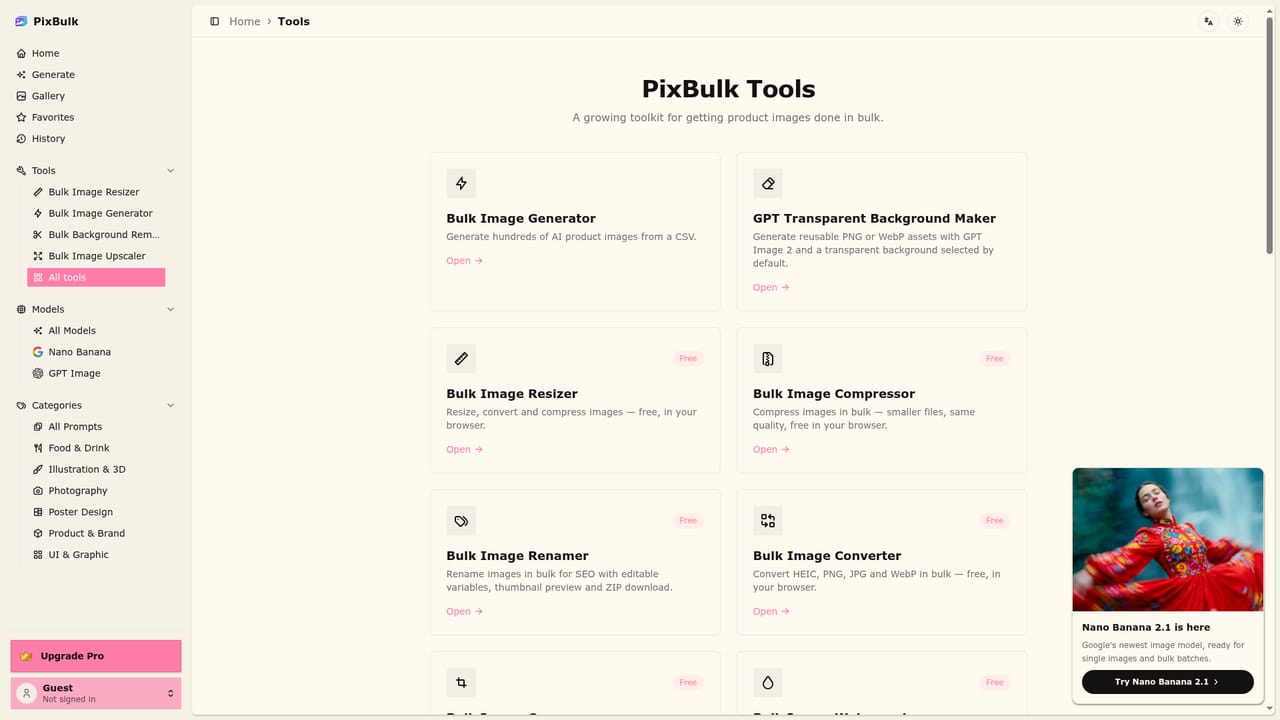
PixBulk is a bulk product image generator aimed at sellers who need catalog photography at a volume that manual shoots cannot match. The core workflow starts with a spreadsheet: a CSV of SKUs goes in, a visual style gets picked, and the platform returns a batch of AI product photos ready to download as a single ZIP. That structure makes it a fit for Shopify, Etsy and Amazon merchants, plus agencies and dropshippers managing long product lists where per-image prompting would be impractical. In practice the product is organised into four tools. The bulk image generator handles styled catalog photos from CSV input. Alongside it sit a bulk image resizer, a bulk background remover and a bulk image upscaler, which cover the cleanup work that usually follows a shoot or a generation run. Finished jobs land in a history view called batches, and generated or curated prompts live in a gallery split into categories such as Food & Drink, Illustration & 3D, Photography, Poster Design, Product & Brand, and UI & Graphic. Individual prompts have their own preview pages, and users can favourite the ones worth keeping. Model choice is exposed rather than hidden. The gallery can be filtered by model, with Nano Banana and GPT Image both listed, so the same brief can be reproduced across engines depending on the look required. The gallery doubles as a browse-first discovery surface for people who would rather start from a proven prompt than write one from scratch. Among alternatives, PixBulk sits closer to a batch production line than to a general image playground. Single-image generators and prompt libraries handle one asset at a time and leave the organising to the user, while dedicated ecommerce photo studios tend to be services rather than self-serve software. PixBulk's differentiator is the CSV-to-ZIP loop and the bundled resizing, background removal and upscaling that keep a catalog consistent. Sellers with only a handful of products will find the batch framing unnecessary, and anyone needing fine control over individual frames may prefer a single-image editor. For catalogs measured in hundreds of listings, the workflow is the point.

How do you use PixBulk?

  1. 1Prepare a CSV of your SKUs
    Build a spreadsheet with one row per product and the fields PixBulk expects, including the source image reference for each SKU. Keep the file clean and consistent before uploading.
  2. 2Launch the bulk generator
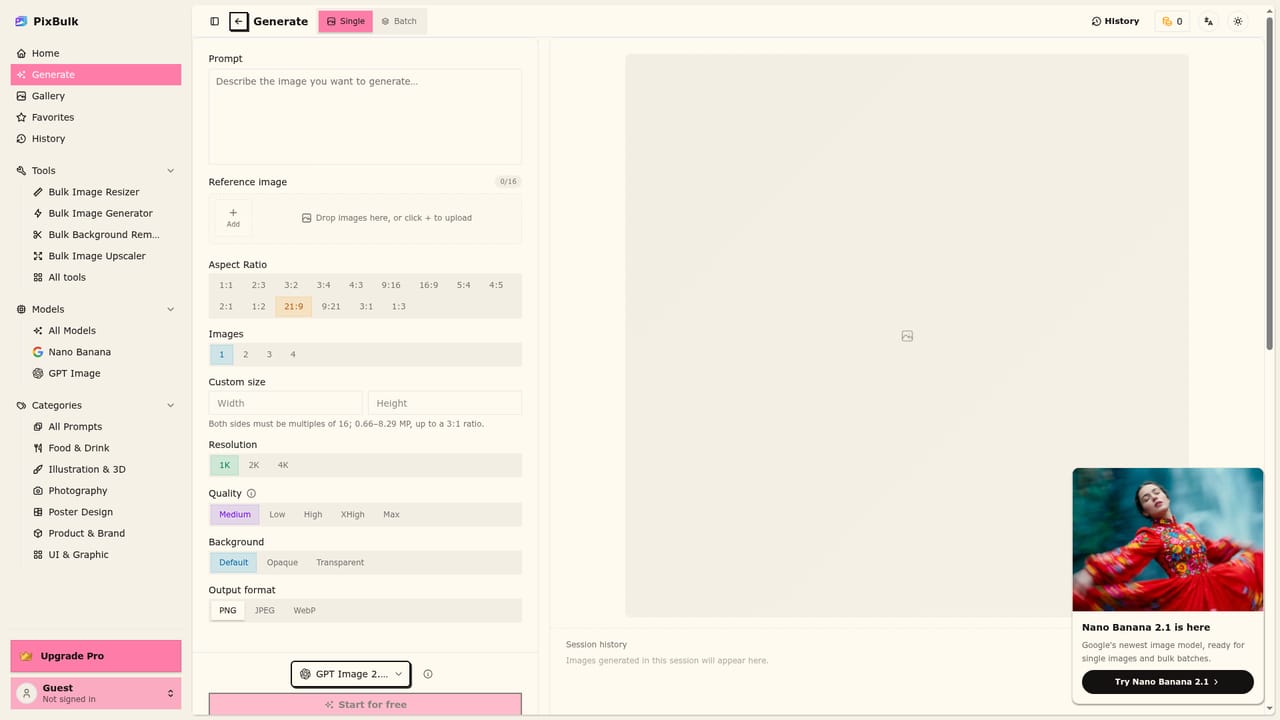
    Open the generate page and upload the CSV. This is where the job is configured and queued rather than handled one product at a time.
    PixBulk — Launch the bulk generator
  3. 3Pick a style from the gallery
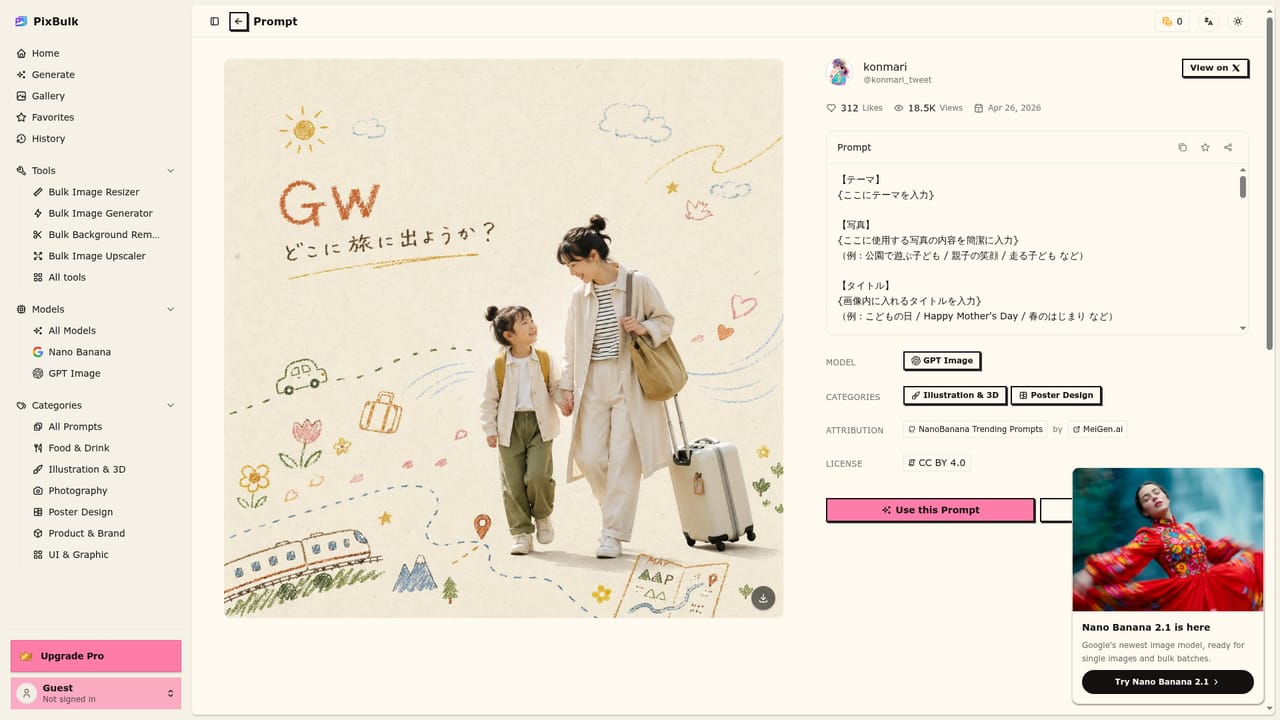
    Browse categories such as Product & Brand or Photography, preview individual prompts, and choose the look you want applied across the batch. Use model filters to compare Nano Banana against GPT Image.
    PixBulk — Pick a style from the gallery
  4. 4Track the run in batches
    Generation jobs are recorded in the history view. Check progress there and return to earlier runs when a style needs to be reused or compared.
    PixBulk — Track the run in batches
  5. 5Clean up with the bulk tools
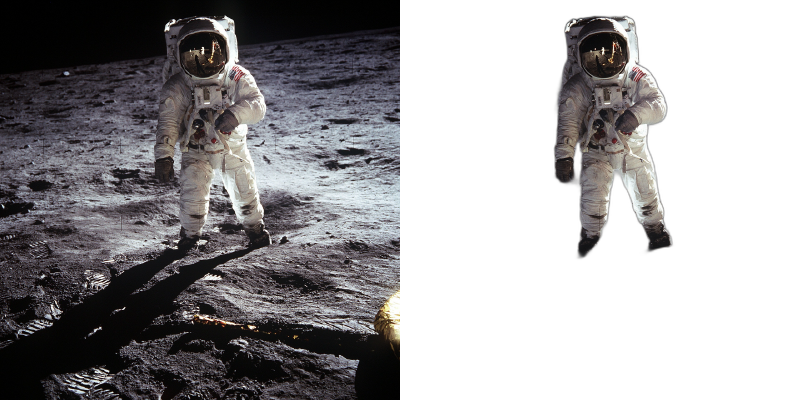
    Run the outputs through the background remover, resizer or upscaler as needed so every image matches your marketplace's size and cutout requirements.
    PixBulk — Clean up with the bulk tools
  6. 6Download the ZIP
    Once a batch finishes, export the finished photos as a single ZIP and distribute them to your listings.

Pros and cons

Pros

  • CSV to ZIP workflow removes the per-image prompting loop for long product listsAI
  • Bundled resizer, background remover and upscaler cover post-generation cleanup in one placeAI
  • Prompt gallery is sorted into practical categories like Product & Brand and PhotographyAI
  • Model filtering lets the same brief run through Nano Banana or GPT ImageAI
  • Batch history keeps past generation runs retrievable instead of scattered across foldersAI

Cons

  • Style and prompt options may not give per-image control that sellers of varied products needAI
  • No stated limits on batch size, so throughput has to be tested rather than assumedAI
  • Quality depends heavily on the source photos supplied in the CSVAI
  • Export is a ZIP, so there is no direct push into Shopify, Etsy or Amazon listingsAI
  • Pricing and plan limits are not described on the homepageAI

How much does PixBulk cost?

Features

Four bulk tools in one account: an AI product image generator driven by CSV input, a bulk image resizer, a bulk background remover and a bulk image upscaler. Prompts are browsable in a category-sorted gallery with Nano Banana and GPT Image model filters, individual prompt preview pages, a favourites list, and a batches history for past generation runs. Output is delivered as a ZIP download.

Learn more

Frequently asked questions about PixBulk

  • How do you use PixBulk?
    The walkthrough on this page covers 6 steps: 1. Prepare a CSV of your SKUs 2. Launch the bulk generator 3. Pick a style from the gallery 4. Track the run in batches 5. Clean up with the bulk tools 6. Download the ZIP.
  • What platforms does PixBulk support?
    PixBulk is available on Web App.
  • What are the limitations of PixBulk?
    Style and prompt options may not give per-image control that sellers of varied products need. No stated limits on batch size, so throughput has to be tested rather than assumed. Quality depends heavily on the source photos supplied in the CSV.