
PLAUD AI

Bot-free meeting capture and AI notes for desktop calls

Beginner
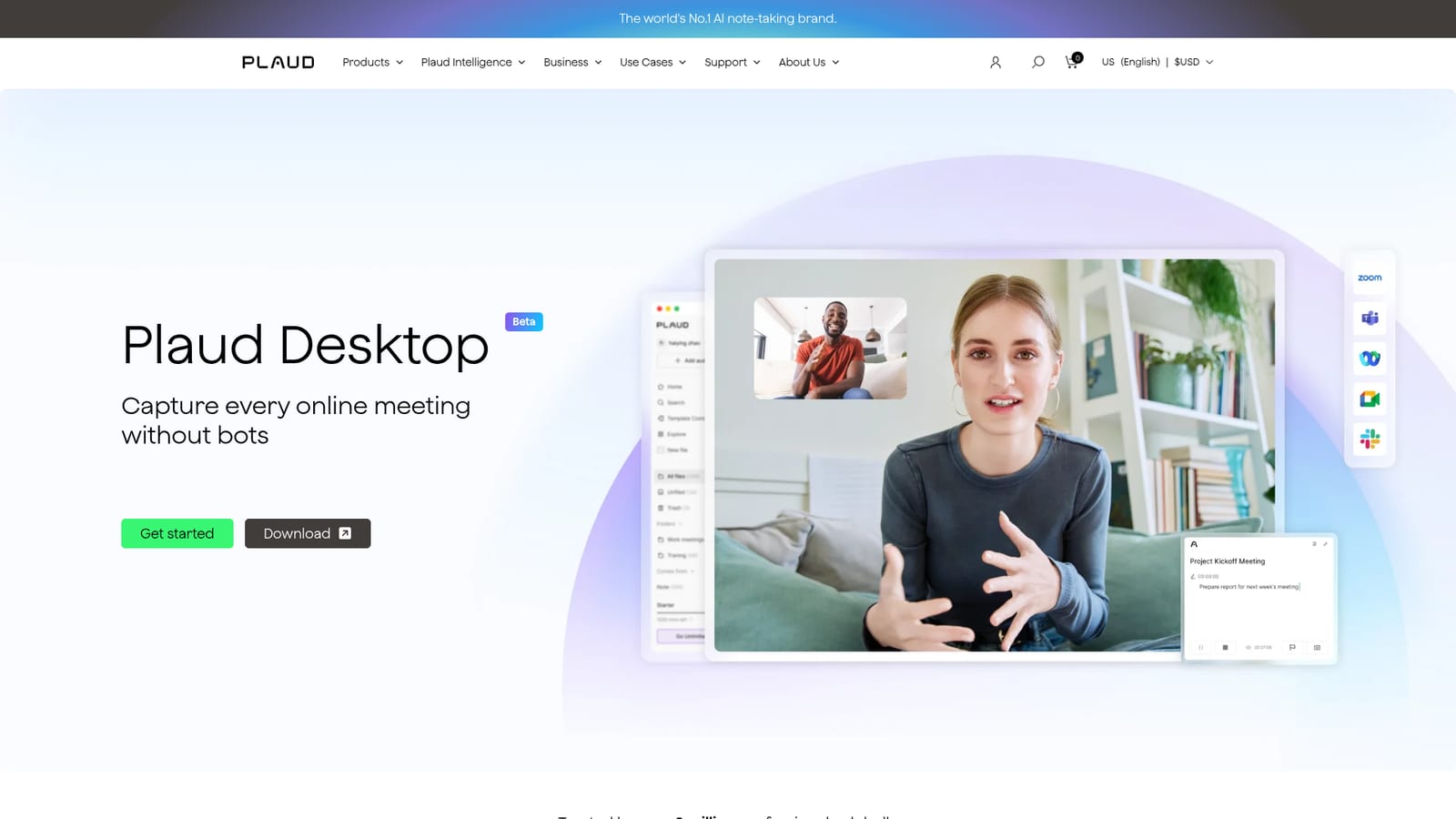
Screenshot of PLAUD AI, Bot-free meeting capture and AI notes for desktop calls

What is PLAUD AI?

PLAUD AI is an AI calls tool. Plaud Desktop records Zoom, Teams, Google Meet and other online calls directly from your computer, with no bot joining the meeting. Audio, typed notes, flagged moments and slide screenshots feed Plaud's AI, which transcribes in 112 languages and generates tailored summaries, searchable answers and automated delivery through AutoFlow.

Plaud Desktop is the software half of the Plaud ecosystem, a note-taking platform that the company bills as the world's number one AI note-taking brand, used by more than three million professionals. The desktop app records online meetings natively from your own machine instead of sending a bot into the call. It watches for a meeting to begin in Zoom, Google Meet, Microsoft Teams or other conferencing software, then captures system and microphone audio locally, which means headphones do not block the recording and participants never see an unfamiliar guest on the roster. What happens after capture is the real product. Recordings route into Plaud Intelligence, which transcribes speech in 112 languages with speaker labels and custom vocabulary, then produces multidimensional summaries angled to your role and workflow. You can type notes during the call, tap to flag key audio moments, and snap screenshots of slides or diagrams; all three feed into the AI's context so the summary reflects what you considered important, not just what was said. Ask Plaud answers questions across your stored files with references, and AutoFlow chains transcription, summarization and delivery into a workflow that runs unattended. Plaud Desktop is aimed at knowledge workers who live in back-to-back calls: sales teams logging discovery sessions, consultants drafting client recaps, project leads tracking decisions and action items. Output can be shared in a few clicks, exported in more than 27 formats, or pushed to other tools through Zapier. Plaud also sells hardware recorders (Note Pro, NotePin, NotePin S) for in-person conversations and phone calls, so the desktop client is one capture surface in a wider workspace rather than a standalone app. Against bot-based assistants such as the standard meeting notetakers, the appeal is discretion and control: you decide whether recording starts automatically, after a prompt, or manually. Plaud states compliance with ISO 27001, ISO 27701, GDPR, SOC 2, HIPAA and EN 18031, and syncs recordings to a private cloud workspace. The homepage labels the desktop client a beta and asks users to obtain participant consent where the law requires it, a fair reminder that ambient capture shifts the compliance burden onto you.

How do you use PLAUD AI?

  1. 1Create a Plaud account
    Sign up at the Plaud web portal. The account becomes your private workspace where recordings, transcripts and summaries sync across devices.
    PLAUD AI — Create a Plaud account
  2. 2Download and install the desktop client
    Grab the Windows installer or the macOS build for Intel or M series chips from the Plaud Desktop page.
    PLAUD AI — Download and install the desktop client
  3. 3Grant microphone, system audio and sync permissions
    The setup wizard walks through each permission. Enabling system audio is what lets Plaud capture calls clearly while you use headphones.
  4. 4Choose a recording mode
    Decide whether Plaud starts automatically when it detects a meeting, asks you first, or waits for a manual start. The prompt option balances coverage with control.
  5. 5Annotate during the call
    Tap to highlight important audio moments, type text notes and take screenshots of slides. Each becomes context for the AI summary.
  6. 6Review, search and export the summary
    Open the finished transcript and multidimensional summary, query it with Ask Plaud, then share, export or route it through AutoFlow.

Pros and cons

Pros

  • No bot joins the call, so recordings stay discreet and participant lists stay cleanAI
  • Captures system audio, which keeps quality intact even when you wear headphonesAI
  • Notes, audio highlights and screenshots all feed the AI, producing summaries aligned with what you flaggedAI
  • Transcription covers 112 languages with speaker labels and custom industry vocabularyAI
  • Exports in over 27 formats and connects to other tools through ZapierAI

Cons

  • The desktop app is still labelled Beta, so stability may lag behind mature competitorsAI
  • Pricing tiers and plan limits are not spelled out on the desktop page, which makes cost comparison hardAI
  • Recording laws vary by jurisdiction; consent is entirely the user's responsibilityAI
  • Full context capture depends on the wider Plaud hardware and cloud ecosystem, not the desktop app aloneAI
  • AutoFlow automations and summary depth are only described qualitatively, with no published accuracy benchmarksAI

How much does PLAUD AI cost?

Pricing

The desktop page does not publish prices or plan details. A screenshot shows an automatic recording toggle tied to a Plaud Unlimited Plan, so at least one paid subscription tier exists, but full pricing must be checked elsewhere on the site.

Learn more

Integrations

Plaud integrates with thousands of tools through Zapier, and the desktop app detects meetings in Zoom, Google Meet, Microsoft Teams and other conferencing apps. Exports are available in over 27 formats.

Features

Core features include smart meeting detection across Zoom, Teams and Google Meet, bot-free native desktop audio capture that works with headphones, selectable automatic or manual recording, audio highlights, live text notes and screenshot capture as AI context, transcription in 112 languages, multidimensional summaries, Ask Plaud search with cited answers, AutoFlow automation, and export to more than 27 formats.

Frequently asked questions about PLAUD AI

  • How much does PLAUD AI cost?
    The desktop page does not publish prices or plan details. A screenshot shows an automatic recording toggle tied to a Plaud Unlimited Plan, so at least one paid subscription tier exists, but full pricing must be checked elsewhere on the site.
  • How do you use PLAUD AI?
    The walkthrough on this page covers 6 steps: 1. Create a Plaud account 2. Download and install the desktop client 3. Grant microphone, system audio and sync permissions 4. Choose a recording mode 5. Annotate during the call 6. Review, search and export the summary.
  • What platforms does PLAUD AI support?
    PLAUD AI is available on Windows, MacOS and Web App.
  • What does PLAUD AI integrate with?
    Plaud integrates with thousands of tools through Zapier, and the desktop app detects meetings in Zoom, Google Meet, Microsoft Teams and other conferencing apps. Exports are available in over 27 formats.
  • What are the limitations of PLAUD AI?
    The desktop app is still labelled Beta, so stability may lag behind mature competitors. Pricing tiers and plan limits are not spelled out on the desktop page, which makes cost comparison hard. Recording laws vary by jurisdiction; consent is entirely the user's responsibility.

Status

StatusActive
Views0
Outbound clicks0
Added10/21/2026

Platforms

WindowsMacOSWeb App

Pricing

FreemiumSubscription