Free trial
The site offers a free download and states no credit card is needed to make a first video, but does not publish a trial length or feature limits.
Learn moreMac screen recorder that polishes raw captures into shareable demos

ScreenStory is a macOS screen recorder that automatically adds zooms, smooth cursor motion, styled backgrounds and selfie overlays to raw captures, then exports as MP4 or GIF (up to 4K, 60 FPS) or shares via cloud link. Built for founders, designers, marketers and tutors who need polished demos without video editing skills.
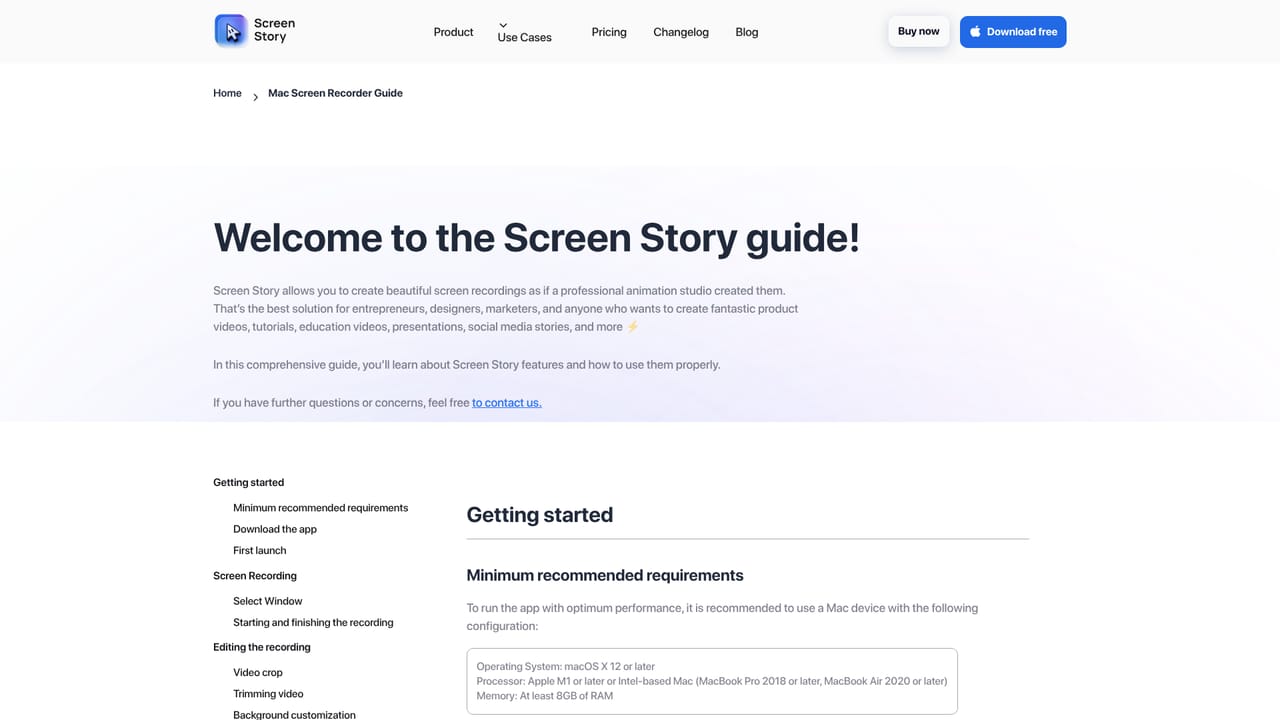
ScreenStory is a Mac-only screen recorder built around one idea: the capture is the easy part, so the app does the presentation work for you. You record a full screen or a single window as you normally would, and ScreenStory then applies automatic zoom on the moments that matter, smooths out jerky cursor movement, and lets you drop the recording onto a styled background with a window frame. The stated goal is a finished demo, GIF or social clip in roughly two minutes, without opening a separate editor. The output side is flexible for a capture tool. Exports cover GIF and MP4, up to 60 FPS and 4K, plus a vertical mode that re-fits the zooms for mobile viewing. A selfie camera overlay can be switched between your face, the screen, or both with animated transitions, and the overlay zooms out slightly so it never hides the pointer. Cloud sharing links let you send a finished clip without attaching a file, and a copy-to-clipboard option pastes the video straight into a chat or social post. Smaller details target people who record often. A teleprompter window holds notes during recording and stays out of the frame. The cursor can be removed entirely or swapped for another style, which the site suggests for mobile demos run through the iPhone simulator on a Mac. Motion blur, trim and split, and speed adjustments cover basic cleanup, and project master files are kept for repurposing. External monitors, microphones and cameras are supported. The audience is clearly non-editors who still need polished video: founders making product demos and launch announcements, designers presenting Figma prototypes, marketers producing update logs and web GIFs, developers sharing progress, and tutors recording course material. Compared with general video editors it trades timeline depth for speed and consistent styling; compared with bare macOS capture it adds the zoom, cursor and framing layer. The main constraint is the platform: only macOS is supported, and Windows users can only join a waitlist.
The site offers a free download and states no credit card is needed to make a first video, but does not publish a trial length or feature limits.
Learn moreTwo plans, both including all features: a Month Pass at $19 for 30 days of access, and a Yearly Pass at $89 for one year. Both list unlimited exports, priority support and secure on-device rendering. No credit card is needed to start.
Learn morePriority support is listed as an inclusion on both paid plans. No response times or support channels are published on the homepage.
Automatic zoom on screen actions, smoothed cursor movement, full screen or single window capture, MP4 and GIF export at up to 60 FPS and 4K, vertical export with adjusted zooms, background and window frames, selfie camera overlay with animated switching, cloud sharing links, copy to clipboard, cursor removal and replacement, motion blur, trim and split, speed changes, teleprompter, external monitor, microphone and camera support, and project master files.
Learn more AI Angels400+ customizable AI girlfriends for NSFW chat, voice calls, and roleplay
 Candy AIExperience the future of companionship with AI friends who chat, role-play, and connect with you on a human level.
 ourdream.aiA vast AI roleplay platform with millions of characters for chat, images, video and voiceAI Angels400+ customizable AI girlfriends for NSFW chat, voice calls, and roleplayCandy AIExperience the future of companionship with AI friends who chat, role-play, and connect with you on a human level.ourdream.aiA vast AI roleplay platform with millions of characters for chat, images, video and voice


