
Sixty

An AI assistant that filters your day down to what actually needs you

Beginner
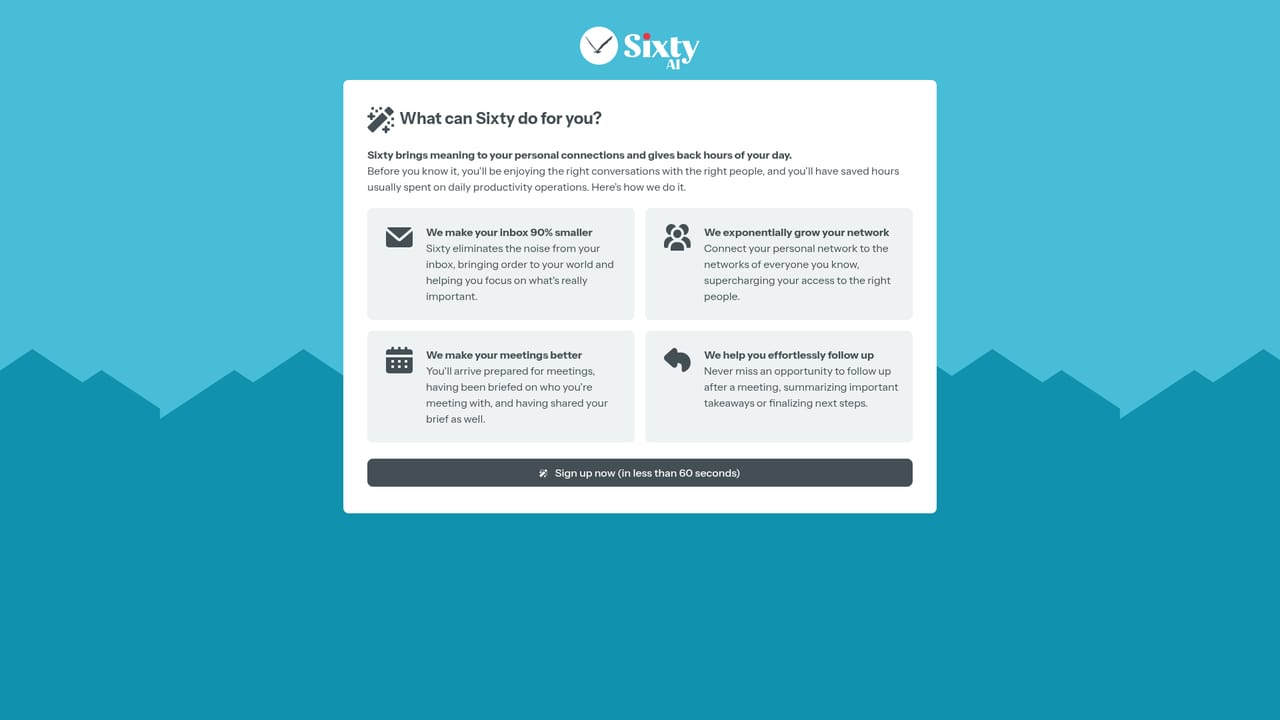
Screenshot of Sixty, An AI assistant that filters your day down to what actually needs you

What is Sixty?

Sixty is an AI assistant that filters email, calendar and your network into briefings, agendas and timely alerts, so only the work that needs you reaches you. It suits people whose day is mostly meetings and messages rather than hand-built task lists.

Sixty is an AI assistant built around the problem of digital noise rather than the problem of missing features. Rather than adding another inbox or task board, it sits on top of the calendar, email and your network, decides what deserves attention, and quietly handles or hides the rest. The product frames itself as a way to stop losing hours to work that software can absorb, so the time goes back to the things only a person can do. The core surfaces are briefings, agendas, a filtered inbox, alerts and outreach. Briefings pull together a summary of past interactions so a meeting starts with context already loaded. Agendas produce customizable snapshots of a day, a week or a weekend schedule, which is the closest thing to task management in the product: the plan is assembled for you rather than built item by item. Email is reduced to the messages that matter, alerts flag last-minute schedule changes and late notices only when they actually affect the day, and outreach tracks birthdays and milestones across your network so a greeting or gift does not slip. In practice Sixty behaves less like a to-do app and more like a chief of staff layer. You connect the accounts that hold your calendar and messages, then work from the generated view each morning instead of triaging everything yourself. The value compounds for people whose workload is mostly meetings, correspondence and relationships: founders, sales staff, consultants, executives and anyone juggling a wide professional network. Alternatives split along a different axis. Classic task managers expect you to enter and rank the work, while calendar tools stop at scheduling. Sixty's bet is that attention management, not list management, is the bottleneck, and it targets the moment of deciding what to ignore. Budget-conscious users should compare its filtering approach against the manual control those tools offer, because Sixty's leverage comes from trusting its judgment about what gets hidden.

How do you use Sixty?

  1. 1Create your account
    Sign up with the registration form to get access to the Sixty workspace. The assistant needs a working account before it can build any view of your day.
    Sixty — Create your account
  2. 2Review how the assistant works
    Read the how-it-works page before connecting anything, so you know which signals Sixty uses and what it will hide from you by default.
    Sixty — Review how the assistant works
  3. 3Connect calendar and email
    Link the calendar and mailbox that carry your working day, since briefings, agendas and filtered email all draw from those sources. Keep personal accounts out until you have judged the filtering quality.
  4. 4Read your first briefing
    Open a meeting briefing and check whether the summary of past interactions matches what you already know. Corrections here show how much context the assistant actually has.
  5. 5Set an agenda view
    Configure an agenda snapshot for day and week, then compare it against your own sense of the schedule. Adjust what appears until the view is something you would actually work from.
  6. 6Tune alerts and outreach
    Decide which schedule changes warrant a notification and add the people whose milestones you want tracked, so the assistant interrupts for the right reasons.

Pros and cons

Pros

  • Targets attention rather than another list: the inbox and day are curated before you open themAI
  • Briefings summarize past interactions so meetings start with context already assembledAI
  • Agenda snapshots cover day, week and weekend views, which gives lightweight planning without manual entryAI
  • Alerts are scoped to schedule changes and late notices that actually affect your dayAI
  • Outreach tracking for birthdays and milestones makes relationship upkeep part of the same toolAI

Cons

  • No published pricing on the homepage, so the cost has to be confirmed before committingAI
  • The product depends on generous access to email, calendar and contacts, which is a hard sell for privacy-sensitive teamsAI
  • Effectiveness rests on trusting its judgment about what to hide, and a misjudged filter can bury something importantAI
  • Task management is implicit in agendas rather than explicit, so users who want manual lists, priorities and deadlines will find it thinAI
  • No integration list or support documentation is surfaced publicly, which makes fit with an existing stack hard to judge up frontAI

How much does Sixty cost?

Features

Five published capabilities: briefings that summarize past interactions ahead of meetings, customizable agenda snapshots for day, week and weekend planning, an inbox filtered down to important mail, alerts for last-minute schedule changes and late notices that affect your day, and outreach reminders for birthdays and milestones across your network.

Learn more

Frequently asked questions about Sixty

  • How do you use Sixty?
    The walkthrough on this page covers 6 steps: 1. Create your account 2. Review how the assistant works 3. Connect calendar and email 4. Read your first briefing 5. Set an agenda view 6. Tune alerts and outreach.
  • What platforms does Sixty support?
    Sixty is available on Web App.
  • What are the limitations of Sixty?
    No published pricing on the homepage, so the cost has to be confirmed before committing. The product depends on generous access to email, calendar and contacts, which is a hard sell for privacy-sensitive teams. Effectiveness rests on trusting its judgment about what to hide, and a misjudged filter can bury something important.

Status

StatusActive
Views0
Outbound clicks0
Added10/22/2026

Platforms

Web App

Pricing

Freemium