Free trial
New users get 4 free trial credits on signup, with no credit card required.
Learn moreTwo-way photo to sketch and sketch to image converter with credits

Sketch To is a web studio that converts photos into sketches and sketches into realistic images, with selectable Standard and Professional AI models, nine sketch styles and a credit-based pricing system with free trial credits.
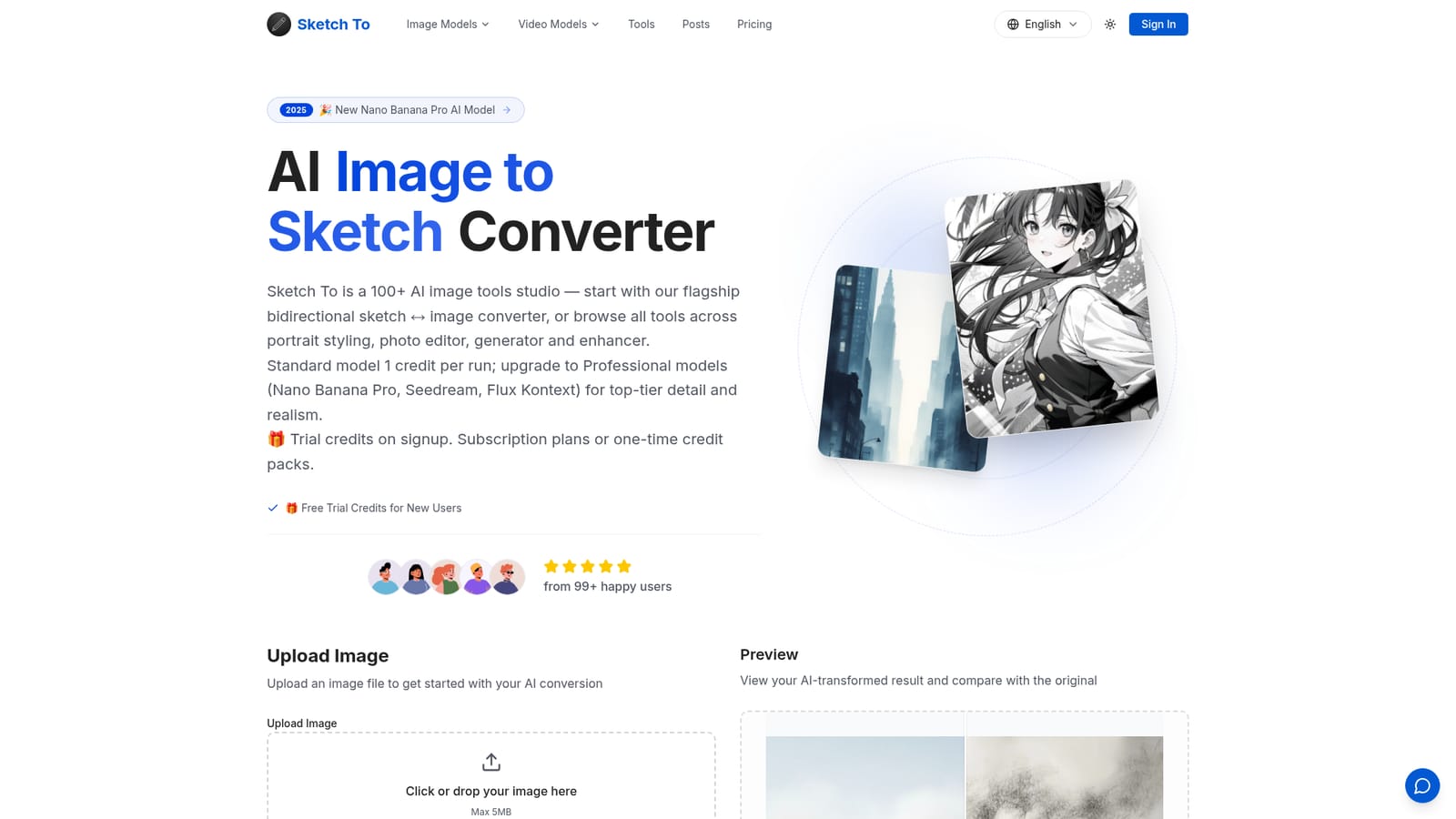
Sketch To is a browser-based studio built around one core job: turning photographs into sketches and turning sketches into finished images. The homepage describes more than 100 image tools in total, covering portrait styling, photo editing, generation and enhancement, but the converter that works in both directions is the flagship and the first thing a visitor sees. The workflow is short. A user uploads an image (the upload box states a 5MB limit, while the FAQ mentions 10MB, so the exact ceiling is unclear), picks a mode (Image to Sketch, Sketch to Image or Custom), then chooses a style. Sketch styles include pencil, charcoal, ink, colored pencil, comic, concept, figure, watercolor and digital. An AI model selector sits beside the upload area. The Standard model costs 1 credit per run and suits social posts, hobby projects and coursework. Professional models, named as Nano Banana Pro, Seedream and Flux Kontext, are positioned for finer detail and realism. A drag-to-compare preview shows the result against the original before download in high resolution. Billing runs on credits. New accounts receive trial credits without a card, and paid options include annual Basic and Pro subscriptions plus one-time credit packs that do not auto-renew. Subscription credits reset each billing cycle, while pack credits stay valid for a year. The Pro plan adds a commercial license and priority support, whereas Basic images are licensed for personal use only. The audience is wide: bloggers, art students, digital artists, photographers and designers who want a quick stylized output without learning illustration software. Compared with general image generators, the appeal is the narrow focus on sketch conversion and the ability to swap underlying models inside one interface. Compared with desktop editors, it trades fine manual control for speed. Users who need layered editing or precise retouching will still want a conventional editor alongside it, while people producing sketch-style visuals at volume will find the credit system straightforward to budget.
New users get 4 free trial credits on signup, with no credit card required.
Learn moreAnnual Basic plan is $95.88/year (2400 credits, personal use). Pro is $191.88/year (9600 credits, commercial license, priority support). One-time credit packs are also sold, valid for one year. Standard model runs cost 1 credit.
Learn morePro plan includes priority email support. The site also offers a contact route for questions.
Image to sketch and sketch to image conversion, nine sketch styles, Standard and Professional models (Nano Banana Pro, Seedream, Flux Kontext), before and after comparison slider, high resolution downloads, saved image history and 100+ additional image tools.


