Pricing
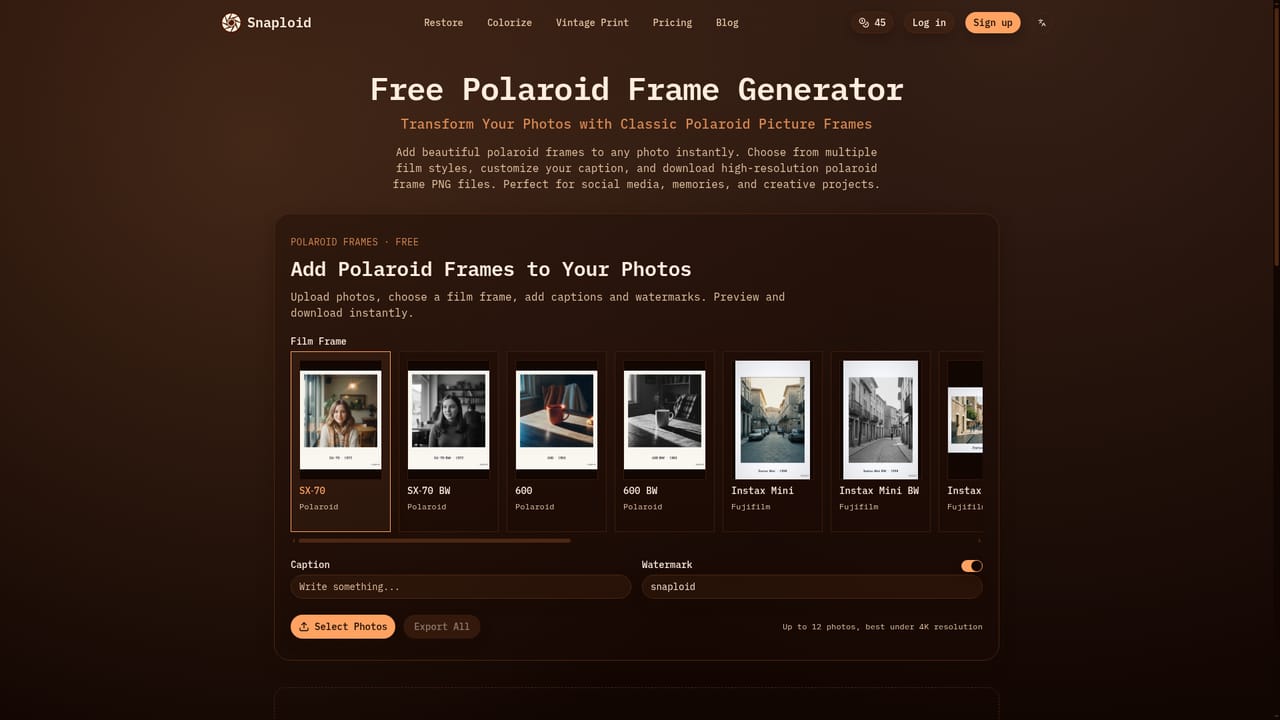
Sold as one-time credit packs with no subscription required. Credits apply to each restoration, and results are 1K. Specific pack prices are not stated on the homepage. The Polaroid frame tool is free.
Learn moreRestore, colorize or vintage-finish one old family photo at a time

Snaploid is an image improvement tool that restores colorize or vintage-finish one old family photo at a time. Snaploid is a web tool that restores, colorizes or gives a vintage finish to one old family photo at a time, with before and after comparison, 1K downloads and one-time credit packs instead of a subscription.
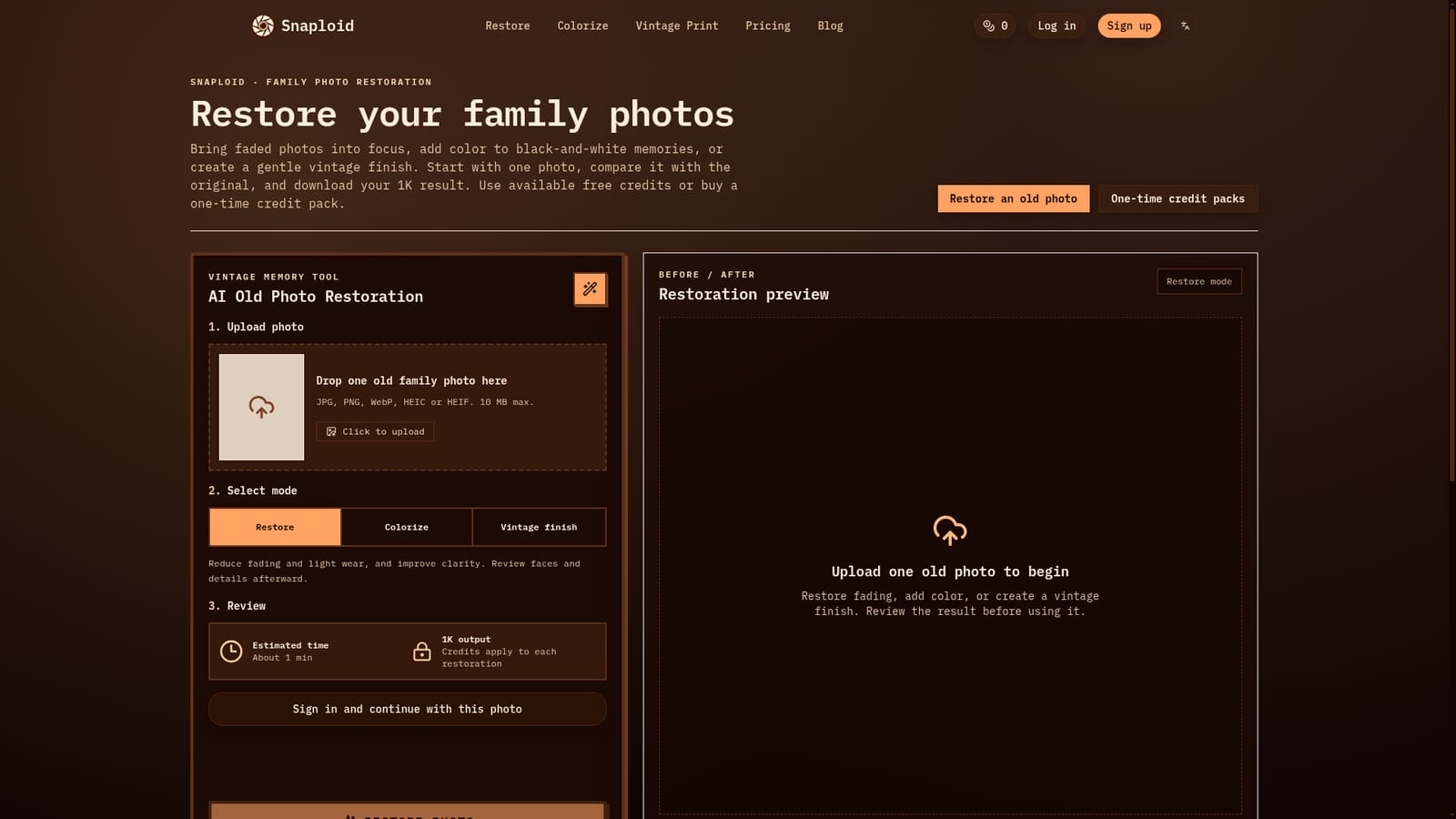
Snaploid is a browser-based tool for repairing old family photographs. A visitor uploads a single scanned or photographed picture, chooses one of three modes (Restore, Colorize or Vintage finish), and receives a 1K result that can be compared against the original and downloaded. The focus is narrow by design: one photo per run, with the aim of reducing fading, light wear and softness rather than rebuilding heavily damaged images. The workflow has three visible stages. First comes the upload, which accepts JPG, PNG, WebP, HEIC and HEIF files up to 10 MB, a useful detail for people working with phone camera formats. Second is the mode choice. Restore targets fading and clarity, Colorize adds color to black-and-white prints, and Vintage finish applies an aged look. Third is review, where a before and after preview lets the user check the output. The page estimates about one minute per job, and each restoration consumes credits. Signing in is required to continue with a photo, and the page notes that an uploaded image is kept in the browser until it is cleared. The site is candid about the limits of generative restoration. It warns that the AI can alter small details, so faces and distinctive features should be inspected before a result is saved, and it says severe tears or missing sections may need a human specialist. The original upload is never overwritten, which keeps the source safe while experimenting with different modes. Pricing is built around one-time credit packs with no subscription, which suits people who restore a handful of heirloom photos rather than process archives in bulk. A secondary free utility adds Polaroid-style frames to pictures. Among alternatives, Snaploid sits between general-purpose AI photo editors and manual retouching services: it is simpler than full editing suites, limited to 1K output and single-image runs, and best suited to casual family history projects where speed and low commitment matter more than fine control or batch throughput.
Sold as one-time credit packs with no subscription required. Credits apply to each restoration, and results are 1K. Specific pack prices are not stated on the homepage. The Polaroid frame tool is free.
Learn moreThree modes: Restore, Colorize and Vintage finish. Accepts JPG, PNG, WebP, HEIC and HEIF up to 10 MB. Before and after comparison, 1K downloads, about one minute per job, original kept intact, plus a free Polaroid frame tool.


