Free trial
Free account with no credit card. Free caption previews cover videos up to 30 minutes, 60 minutes in total each month, and a live demo needs no signup.
Learn moreBrowser-based AI captions with word-level editing and local rendering
Own SnapSubtitles? Verify ownership to get a dofollow link
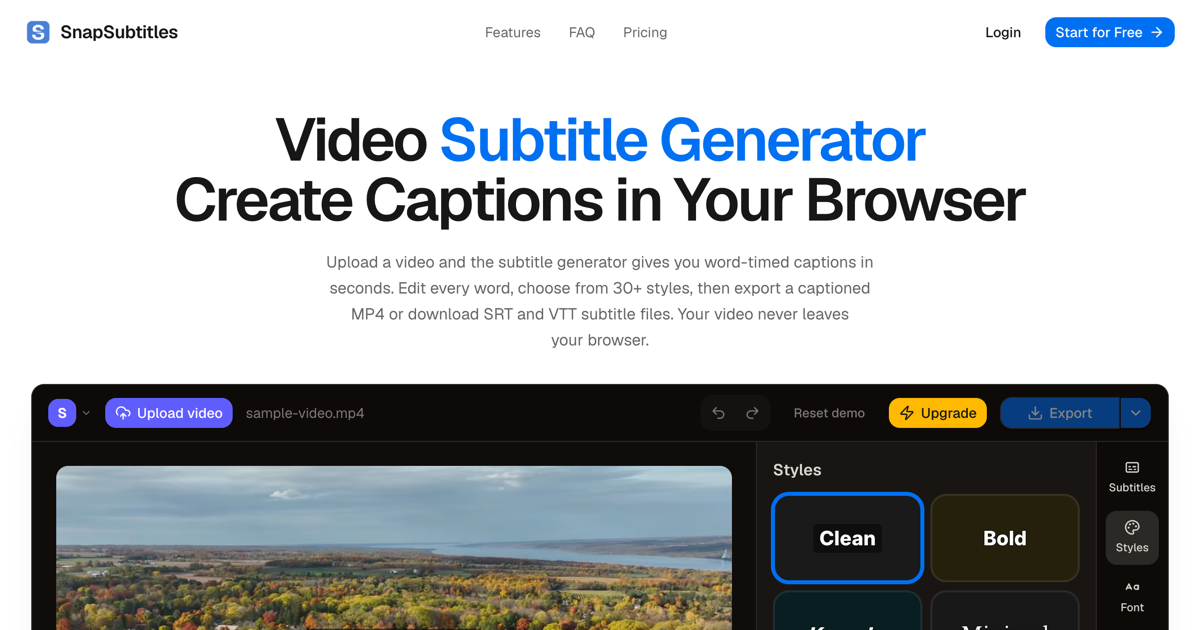
SnapSubtitles is a browser-based AI subtitle generator that creates word-timed captions, offers millisecond editing and 30 styles, and exports watermark-free MP4, SRT or VTT. Video is rendered locally and only audio is sent for transcription.
SnapSubtitles is a browser-based subtitle generator that turns a video into word-timed captions, lets the user correct them, and exports either a captioned MP4 or standalone SRT and VTT files. Nothing needs to be installed. The editor runs in the page, and the site's central design choice is privacy: the video frames are decoded, styled and rendered locally, while only a compressed audio track is sent to a speech-to-text service for transcription. There is no server-side file storage, and the site states that uploads are never used to train AI. In practice the workflow has four stages: upload an MP4, WebM or MOV file, transcribe it, edit the result, and export. Transcription returns timing for every word, and auto-detection covers dozens of languages. The editor allows individual words to be fixed, start and end times to be adjusted to the millisecond, and cues to be split or merged, with a live preview of the video. Thirty built-in styles are available, including Bold and Karaoke looks aimed at feeds that autoplay on mute. Inputs go up to 1080p and 120 minutes, and free caption previews cover videos up to 30 minutes. The pricing model is pay-per-use instead of a subscription. Generating and editing captions is free, and video minutes are bought only when a download is needed. Three one-time packs are offered, at 10, 60 and 180 minutes, with minutes valid for 12 months and no watermark on the MP4. Re-downloading an edited project is free. Full video export depends on the browser: Chrome and Edge 120 or later, Safari 26 or later, and every browser on recent iPhones and iPads. Other browsers can still generate and edit captions. The audience includes YouTube creators, educators and course makers, social media marketers, podcasters, journalists and freelance editors. Compared with full video editors that bundle captioning, or subscription caption apps that upload the whole file, SnapSubtitles is narrower and cheaper for occasional use, trading broad editing features for a focused caption editor and local rendering.
Free account with no credit card. Free caption previews cover videos up to 30 minutes, 60 minutes in total each month, and a live demo needs no signup.
Learn moreGenerating and editing captions is free. Downloads use prepaid video minutes: $3 for 10 minutes, $9 for 60 minutes and $19 for 180 minutes, as one-time purchases valid for 12 months with no subscription.
Learn moreNo formal integrations are listed. SRT files can be downloaded for upload to YouTube Studio, and MP4 output suits social platforms such as TikTok and Reels.
AI transcription with word-level timing, dozens of languages, 30 caption styles, visual customization, a millisecond timing editor, local video rendering, and export to captioned MP4 (H.264), SRT and VTT.
 AI Angels400+ customizable AI girlfriends for NSFW chat, voice calls, and roleplay
 Candy AIExperience the future of companionship with AI friends who chat, role-play, and connect with you on a human level.
 ourdream.aiA vast AI roleplay platform with millions of characters for chat, images, video and voiceAI Angels400+ customizable AI girlfriends for NSFW chat, voice calls, and roleplayCandy AIExperience the future of companionship with AI friends who chat, role-play, and connect with you on a human level.ourdream.aiA vast AI roleplay platform with millions of characters for chat, images, video and voice