
SQL Genius

Describe the query in English and get working SQL back

Beginner
Screenshot of SQL Genius, Describe the query in English and get working SQL back

What is SQL Genius?

SQL Genius is a developer tool. A web-based assistant that turns plain English requests into SQL queries using schemas you provide, and explains pasted SQL in plain language. Best for analysts and beginners who need quick query drafts and readable breakdowns of existing statements.

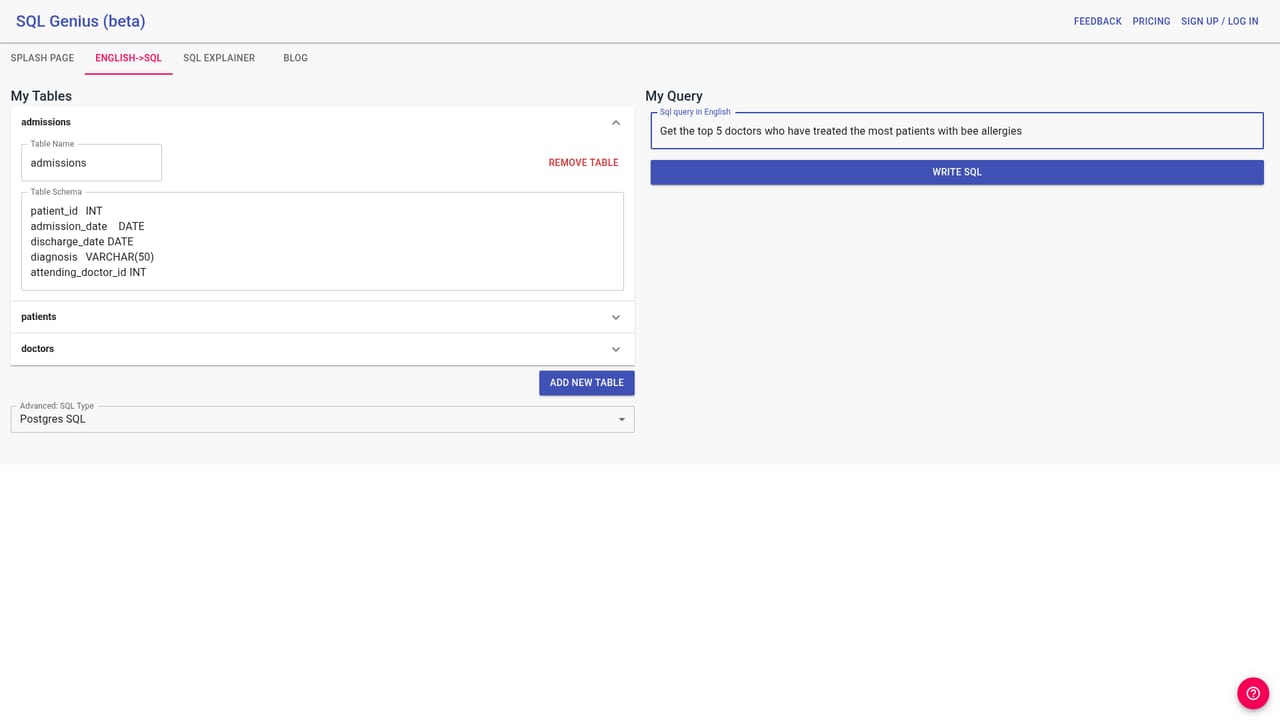
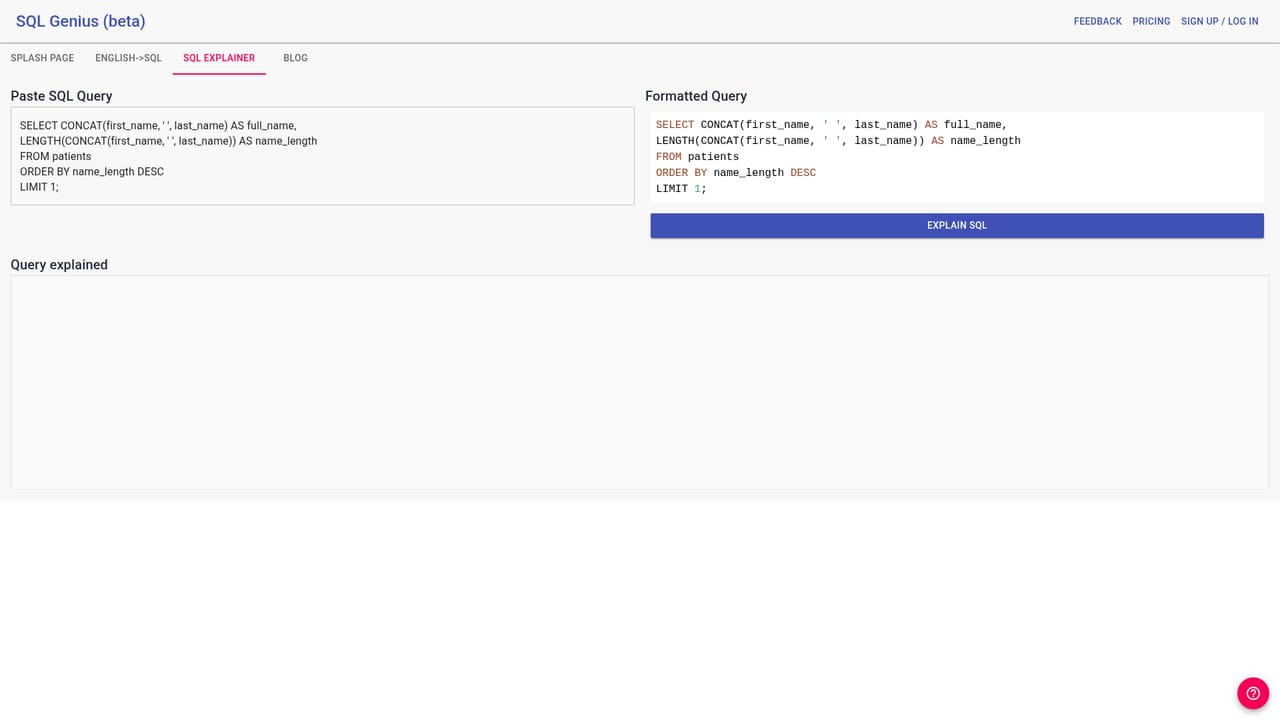
SQL Genius is a web tool that converts plain English requests into SQL statements and then explains existing SQL in readable terms. The workflow centers on a schema panel: you list your tables by name and paste in the schema definition for each one, and optionally pick the SQL dialect, with Postgres SQL shown as the default choice. With that context in place, you type what you want in ordinary language and the tool returns a query built against your actual columns and types rather than a generic guess. The second half of the product is the explainer. You paste a SQL query into the input box and the tool produces a formatted version of the statement alongside a written explanation of the query logic, which the sample output demonstrates with a concatenated full name, a length calculation, an ORDER BY and a LIMIT. That pairing makes the tool reasonable for people who inherit queries they did not write, or for analysts who want to confirm what a statement does before running it against production data. It suits non engineers who need occasional database answers, junior developers still learning SQL syntax, and analysts who know the question but not the join structure. It also fits teams doing code review on unfamiliar queries. Because the tool works from schemas you supply, it is closer to a query drafting and reading assistant than to a database client: it does not connect to your data, so the accuracy of the output depends on how completely you describe your tables. Compared with asking a general chat assistant, the dedicated schema input is the differentiator, since it pushes the model toward your real table and column names. Compared with full IDEs and BI platforms, SQL Genius is narrow by design: no execution, no dashboards, no schema introspection. The site also publishes a blog with practical database write ups, and includes feedback and pricing links in the navigation.

How do you use SQL Genius?

  1. 1Add your tables
    In the My Tables panel, enter a table name and its schema definition for each table the query will touch, then use Add New Table to include more. Choose the SQL type in the advanced settings; Postgres SQL is the default shown.
    SQL Genius — Add your tables
  2. 2Check the English to SQL workflow
    The dedicated English to SQL page walks through the conversion process and shows what a finished query should look like before you write your own.
    SQL Genius — Check the English to SQL workflow
  3. 3Write the request in plain English
    Type the question in the Sql query in English box, for example asking for the longest full name in a patients table, and run Write SQL to generate the statement.
  4. 4Paste and explain existing SQL
    Use the Paste SQL Query box to drop in a statement you already have, then run Explain SQL to get a formatted version and a written breakdown of the logic.
    SQL Genius — Paste and explain existing SQL
  5. 5Review and test the output
    Read the formatted query and explanation, then run the statement in your own database client to confirm the results match what you intended.
  6. 6Follow the blog for database tips
    The blog covers practical topics such as retrieving a full table schema in Postgres, which helps you fill in the schema fields more accurately.
    SQL Genius — Follow the blog for database tips

Pros and cons

Pros

  • Schema-aware generation: you enter table names and schemas so the generated SQL references your actual columnsAI
  • Dialect selection is available, with Postgres SQL presented as the default typeAI
  • Explainer mode reformats a pasted query and describes what it does in plain languageAI
  • Handles everyday query patterns such as concatenation, sorting by computed length and row limitsAI
  • No coding required for the English to SQL step, which lowers the barrier for non developersAI

Cons

  • The tool works only from schemas you type or paste, so it cannot inspect a live database on its ownAI
  • The homepage gives no detail on which SQL dialects beyond Postgres are fully supportedAI
  • No query execution or result preview appears on the site, so output must be tested elsewhereAI
  • Pricing and plan limits are not described on the homepage, which makes cost hard to judge up frontAI
  • Explanations depend on the pasted query being complete and syntactically valid beforehandAI

How much does SQL Genius cost?

Features

English to SQL conversion driven by table names and schemas you supply, with dialect selection (Postgres SQL shown as default). A separate explainer takes pasted SQL, returns a formatted query and describes its logic in plain language. Sign up and log in are available from the site navigation.

Frequently asked questions about SQL Genius

  • How do you use SQL Genius?
    The walkthrough on this page covers 6 steps: 1. Add your tables 2. Check the English to SQL workflow 3. Write the request in plain English 4. Paste and explain existing SQL 5. Review and test the output 6. Follow the blog for database tips.
  • What platforms does SQL Genius support?
    SQL Genius is available on Web App.
  • What are the limitations of SQL Genius?
    The tool works only from schemas you type or paste, so it cannot inspect a live database on its own. The homepage gives no detail on which SQL dialects beyond Postgres are fully supported. No query execution or result preview appears on the site, so output must be tested elsewhere.

Status

StatusActive
Views0
Outbound clicks0
Added10/22/2026

Platforms

Web App

Pricing

Freemium