Free trial
A free starting point is offered through the onboarding page: Get Started for Free. No card details or plan limits are stated on the homepage.
Learn moreVision AI workspace that turns screenshots into UI tests
Own TAMI Studio by UI-licious? Verify ownership to get a dofollow link

TAMI Studio by UI-licious is an AI screen analyzer tool. TAMI Studio is a cloud workspace for UI testing where a Vision AI assistant turns screenshots and recordings into test cases, test steps, low-code automation scripts, failure diagnoses and bug reports.
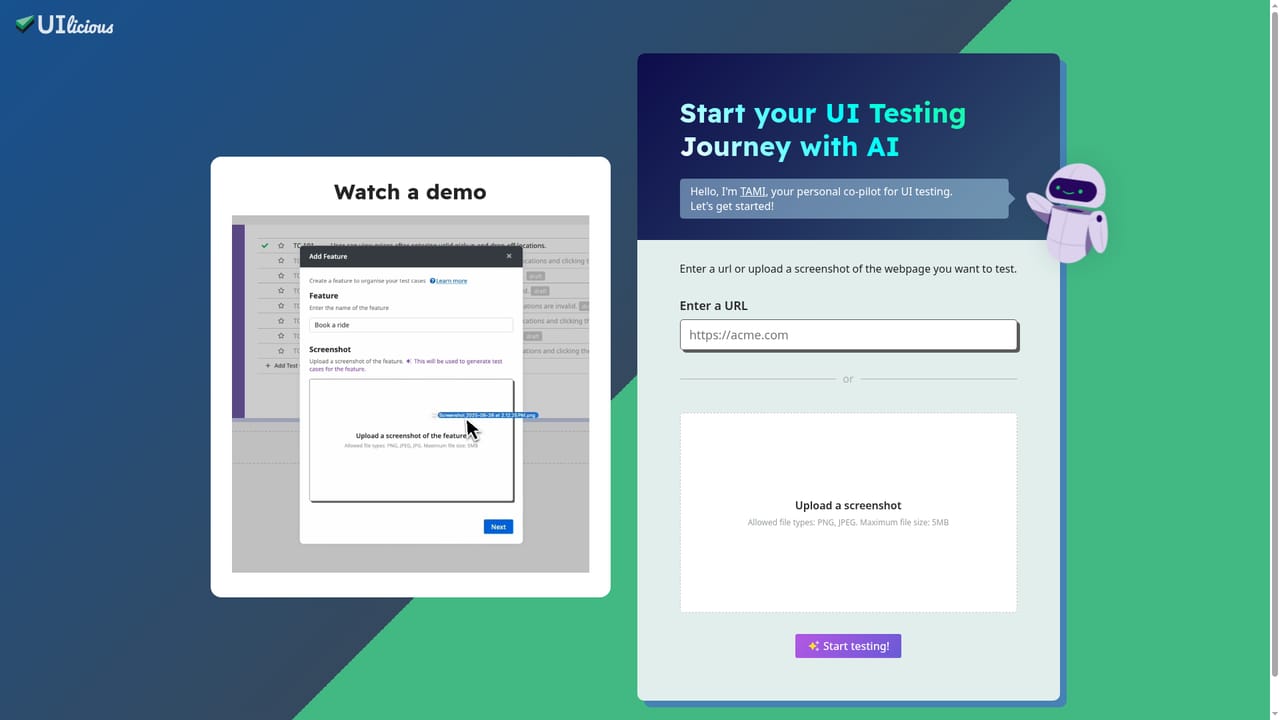
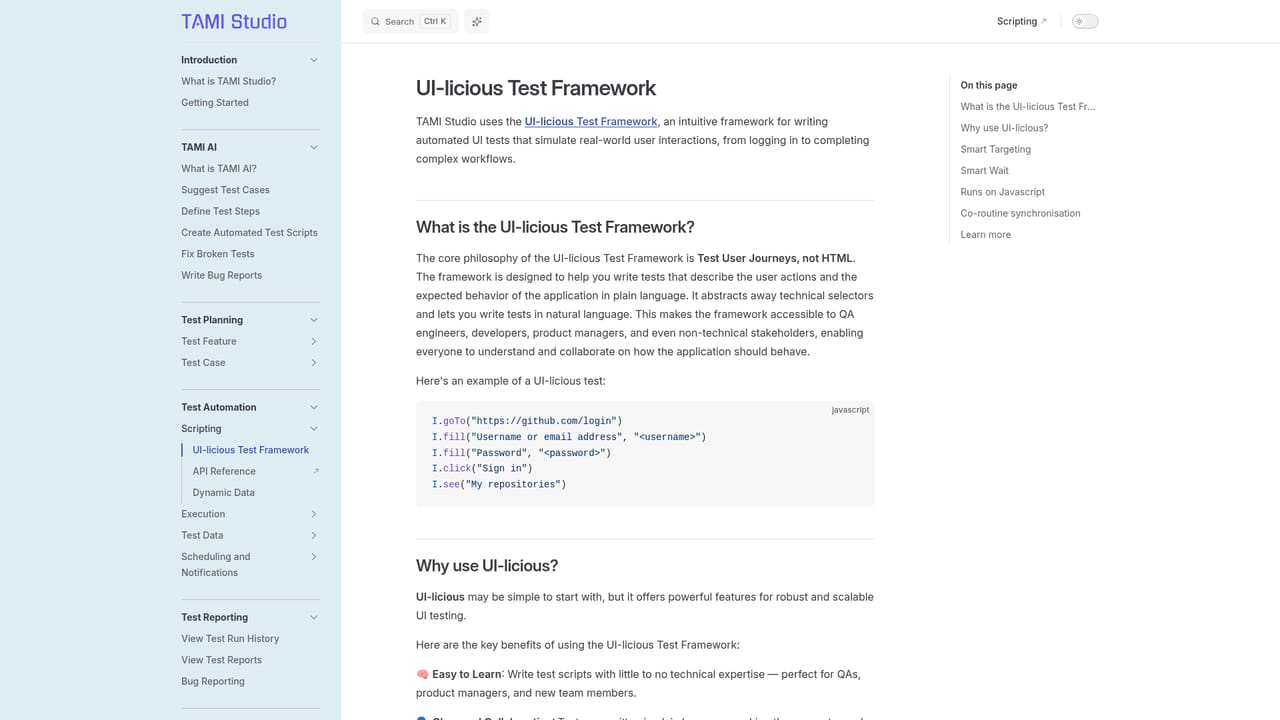
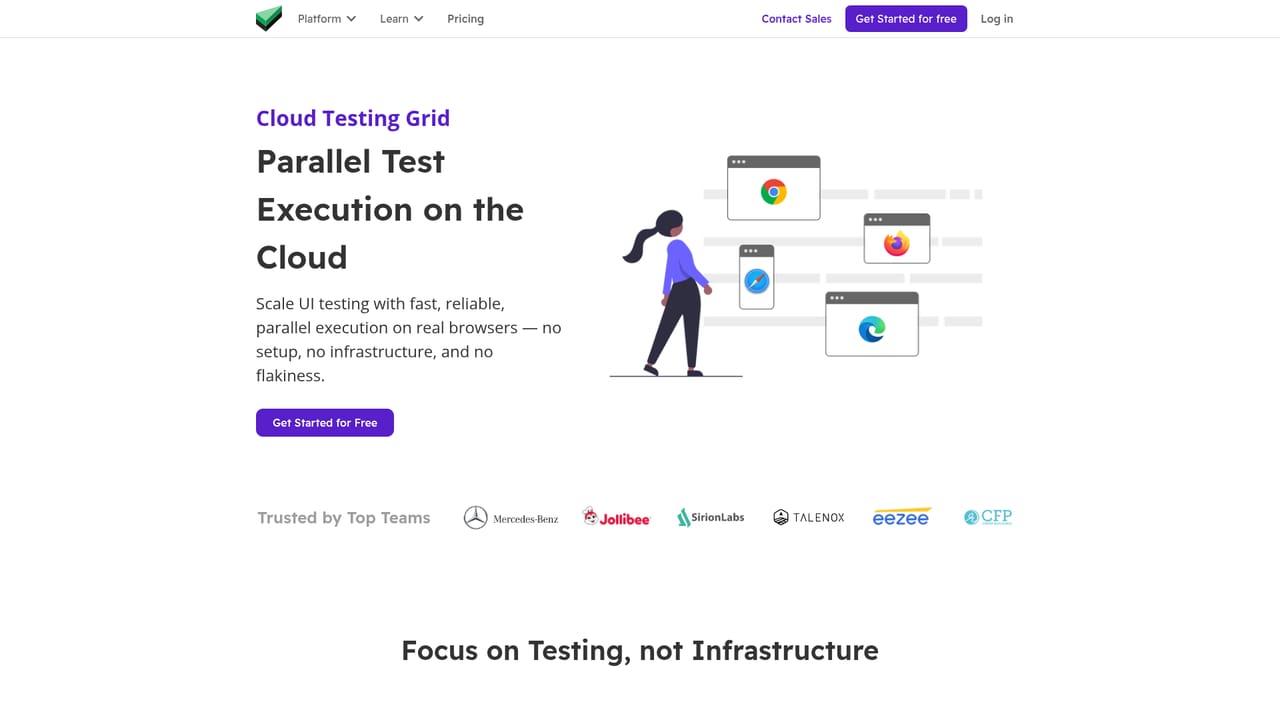
TAMI Studio is UI-licious's next-generation platform for planning, documenting, automating and running UI tests, and it is the vendor's recommended starting point for new users. The differentiator is TAMI (Test Authoring Machine Intelligence), an assistant built into the workspace that reads screenshots and recordings of an application through Vision AI. Instead of writing cases from a blank page, a tester supplies a visual of the feature and TAMI proposes the scenarios worth covering, describes the procedure and expected outcome, and then converts the case into a script for the UI-licious low-code framework. In day to day use the product splits into four stages. Document holds a test case tracker where cases are grouped by feature, written down, linked to automated tests, and tracked across environments. Automate converts those documented cases into scripts in a readable syntax (I.goTo, I.fill, I.click, I.see), so non-programmers can follow and edit a test. Execute sends runs to the UI-licious Cloud Testing Grid for parallel execution across all major browsers. Monitor adds scheduled jobs and notifications that fire when a test breaks. When something fails, TAMI also reads the logs and screenshots to suggest fixes for broken flows and selectors, or to draft a bug report for developers. Because it is fully cloud based, nothing is installed: cases, scripts and run artifacts live online and the team works from the browser. The tradeoff of that model is reach. Applications hosted on localhost, a private network or behind a firewall are not visible to the Cloud Testing Grid unless tunnelled out (ngrok is suggested) or replaced by a self-managed installation arranged through sales. Teams already on the classic Web IDE are a different story: TAMI Studio is the successor and holds most of the older product's capability plus case management and stronger visual AI, so existing accounts should expect to migrate rather than pair the two. It suits QA teams that want test documentation and automation in one place without deep coding, and buyers with strict infrastructure rules should confirm self-managed terms before committing.
A free starting point is offered through the onboarding page: Get Started for Free. No card details or plan limits are stated on the homepage.
Learn moreA sales contact route exists for demos and for self-managed installations, and public documentation covers the test framework and job monitoring. No support tiers or SLAs are described on the homepage.
Learn moreNotifications from scheduled test jobs can be sent to the team's preferred channels. The page names no specific integration partners beyond the UI-licious Cloud Testing Grid and the low-code test framework.
Learn moreTest case tracker with cases grouped by feature, documentation, links to automated tests and status tracking across environments. TAMI Vision AI suggests cases, writes test steps, generates low-code scripts, diagnoses failures and drafts bug reports. Parallel execution on the Cloud Testing Grid supports all major browsers, and scheduled jobs send notifications to the team's channels.
Learn more AI Angels400+ customizable AI girlfriends for NSFW chat, voice calls, and roleplay
 Candy AIExperience the future of companionship with AI friends who chat, role-play, and connect with you on a human level.
 ourdream.aiA vast AI roleplay platform with millions of characters for chat, images, video and voiceAI Angels400+ customizable AI girlfriends for NSFW chat, voice calls, and roleplayCandy AIExperience the future of companionship with AI friends who chat, role-play, and connect with you on a human level.ourdream.aiA vast AI roleplay platform with millions of characters for chat, images, video and voice


