The Drive AI

An AI assistant that files, finds and answers across your team's documents

Beginner
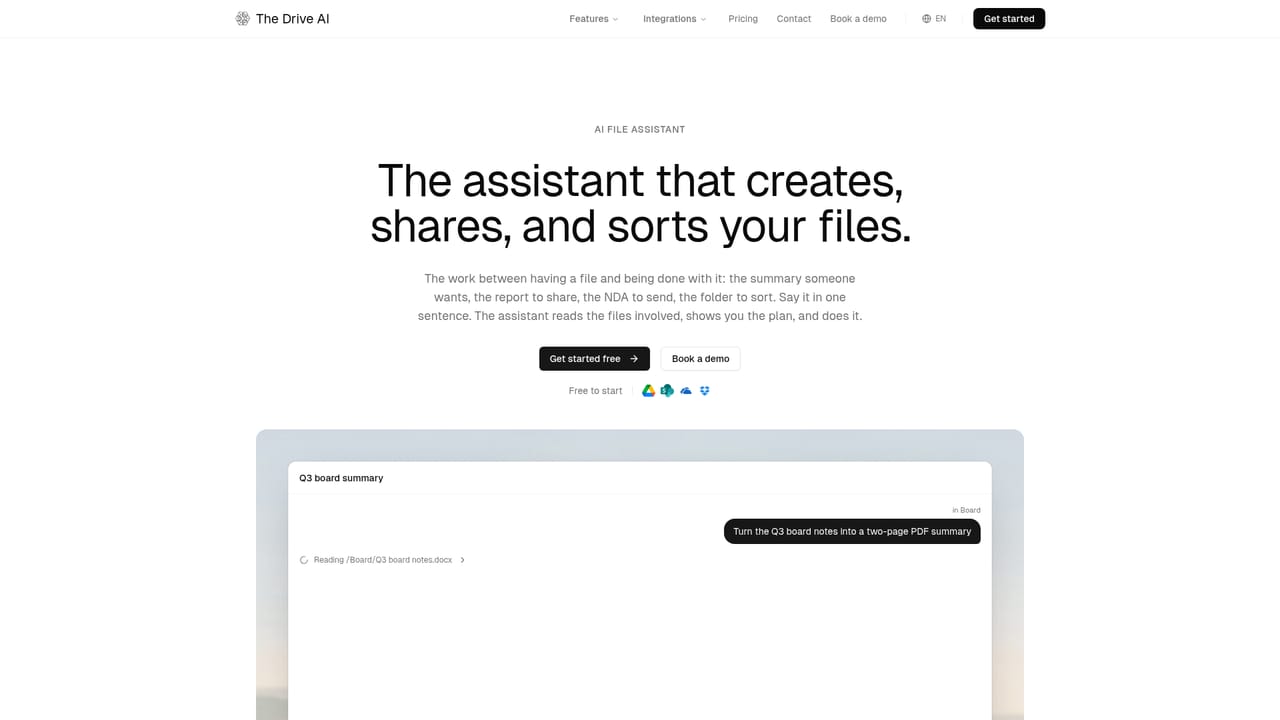
Screenshot of The Drive AI, An AI assistant that files, finds and answers across your team's documents

What is The Drive AI?

The Drive AI is a document management assistant that reads file contents to organize, search, rename and share files from plain-English requests, working in its own workspace or inside Google Drive, OneDrive, SharePoint and Dropbox.

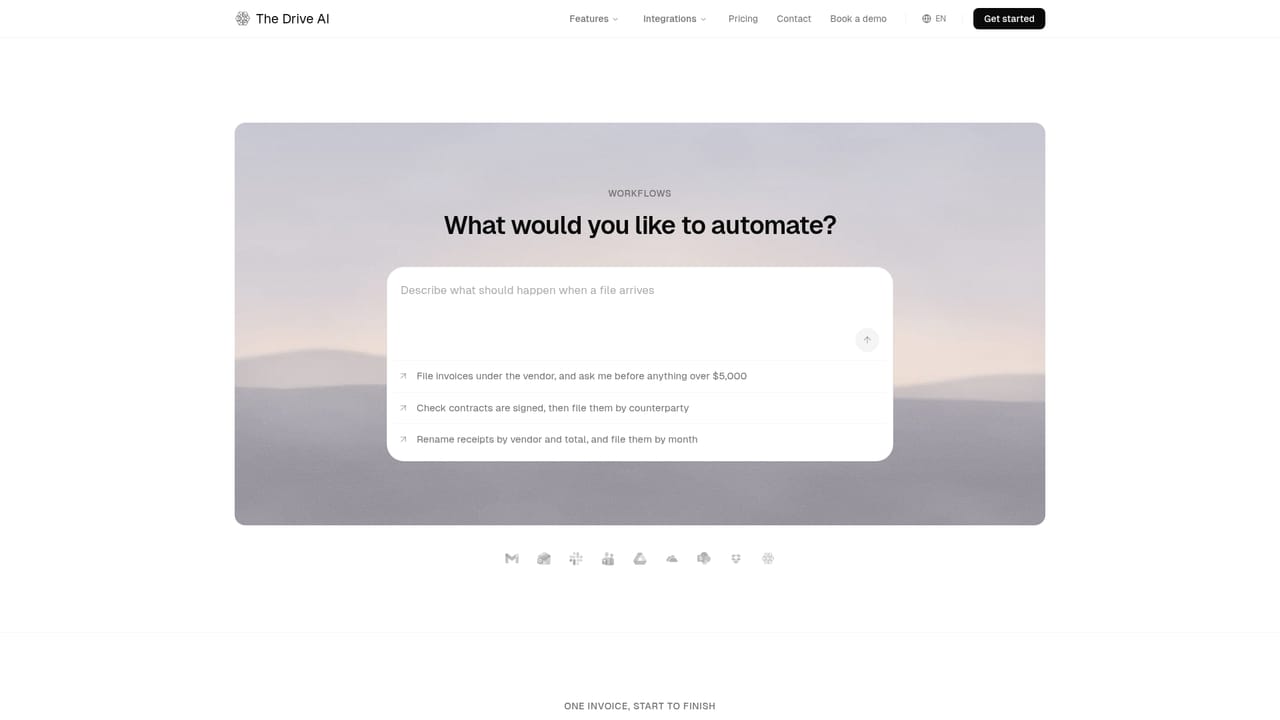
The Drive AI is a document management assistant built around plain-English requests. Instead of relying on folder discipline or file names like scan_0412.pdf and Final FINAL v3.docx, it reads each file's contents and uses that understanding to sort, rename, search and answer questions across large collections. A request such as sorting every invoice by client and year, finding which vendors raised prices, or merging three contracts into one PDF is typed as a single sentence and carried out by the assistant. The product works in two modes. Teams can keep files in its own workspace, which includes version history, permissions by file and folder, file requests from anyone, and e-signature. Alternatively, it connects to Google Drive, OneDrive, SharePoint or Dropbox and organizes those files in place, so nothing has to be migrated. The workspace is included on every plan, while connected drives require the Max or Team plan. New files can also arrive from uploads, Gmail, Outlook, Slack or Microsoft Teams, and a Chrome extension brings the assistant into the drive itself. In practice the flow has three steps: connect a source, ask for a result, then review the proposed plan. Small changes apply immediately, larger ones and anything sent to another person wait for approval, and admins set where that line sits for the workspace. Changes can be undone, and an activity log records each action, who made it and who it was for. Workflows extend this by letting a user describe a job once, such as routing invoices over an approval limit to a named approver, and then running it on every new file. The site targets document-heavy fields: real estate, law firms, accounting, property management and human resources, each with its own solution page. Compared with plain cloud storage, the difference is that it acts on contents rather than names. Compared with generic chat assistants, it operates directly on the files and folders a company already keeps. The security page cites AES-256 encryption, malware scanning, and a commitment that files are never used for AI training.

How do you use The Drive AI?

  1. 1Create an account
    Open the sign-up page from the Get started free button and log in to create a workspace. The workspace is available on every plan.
    The Drive AI — Create an account
  2. 2Connect a drive or upload files
    Link Google Drive, OneDrive, SharePoint or Dropbox, or upload a folder. Connected drives need the Max or Team plan.
    The Drive AI — Connect a drive or upload files
  3. 3Ask in one sentence
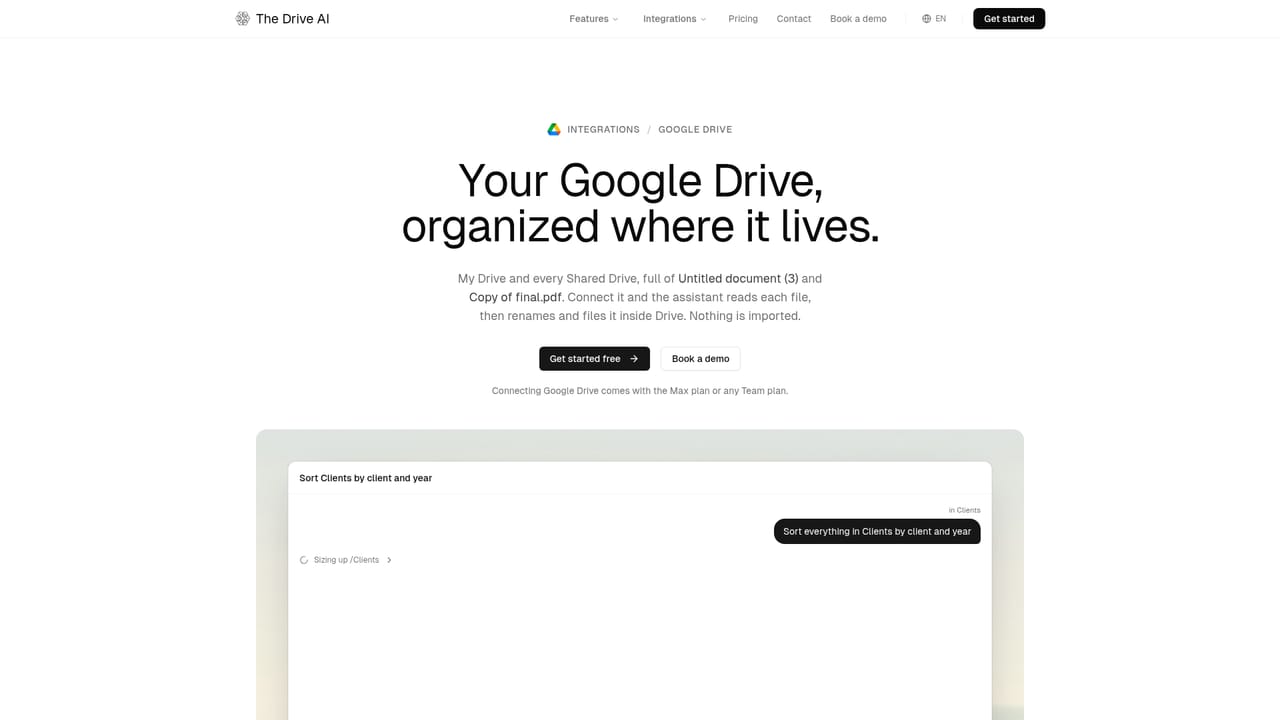
    Type a request such as sorting a folder by client and year, or asking which vendors raised prices. The assistant reads the files and builds a plan.
    The Drive AI — Ask in one sentence
  4. 4Review and approve the plan
    Check the proposed moves and renames before larger changes apply. Anything can be undone afterward from the activity log.
  5. 5Automate recurring jobs
    Describe a workflow once, such as filing each invoice that arrives in an inbox, so it runs on every new file.
    The Drive AI — Automate recurring jobs

Pros and cons

Pros

  • Reads file contents rather than names, so badly named scans and drafts can still be sorted and foundAI
  • Organizes files in place across Google Drive, OneDrive, SharePoint and Dropbox without migrationAI
  • Shows a plan first, applies small changes at once, holds big ones for approval and supports undoAI
  • Workflows apply a one-time described job to every new file arriving from email, Slack, Teams or uploadsAI
  • Activity log records every change, who made it and who it was for, which helps auditsAI

Cons

  • Connecting existing cloud drives requires the Max or Team plan, so the free tier is limited to its own workspaceAI
  • Pricing figures are not shown on the homepage, so cost at scale is unclear before signing upAI
  • Large libraries need cataloguing time before the assistant can see everything, as the sample status screens showAI
  • Results depend on the assistant interpreting natural-language requests, so bulk reorganizations still need careful plan reviewAI
  • Platform coverage beyond the web app and Chrome extension is not stated on the homepageAI

How much does The Drive AI cost?

Free trial

Free to start: sign up with the Get started free button, then connect a drive or upload a folder. Limits of the free tier are not detailed on the homepage.

Learn more

Pricing

The homepage says it is free to start and that the workspace is on every plan. Connected drives (Google Drive, OneDrive, SharePoint, Dropbox) need the Max or Team plan. Specific prices are not listed on the homepage.

Learn more

Support

Demos can be booked through a calendar link, and a contact page is available for other questions. A security page explains how files are protected.

Learn more

Integrations

Reads and organizes Google Drive, OneDrive, SharePoint and Dropbox in place. New files can arrive from uploads, Gmail, Outlook, Slack and Microsoft Teams. A Chrome extension works inside the drive.

Learn more

Features

Plain-English file assistant that sorts, renames, merges, shares and summarizes documents, answers questions across thousands of files, runs workflows on new files, offers e-signature, version history, folder permissions, file requests, undo and an activity log.

Learn more

Frequently asked questions about The Drive AI

  • How much does The Drive AI cost?
    The homepage says it is free to start and that the workspace is on every plan. Connected drives (Google Drive, OneDrive, SharePoint, Dropbox) need the Max or Team plan. Specific prices are not listed on the homepage.
  • Does The Drive AI offer a free trial?
    Free to start: sign up with the Get started free button, then connect a drive or upload a folder. Limits of the free tier are not detailed on the homepage.
  • How do you use The Drive AI?
    The walkthrough on this page covers 5 steps: 1. Create an account 2. Connect a drive or upload files 3. Ask in one sentence 4. Review and approve the plan 5. Automate recurring jobs.
  • What platforms does The Drive AI support?
    The Drive AI is available on Web App and Browser extension.
  • What does The Drive AI integrate with?
    Reads and organizes Google Drive, OneDrive, SharePoint and Dropbox in place. New files can arrive from uploads, Gmail, Outlook, Slack and Microsoft Teams. A Chrome extension works inside the drive.
  • What are the limitations of The Drive AI?
    Connecting existing cloud drives requires the Max or Team plan, so the free tier is limited to its own workspace. Pricing figures are not shown on the homepage, so cost at scale is unclear before signing up. Large libraries need cataloguing time before the assistant can see everything, as the sample status screens show.

Status

StatusActive
Views0
Outbound clicks0
Added10/18/2026

Platforms

Web AppBrowser extension

Pricing

FreemiumSubscription