Free trial
New users can create a free account and use free trial credits to try the video background remover.
Learn moreBrowser-based AI that cuts subjects out of video, no green screen
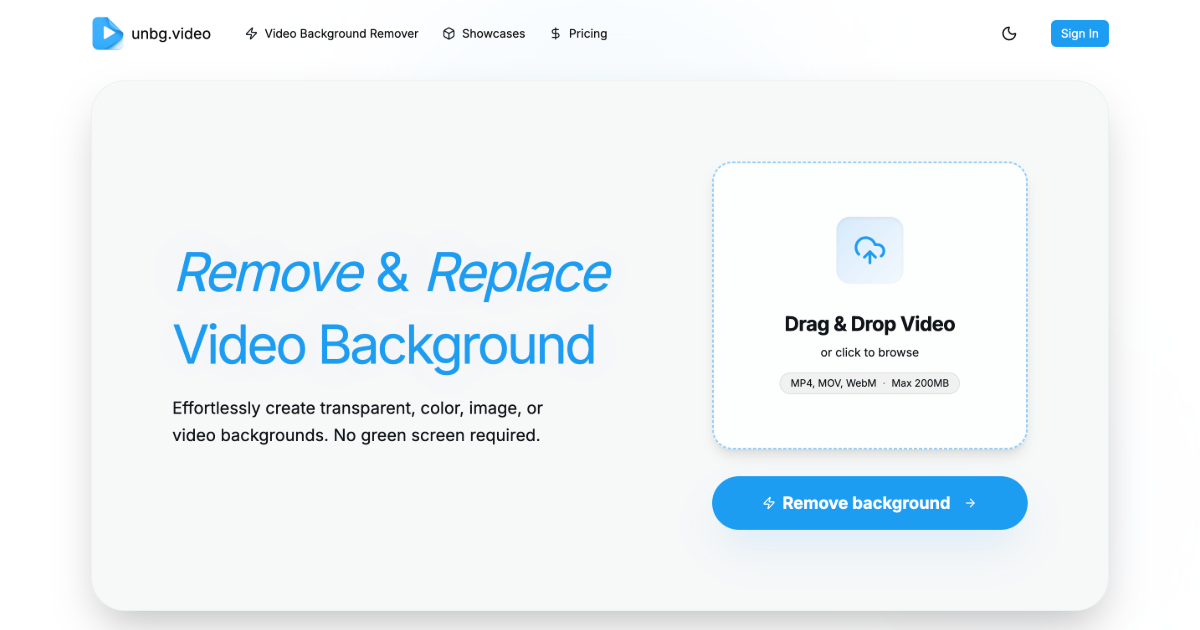
unbg.video is an online AI video background remover. Upload MP4, MOV or WebM clips, preview the cutout, then export transparent video (WebM, ProRes 4444, alpha MP4) or replace the background with a color, image or video.
unbg.video is a web tool that removes the background from video clips using AI. A user uploads a file in MP4, MOV or WebM format (up to 200MB), the system separates the subject from its surroundings frame by frame, and the result can be kept transparent or combined with a new backdrop. Because the separation is done by a model rather than by keying out a color, footage shot indoors, outdoors or in a studio can be processed without a green screen. The tool is aimed at creators, social media editors, marketers and small teams who need quick cutouts of people, products or moving subjects. Typical uses named on the site include creator clips, product demos, tutorials, ads and short-form social videos. Someone producing a product video, for example, can isolate the item and drop it onto a solid color, an image or another video without opening a full compositing suite. In practice the workflow has four parts: upload, choose a processing mode, preview the cutout, then export. Standard Mode targets faster, lower-cost processing for ordinary creator and social footage, while Pro Mode is meant for harder material where edges, hair or motion need more detail. Processing time depends on clip length, resolution and mode, and submitted tasks can be revisited later from History or task records, so the user does not have to keep the page open. Export options cover transparent WebM, ProRes 4444 (.mov) and H.264 alpha/color MP4 channel files for editing and compositing, plus a flattened MP4 when the background has been replaced. Among alternatives, the site positions itself as an Unscreen alternative for online background removal, replacement and transparent export. Its scope is narrow: it does one job in the browser and leaves timeline editing, effects and sound to other software. New users can create a free account and try it with trial credits before deciding whether it suits their footage.
New users can create a free account and use free trial credits to try the video background remover.
Learn morePricing tiers are not listed on the homepage. New users can create a free account and use free trial credits; Standard Mode is described as the lower-cost option.
Learn moreAI subject cutout without a green screen, MP4/MOV/WebM upload up to 200MB, preview before export, Standard and Pro modes, background replacement with color, image or video, and transparent export in WebM, ProRes 4444 or alpha MP4.
 AI Angels400+ customizable AI girlfriends for NSFW chat, voice calls, and roleplay
 Candy AIExperience the future of companionship with AI friends who chat, role-play, and connect with you on a human level.
 ourdream.aiA vast AI roleplay platform with millions of characters for chat, images, video and voiceAI Angels400+ customizable AI girlfriends for NSFW chat, voice calls, and roleplayCandy AIExperience the future of companionship with AI friends who chat, role-play, and connect with you on a human level.ourdream.aiA vast AI roleplay platform with millions of characters for chat, images, video and voice