Free trial
A free trial is offered so you can test whether your own images upscale well before buying. The site recommends checking results first because improvement varies by image type.
Learn moreAI image upscaling up to 8X with print ready output

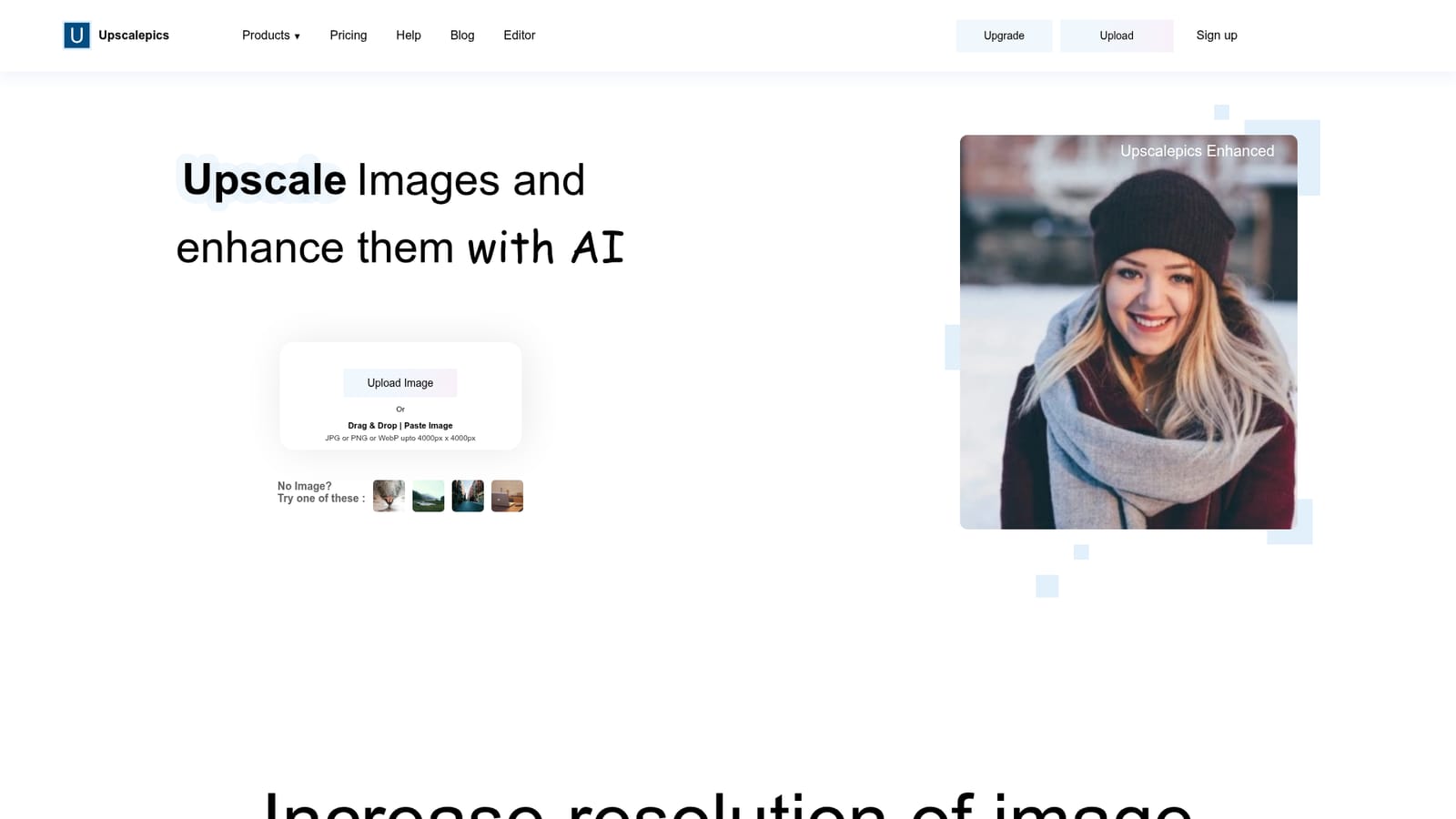
UpscalePics is a 4K upscale tool. AI upscaler that enlarges images up to 8X and 256 megapixels, with custom width and height, bulk processing, a print mode with DPI and CMYK control, and a browser extension for upscaling images found on other websites.
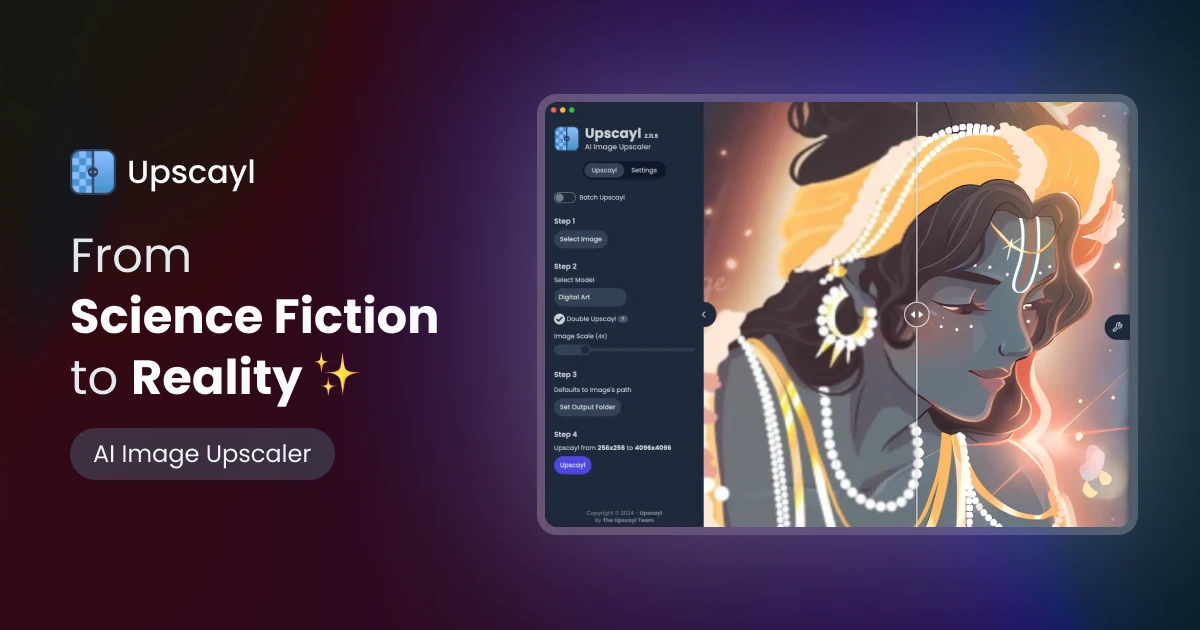
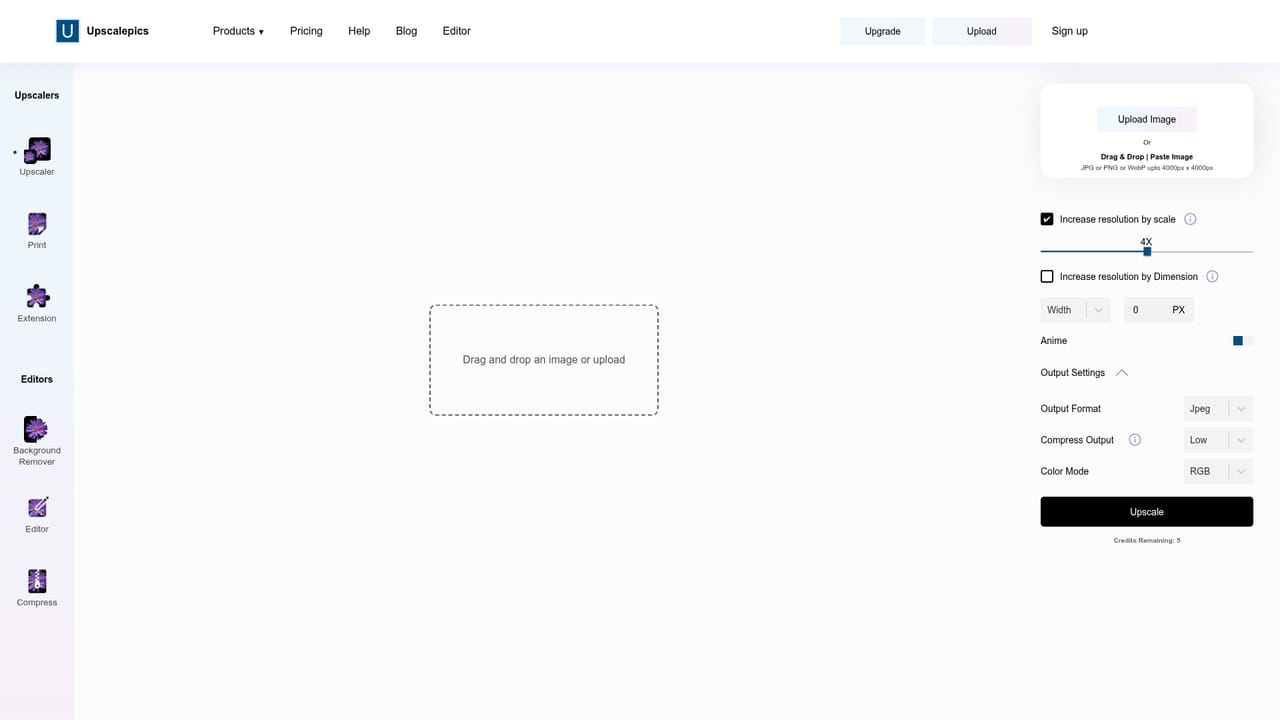
UpscalePics is an AI image upscaler built around a single promise: take a small or soft image and return a sharper, larger version without wrecking its defining features. The site is explicit about how this works. Deep learning models were trained on paired low and high resolution images for thousands of hours, and the result is a system that guesses the missing detail rather than inventing a fixed enlargement rule. The team states plainly that this is sophisticated guesswork with good accuracy, not a perfect reconstruction, and that your uploaded images are never reused for training. The practical workflow runs through a three part workspace: a product column on the left (Upscale, Print, Compress, Background Remover, Lightning editor), an upload and settings panel on the right, and the image itself in the middle with crop and rotate tools on top. You can apply services in any order as long as you have credits. Upscaling goes up to 8X in a single pass and outputs up to 256 megapixels, and you can also type a specific width or height instead of picking 2X or 4X. Bulk upload and download all are available, and repeat upscales of the same file are supported. The tool targets a fairly wide set of buyers: photographers preparing prints, illustrators upscaling digital paintings, e-commerce teams cleaning up product shots, designers resizing assets for campaigns, and anyone polishing AI generated art. A separate Print product adds DPI control, physical paper sizes and CMYK output, and a browser extension lets you right click an image on another site instead of downloading and re-uploading it. Expectations matter here. The help section concedes that phone photos and already heavily processed images often show little improvement, and that upscaling the same file repeatedly can look less realistic. Best results come from small web images, designs and artwork. The free trial exists so you can test your own files before paying, which is the sensible way to use the tool. Alternatives range from general editors with resize filters to dedicated AI enhancers. UpscalePics competes on customization: arbitrary dimensions, megapixel ceilings, print settings and a companion extension rather than one click multiples alone.
A free trial is offered so you can test whether your own images upscale well before buying. The site recommends checking results first because improvement varies by image type.
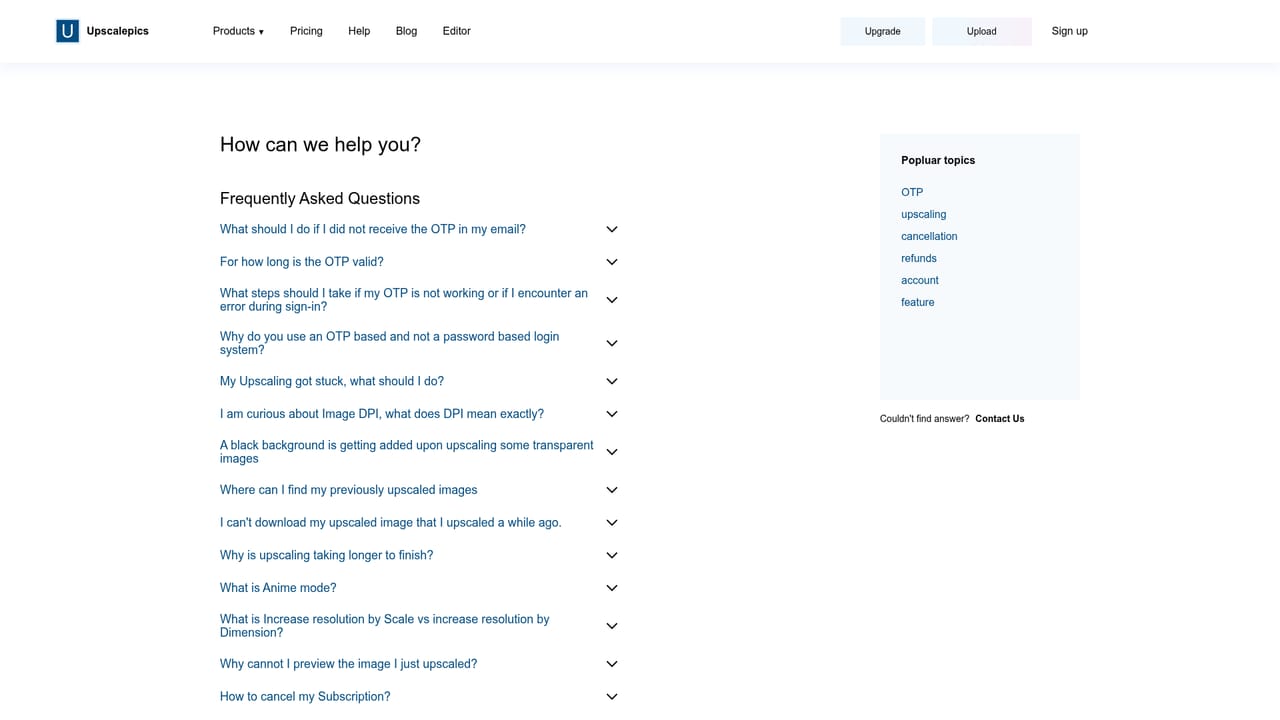
Learn moreHelp and FAQ pages cover the workflow, image privacy and storage, how the model works, which images improve well, and short guides to the print and lighting products.
Learn moreA browser extension called Upscalepics Integrate adds right click upscaling in Chrome, Brave and Edge for images on other websites. No other third party integrations are described on the homepage.
Learn moreScales images up to 8X and 256 megapixels, accepts custom width and height alongside multipliers, and supports repeat upscales. Includes bulk upload, a print product with DPI, paper size and CMYK output, a background remover, a non AI compressor, a lighting editor (AI auto HDR listed as coming soon) and a browser extension for upscaling images on other websites.
Learn more AI Angels400+ customizable AI girlfriends for NSFW chat, voice calls, and roleplay
 Candy AIExperience the future of companionship with AI friends who chat, role-play, and connect with you on a human level.
 ourdream.aiA vast AI roleplay platform with millions of characters for chat, images, video and voiceAI Angels400+ customizable AI girlfriends for NSFW chat, voice calls, and roleplayCandy AIExperience the future of companionship with AI friends who chat, role-play, and connect with you on a human level.ourdream.aiA vast AI roleplay platform with millions of characters for chat, images, video and voice