Free trial
A free preview of the vector result is offered before download, but the homepage does not state how many previews are free or whether full downloads are ever free.
Learn moreTurn bitmap images into clean, editable vector files with AI.

Vectorizer is a convert image to 2D tool that turns bitmap images into clean, editable vector files with AI. Vectorizer.AI converts PNG, JPG, GIF, BMP and WebP bitmaps into SVG, PDF, EPS and DXF vector files using an AI tracing engine, with a free preview before download.
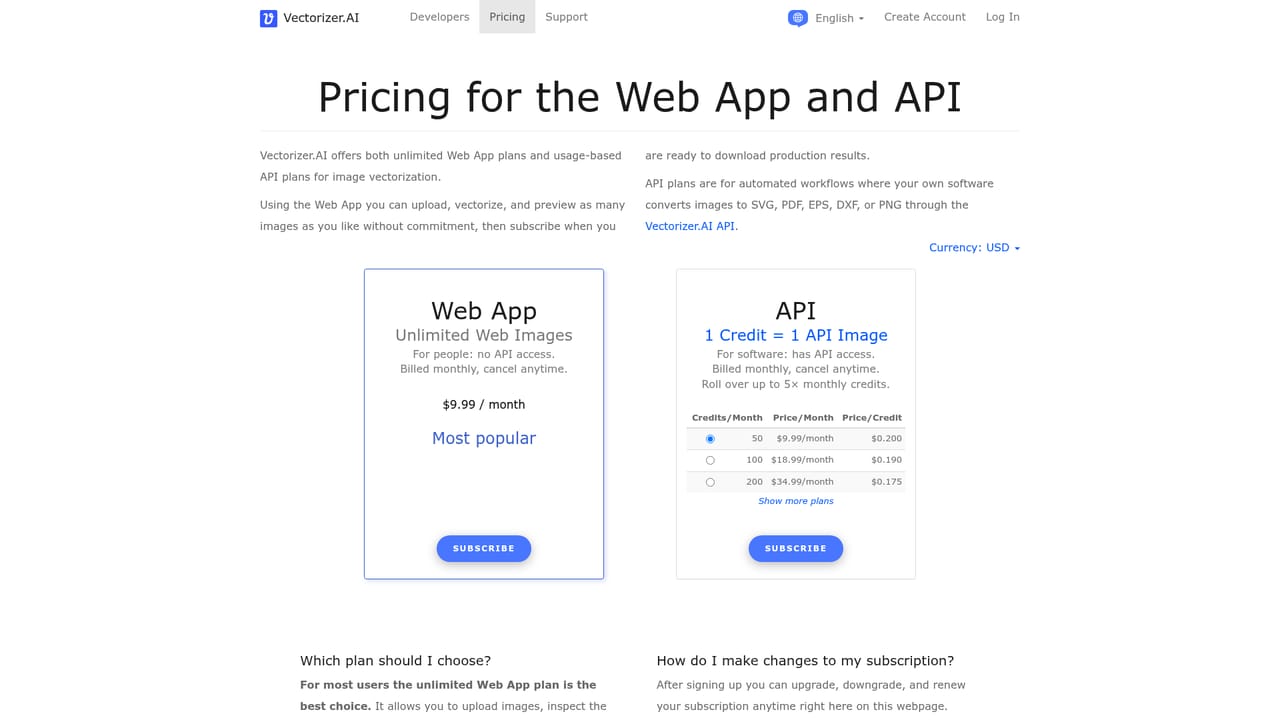
Vectorizer.AI is a browser based conversion service that takes raster images and rebuilds them as true vector graphics. The input side covers the formats most people actually have lying around: PNG, JPG, GIF, BMP and WebP. On the output side it produces SVG, PDF, EPS and DXF, which means the result can go straight into a design tool, a print workflow, a cutting machine or a CAD pipeline without a second conversion hop. The tool is aimed at designers, print shops, sign makers and anyone who has ever been handed a low resolution logo and asked to scale it up. The workflow is deliberately short. You drag an image onto the page, paste it from the clipboard, or pick a file, and the engine traces the bitmap into paths, curves and shapes. A free preview appears first so you can judge the quality before committing to a download. Dedicated landing pages exist for each source and target format pair, so someone searching specifically for PNG to DXF or JPG to EPS lands on a page that matches their job rather than a generic converter. In practice the tool sits between a manual trace in Illustrator and the basic autotrace filters bundled with vector editors. Those options are either slow and require a skilled hand, or fast and produce jagged, blobby results on anything with gradients or fine detail. Vectorizer.AI positions itself on the automated end of that spectrum while still promising production ready output, which is the claim that matters for logos, icons and line art. The main caveat is that the category is narrow. This is a converter, not a vector editor, so cleanup and node editing still happen elsewhere. The preview and download flow also implies an account and a paid tier for actual production files, so it is worth checking the pricing page before building a workflow around it. For teams that regularly receive customer supplied bitmaps, though, a single reliable conversion step can remove a lot of tedious redrawing.
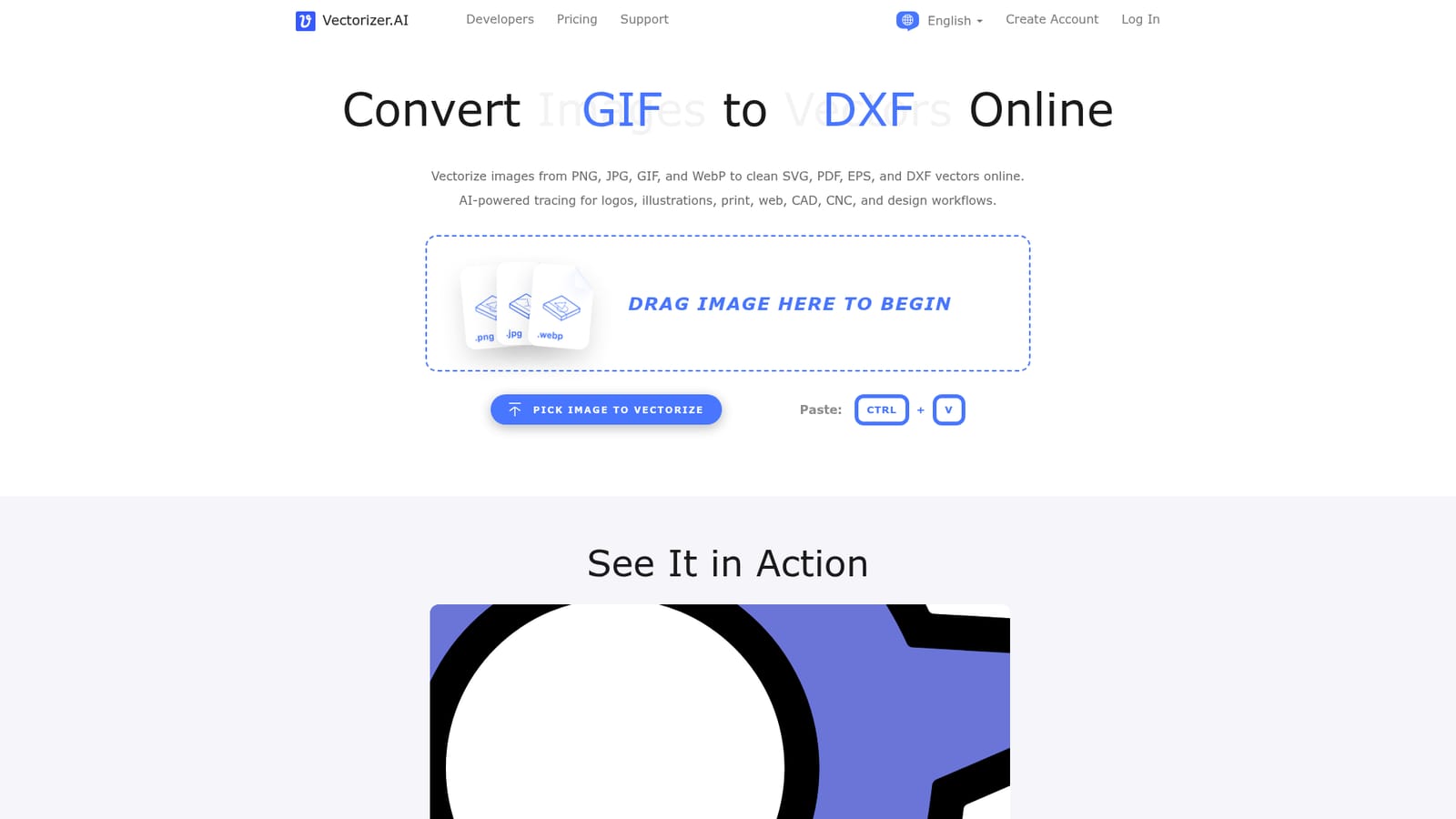
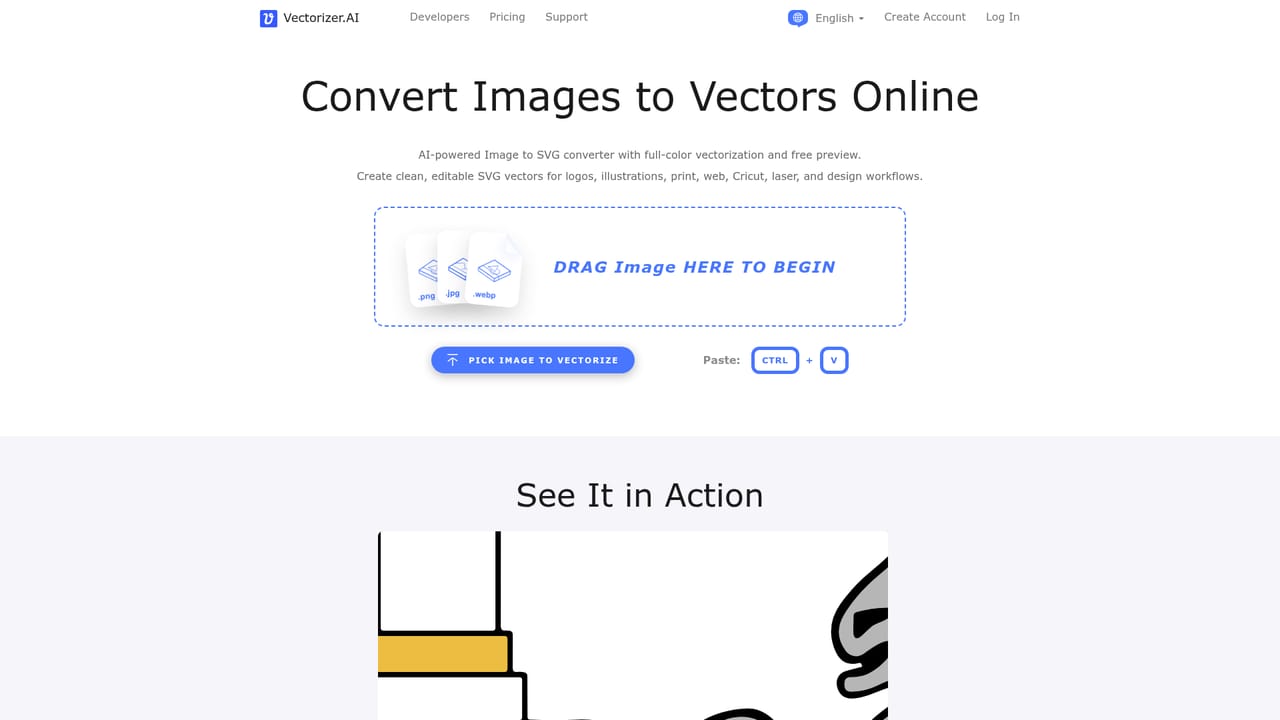
A free preview of the vector result is offered before download, but the homepage does not state how many previews are free or whether full downloads are ever free.
Learn moreAI driven raster to vector tracing with support for PNG, JPG, GIF, BMP and WebP inputs and SVG, PDF, EPS and DXF outputs. The workflow includes drag and drop, clipboard paste, a free preview, and separate landing pages for each format conversion pair. The engine targets clean, editable paths suitable for design, print and cutting workflows.
 AI Angels400+ customizable AI girlfriends for NSFW chat, voice calls, and roleplay
 Candy AIExperience the future of companionship with AI friends who chat, role-play, and connect with you on a human level.
 ourdream.aiA vast AI roleplay platform with millions of characters for chat, images, video and voiceAI Angels400+ customizable AI girlfriends for NSFW chat, voice calls, and roleplayCandy AIExperience the future of companionship with AI friends who chat, role-play, and connect with you on a human level.ourdream.aiA vast AI roleplay platform with millions of characters for chat, images, video and voice