Integrations
The core connection is Google Slides, which supplies both the storyboard and the presenter notes used for narration, plus Google sign in for accounts.
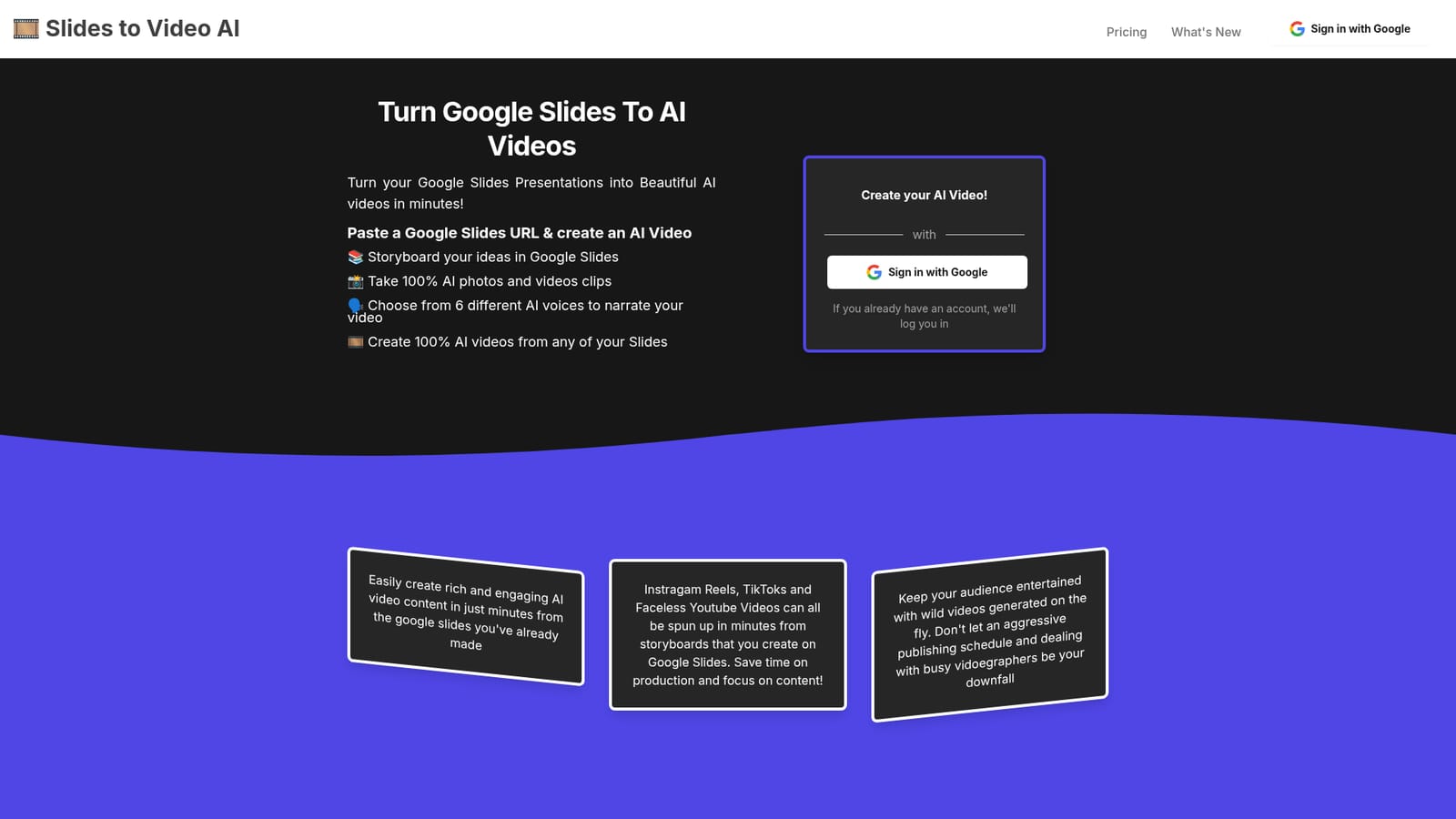
Turn Google Slides decks into narrated AI videos in minutes
Own AI Slides to Videos? Verify ownership to get a dofollow link

AI Slides to Videos is an AI narration tool that turns Google Slides decks into narrated AI videos in minutes. A web tool that converts Google Slides presentations into narrated AI videos.
AI Slides to Videos takes a Google Slides presentation you already have and rebuilds it as a multi scene video. The workflow starts when you paste a Slides URL, so the deck stays the storyboard. Each slide becomes a scene, and for every scene the tool generates AI imagery or video clips and attaches a spoken voiceover drawn from your presenter notes. Once the scenes are assembled, the tool stitches them into a single finished video at the aspect ratio you picked. The narration runs on six named AI voices (Alloy, Echo, Fable, Onyx, Nova and Shimmer), and audio is generated from the text on your slides and in the notes. Output sizes cover the usual social formats: square, portrait and landscape, including portrait framing aimed at Reels, TikTok and Stories, and widescreen landscape for YouTube and Vimeo. The tool holds a wide set of visual presets such as Cinematic, Noir, Surreal, Vintage, Futuristic, Steampunk and Medieval Fantasy, so a whole deck can be pushed toward one look without writing prompts from scratch. A Plain preset is there for people who want to control the full prompt themselves. The intended audience is people who already think in slides and need video volume: marketers turning pitch decks into campaign clips, teachers and trainers converting lecture slides into lessons, podcasters adding a visual layer to scripts, filmmakers testing storyboard shots, and faceless YouTube or meme accounts feeding a publishing schedule. The site positions it against hiring a camera crew or wrestling with general image generators that struggle with character consistency across frames. It is a niche tool rather than a full editor, and reviewers on the site note that prompts sometimes need several attempts before the generated footage lands, so patience with the scene generator is part of the job.
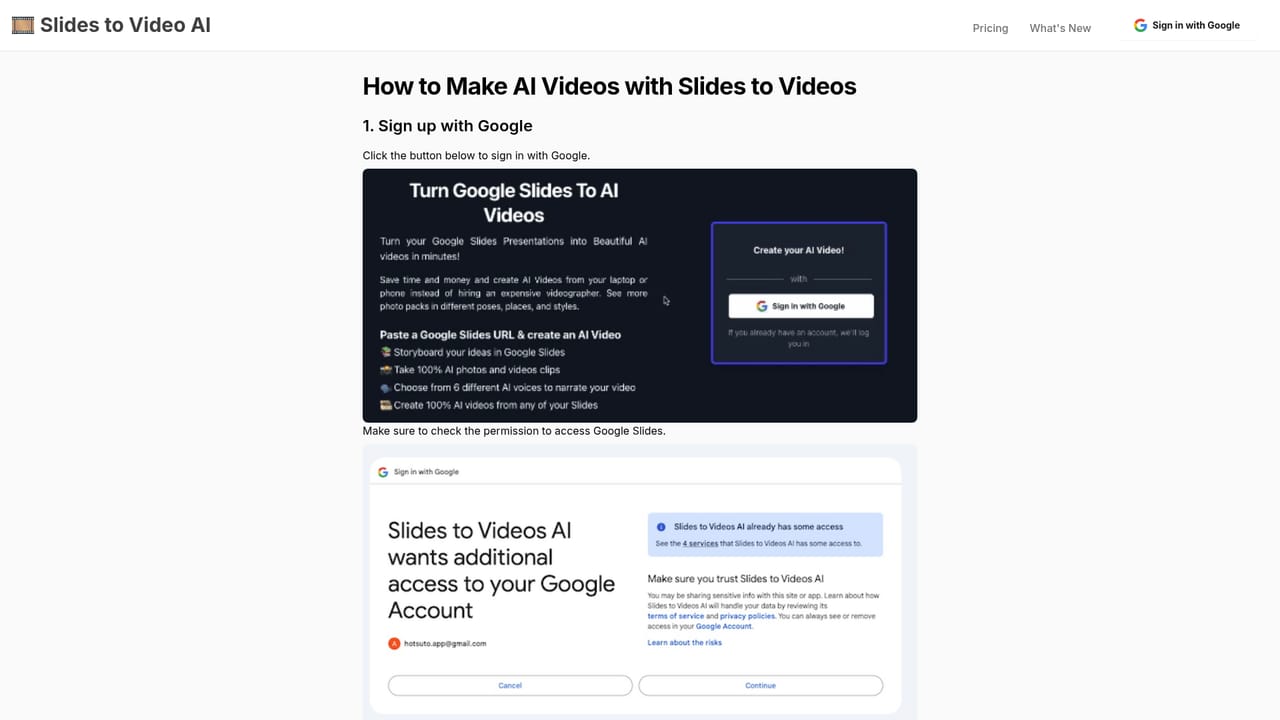
The core connection is Google Slides, which supplies both the storyboard and the presenter notes used for narration, plus Google sign in for accounts.
Paste a Google Slides URL and each slide turns into a video scene. Generate AI images or animated clips per scene using presets like Cinematic, Noir, Surreal, Vintage, Futuristic, Steampunk, Pastoral, Bohemian, Decadent and Medieval Fantasy, or the Plain preset for full prompt control. Narration comes from six AI voices. Output ratios cover square, portrait and landscape for Instagram, TikTok, Stories, Pinterest, YouTube and Vimeo.
Learn more AI Angels400+ customizable AI girlfriends for NSFW chat, voice calls, and roleplay
 Candy AIExperience the future of companionship with AI friends who chat, role-play, and connect with you on a human level.
 ourdream.aiA vast AI roleplay platform with millions of characters for chat, images, video and voiceAI Angels400+ customizable AI girlfriends for NSFW chat, voice calls, and roleplayCandy AIExperience the future of companionship with AI friends who chat, role-play, and connect with you on a human level.ourdream.aiA vast AI roleplay platform with millions of characters for chat, images, video and voice


