Free trial
New accounts get 5 free credits on signup, enough for five studio generations. The browser cleanup tools are free to use with no login required.
Learn moreTurn anime illustrations and photos into pixel art with preset-driven AI redraws.

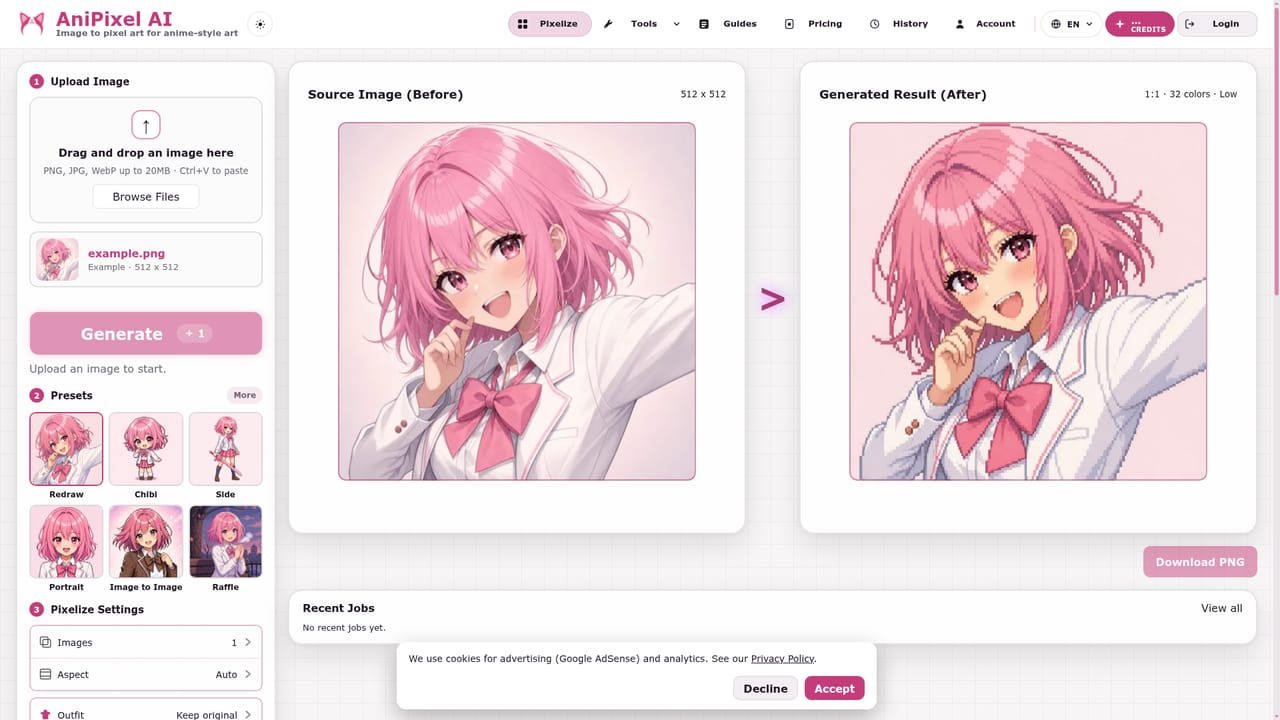
AniPixel AI is an anime generator tool that turns anime illustrations and photos into pixel art with preset-driven AI redraws. A browser studio that redraws uploads as pixel art using eight anime-leaning presets, backed by free local tools for background removal, scaling and classic pixelation.
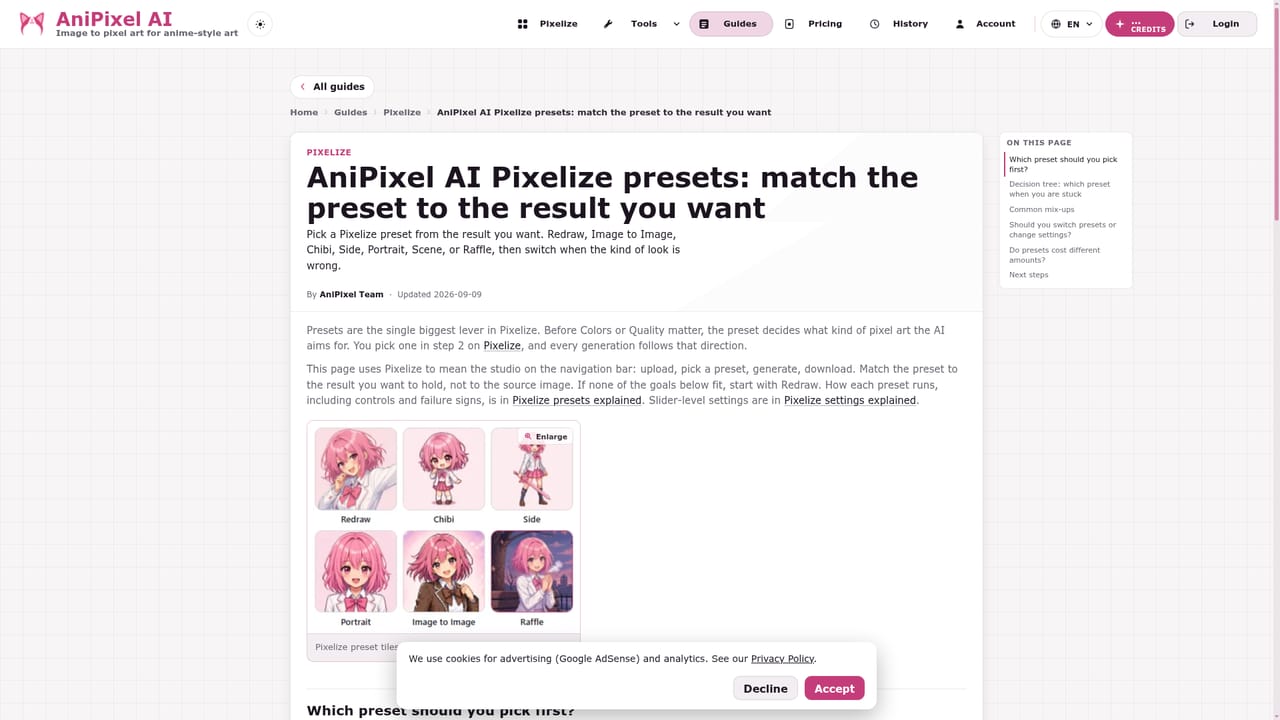
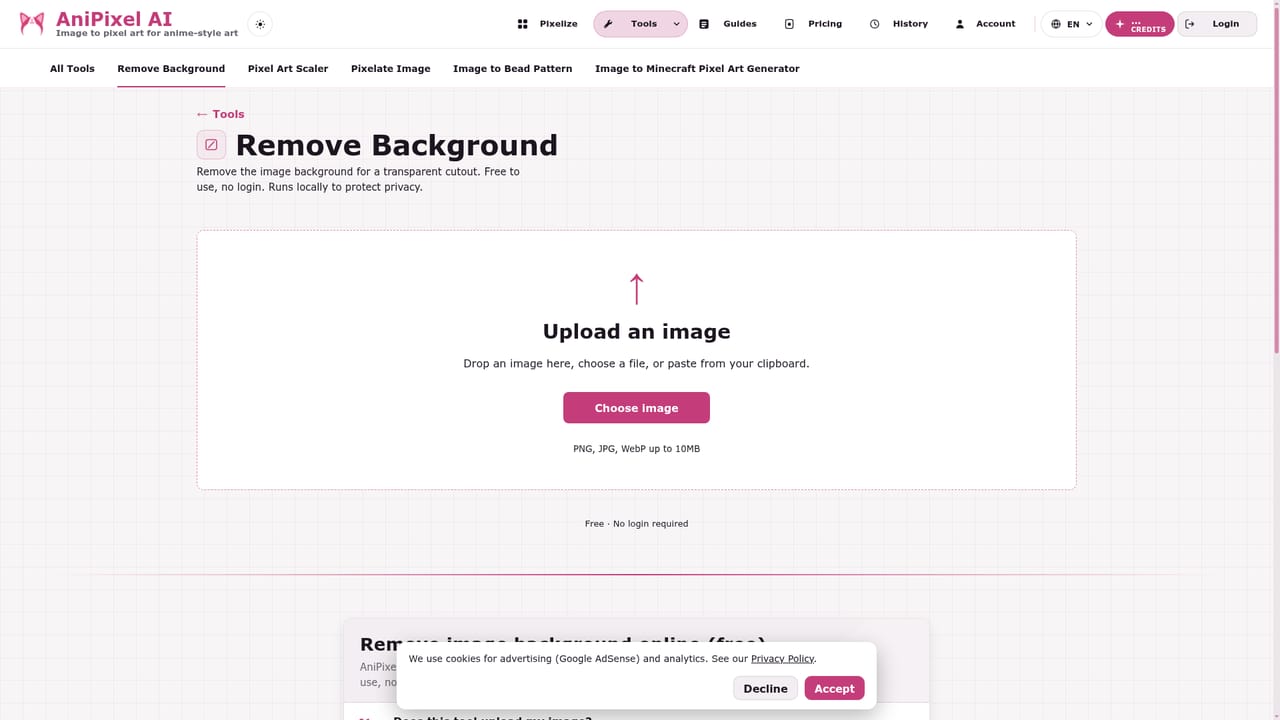
AniPixel AI is a web app that converts images into pixel art, with a deliberate lean toward anime-style material. The studio takes an upload and runs it through an AI redraw rather than a simple block-downsample, so the output looks like a game sprite or a sprite-sheet frame instead of a shrunken photo. Eight presets steer the result: Redraw preserves the original composition, Chibi compresses the figure into a cute two to three heads tall look, Portrait targets faces, and Raffle generates an entirely new scene or pose. Scene and other presets round out the set. The workflow is short. Upload a JPG, PNG, or WEBP up to 20MB, pick a preset, generate, adjust settings if the first pass misses, then download. Everything runs in the browser and the interface is aimed at people who want a usable pixel asset without opening Aseprite or hand-placing pixels. It suits indie game developers prototyping sprites, VTuber and fan artists making avatars or stickers, and hobbyists producing wallpapers and character art in a retro style. A second layer sits alongside the paid studio. Five browser utilities handle routine cleanup: a background remover that outputs a transparent cutout, a pixel art scaler that straightens or integer-upscales existing sprites, and a Pixelate tool that applies classic blocky algorithms. These run locally in the browser, require no login, and cost nothing. That local execution matters if the source image is sensitive, since the AI studio does send uploads to third-party providers. Background removal and scaling are the natural companions to a redraw: cut the subject out first, then pixelize. Among pixel art converters, AniPixel positions itself narrower than general image stylizers but more opinionated than manual pixelation filters. The trade-off is visible in the documentation: photos and selfies are not the core use case, and results are more dependable on clear anime-style art with a large, readable face. Credit costs are per image at one credit each, failed runs are refunded, and new accounts start with five credits to test the presets before committing.
New accounts get 5 free credits on signup, enough for five studio generations. The browser cleanup tools are free to use with no login required.
Learn moreEach studio image costs 1 credit, and failed runs are refunded. New accounts receive 5 free credits. Subscriptions and credit packs are available on the pricing page; browser tools such as Remove Background, Pixel Art Scaler, and Pixelate never consume credits.
Learn moreA guides section covers the studio walkthrough, preset selection and a frequently asked questions page, but no email or live chat channel is listed on the homepage.
Learn moreEight AI presets (Redraw, Chibi, Portrait, Raffle, Scene and others) redraw uploads as pixel art. Free local browser tools cover background removal, pixel art scaling and straightening, and classic algorithm-based pixelation. Uploads accept JPG, PNG and WEBP up to 20MB, and generated results are downloadable.
Learn more AI Angels400+ customizable AI girlfriends for NSFW chat, voice calls, and roleplay
 Candy AIExperience the future of companionship with AI friends who chat, role-play, and connect with you on a human level.
 ourdream.aiA vast AI roleplay platform with millions of characters for chat, images, video and voiceAI Angels400+ customizable AI girlfriends for NSFW chat, voice calls, and roleplayCandy AIExperience the future of companionship with AI friends who chat, role-play, and connect with you on a human level.ourdream.aiA vast AI roleplay platform with millions of characters for chat, images, video and voice