Dezgo

One hub for dozens of image and video generation models

Beginner
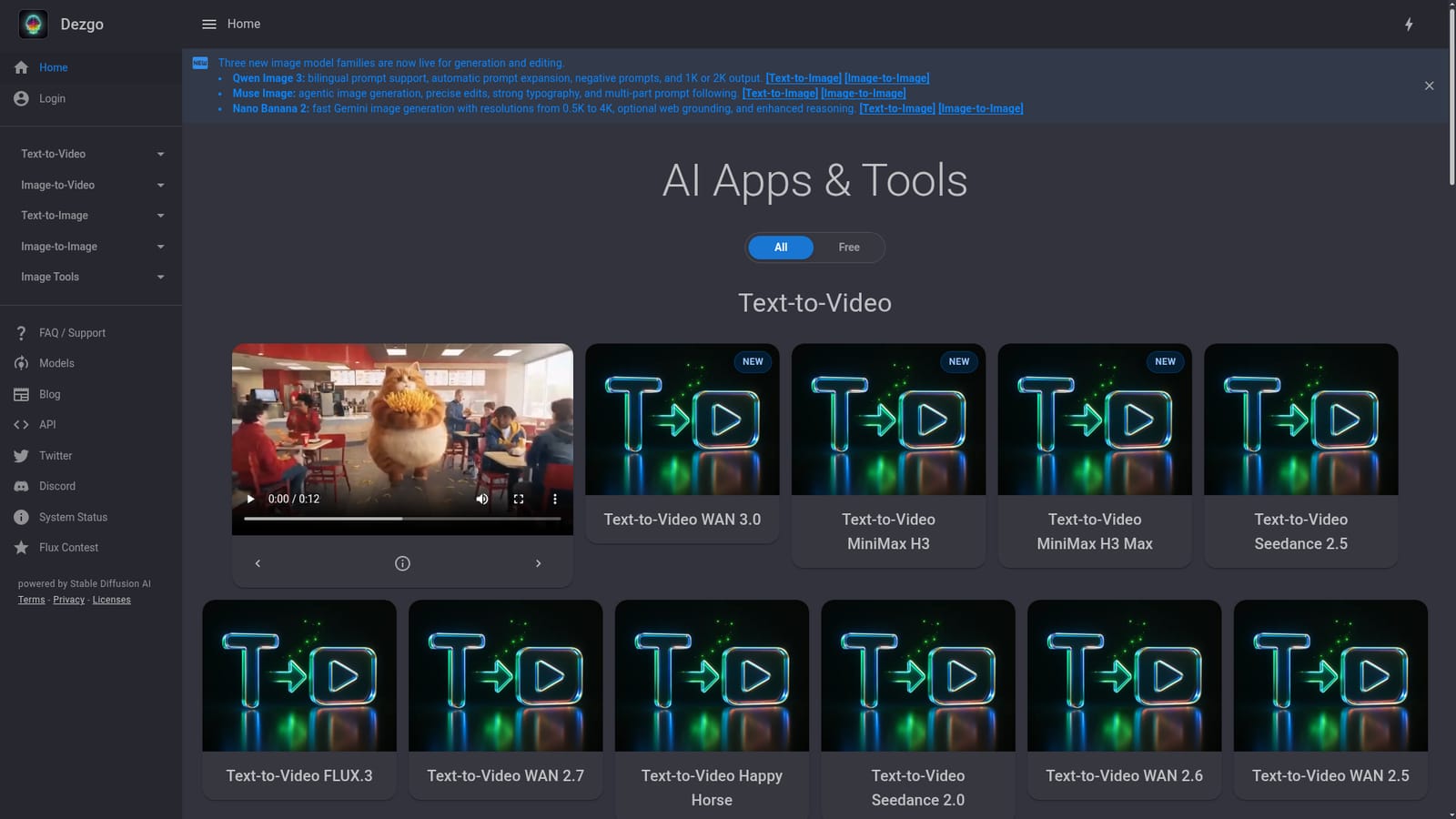
Screenshot of Dezgo, One hub for dozens of image and video generation models

What is Dezgo?

Dezgo is a generative image tool. Dezgo bundles many text to image, image to image and video generation models plus free editing utilities in one web app, letting users compare engines and pick the right one per task.

Dezgo is a browser based workspace that collects a large roster of generative image and video models behind a single interface. Instead of subscribing to each model vendor separately, you pick a task (text to image, image to image, text to video, image to video), choose the model you want for that job, and run the prompt from the same page. The catalogue spans Flux, Qwen Image, Nano Banana, Grok Imagine, Muse Image, WAN, Kling, Veo, Seedance, MiniMax and Happy Horse, so a session can move from a quick free image to a premium video clip without leaving the site. The image side is where the tool is most complete. Recent additions include Qwen Image 3 with bilingual prompts, automatic prompt expansion, negative prompts and 1K or 2K output; Muse Image, pitched at agentic generation with precise edits and strong typography; and Nano Banana 2 with output from 0.5K to 4K and optional web grounding. Several image models (Flux 1, XL Lightning, SD1, XL) carry a free label, and a separate free Image Tools group covers background removal, upscaling, controlled generation, text inpainting and text based image editing. Video is the newer half of the platform, with fifteen text to video entries and a matching set of image to video entries, including the WAN 3.0, MiniMax H3 and Seedance 2.5 families. This suits marketers, designers and hobbyists who want variety and are willing to compare model behaviour rather than commit to one engine. The tradeoff is that the same prompt behaves differently across models, and the naming conventions get dense. Text to speech and voice cloning are listed as upcoming rather than available. Dezgo sits alongside aggregator style competitors: less hand holding than a single vendor studio, more breadth than a dedicated app. Anyone needing a fixed, predictable output pipeline may prefer a focused tool; anyone exploring genres and styles will find the model buffet genuinely useful.

How do you use Dezgo?

  1. 1Pick your task type
    Open the homepage and choose the section that matches your goal: text to image, image to image, text to video or image to video. Each section lists the available models with new and free markers.
    Dezgo — Pick your task type
  2. 2Start with a free image model
    For a first test, launch a free text to image model such as Flux 1 or XL Lightning, enter a prompt and generate. This shows the interface and output quality without committing to a paid model.
  3. 3Try a higher capability image model
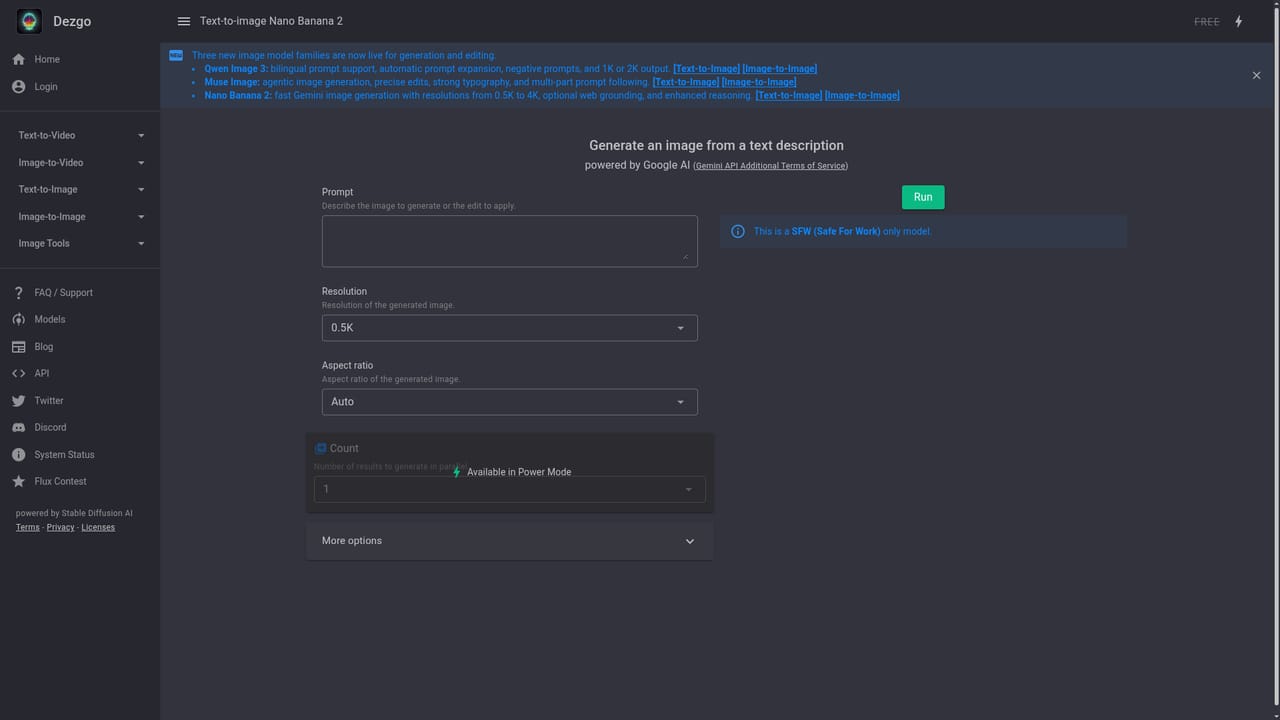
    Move to a newer model when you need better prompt following or higher resolution. Nano Banana 2 supports 0.5K to 4K output and optional web grounding, while Qwen Image 3 accepts bilingual prompts and negative prompts.
    Dezgo — Try a higher capability image model
  4. 4Edit an existing image
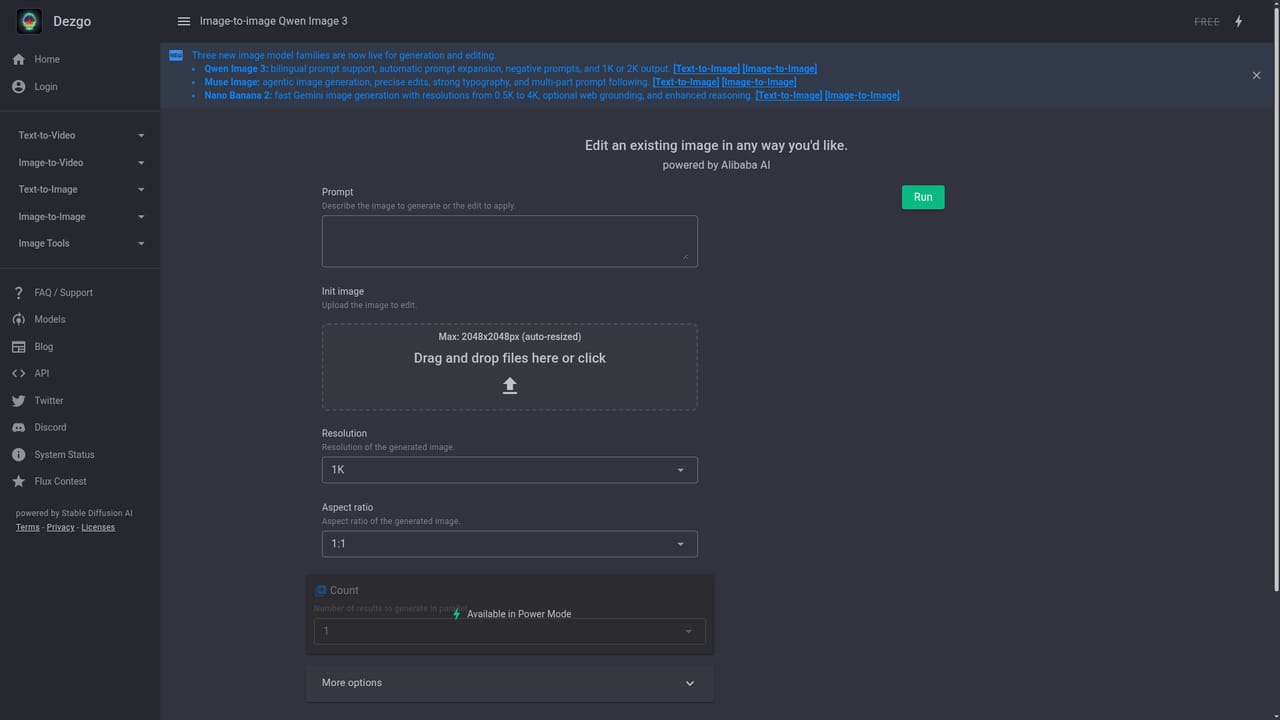
    Use image to image when you want to restyle or refine a picture rather than generate from scratch. Upload the source image, choose the model and describe the change.
    Dezgo — Edit an existing image
  5. 5Generate a clip from a prompt
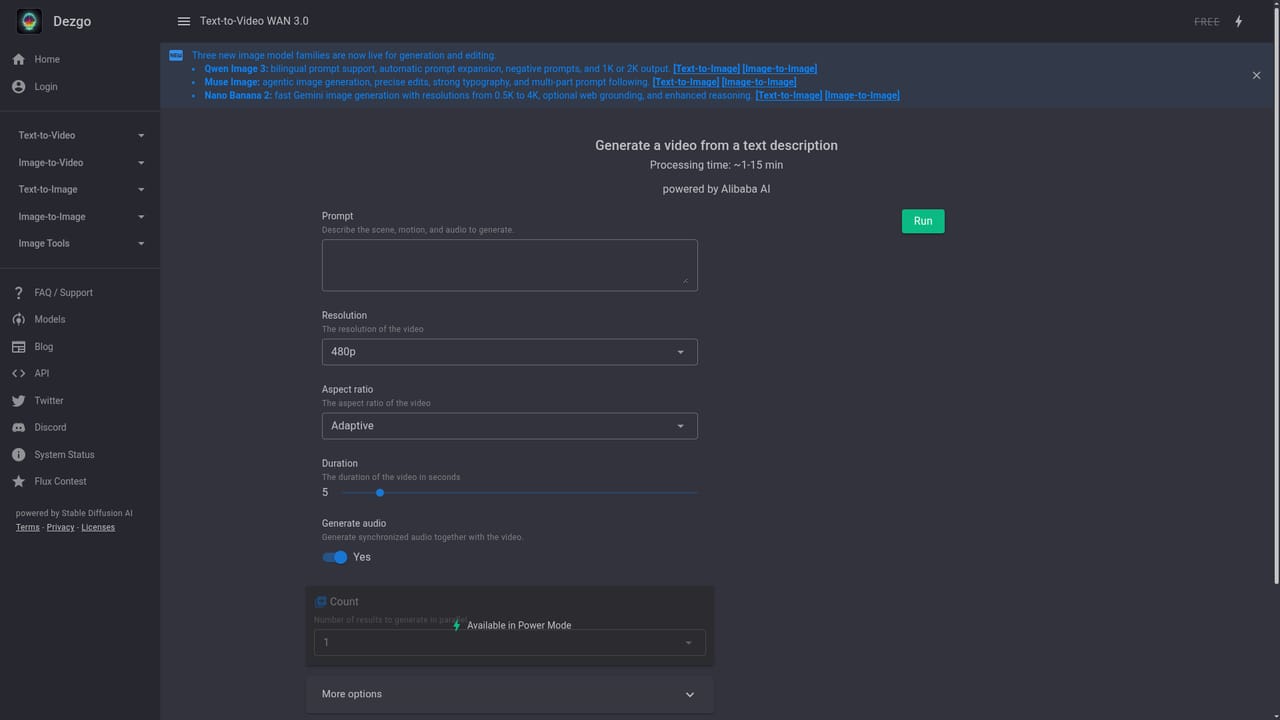
    Switch to text to video and select a video family such as WAN 3.0 or Kling 2.6. Write a scene description, then review the output before trying another model on the same prompt.
    Dezgo — Generate a clip from a prompt
  6. 6Clean up the result with image tools
    Use the free utilities to remove backgrounds, upscale low resolution output or inpaint specific areas. These run as separate apps and are useful for finishing generated assets.

Pros and cons

Pros

  • Very wide model selection across image and video in one interfaceAI
  • Several image models and image tools are labelled freeAI
  • Covers text to image, image to image, text to video and image to videoAI
  • Useful extras like background removal, upscaling and text inpainting sit alongside generationAI
  • Numeric resolution options on newer models, including 0.5K to 4K on Nano Banana 2AI

Cons

  • Prompt behaviour varies sharply between models, so results are not portableAI
  • Dense model naming (many versions and suffixes) makes choosing harder for newcomersAI
  • Text to speech and voice cloning are only listed as upcomingAI
  • No pricing detail or plan comparison appears on the homepageAI
  • Video model access implies higher costs, yet the homepage gives no guidance on usage limitsAI

How much does Dezgo cost?

Features

Text to image, image to image, text to video and image to video across a broad model catalogue (Flux, Qwen Image, Nano Banana, Muse Image, Grok Imagine, WAN, Kling, Veo, Seedance, MiniMax, Happy Horse). Free image tools include controlled generation, background removal, upscaling, text inpainting and text based image editing.

Frequently asked questions about Dezgo

  • How do you use Dezgo?
    The walkthrough on this page covers 6 steps: 1. Pick your task type 2. Start with a free image model 3. Try a higher capability image model 4. Edit an existing image 5. Generate a clip from a prompt 6. Clean up the result with image tools.
  • What platforms does Dezgo support?
    Dezgo is available on Web App.
  • What are the limitations of Dezgo?
    Prompt behaviour varies sharply between models, so results are not portable. Dense model naming (many versions and suffixes) makes choosing harder for newcomers. Text to speech and voice cloning are only listed as upcoming.

Status

StatusActive
Views0
Outbound clicks0
Added10/21/2026

Platforms

Web App

Pricing

Freemium