Image to ImageAI

Prompt-driven photo editing with multiple image models

Beginner
Screenshot of Image to ImageAI, Prompt-driven photo editing with multiple image models

What is Image to ImageAI?

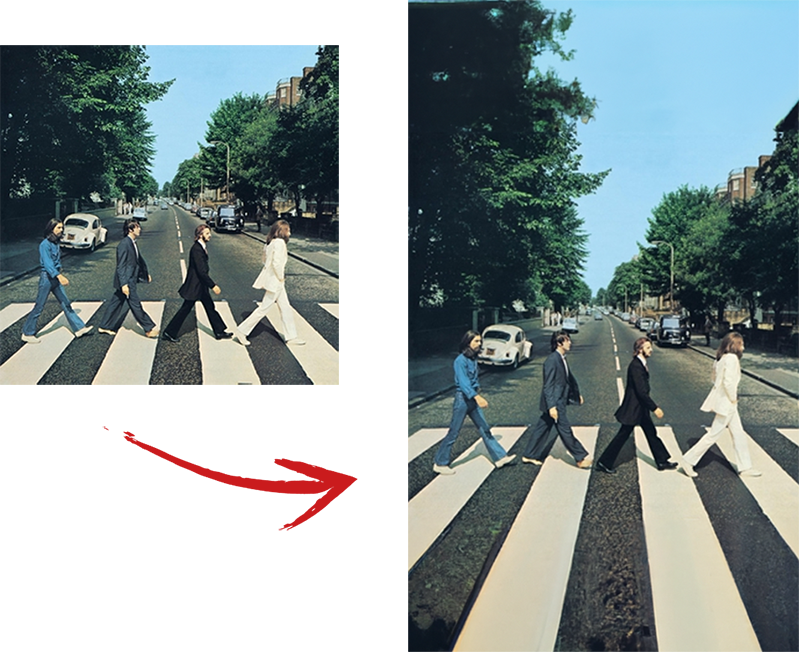
Image to ImageAI is a fuse images tool. A multi-model image editing workspace where a written prompt plus one or more reference photos produces a new version, with controls for resolution up to 4K and aspect ratio, and dedicated effects for restoration, object removal, colorization, and style transfer.

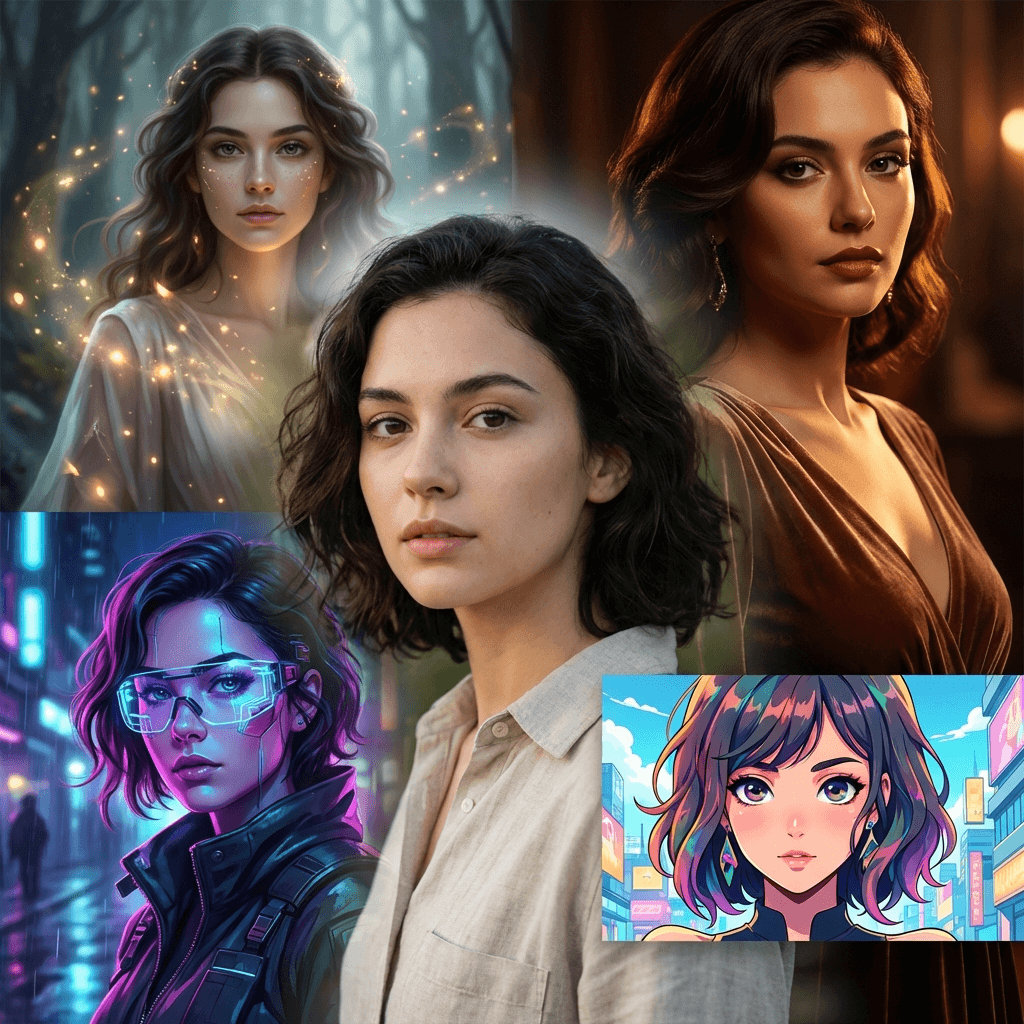
Image to Image AI is a browser-based generation workspace that takes an existing photo, sketch, artwork, or product shot and rebuilds it according to a written instruction. Instead of relying on one-click filters, the tool pairs a natural-language prompt with one or more reference images, so the user can specify both what should change and what must survive the edit. Typical jobs include restyling a portrait as anime art, repairing a damaged family photograph, deleting a stray person from a beach scene, colorizing black-and-white material, swapping a cluttered product setting for a clean studio surface, and quietly retouching a headshot. The product is built around model choice. GPT-Image 2, Nano Banana, Nano Banana 2, Nano Banana Pro, Wan 2.7 Image, Seedream, and Flux are all selectable in the same interface, and each carries its own balance of prompt adherence, detail retention, speed, and credit cost. Users upload as many as 16 references (the ceiling depends on the chosen model), write a prompt up to 2000 characters, then pick an aspect ratio (auto, 1:1, 9:16, 16:9, 4:3, 3:4) and a resolution tier. Output runs from 1K to 4K, though 4K is unavailable for 1:1 crops and for images left on auto ratio. The workflow suits e-commerce sellers producing seasonal product variants, designers exploring art direction from rough compositions, photographers restoring archival prints, marketing teams resizing one approved concept across placements, and independent creators testing styles. The pattern that recurs across these cases is iteration: generate, inspect, adjust the prompt or swap models, add another reference, and run again. Guidance on the site stresses naming the elements to preserve (a face, a logo, a camera angle, a room layout) rather than writing one broad instruction and repeating it. Against single-model editors, the appeal is comparison shopping inside one tab, with dedicated effect pages for style transfer, restoration, object removal, colorization, retouching, upscaling, and image combining. The tradeoff is that quality depends heavily on prompt craft and on which model is picked, so casual users may need several attempts before a result holds up.

How do you use Image to ImageAI?

  1. 1Upload your reference image
    Open the generator and add the photo, sketch, or product shot you want to transform. Extra reference images can be attached when the selected model supports them.
  2. 2Write a prompt that separates change from preservation
    State what should be altered and spell out what must stay, such as a face, logo, pose, or camera angle. The prompt field accepts up to 2000 characters.
  3. 3Pick a model, ratio, and resolution
    Choose among GPT-Image 2, Nano Banana variants, Flux, Seedream, or Wan 2.7, then set the aspect ratio and a 1K, 2K, or 4K tier. Check the credit cost shown before generating.
  4. 4Sign in and generate
    Sign in to spend credits and run the job. The first output appears in the preview panel for review.
  5. 5Review and refine
    If the result misses, adjust the prompt, switch models, change output settings, or add a reference, then generate another variation.
  6. 6Try a targeted effect page
    For common jobs, start from a dedicated effect such as style transfer or old photo restoration, which ships with an example prompt to adapt.

Pros and cons

Pros

  • Several distinct image models (GPT-Image 2, Nano Banana family, Flux, Seedream, Wan 2.7) sit behind one prompt box, making side-by-side comparison easyAI
  • Preservation instructions are a first-class idea: prompts can pin identity, logo, pose, or camera angle while other elements changeAI
  • Up to 16 reference images on supported models, which helps when combining a subject with a product, style, or environmentAI
  • Dedicated effect pages for restoration, object removal, colorization, retouching, and upscaling give newcomers a starting pointAI
  • Aspect ratio and resolution are exposed as separate controls, so one concept can be re-rendered for square, portrait, and wide placementsAI

Cons

  • Costs are measured in credits that vary by both model and resolution tier, so users must check the price before each run rather than budgeting a flat rateAI
  • 4K output is blocked for 1:1 images and for anything left on auto ratio, which limits the highest tier for square-format workAI
  • Reference image limits and available settings change from model to model, so the interface is less predictable than a single-model editorAI
  • Results hinge on prompt quality and model selection; there is no automatic suggestion of which model suits a given editAI
  • No API or third-party integrations are documented, so the tool stays a manual, browser-based workflowAI

How much does Image to ImageAI cost?

Pricing

Generation runs on credits: 1K costs 15 credits, 2K costs 25, and 4K costs 40 per the on-page selector. Credit cost also varies by model, and the site positions the platform as free to use, though exact plan prices are not stated on the homepage.

Learn more

Features

Prompt-based editing of an uploaded image with up to 16 references on supported models, a choice of GPT-Image 2, Nano Banana, Nano Banana 2, Nano Banana Pro, Wan 2.7 Image, Seedream, and Flux, aspect ratio presets (auto, 1:1, 9:16, 16:9, 4:3, 3:4), resolution up to 4K, and focused effect pages for style transfer, old photo restoration, object removal, colorization, retouching, upscaling, and image combining.

Learn more

Frequently asked questions about Image to ImageAI

  • How much does Image to ImageAI cost?
    Generation runs on credits: 1K costs 15 credits, 2K costs 25, and 4K costs 40 per the on-page selector. Credit cost also varies by model, and the site positions the platform as free to use, though exact plan prices are not stated on the homepage.
  • How do you use Image to ImageAI?
    The walkthrough on this page covers 6 steps: 1. Upload your reference image 2. Write a prompt that separates change from preservation 3. Pick a model, ratio, and resolution 4. Sign in and generate 5. Review and refine 6. Try a targeted effect page.
  • What platforms does Image to ImageAI support?
    Image to ImageAI is available on Web App.
  • What are the limitations of Image to ImageAI?
    Costs are measured in credits that vary by both model and resolution tier, so users must check the price before each run rather than budgeting a flat rate. 4K output is blocked for 1:1 images and for anything left on auto ratio, which limits the highest tier for square-format work. Reference image limits and available settings change from model to model, so the interface is less predictable than a single-model editor.