Free trial
The page is marketed as a free AI image to video maker, so a limited free attempt appears to be available without payment. The homepage does not state how many free credits or renders a new account receives.
Learn moreTurn a single still photo into a short AI video clip
Own Image to Video by PixNova? Verify ownership to get a dofollow link

Image to Video by PixNova is a generative video tool that turns a single still photo into a short AI video clip.
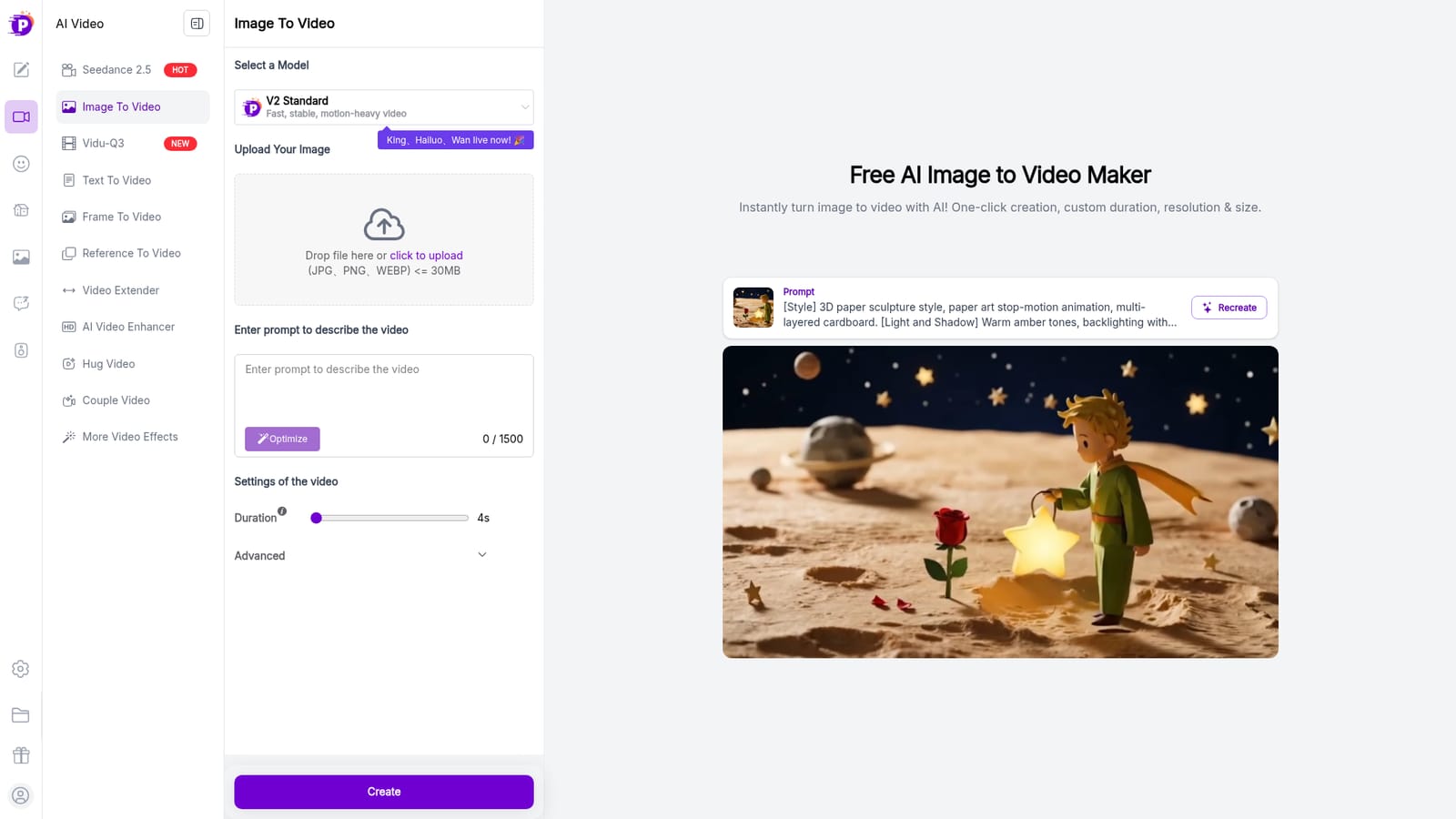
PixNova's Image to Video tool turns a single still image into a short animated clip. The workflow is deliberately narrow: upload a JPG, PNG or WEBP file up to 30MB, describe the motion you want in a prompt (up to 1,500 characters, with an Optimize button that rewrites your text), then pick a duration, resolution, motion strength and whether to add audio. The clip renders in the browser and lands in a history panel, where generations are kept for one day before automatic cleanup. The model roster is the main reason to consider it. PixNova exposes several engines in one place: its own V2 family (Standard, Pro Fast, Pro and V1 Standard) plus Wan, Hailuo and Kling, each pitched at a different trade-off between speed, motion intensity and cinematic detail. Duration runs 4s or 8s by default, resolution goes up to 1080p, and the Movement control (Auto, Small, Medium, Large) lets you keep a subtle camera drift or push for heavier action. An audio toggle generates fitting sound for the output. It suits social media creators, small marketing teams and animators who want a moving version of a product shot, poster or character sketch without opening a timeline editor. The site explicitly points at commercial ads, character work from movie stills or original drawings, and social clips. There is also a stock image library with millions of photos from providers such as iStock, Shutterstock and Adobe Stock, so you can swap in a licensed source image before animating. Compared with dedicated image animation apps, PixNova is broader: the same account also covers text to video, frame to video, upscaling, watermark removal, voice tools and room design. That breadth is convenient, but it also means the image to video page is one module inside a large credit-based suite rather than a specialist product.
The page is marketed as a free AI image to video maker, so a limited free attempt appears to be available without payment. The homepage does not state how many free credits or renders a new account receives.
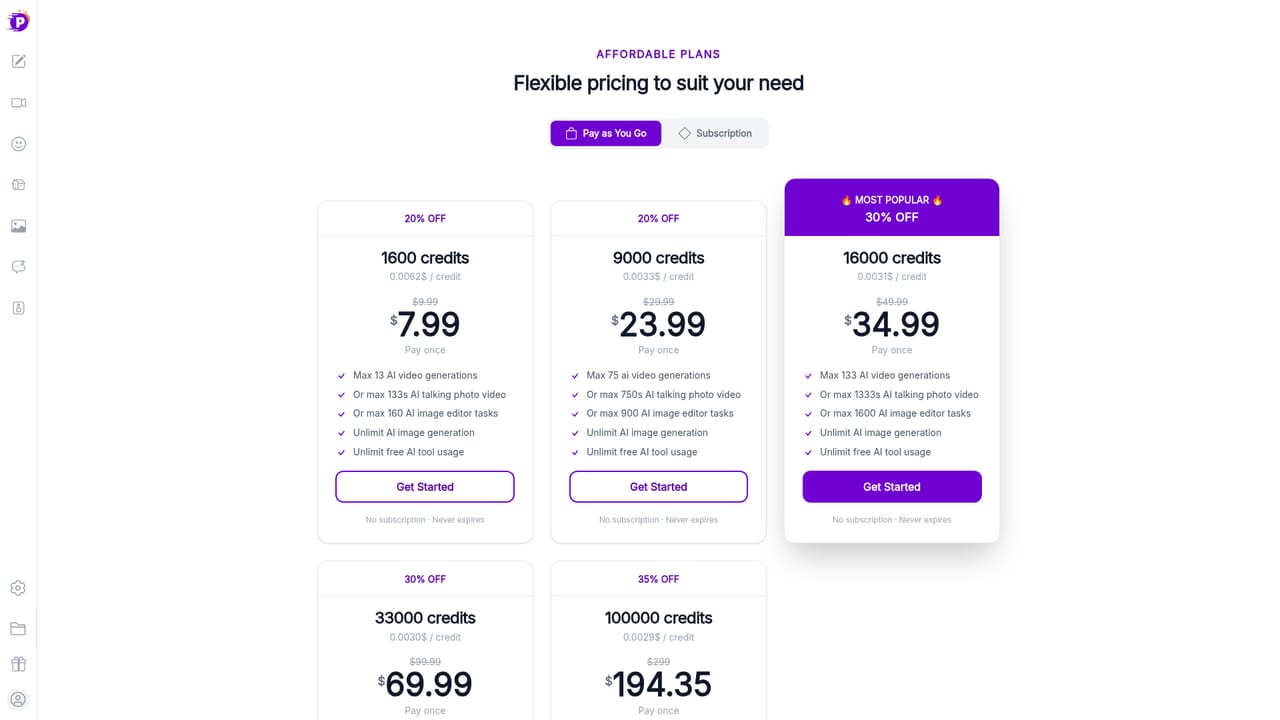
Learn moreThe tool runs on PixNova credits rather than per-video pricing. Model buttons on the image to video page carry temporary discounts (V1 Standard 33.3% off, the V2 variants 50% off), but credit costs are only confirmed at generation time. The pricing page lists plans and purchases; the homepage gives no fixed subscription figure.
Learn moreUpload a still image (JPG, PNG, WEBP up to 30MB), write a motion prompt up to 1,500 characters with an Optimize helper, and generate clips at 4s or 8s in 540P, 720P or 1080P. Movement control ranges from Auto to Large, audio generation can be switched on, and the model menu spans PixNova V1 and V2 Standard, V2 Pro Fast and V2 Pro plus Wan, Hailuo and Kling.
 AI Angels400+ customizable AI girlfriends for NSFW chat, voice calls, and roleplay
 Candy AIExperience the future of companionship with AI friends who chat, role-play, and connect with you on a human level.
 ourdream.aiA vast AI roleplay platform with millions of characters for chat, images, video and voiceAI Angels400+ customizable AI girlfriends for NSFW chat, voice calls, and roleplayCandy AIExperience the future of companionship with AI friends who chat, role-play, and connect with you on a human level.ourdream.aiA vast AI roleplay platform with millions of characters for chat, images, video and voice


