Free trial
A free account can be created and several models are promoted as free to try, but the page does not state trial length or credit allowance.
Learn moreOne studio, many frontier video models, paid per render

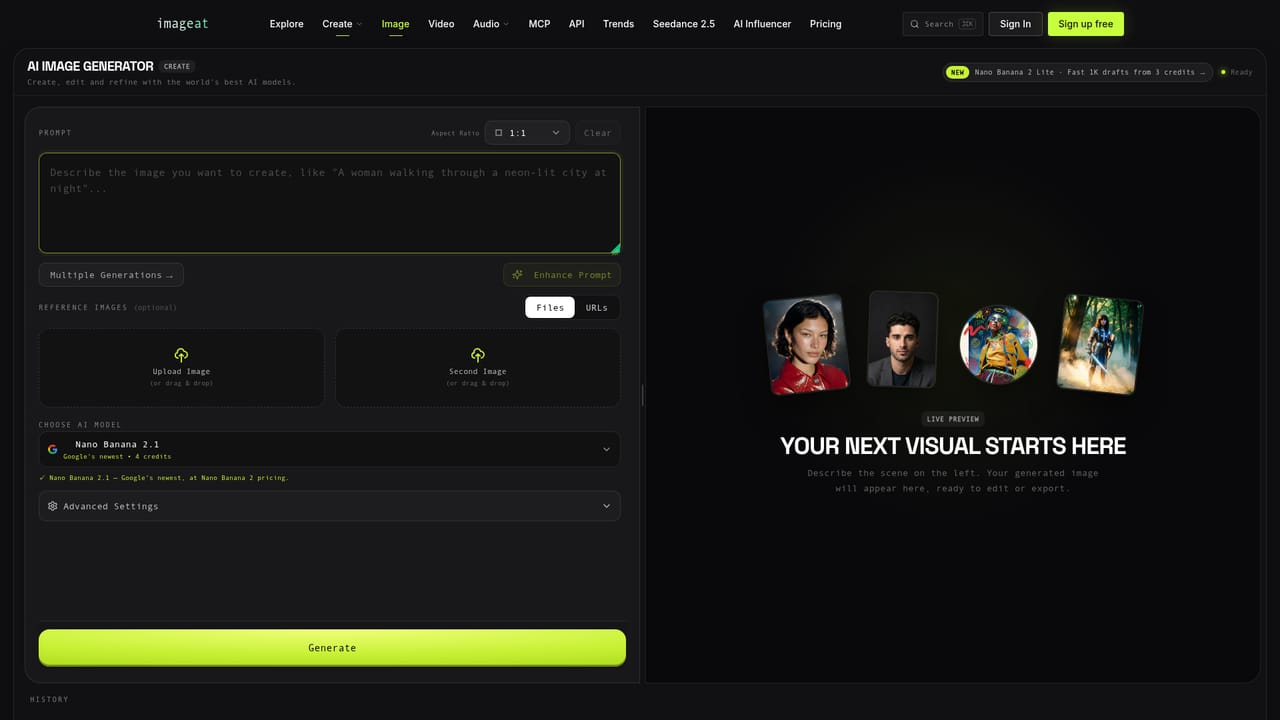
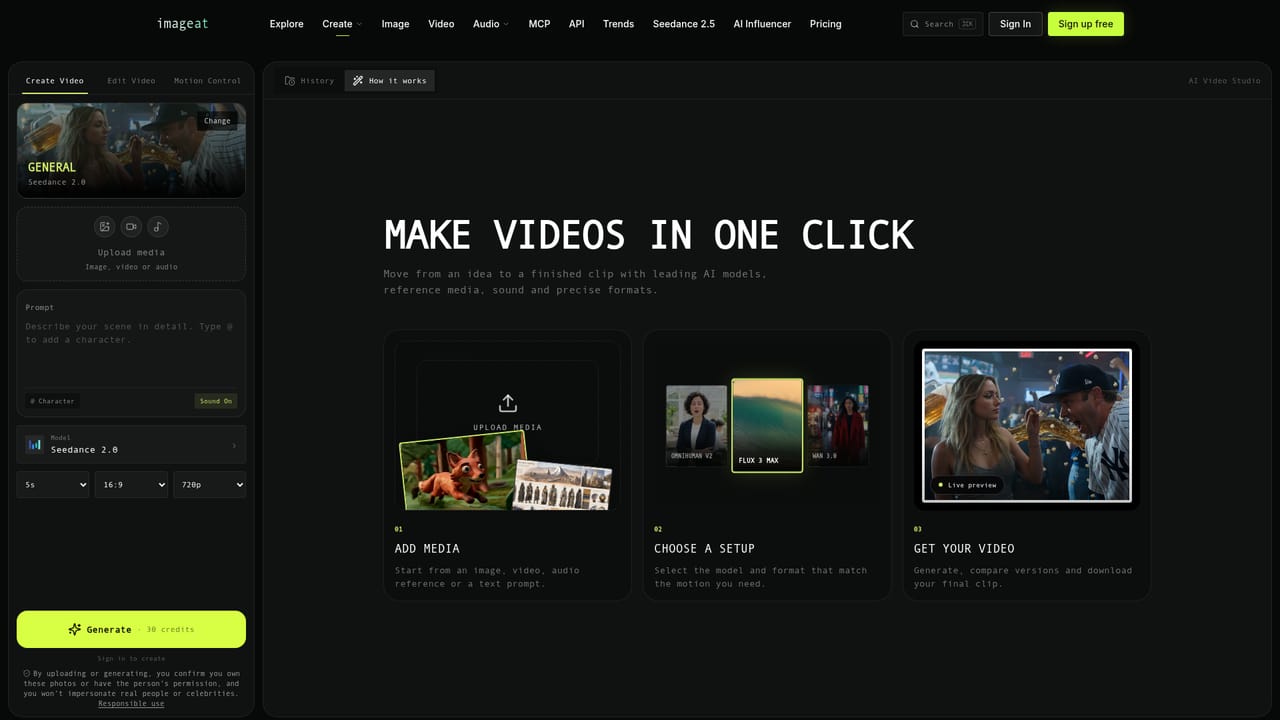
imageat is a generative video tool. A multi-model video studio that puts Veo, Kling, Seedance, Wan, FLUX, MiniMax, PixVerse and Grok behind one prompt bar, with text, image, first and last frame, motion transfer and extend modes, plus API and MCP access.
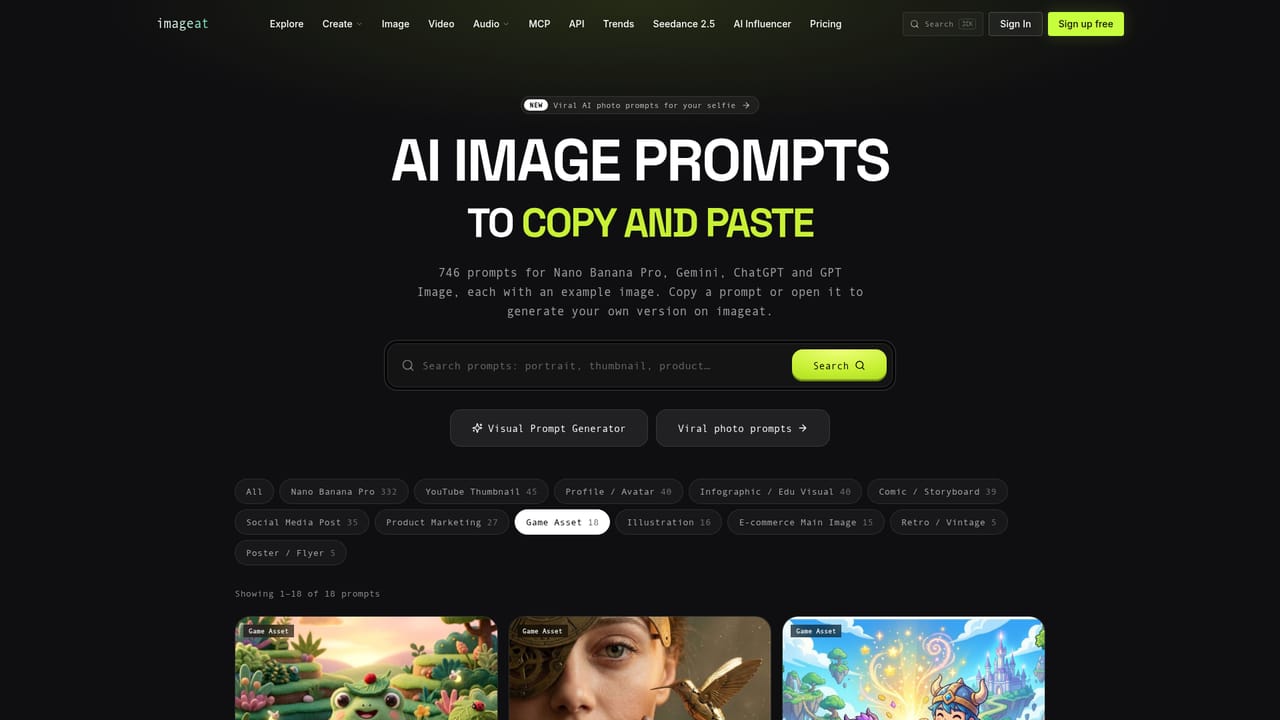
imageat's AI Video Generator is an aggregator studio rather than a single model. One prompt bar sits in front of Google Veo 3.1, Kling 3 and Kling 2.6, ByteDance Seedance 2.0 and OmniHuman v2, Black Forest Labs FLUX 3 Max, Alibaba Wan 3.0 and Happy Horse 1.0, MiniMax H3 Max, PixVerse V6, Grok Imagine Video, plus Genjutsu Light for motion work. Instead of subscribing to each vendor separately, users pick a model from a dropdown, set aspect ratio, duration, resolution and audio, and spend credits only when a render actually runs. Kling 4.0 is announced as coming soon once its API opens. The workflow covers more than prompt-to-clip. Text to video starts from a written description; image to video animates a still while holding the subject consistent; first and last frame mode interpolates a transition between two uploaded images. OmniHuman v2 pairs one photo with an MP3 or WAV file to produce a talking or singing presenter. Genjutsu Light transfers motion from a source clip onto reference characters or swaps an object using reference images. PixVerse V6 extends existing footage, and Grok's edit mode rewrites a clip from a text instruction. Output reaches 1080p with durations that vary by model, from a few seconds up to 30 on Wan 3.0 and Kling 4.0. Practically, the tool suits social media producers, marketers, indie filmmakers and agencies that need to test several engines without stitching vendors together. A typical run takes two to five minutes, which is fine for iteration but slow for live work. Teams with engineering capacity can skip the interface: an API and an MCP server let products and AI agents trigger renders and receive CDN URLs, and there is a prompt library plus trending style pages for people who do not want to write from scratch. Against single-model tools, the draw is breadth and per-use billing; the tradeoff is that quality and limits shift model by model, so the studio rewards users who read the specs before spending credits.

A free account can be created and several models are promoted as free to try, but the page does not state trial length or credit allowance.
Learn moreFree sign up, then a monthly plan where credits are deducted per generation; the page quotes 30 credits for one Veo 3.1 render at 720p and 4 seconds. Genjutsu Light is described as costing about a third of full Genjutsu. No plan prices are listed on the homepage.
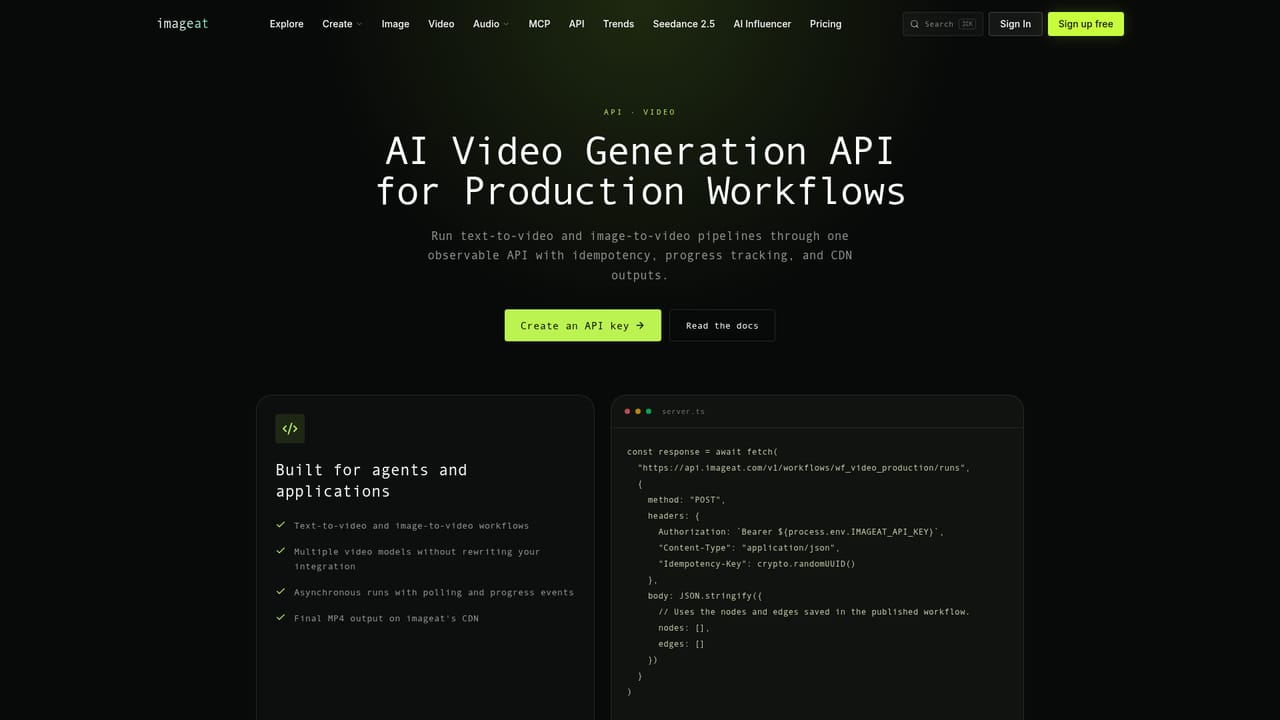
Learn moreA video generation API for observable workflows inside a product, plus an MCP server that lets AI agents generate clips and return CDN URLs.
Learn moreText to video, image to video and first and last frame modes across Veo 3.1, Kling 3 and 2.6, Seedance 2.0, Wan 3.0, FLUX 3 Max, MiniMax H3 Max, PixVerse V6, Happy Horse 1.0 and Grok. Adds OmniHuman v2 talking avatars from a photo and audio, Genjutsu Light motion transfer and object swap, PixVerse extend mode, Grok text guided video editing, output up to 1080p, multiple aspect ratios and optional audio.
Learn more AI Angels400+ customizable AI girlfriends for NSFW chat, voice calls, and roleplay
 Candy AIExperience the future of companionship with AI friends who chat, role-play, and connect with you on a human level.
 ourdream.aiA vast AI roleplay platform with millions of characters for chat, images, video and voiceAI Angels400+ customizable AI girlfriends for NSFW chat, voice calls, and roleplayCandy AIExperience the future of companionship with AI friends who chat, role-play, and connect with you on a human level.ourdream.aiA vast AI roleplay platform with millions of characters for chat, images, video and voice


