Kuca AI

One workspace for Veo, Kling, Seedance and Hailuo video generation

Beginner
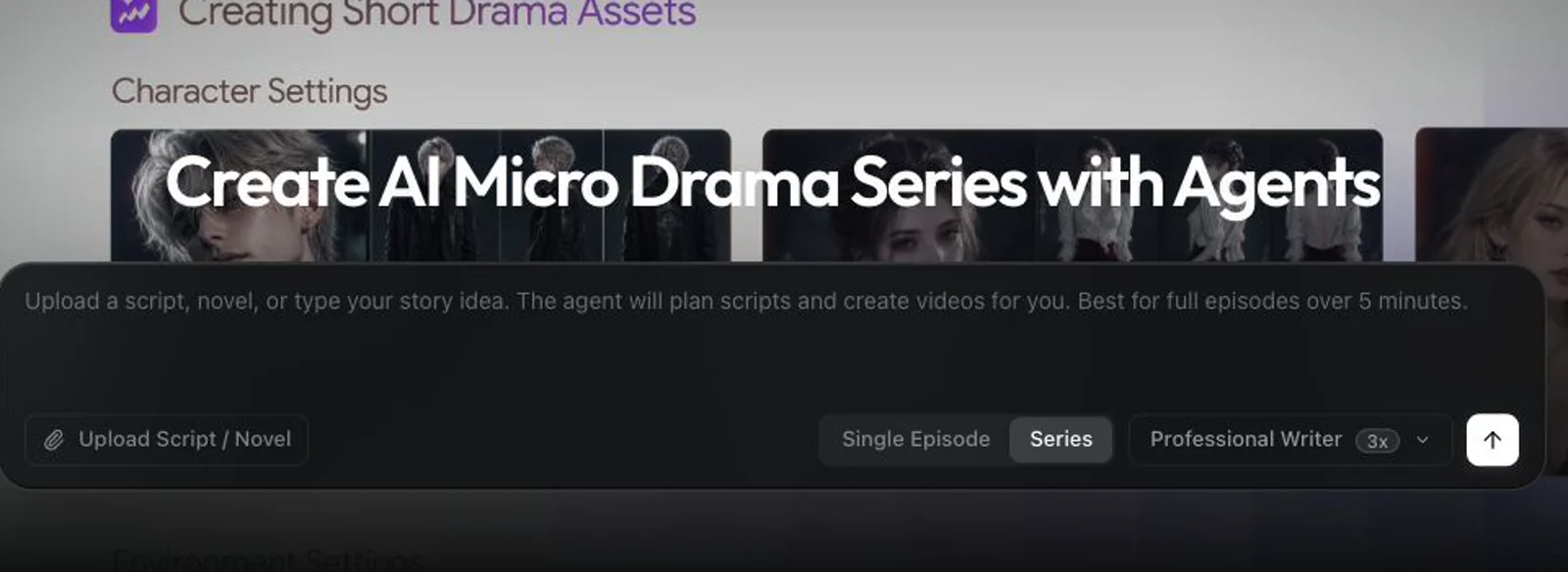
Screenshot of Kuca AI, One workspace for Veo, Kling, Seedance and Hailuo video generation

What is Kuca AI?

Kuca AI is a web workspace for AI video generation that routes prompts and images through multiple models, including Veo, Kling, Seedance and Hailuo. It is built for scene-by-scene production of shorts, dramas, ads and product clips, with settings, prompts and past generations kept together for reuse.

Kuca AI is a browser-based video maker that puts several third-party generation models behind a single workspace. Instead of subscribing to one model provider and living with its limits, you describe a shot, pick Veo, Kling, Seedance, Hailuo or another model on offer, and compare results without moving between tabs. The site leans heavily toward narrative output: short dramas, films, vertical shorts, ads and social clips rather than generic stock-style motion. In practice a project is built scene by scene. You start with a written prompt, a single still image or a reference clip, then set duration, aspect ratio, resolution and audio using only the controls the chosen model actually exposes. Text-to-video handles full written direction, including subject, action, lighting and camera movement. Image-to-video animates an uploaded still while holding its composition, which is the fast route from a product photo or character portrait to motion. Reference and first or last frame modes keep a face or outfit recognizable across changing settings. Audio-capable models add dialogue, effects and ambience alongside the picture. Every prompt, setting and result is kept in generation history, so a working setup can be reused across a series. The audience is practical rather than experimental: YouTube creators building B-roll and intros, short-form producers who need vertical-first footage, faceless channels assembling visual stories without a shoot, and ecommerce sellers turning one product image into a motion showcase. A dedicated product-to-video page covers the last case. An inspiration gallery of example clips doubles as a source of setups you can load into the workspace. Where it fits: Kuca is a control layer, not a model owner. It suits people who want model comparison and scene management in one place, and it is less suited to anyone who needs a guaranteed single-model pipeline or hands-on editing of the generated footage inside the same tool.

How do you use Kuca AI?

  1. 1Create an account
    Sign up on the Kuca site to open the workspace. Generation runs against paid models, so expect to add billing details before producing clips.
  2. 2Open the video workspace
    Go to the video workspace, which is where prompts, source images and all generation controls live.
  3. 3Add a prompt, image or reference
    Describe the subject, action, lighting and camera move, or upload a starting still. Add reference media only when the mode you plan to use supports it.
  4. 4Pick a model and mode
    Choose from Veo, Kling, Seedance, Hailuo or another available engine, then select text-to-video, image-to-video or a supported reference mode. Model pages such as Seedance 2.5 and Kling 3.0 explain what each one does.
  5. 5Set shot options and generate
    Adjust duration, aspect ratio, resolution and audio where the model allows it, then generate and review the clip in generation history. Rerun with a different model if the first result misses.
  6. 6Download or reuse the setup
    Download the finished clip, or keep the prompt and settings to repeat the same look across the rest of a series.

Pros and cons

Pros

  • Multiple leading video models sit behind one interface, so the same idea can be tested across enginesAI
  • Every prompt, setting and past result stays in generation history for reuse across a seriesAI
  • Interface shows only the modes and controls the selected model genuinely supportsAI
  • Image-to-video preserves composition, which suits product shots and character portraitsAI
  • Reference and first or last frame modes help keep a subject consistent between shotsAI

Cons

  • Quality depends entirely on third-party models, so Kuca adds no generation capability of its ownAI
  • The site does not state credit costs, model limits or output caps, which makes budgeting hard to judge upfrontAI
  • Long-form work is assembled scene by scene, with no indication of timeline editing or assembly toolsAI
  • Model availability can shift as upstream providers change versions or retire endpointsAI
  • No public documentation on API access or team collaboration is offered on the homepageAI

How much does Kuca AI cost?

Features

Text-to-video from written direction, image-to-video that holds a still's composition, reference and first or last frame modes for consistent subjects, camera and motion guidance through prompts and model controls, scene and style direction, audio-capable models for dialogue and ambience, a shared generation history, an inspiration gallery, and a dedicated product-to-video workflow.

Frequently asked questions about Kuca AI

  • How do you use Kuca AI?
    The walkthrough on this page covers 6 steps: 1. Create an account 2. Open the video workspace 3. Add a prompt, image or reference 4. Pick a model and mode 5. Set shot options and generate 6. Download or reuse the setup.
  • What platforms does Kuca AI support?
    Kuca AI is available on Web App.
  • What are the limitations of Kuca AI?
    Quality depends entirely on third-party models, so Kuca adds no generation capability of its own. The site does not state credit costs, model limits or output caps, which makes budgeting hard to judge upfront. Long-form work is assembled scene by scene, with no indication of timeline editing or assembly tools.

Status

StatusActive
Views0
Outbound clicks0
Added10/21/2026

Platforms

Web App

Pricing

FreemiumSubscription