Free trial
The AI Lip Sync series can be tried for free, and downloaded lip sync videos carry no watermark. Free access limits are not spelled out on the homepage.
Learn moreLip sync and AI video production in one browser workspace
Own LipSync Video? Verify ownership to get a dofollow link

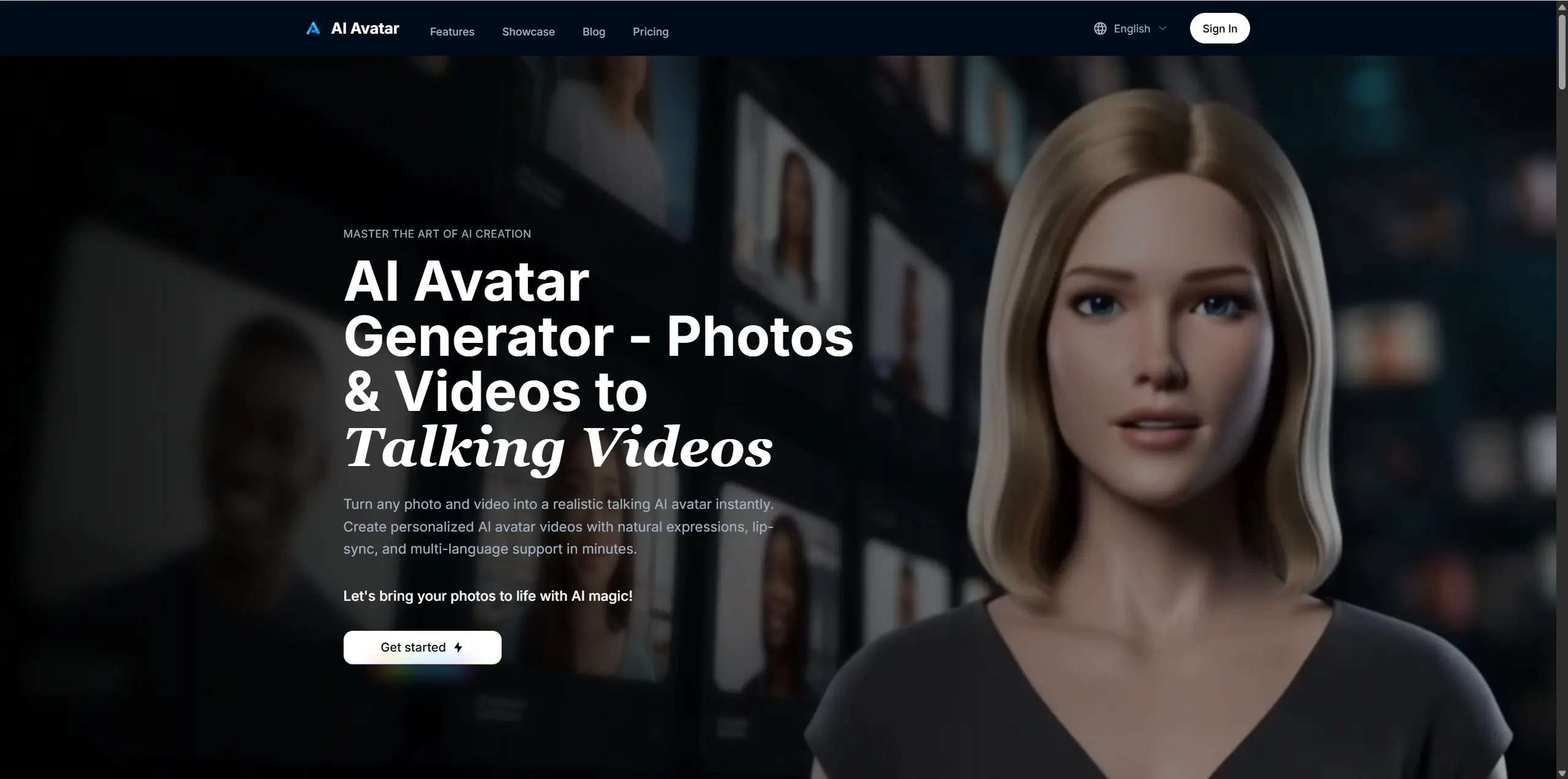
LipSync Video is an AI video talk tool. A browser studio for lip sync and AI video generation. Animate an existing video, photo, or avatar with a script, uploaded audio, or recorded voice, or generate new footage from text and images.
LipSync Video is a browser based studio that handles two related jobs. The first is lip sync: taking a video, a photo, or a reusable avatar and making the character speak or sing with generated or uploaded audio. The second is AI video generation: producing new footage from text, images, frame pairs, or reference clips. Both live behind a single workspace, so a project can start as a still portrait and end as a finished presenter clip without exporting between tools. The lip sync side is split into two workflows. Video lip sync keeps the source performance intact (movement, framing, scene) and swaps or adds the spoken or sung track, which makes it the natural choice for dubbing, localization, explainers, and longer talking videos. The photo route animates a single image into a character performance and needs far less source material, which suits talking portraits, singing photos, cartoons, animal characters, and talking objects. Two model tiers exist: Lip Sync 1.0 is the cheapest and fastest but limited to portraits with basic results, while Lip Sync 2.0 is the recommended tier for realistic mouth movement across varied characters. The interface accepts a script, an uploaded audio file, or a direct voice recording, and the tool also supports subtitles and background video with separate narration handling. The video generation side covers text to video, image to video, opening and closing frames, reference media, and motion control driven by a reference performance. Clip length tops out around 30 seconds for generated video, while lip sync work can run up to 3 minutes. Sitting next to these are supporting tools for avatars, image creation and editing, text to speech, and voice cloning, plus purpose built pages for ads, product videos, dubbing, and dialogue scenes. It suits creators, marketers, localization teams, and small studios that need talking character content without a camera or a voice booth. The main tradeoffs are credit based billing and rendering limits that make long form projects awkward.
The AI Lip Sync series can be tried for free, and downloaded lip sync videos carry no watermark. Free access limits are not spelled out on the homepage.
Learn morePricing runs on credits rather than flat plans. Lip Sync 1.0 costs 1 credit per second for roughly 90 second output, while Lip Sync 2.0 costs 4 credits per second for roughly 30 seconds. The homepage advertises periodic discounts, including up to 40 percent off Seedance models. Exact plan tiers are listed on the pricing page.
Learn moreSupport is reachable by email at lipsyncvideoai@gmail.com. No help centre, documentation portal, or live chat is linked from the homepage.
Video and photo lip sync with two model tiers, talking photo, singing photo, talking cartoon, talking animals, talking objects, avatar dialogue, video dubbing across 150+ languages, AI avatar and human generators, text to video, image to video, frame and reference guidance, motion control, green screen removal, text to speech with 40+ languages, voice cloning, image editing, and ad and product video templates.
Learn more AI Angels400+ customizable AI girlfriends for NSFW chat, voice calls, and roleplay
 Candy AIExperience the future of companionship with AI friends who chat, role-play, and connect with you on a human level.
 ourdream.aiA vast AI roleplay platform with millions of characters for chat, images, video and voiceAI Angels400+ customizable AI girlfriends for NSFW chat, voice calls, and roleplayCandy AIExperience the future of companionship with AI friends who chat, role-play, and connect with you on a human level.ourdream.aiA vast AI roleplay platform with millions of characters for chat, images, video and voice