Support
Help is available through a public FAQ documentation site and a company blog; the homepage does not describe email, chat or priority support options.
Learn moreNative AI writing assistant that works inside any Mac or Windows app

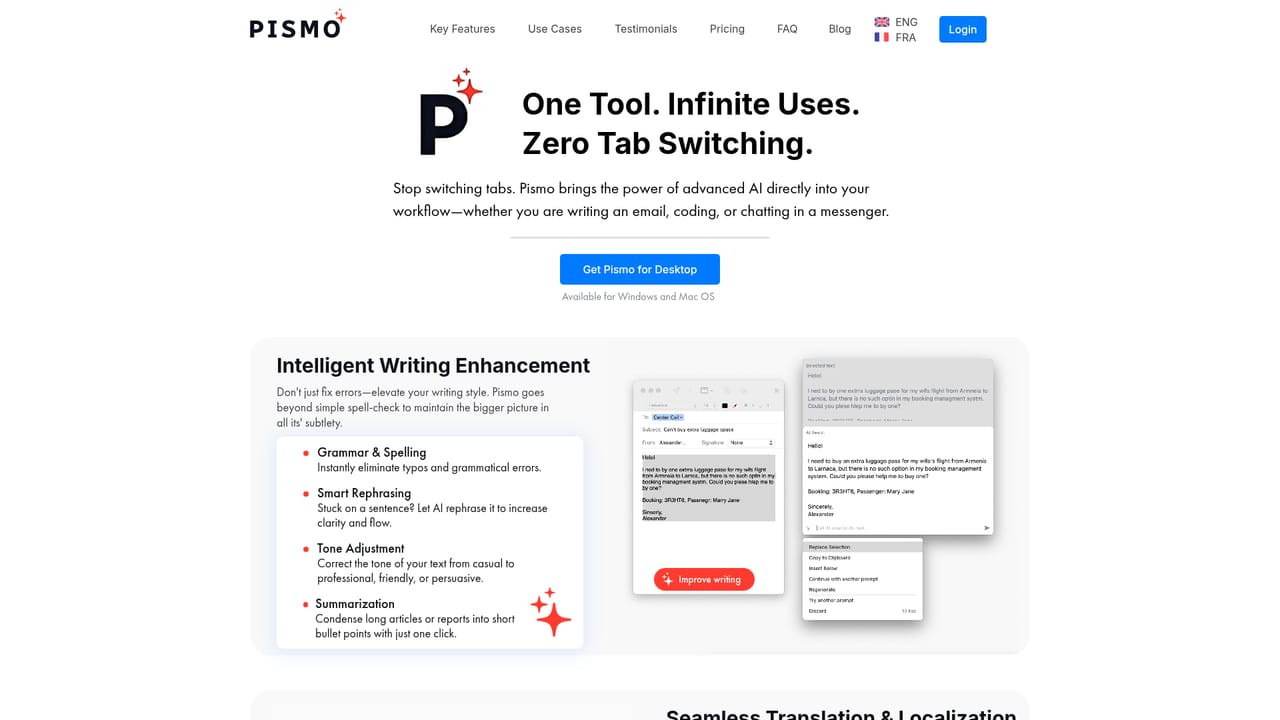
Pismo is a native Mac and Windows app that adds AI writing help to any program: improve, translate, shorten, lengthen, change tone, and fix grammar using a floating widget or custom hotkey prompts.
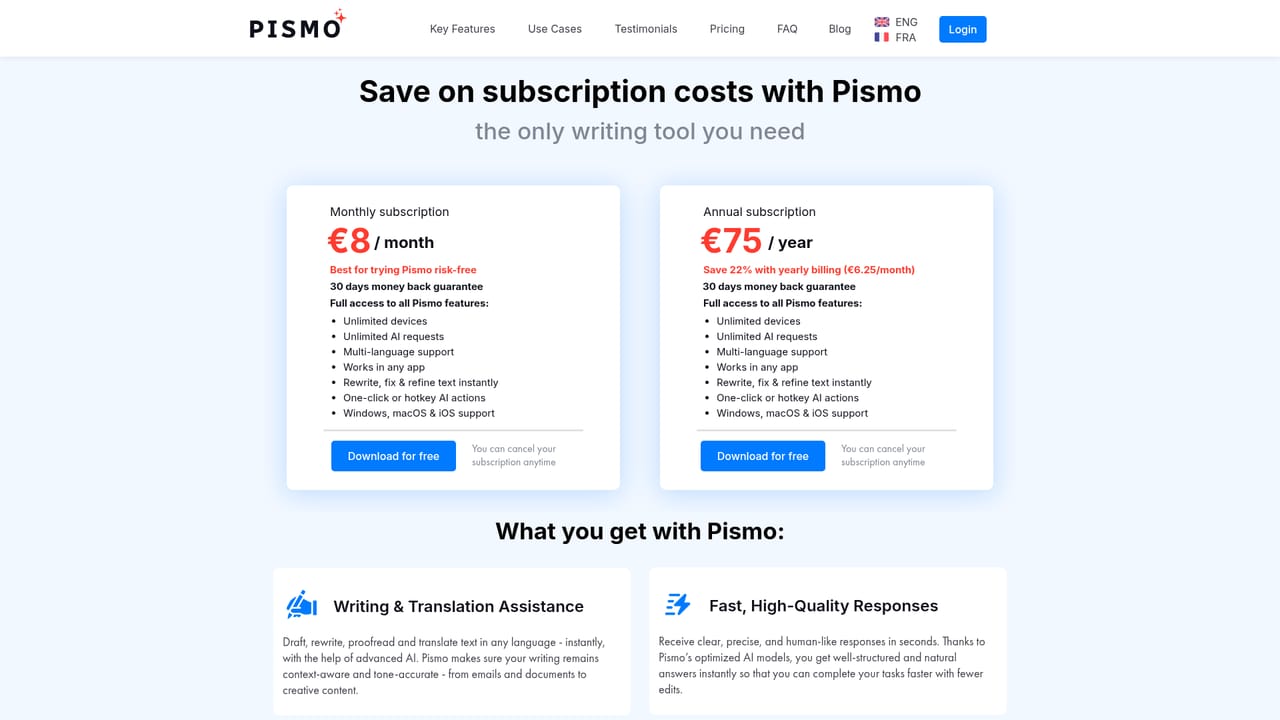
Pismo is a desktop writing assistant for Mac and Windows that puts AI text editing on top of whatever application is already open. Instead of pasting paragraphs into a browser chatbot and carrying the result back, users invoke Pismo from its floating widget or a keyboard shortcut and work on the selected text in place. The company positions it as a single AI writing app for the desktop rather than another browser add-on, and says it integrates with email clients, documents, messengers and browsers. The feature set is deliberately practical rather than generative. Pismo improves clarity and quality, fixes spelling and grammar, translates into other languages, shortens or expands a passage, and shifts the tone to suit a different context or audience. Custom prompts can be saved and bound to hotkeys, so a user can build repeatable routines for recurring jobs such as replying to support mail or tightening a product description. Because the actions run against selected text inside the host app, the workflow suits people who write in many places: email, chat, documents, forms, and internal tools. Pismo is aimed at freelancers, marketers, support staff, non-native speakers and other professionals who compose text all day and want a correction and rewriting layer that follows them between programs. Buyers comparing it to Grammarly or to browser-based AI assistants should note the difference in approach: Pismo is installed on the machine and reaches all apps, and its custom prompt shortcuts go beyond grammar checking into rewriting and translation. The vendor states that texts are not stored or processed and that data is transferred and stored under high security standards, which matters for anyone handling client or internal content. Pricing, seat limits and platform-specific requirements are listed on the separate pricing page, and the FAQ covers setup questions. The published material does not name the underlying language models or specify which integrations are officially supported beyond the general claim of working with any desktop app.
Help is available through a public FAQ documentation site and a company blog; the homepage does not describe email, chat or priority support options.
Learn morePismo is described as working inside any app on Mac or Windows, including email, documents, messengers and browsers. No named integrations or public API are listed on the homepage.
Learn moreCore actions cover improving clarity, fixing spelling and grammar, translating into other languages, shortening or lengthening text, and changing tone. Custom prompts can be saved and run from hotkeys inside any app. A floating widget keeps the tool available on screen, and the vendor states that texts are not stored or processed.
Learn more AI Angels400+ customizable AI girlfriends for NSFW chat, voice calls, and roleplay
 Candy AIExperience the future of companionship with AI friends who chat, role-play, and connect with you on a human level.
 ourdream.aiA vast AI roleplay platform with millions of characters for chat, images, video and voiceAI Angels400+ customizable AI girlfriends for NSFW chat, voice calls, and roleplayCandy AIExperience the future of companionship with AI friends who chat, role-play, and connect with you on a human level.ourdream.aiA vast AI roleplay platform with millions of characters for chat, images, video and voice


