Playground AI

Multi model AI video generation from a prompt or a single image

Beginner
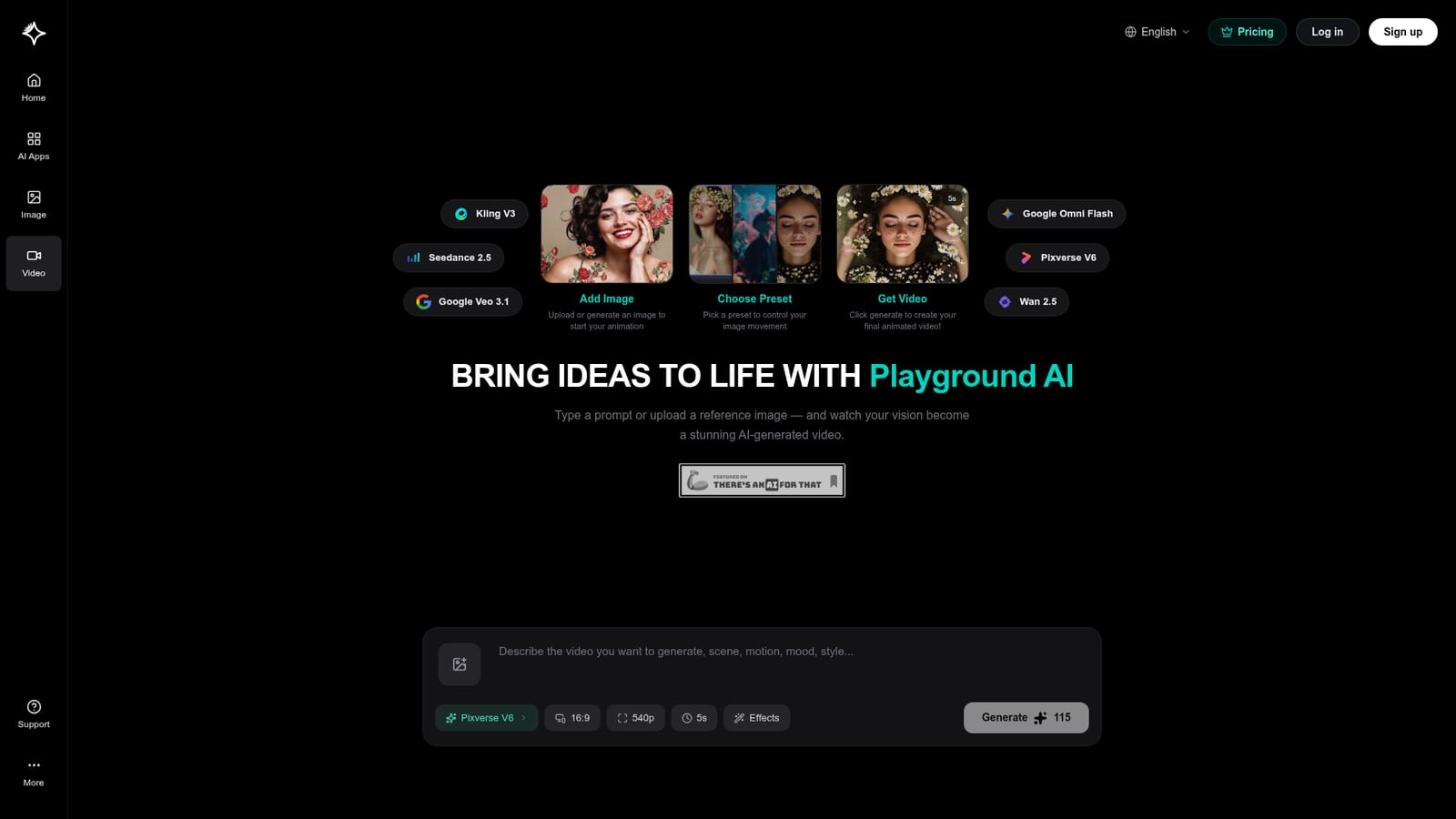
Screenshot of Playground AI, Multi model AI video generation from a prompt or a single image

What is Playground AI?

Playground AI is a generative video tool. Playground AI's video generator turns a text prompt or an uploaded image into short cinematic clips, letting users pick between Kling V3, Seedance 2.5, Google Veo 3.1, Google Omni Flash, Pixverse V6 and Wan 2.5, with control over presets, duration, quality and aspect ratio.

Playground AI's video page is a single workspace for turning text prompts or still images into short clips. Rather than training or hosting one proprietary model, it puts several third party engines behind one interface: Kling V3, Seedance 2.5, Google Veo 3.1, Google Omni Flash, Pixverse V6 and Wan 2.5 are all selectable from the same screen. That matters because different engines handle motion, realism and prompt adherence differently, so the same idea can be tested across models without opening multiple accounts. The workflow is deliberately short. A user either types a prompt or uploads a reference image, then picks a movement preset that steers how the frame animates. Duration, quality and aspect ratio can be adjusted before generating, and the default example shown on the page is a five second clip at 40p rendering with Pixverse V6. Cinematic effects are offered as an option for stylised output. A text to video path and an image to video path sit side by side, which makes the tool useful both for people starting from a written concept and for people who already have artwork they want to bring to life. Playground is a broader image platform with upscaling, background removal, face restoration, virtual try on, image blending, style transfer and resizing tools, and the video generator benefits from that context: an image made in the image tools can be pushed straight into animation. The natural audience is designers, social media creators, small marketing teams and illustrators who want short motion assets without a production pipeline. It competes with standalone video generators such as Runway and Pika, and its differentiator is model choice plus proximity to image editing rather than depth of video controls. Anyone needing long form sequencing, precise camera direction or multi shot editing will still need a dedicated editor.

How do you use Playground AI?

  1. 1Open the video generator
    Go to the AI video generation page. You can start from a written prompt or from an image, depending on whether you already have a concept or existing artwork.
    Playground AI — Open the video generator
  2. 2Add your starting input
    Type a prompt describing the scene, or upload a reference image to animate. Users who already made artwork in Playground's image tools can reuse that output here.
  3. 3Pick a movement preset
    Choose one of the presets on offer. Presets control how the image moves, which is the fastest way to get deliberate motion without writing detailed camera instructions.
  4. 4Choose a model and settings
    Select from Kling V3, Seedance 2.5, Google Veo 3.1, Google Omni Flash, Pixverse V6 or Wan 2.5, then set duration, quality, aspect ratio and any cinematic effects before generating.
  5. 5Generate and review the clip
    Run the generation and play the result. If the motion or style is off, switch engines or presets and regenerate rather than rebuilding the prompt from scratch.

Pros and cons

Pros

  • Several leading video models sit behind one interface, so the same prompt can be compared across enginesAI
  • Image to video and text to video are both supported from the same screenAI
  • Movement presets reduce the guesswork for users who do not want to write camera languageAI
  • Short workflow of upload or prompt, pick preset, generate keeps the tool accessible to beginnersAI
  • Sits alongside Playground's image editing tools, so generated stills can be animated directlyAI

Cons

  • The page gives no information on pricing, credits or generation limits, so cost per clip has to be discovered after signing upAI
  • No detail on resolution ceilings or maximum clip length beyond the five second example shownAI
  • No mention of multi shot sequencing or timeline editing, so completed clips must be assembled elsewhereAI
  • Model availability can shift with third party providers, which puts output consistency outside the user's controlAI
  • No stated API, meaning teams cannot automate generation inside their own workflowsAI

How much does Playground AI cost?

Features

Text to video and image to video generation in one workspace, with a choice of Kling V3, Seedance 2.5, Google Veo 3.1, Google Omni Flash, Pixverse V6 and Wan 2.5. Movement presets steer animation, and users can set duration, quality, aspect ratio and cinematic effects before generating a short clip.

Frequently asked questions about Playground AI

  • How do you use Playground AI?
    The walkthrough on this page covers 5 steps: 1. Open the video generator 2. Add your starting input 3. Pick a movement preset 4. Choose a model and settings 5. Generate and review the clip.
  • What platforms does Playground AI support?
    Playground AI is available on Web App.
  • What are the limitations of Playground AI?
    The page gives no information on pricing, credits or generation limits, so cost per clip has to be discovered after signing up. No detail on resolution ceilings or maximum clip length beyond the five second example shown. No mention of multi shot sequencing or timeline editing, so completed clips must be assembled elsewhere.

Status

StatusActive
Views0
Outbound clicks0
Added10/21/2026

Platforms

Web App

Pricing

Freemium