Free trial
A free 14 day trial is offered for individuals and for teams, according to the homepage and meta description.
Learn moreAutomatic time tracking that shows where your hours actually go

RescueTime is a time optimization tool. RescueTime combines automatic app and website tracking (Focus) with project, client and task timesheets, giving individuals and teams reports on where hours go, goal alerts, distraction blocking and billable rate tracking from one background app.
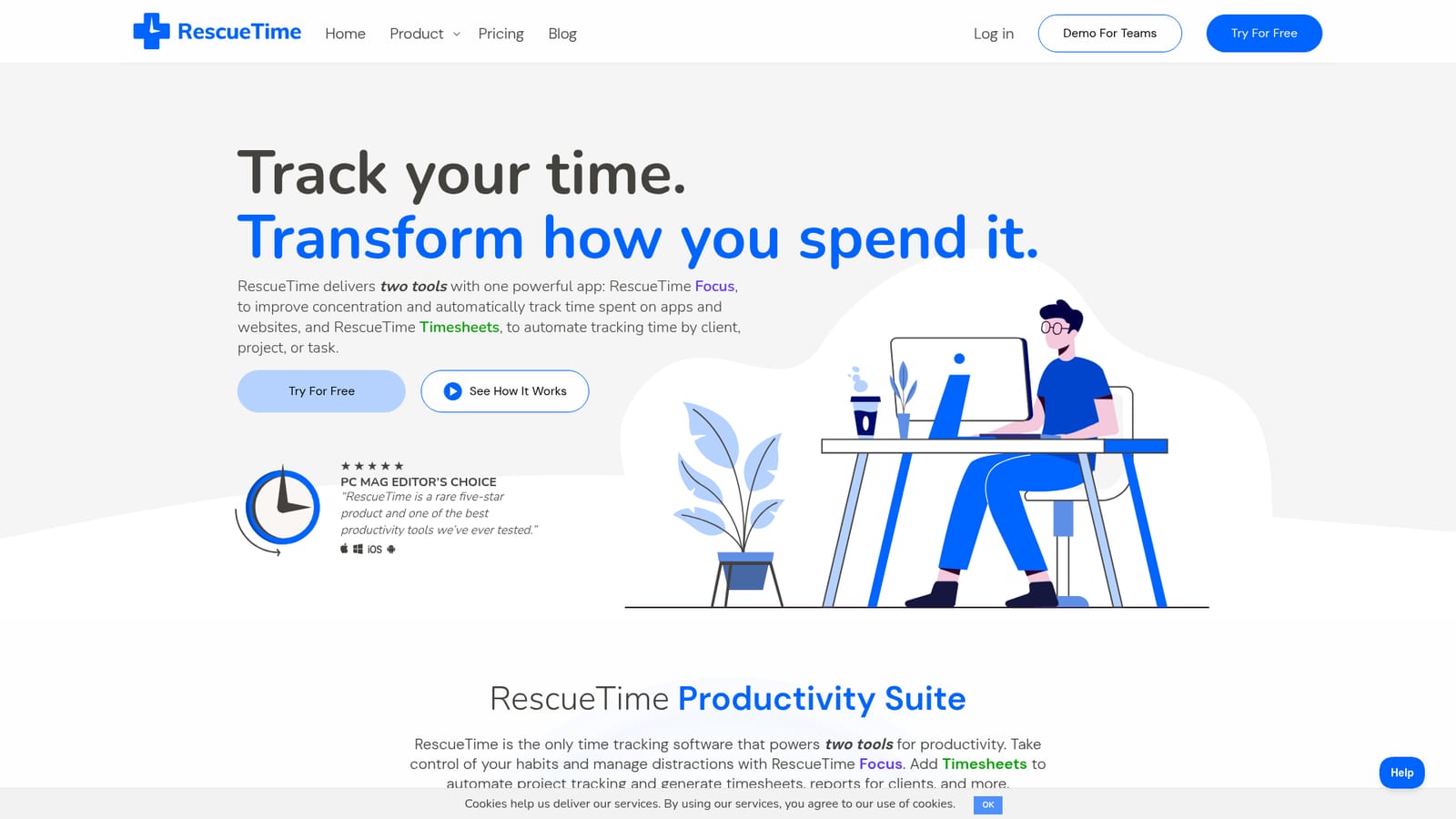
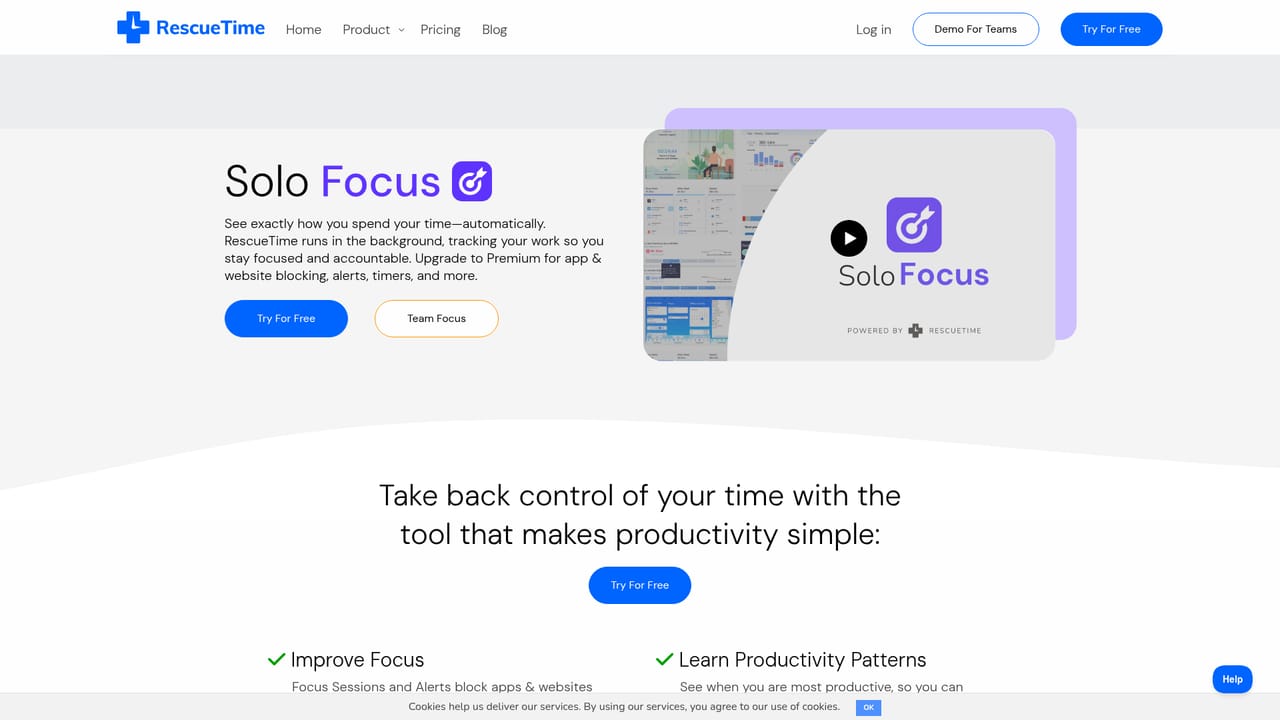
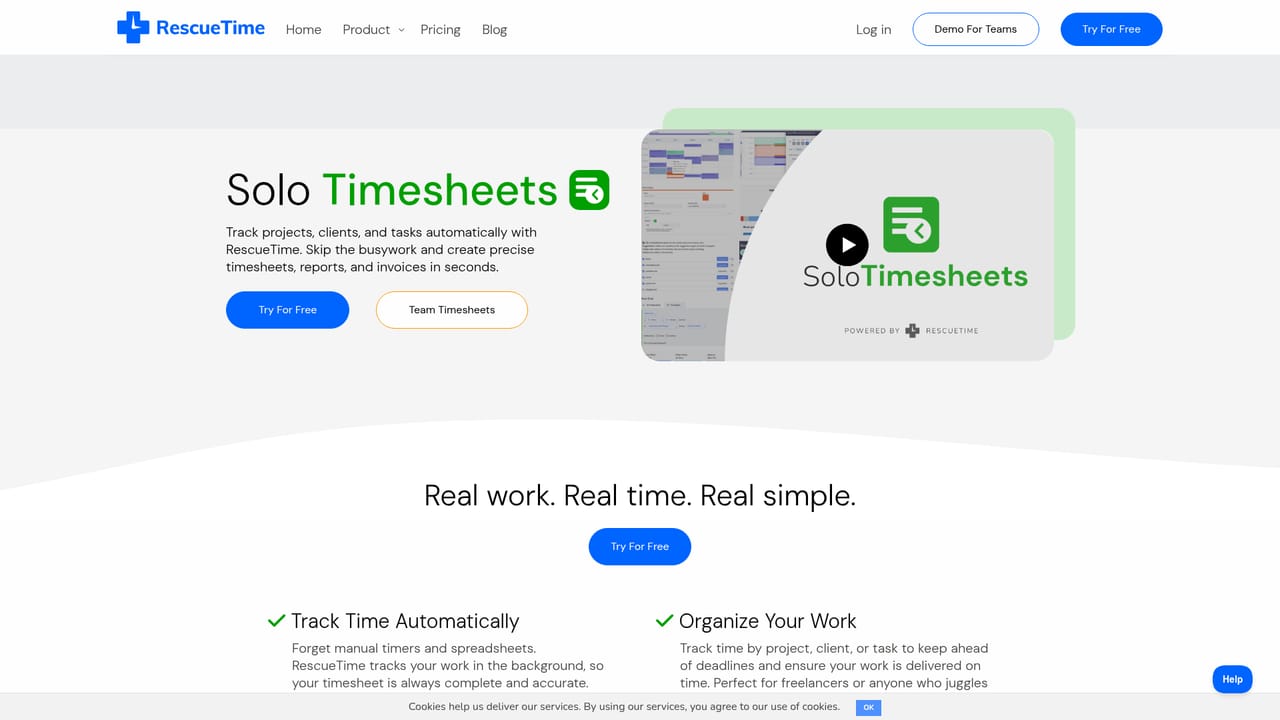
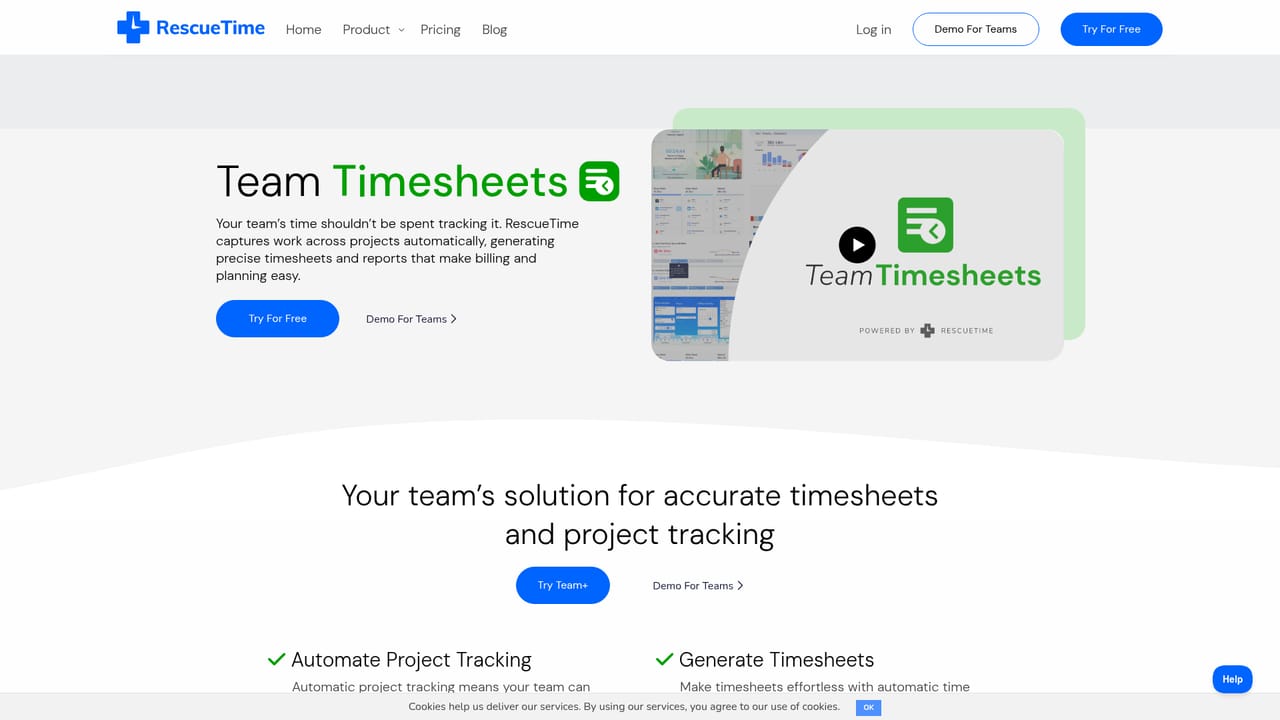
RescueTime is a time tracking suite built around two separate tools that share one account. RescueTime Focus records the apps and websites you use automatically, then turns that raw activity into reports on work categories and productivity patterns. RescueTime Timesheets layers project, client and task tracking on top, so the same background logging produces billable timesheets without manual stopwatch work. Buyers can subscribe to Focus alone or bundle both. In practice the software runs quietly in the background and captures what is open on screen, which means the record is built whether or not you remember to start a timer. Focus adds goals and alerts that flag drift before a distraction takes over, plus Focus Sessions that block distracting sites, apps, email or chat for a set period. Solo users get timeline views, smart fill hints and suggestion review to correct how activity is classified. Teams add shared clients, projects and tasks, role based access control, a weekly team calendar and billable rates, alongside team level reporting on key tools and work categories. The intended audience is broad. Freelancers and solopreneurs use the timesheet side to see which clients and projects pay off and to build invoices from filtered reports. Agencies, law firms, healthcare and telehealth groups, architects, finance teams and remote or hybrid departments use the team reports to spot bottlenecks and rebalance workloads. Individual knowledge workers who simply want to understand their own concentration habits are served by Focus on its own, with the option to upgrade later. Where it fits: RescueTime is a passive, analytics first tracker rather than a timer you drive by hand. Tools built around manual start and stop entries demand discipline and suit people who bill strictly by the hour, while RescueTime trades that precision for coverage, catching the unplanned hours most manual logs miss. It is a complement to project management software rather than a replacement, since scheduling and task boards are not its job. The company reports more than 15 years in operation, over 2 million users and 3 billion hours logged, and holds a PC Mag Editor's Choice recommendation.
A free 14 day trial is offered for individuals and for teams, according to the homepage and meta description.
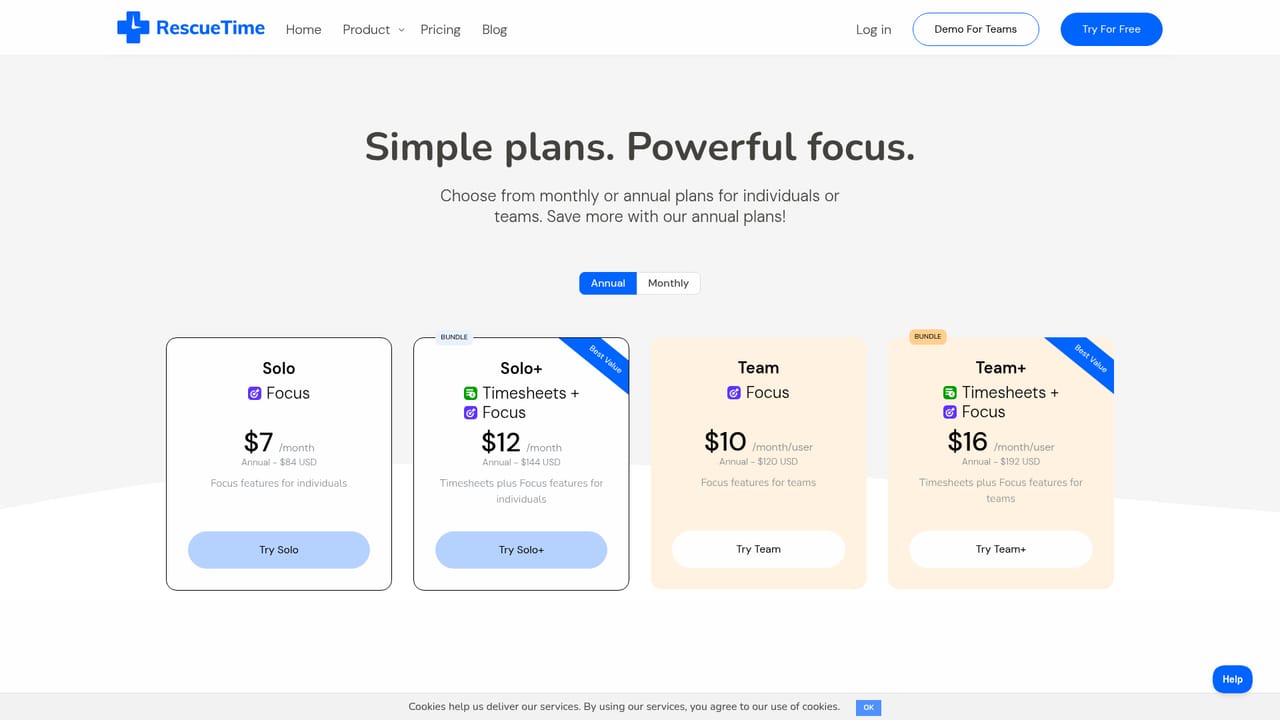
Learn morePlans are split between RescueTime Focus (personal productivity tracking, goals, alerts and Focus Sessions) and a bundle that adds Timesheets for client, project and task tracking with billable rates. Solo and team variants exist for both, and the homepage directs buyers to the pricing page for current figures.
Learn moreThe homepage names integrations only as a Timesheets feature in its healthcare section, without listing which services are supported.
Focus covers automatic activity tracking across apps and websites, the Assistant, Focus Sessions with distraction blocking, goals and alerts, and productivity reports. Timesheets adds a timeline, smart fill hints, suggestion review, flexible reporting, offline work entry, client reports, project targets and billable rates. Team plans add shared clients, projects and tasks, role based access control, a team weekly calendar, team and daily pattern reports, and key tools and category breakdowns.
Learn more AI Angels400+ customizable AI girlfriends for NSFW chat, voice calls, and roleplay
 Candy AIExperience the future of companionship with AI friends who chat, role-play, and connect with you on a human level.
 ourdream.aiA vast AI roleplay platform with millions of characters for chat, images, video and voiceAI Angels400+ customizable AI girlfriends for NSFW chat, voice calls, and roleplayCandy AIExperience the future of companionship with AI friends who chat, role-play, and connect with you on a human level.ourdream.aiA vast AI roleplay platform with millions of characters for chat, images, video and voice


