Free trial
The homepage offers a free start and an interactive example that uses no credits, though the limits of the free allowance are not specified on the page.
Learn moreTurn a single image into an AI video, with credits instead of subscriptions

Shotra is an image to video tool that turns a single image into an AI video, with credits instead of subscriptions. Shotra turns a photo or text prompt into a short AI video, routing jobs to Seedance 2, Veo 3.1 or Kling AI Avatar across three quality tiers.
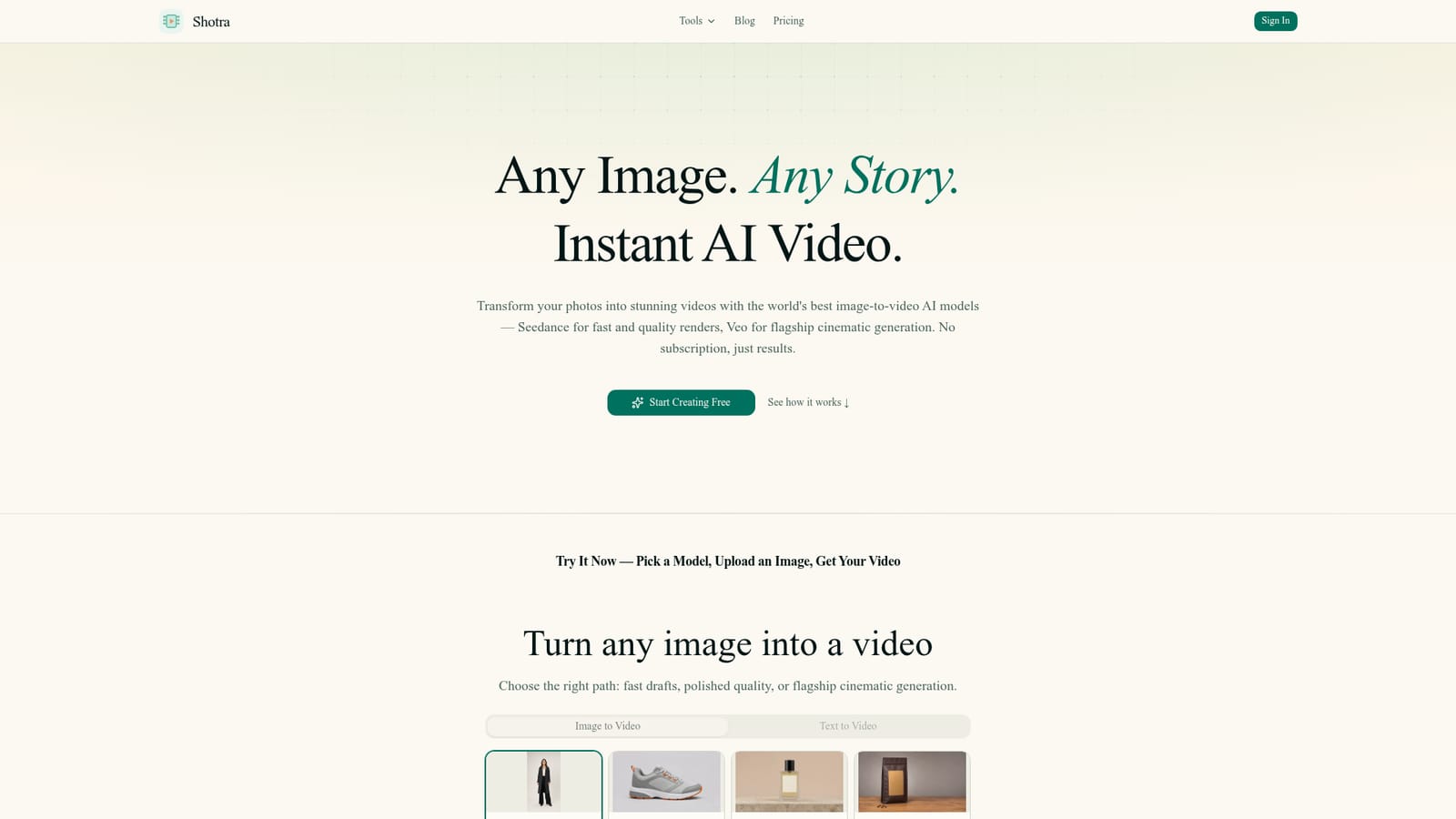
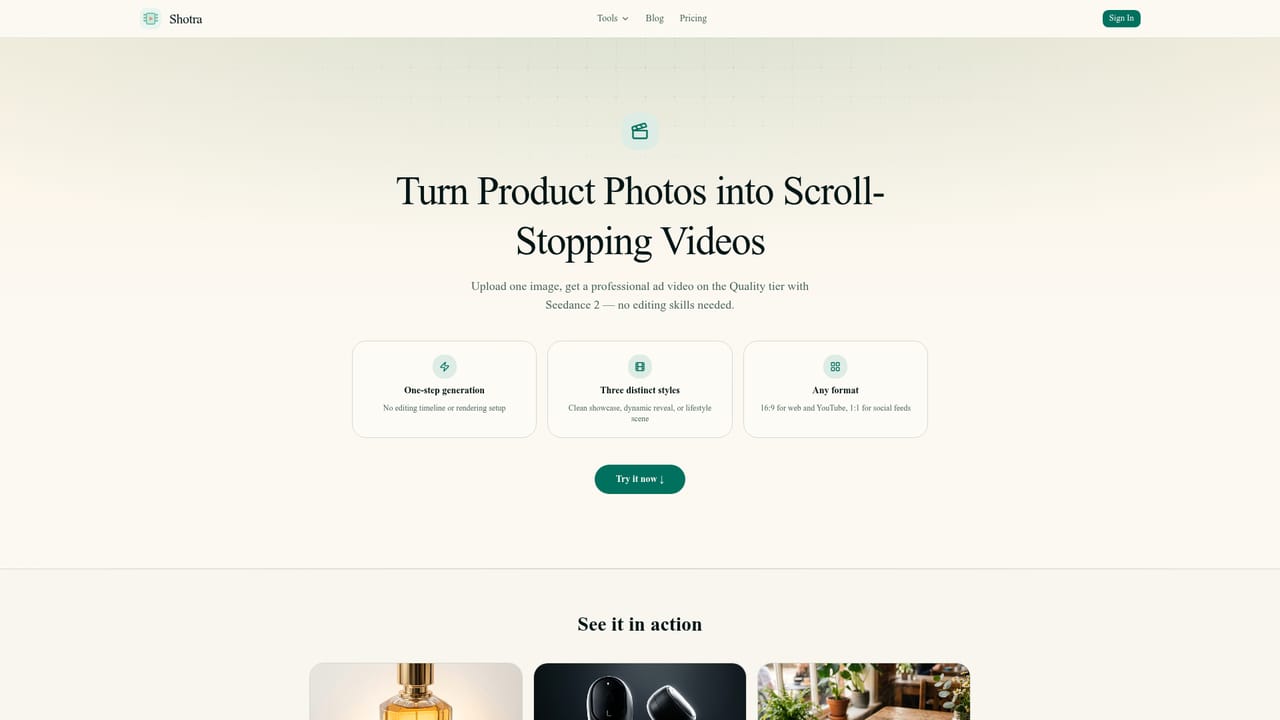
Shotra is a browser based image to video generator that puts several third party models behind one simple upload form. A user uploads a photo, optionally types a prompt, then chooses a generation tier: Fast for quick drafts, Quality for polished output, or Best for flagship cinematic renders. The platform routes that job to the appropriate model, with Seedance 2 Fast, Seedance 2, Veo 3.1 and Kling AI Avatar named on the site. Text to video sits alongside image to video as a second entry point, so a scene can start from a written prompt when no source photo exists. The product is aimed at creators, small marketing teams and solo founders who need short promotional or social clips without opening a timeline editor. Three pre-configured tools cover the common cases: Product Video Maker turns catalogue shots into promotional footage on the Quality tier, Pet Video Maker animates animal photos on the Fast tier, and LinkedIn Video Maker converts a headshot into a spoken video introduction using Kling AI Avatar. Each tool applies its own settings, which shortens the path for users who do not want to reason about duration, aspect ratio or resolution themselves. Manual control is still available for those who do, with duration, aspect ratio (including 9:16 and 16:9) and 1080P resolution selectable before generation. The workflow is deliberately narrow: upload, prompt, pick a tier, generate, download. There is no editing timeline, and the site positions this as a feature rather than a gap. Billing departs from the usual subscription default. Credits start at $0.005 each and are sold either as one-time packs or as an automatically renewing plan, with the credit cost shown before a job is submitted. Generated videos are stored permanently in the cloud rather than expiring after 14 days, which matters for teams that treat AI clips as reusable assets. Among image to video services, Shotra competes on model breadth and billing flexibility rather than on original research. Its practical draw is the ability to compare a cheap draft and a premium render without maintaining accounts across multiple vendors. The trade-off is that output quality depends entirely on the underlying providers, and generation time varies with tier and provider queue.
The homepage offers a free start and an interactive example that uses no credits, though the limits of the free allowance are not specified on the page.
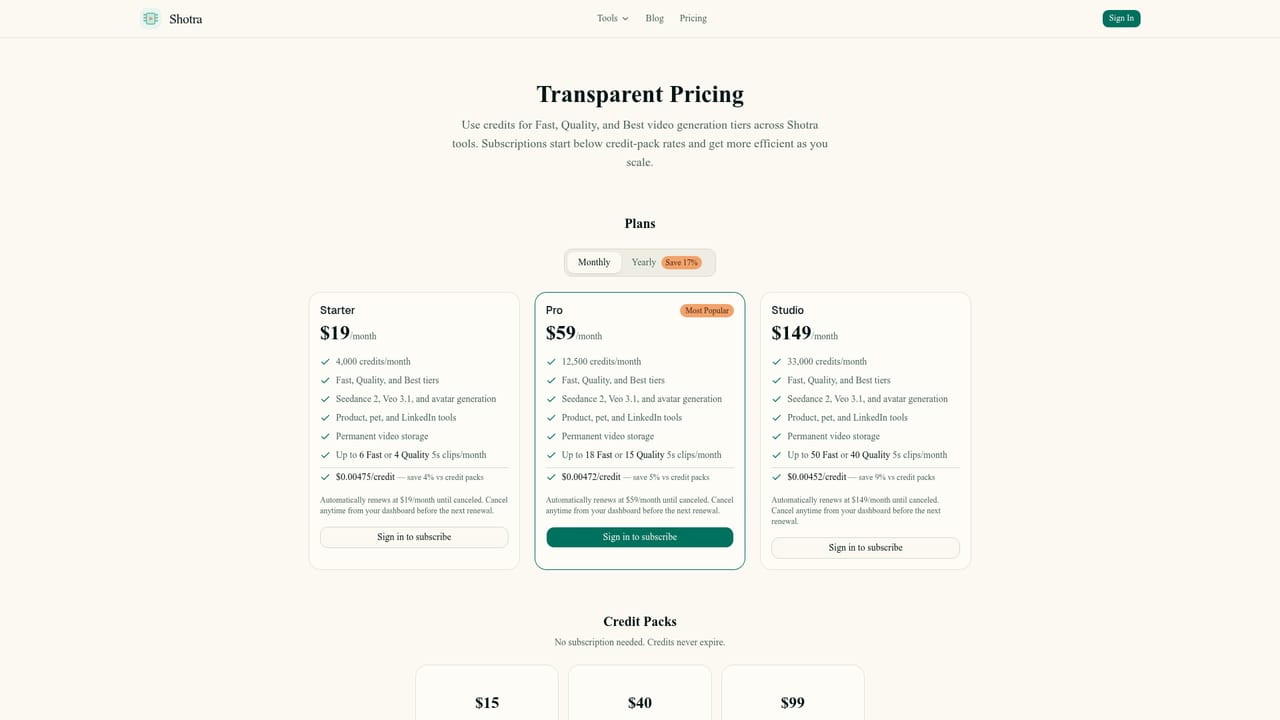
Learn moreCredits start at $0.005 each and can be bought as one-time packs or through an automatically renewing subscription. The exact credit cost for a job is displayed before generation, and the site states that no subscription is required to start.
Learn moreImage to video and text to video generation across three tiers (Fast, Quality, Best) using Seedance 2 Fast, Seedance 2, Veo 3.1 and Kling AI Avatar. Options include duration, 9:16 or 16:9 aspect ratio and 1080P resolution. Pre-configured tools cover product, pet and LinkedIn videos, and all generated clips are stored permanently in the cloud.
 AI Angels400+ customizable AI girlfriends for NSFW chat, voice calls, and roleplay
 Candy AIExperience the future of companionship with AI friends who chat, role-play, and connect with you on a human level.
 ourdream.aiA vast AI roleplay platform with millions of characters for chat, images, video and voiceAI Angels400+ customizable AI girlfriends for NSFW chat, voice calls, and roleplayCandy AIExperience the future of companionship with AI friends who chat, role-play, and connect with you on a human level.ourdream.aiA vast AI roleplay platform with millions of characters for chat, images, video and voice


