Free trial
The local video and audio utilities are free to use with no account required. Trial terms for the hosted AI tools are not stated on the homepage.
Learn moreBrowser-based video utilities plus an AI generation suite
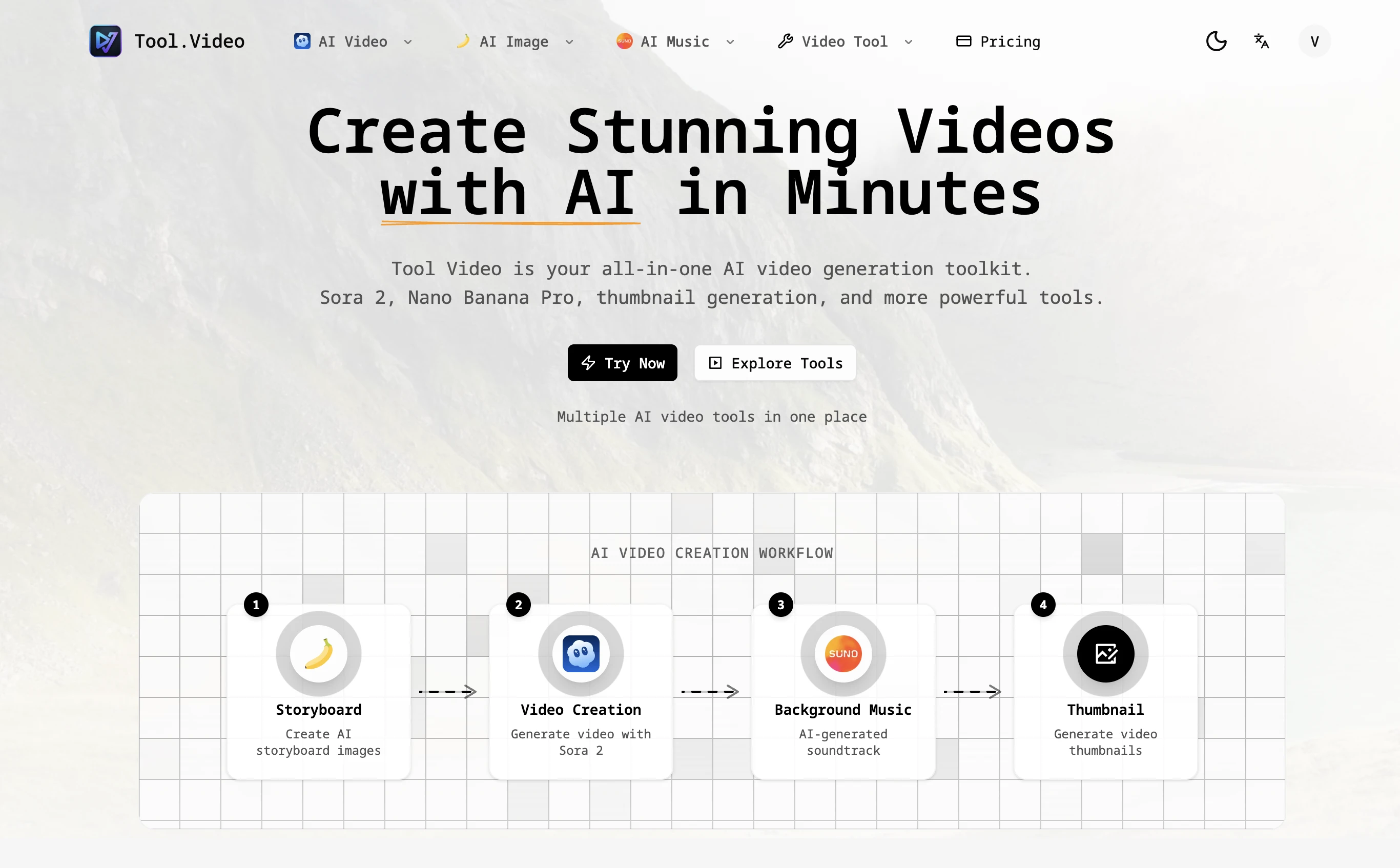
Tool.Video is a generative video tool. A browser workspace pairing free on-device video utilities (compress, trim, crop, edit, audio cut, MP4 to MP3) with a hosted suite of AI generators for video, images, music and ad spots. The local tools need no upload or account; AI tools follow their own rules.
Tool.Video is a browser workspace that splits into two halves. The first is a set of everyday video and audio utilities that run entirely on the visitor's own device: a compressor, a trimmer, a cropper, a multi-clip editor, an audio cutter and an MP4 to MP3 converter. The second is a collection of hosted AI generation tools for video, images, music and advertising spots, plus a thumbnail maker and a prompt analysis utility. Because the local utilities never send files to a server, the site promises no uploads, no watermark and no account for that half of the product. The local tools are aimed at people who need a quick fix rather than a full edit. Compression supports quality and resolution presets and returns a smaller MP4 when the source allows it. The trimmer takes a start and end time and exports the kept segment, the cropper applies centred square, landscape or portrait framing, and the audio cutter saves an excerpt as MP3. The free editor goes further, offering a timeline with multiple clips, picture-in-picture and a separate audio track for reordering and mixing before an MP4 download. The AI side targets creators who need finished assets rather than file surgery. There are text-to-video routes through a Sora 2 interface and a multi-model generator, image creation through Nano Banana Pro and a general image generator, music through a Suno 5 front end and a soundtrack generator, and a dedicated tool for AI television commercials. Thumbnail generation, watermarking and reverse-prompt analysis round out the workflow. The site notes that the local tools are free while the AI tools follow their own usage rules, which is the main thing to check before committing. Practically, Tool.Video suits social media editors, small marketing teams and casual users who want lightweight processing without installing software. The competitive case rests on privacy for the free utilities and on breadth for the AI side; anyone needing professional non-linear editing or fine-grained generative control should look at dedicated desktop editors or single-vendor AI platforms instead.
The local video and audio utilities are free to use with no account required. Trial terms for the hosted AI tools are not stated on the homepage.
Learn moreThe site states that the local compression, trimming, cropping, editing, audio cutting and MP4 to MP3 tools are free, while the AI tools follow their own separate usage rules. No prices or plan details are published on the homepage.
Learn moreA support widget on the homepage lets visitors ask a question, with an AI assistant answering first and the team able to follow up. No documentation or help centre is published on the site.
Free on-device video compressor, trimmer, cropper, multi-clip editor with picture-in-picture and audio track, audio cutter and MP4 to MP3 converter. Hosted AI tools include Sora 2 and a multi-model video generator, Nano Banana Pro and a general image generator, Suno 5 and a music generator, a TV commercial generator, thumbnail generators, a watermark adder and reverse-prompt analysis.
Learn more AI Angels400+ customizable AI girlfriends for NSFW chat, voice calls, and roleplay
 Candy AIExperience the future of companionship with AI friends who chat, role-play, and connect with you on a human level.
 ourdream.aiA vast AI roleplay platform with millions of characters for chat, images, video and voiceAI Angels400+ customizable AI girlfriends for NSFW chat, voice calls, and roleplayCandy AIExperience the future of companionship with AI friends who chat, role-play, and connect with you on a human level.ourdream.aiA vast AI roleplay platform with millions of characters for chat, images, video and voice