Free trial
Free to try with unlimited recordings, free AI credits each month, full editing and preview, and no credit card. Publishing a link is possible with a watermark and Vibrantsnap badge.
Learn moreTurn a rough screen recording into a polished AI-narrated tutorial

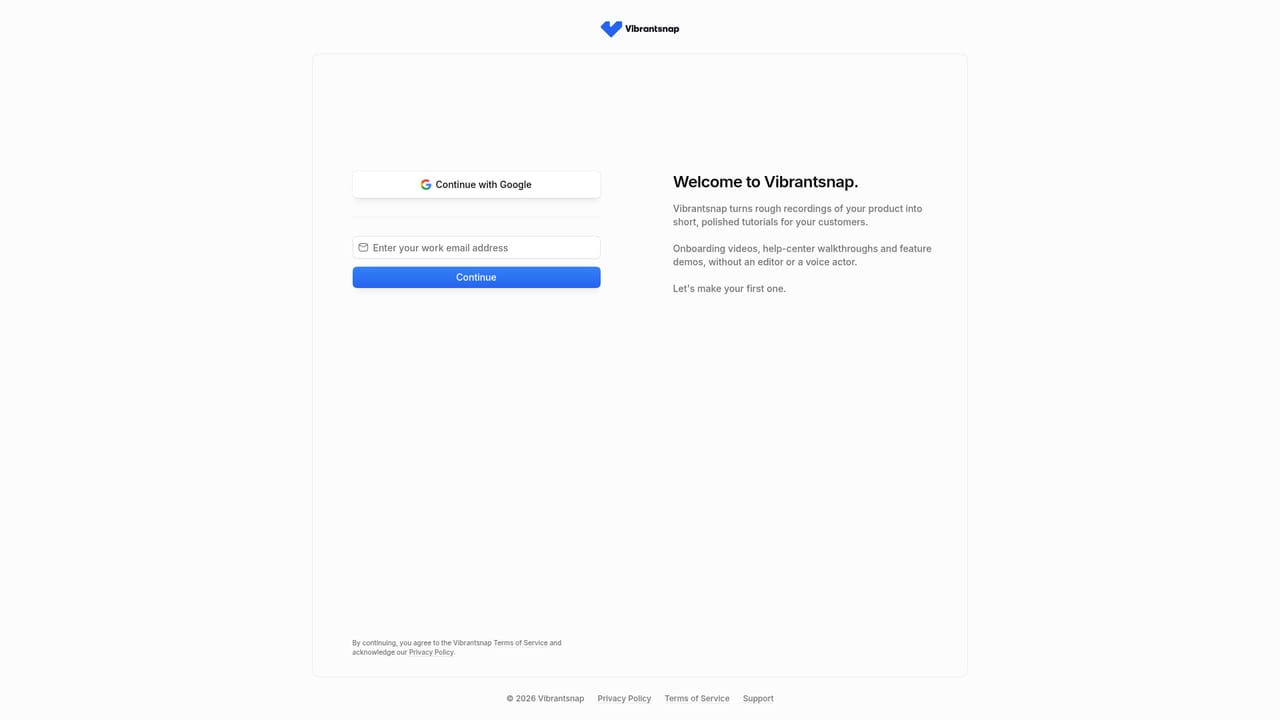
Vibrantsnap is an AI screen analyzer tool that turns a rough screen recording into a polished AI-narrated tutorial. An AI auto-editor for screen recordings that rewrites your narration into a clean script, voices it in a studio voice across 10 languages, and adds click-following zooms and captions, then publishes a tracked share link or a 4K export.
Vibrantsnap is a screen recording and auto-editing tool built around one job: turning a rough take into a tutorial, product demo or onboarding video that a customer can actually follow. The capture happens in a Chrome extension, which records a tab, a window or the entire screen together with your microphone. The extension is also what captures cursor movement, and that cursor data is what lets the tool place automatic zooms on the exact spot you clicked. Desktop applications can be recorded too, but since cursor data comes from web pages, zooms on desktop footage have to be positioned by hand. The processing stage is where most of the work is removed. Vibrantsnap transcribes your narration, rewrites rambling speech into a clean spoken script, and generates the read in one of around 30 studio voices across 10 languages (English, French, Spanish, Portuguese, German, Italian, Japanese, Chinese, Korean and Hindi). Synthesis uses a fixed seed, so regenerating an unchanged script produces an identical read. You can narrate in whatever language comes naturally while the script is written in the language your viewers read. Captions are generated and timed to the voice, zooms follow clicks, and exports go out at 4K. Editing stays manual where it matters. The video is split into chapters, each with its own editable script line, and zooms, caption placement, voice choice and background can all be changed after the AI draft. Finished videos can be shared as a link or embedded in a help centre, onboarding email or website, with view analytics attached to every link. Existing tutorial files can be imported, transcribed, rewritten and revoiced, though imported footage arrives without cursor data. Software teams, SaaS marketers and support leads who need a walkthrough with every release are the obvious audience. Relative to a full editor such as Premiere or Camtasia, Vibrantsnap does far less but removes the scripting and voiceover work that stalls those projects; against simpler recorders, the chapter editing and multilingual voiceover are the differentiator. The free tier covers unlimited recording, monthly AI credits, full editing, preview and watermarked share links. Watermark-free publishing and file export require a subscription, which cancels in two clicks.
Free to try with unlimited recordings, free AI credits each month, full editing and preview, and no credit card. Publishing a link is possible with a watermark and Vibrantsnap badge.
Learn moreThe site describes a free tier (unlimited recordings, monthly AI credits, full editing and preview, no card) with subscription needed for file export and watermark-free links. No prices are listed on the homepage.
Learn moreA Chrome extension handles capture and cursor tracking; finished videos are shared by link or embedded in help centres, onboarding emails and websites. No named third-party integrations are described.
Recording via Chrome extension with microphone, AI script rewriting, around 30 studio voices in 10 languages, captions timed to the voice, click-following automatic zooms, chapter-based script editing, import of existing videos, 4K export, share links with view analytics, and embeds for help centres and emails.
 AI Angels400+ customizable AI girlfriends for NSFW chat, voice calls, and roleplay
 Candy AIExperience the future of companionship with AI friends who chat, role-play, and connect with you on a human level.
 ourdream.aiA vast AI roleplay platform with millions of characters for chat, images, video and voiceAI Angels400+ customizable AI girlfriends for NSFW chat, voice calls, and roleplayCandy AIExperience the future of companionship with AI friends who chat, role-play, and connect with you on a human level.ourdream.aiA vast AI roleplay platform with millions of characters for chat, images, video and voice