Free trial
A free trial is available. The homepage states no credit card is required to try the tool, and there is a Try for free button alongside the upload option.
Learn moreTurn YouTube videos and audio files into publish-ready blog articles.
Own Video To Blog? Verify ownership to get a dofollow link

Video To Blog is an audio file transcription tool that turns YouTube videos and audio files into publish-ready blog articles. Converts YouTube videos, audio files and transcripts into structured blog posts with screenshots, smart links, CTAs and one-click publishing to websites or newsletters.
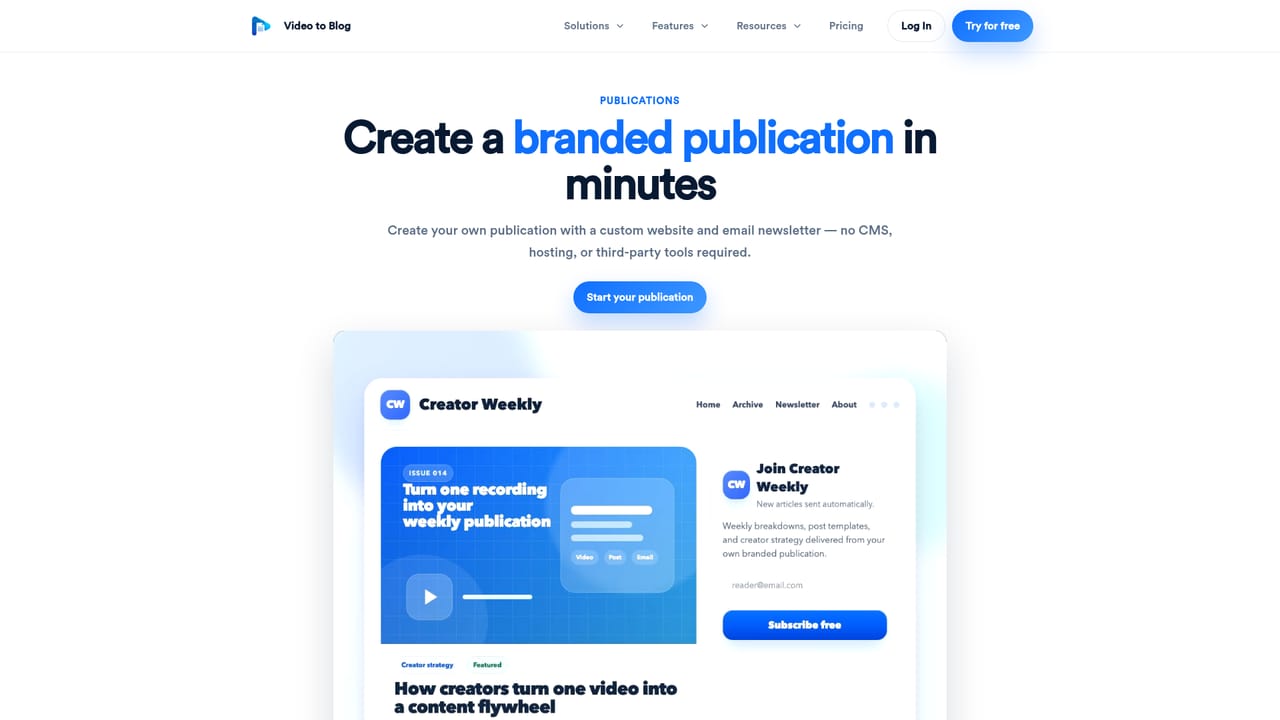
Video To Blog is a conversion tool that takes a YouTube link, uploaded video, audio file, transcript or even a direct recording and turns it into a structured blog article. It is aimed at creators, podcasters, agencies and marketing teams who already produce spoken content and want a written version without starting from a blank page. The output is built to read like a finished post rather than a raw transcript, with headings, paragraphs and formatting that can go straight onto a website or into an email newsletter. The workflow is simple. You paste a link or upload a file, and the system generates the article. What separates it from a generic writing assistant is what comes along with the text: automatic screenshots pulled from key visual moments in the video, smart links to relevant internal and external pages, and generated calls to action. These elements are what make the final piece feel like a complete post instead of a summary. The homepage also states that the writing aims to match your tone and voice and is optimized for search and discovery. For publishing, Video To Blog connects to websites and email, so a finished article can be pushed to your site or sent as a newsletter. If you do not have a website, the built in publications feature lets you host a blog, launch a newsletter and connect a custom domain. For teams that publish on a schedule, automations can watch a connected YouTube channel and generate a post each time a new video appears, sending it to a chosen destination. Compared with doing the job in a general chatbot, Video To Blog handles the whole chain from source file to finished post. It is not designed for music videos or footage without meaningful speech, and it does not replace a human editor for brand sensitive or highly technical content. The value is in speed and consistency for spoken-word material that already exists.
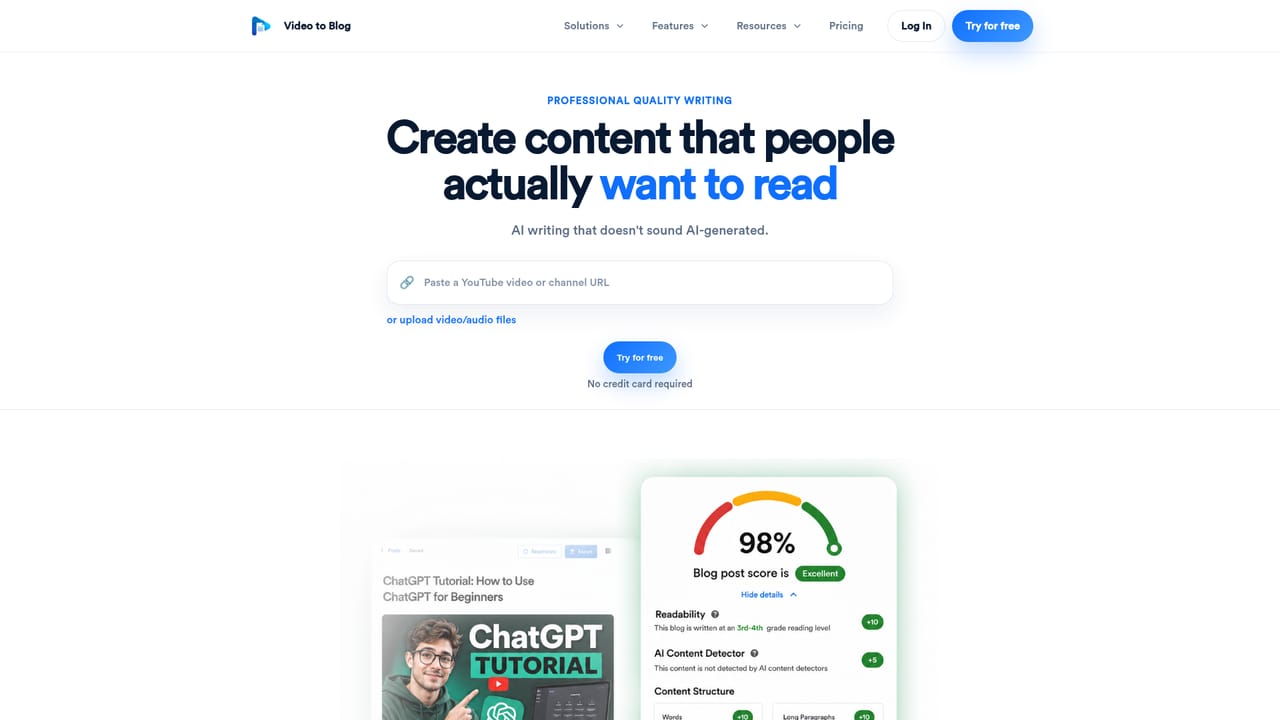
A free trial is available. The homepage states no credit card is required to try the tool, and there is a Try for free button alongside the upload option.
Learn moreThe site advertises a free try with no credit card required and links to a dedicated pricing page. Specific plan names, article quotas and prices are not listed on the homepage, so check the pricing page for current tiers.
Learn moreSupport details are not described on the homepage. The site shows review profiles on Trustpilot, G2 and Capterra, but no help centre or contact channel is listed in the provided content.
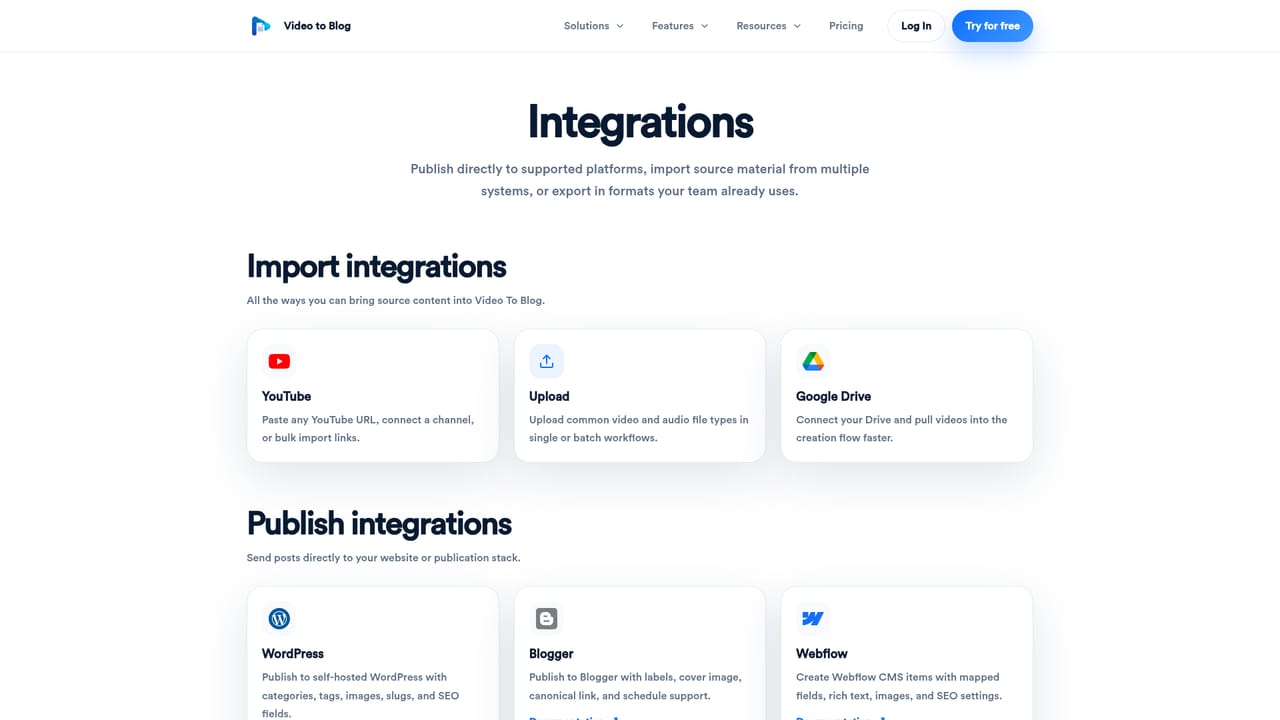
Publishes to websites and email newsletters, with one-click destinations. Finished posts can also be downloaded as HTML, Markdown, PDF or Word. Automation connects to YouTube channels for new uploads.
Learn moreConverts YouTube links, video and audio files, transcripts and recordings into structured blog articles. Adds auto screenshots, smart links and calls to action. Writing is pitched as human-like, tone-matched and SEO/GEO optimized. Includes a publication builder for hosting a blog and newsletter, plus YouTube channel automations and export to HTML, Markdown, PDF or Word.
Learn more AI Angels400+ customizable AI girlfriends for NSFW chat, voice calls, and roleplay
 Candy AIExperience the future of companionship with AI friends who chat, role-play, and connect with you on a human level.
 ourdream.aiA vast AI roleplay platform with millions of characters for chat, images, video and voiceAI Angels400+ customizable AI girlfriends for NSFW chat, voice calls, and roleplayCandy AIExperience the future of companionship with AI friends who chat, role-play, and connect with you on a human level.ourdream.aiA vast AI roleplay platform with millions of characters for chat, images, video and voice


