Pricing
Wizardshot is offered free. The homepage explains that most of the tech runs inside the Chrome extension, keeping costs to hosting and support. The related Helpjuice knowledge base is a separate paid product.
Learn moreRecord your screen once and get a finished step-by-step tutorial.

Wizardshot is a document formatting tool that records your screen once and get a finished step-by-step tutorial. A Chrome extension and web app that records your clicks and turns them into editable, illustrated step-by-step tutorials. Includes blur for sensitive data, PDF and DOC export, knowledge base embeds, team access control and usage analytics, and it is free to use.
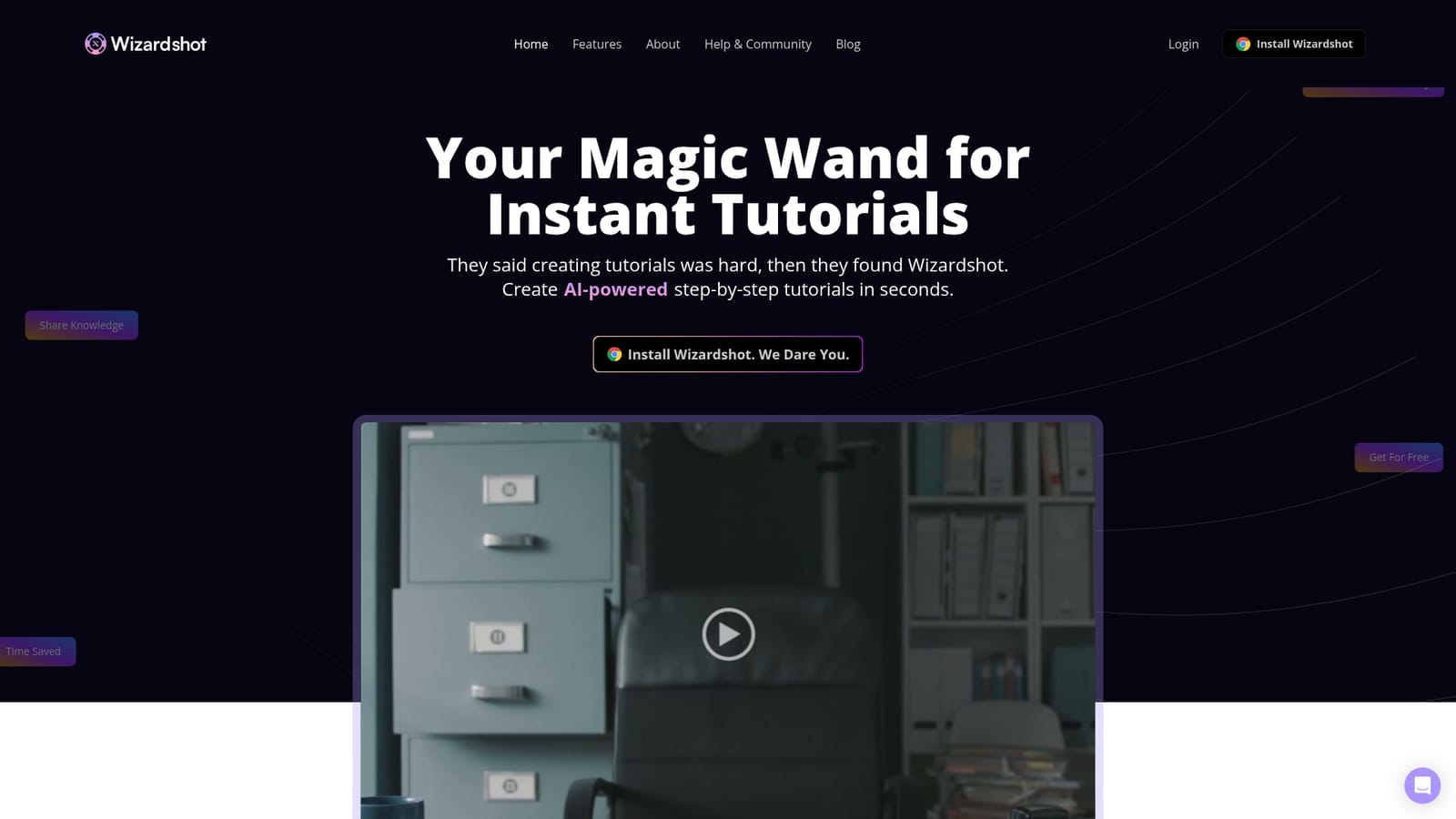
Wizardshot turns a recorded screen session into a written, illustrated tutorial with numbered steps and screenshots. The product is a web app paired with a Chrome extension: the extension observes what you click and type, then assembles those actions into a structured how-to document. The site frames the whole flow as three moves (install, click Capture, tutorial ready), and the pitch is squarely against the manual routine of screenshotting, cropping, pasting and captioning each step by hand. The output is a document you can still edit. The built-in editor supports embedding video, converting steps into GIFs and adding or rearranging steps, so the auto-generated draft is a starting point rather than a locked result. A blur tool masks sensitive information in screenshots, which matters when a recording passes through internal dashboards, billing screens or customer records. Access can be restricted and teammates invited, and a per-tutorial analytics view shows how the material is used, so a support or ops team can see which guides land and which gaps remain. Distribution extends past the Wizardshot editor. Tutorials export to PDF and DOC, embed into an existing knowledge base, and can be shared on social media. The vendor also sells Helpjuice, a knowledge base product, and the two are designed to sit together; Helpjuice is paid, while Wizardshot itself is not. The obvious audience is support, customer success, IT and internal operations teams that document software processes repeatedly. It competes less with long-form writing assistants and more with screen-recording and annotation tools: anyone who already captures video walkthroughs but wants a text-plus-image article will recognise the gap it targets. Because capture depends on a Chrome extension, browser coverage and the free-of-charge model are the two things to weigh before rolling it out across a team.
Wizardshot is offered free. The homepage explains that most of the tech runs inside the Chrome extension, keeping costs to hosting and support. The related Helpjuice knowledge base is a separate paid product.
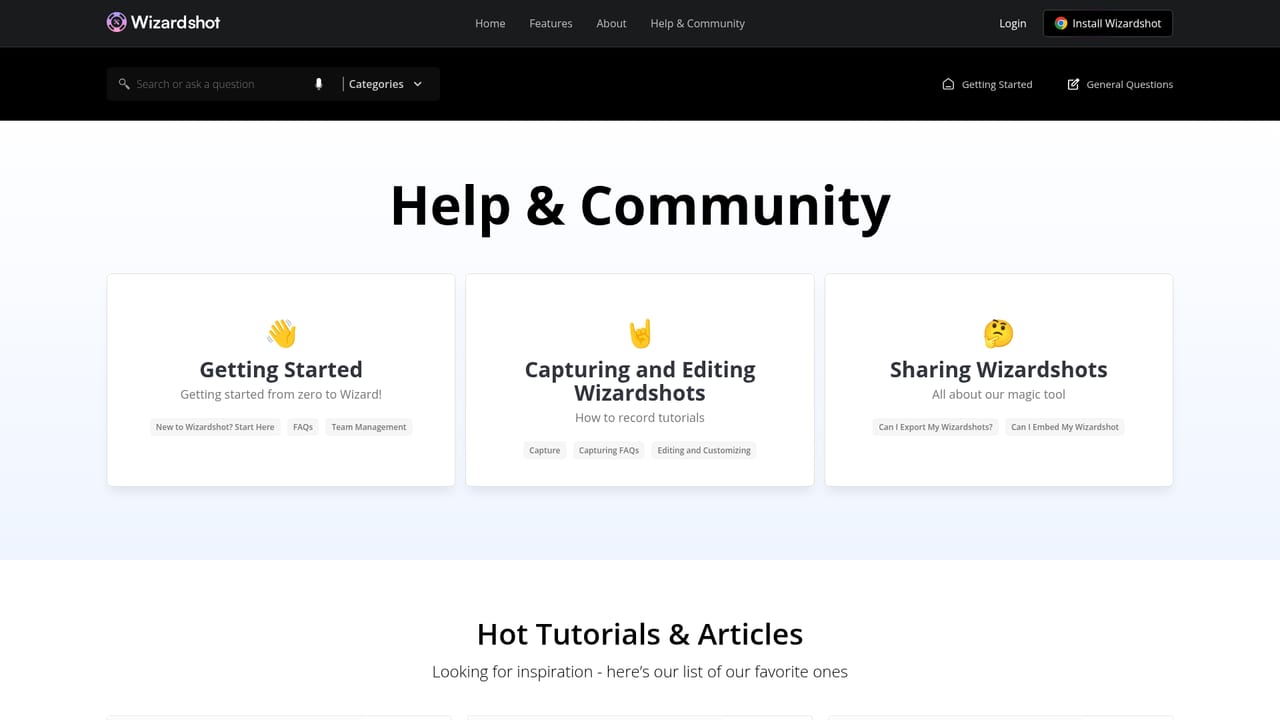
Learn moreA help and community center is linked from the site for questions about the product, data security and usage.
Learn moreThe homepage names Helpjuice as a knowledge base integration and shows embed and export paths for PDF, DOC and social sharing.
Screen capture through a Chrome extension that auto-generates numbered steps with screenshots. An editor adds video embeds, GIF steps and step changes. Blur hides sensitive details, and export options cover PDF and DOC plus knowledge base embeds and social sharing. Team invites, access restrictions and tutorial analytics round out the feature set.
 AI Angels400+ customizable AI girlfriends for NSFW chat, voice calls, and roleplay
 Candy AIExperience the future of companionship with AI friends who chat, role-play, and connect with you on a human level.
 ourdream.aiA vast AI roleplay platform with millions of characters for chat, images, video and voiceAI Angels400+ customizable AI girlfriends for NSFW chat, voice calls, and roleplayCandy AIExperience the future of companionship with AI friends who chat, role-play, and connect with you on a human level.ourdream.aiA vast AI roleplay platform with millions of characters for chat, images, video and voice


