CtrlOps

Local-first desktop app for managing Linux servers with an AI terminal

Intermediate
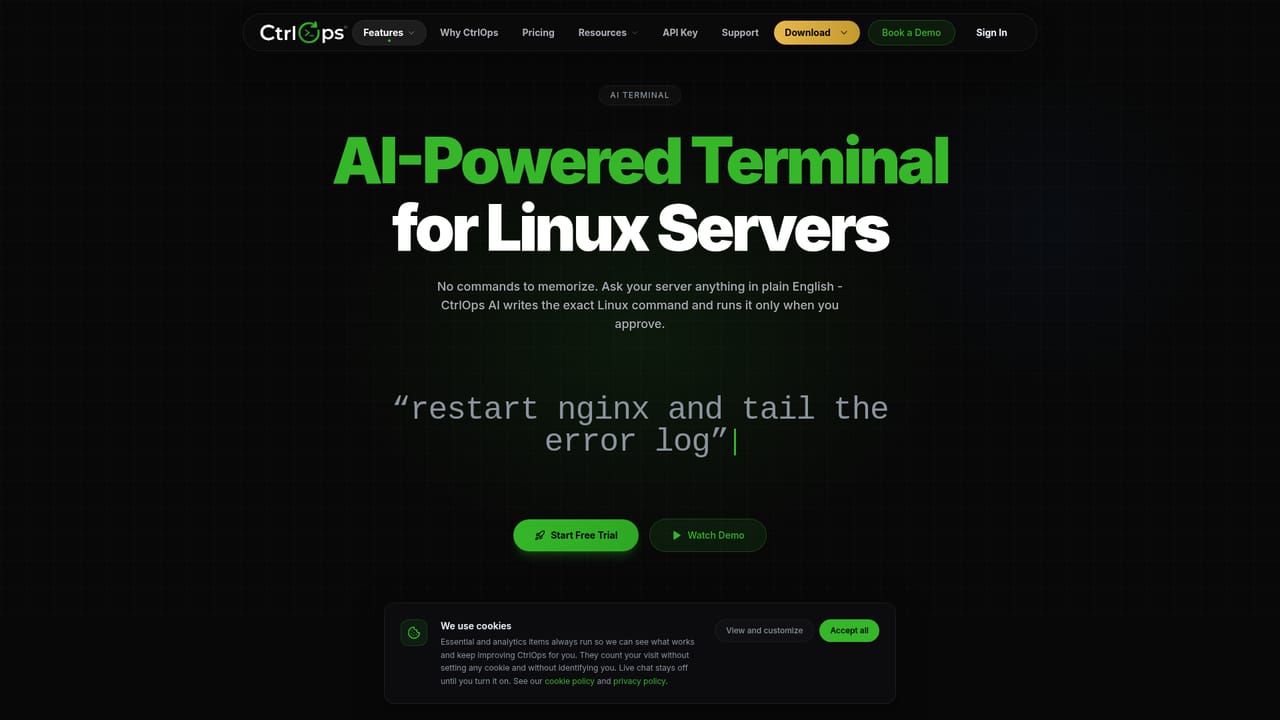
Screenshot of CtrlOps, Local-first desktop app for managing Linux servers with an AI terminal

What is CtrlOps?

CtrlOps is a local-first desktop app that manages Linux servers over SSH with an approval-based AI terminal, file manager, monitoring, security audits, access reviews and one-form deployments, with no agents required.

CtrlOps is a desktop application for people who look after Linux servers and would rather not juggle a pile of terminal tabs. It connects to machines over SSH and brings the daily jobs into one window: an AI-assisted terminal, a visual file manager, live resource monitoring, security audits, access reviews and a guided deployment form. The app runs entirely on the user's computer, so SSH keys, server addresses and credentials stay on the device, and nothing needs to be installed on the servers themselves. The AI terminal accepts requests in plain English, such as freeing disk space on a named host, and proposes the shell command to do it. Every command is shown for review before it executes, which keeps a person in control, and the interface makes clear which server is the target. Saved scripts, web search and MCP server support sit alongside it. Beyond the terminal, the monitoring view shows CPU, memory, disk and network for each machine, the audit feature runs 25 checks and produces a hardening score with a PDF report, and the access feature scans a fleet to show who can log in and who holds sudo rights, with bulk removal when someone leaves. Deployment takes a GitHub repository, environment variables and a domain, then handles PM2, Nginx and SSL. The intended audience is small engineering teams, agencies and IT service companies that run many client servers, along with developers who are comfortable with Linux but want less friction, and less specialist dependence, than raw SSH provides. Because the connection is plain SSH, it works with AWS, Google Cloud, Azure, DigitalOcean or any VPS. Builds are offered for macOS (Apple Silicon and Intel) and Windows, with a Linux download also listed. Among alternatives, CtrlOps sits between traditional SSH clients such as Termius and MobaXterm and heavier cloud-based DevOps platforms. It adds AI assistance and fleet-level tooling to the client model while avoiding agents and a vendor-hosted control plane. Teams that need centralized cloud dashboards or automated CI/CD pipelines may find its scope narrower.
How do you use CtrlOps?

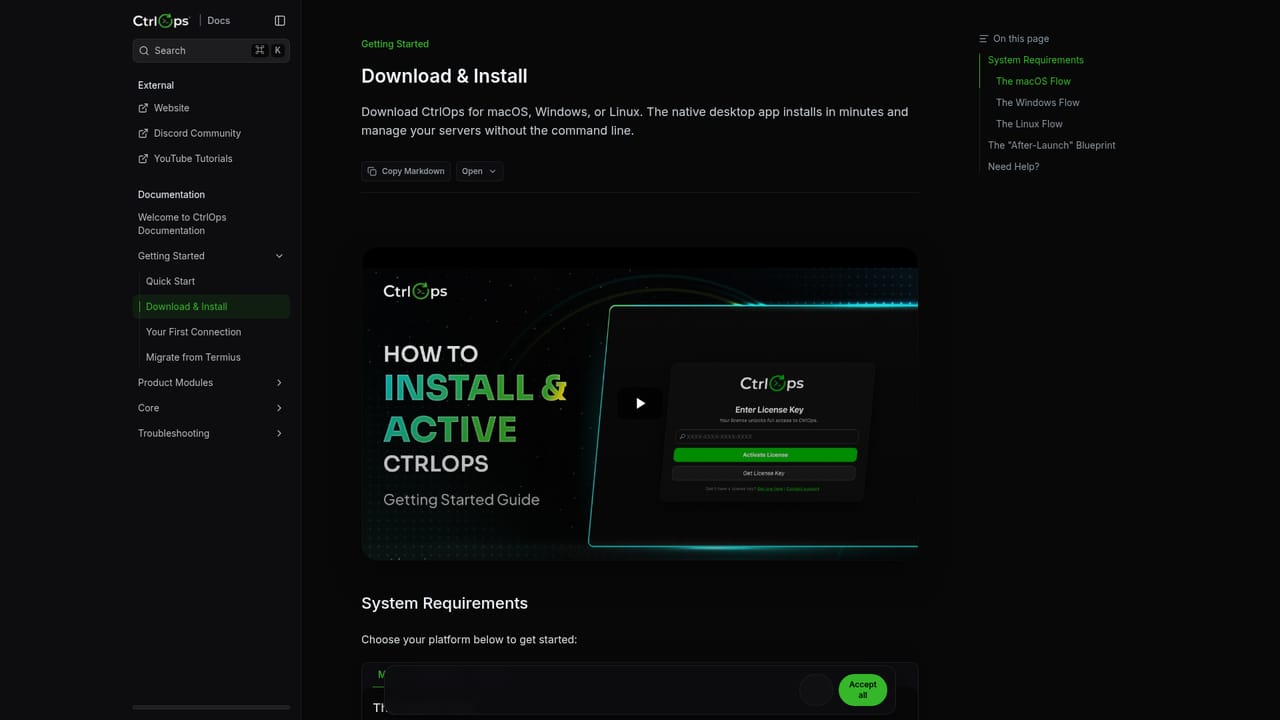
  1. 1Download the desktop app
    Pick the build for your system: Apple Silicon or Intel for Mac, the Microsoft Store listing for Windows, or the Linux download. Install it like any other desktop application.
    CtrlOps — Download the desktop app
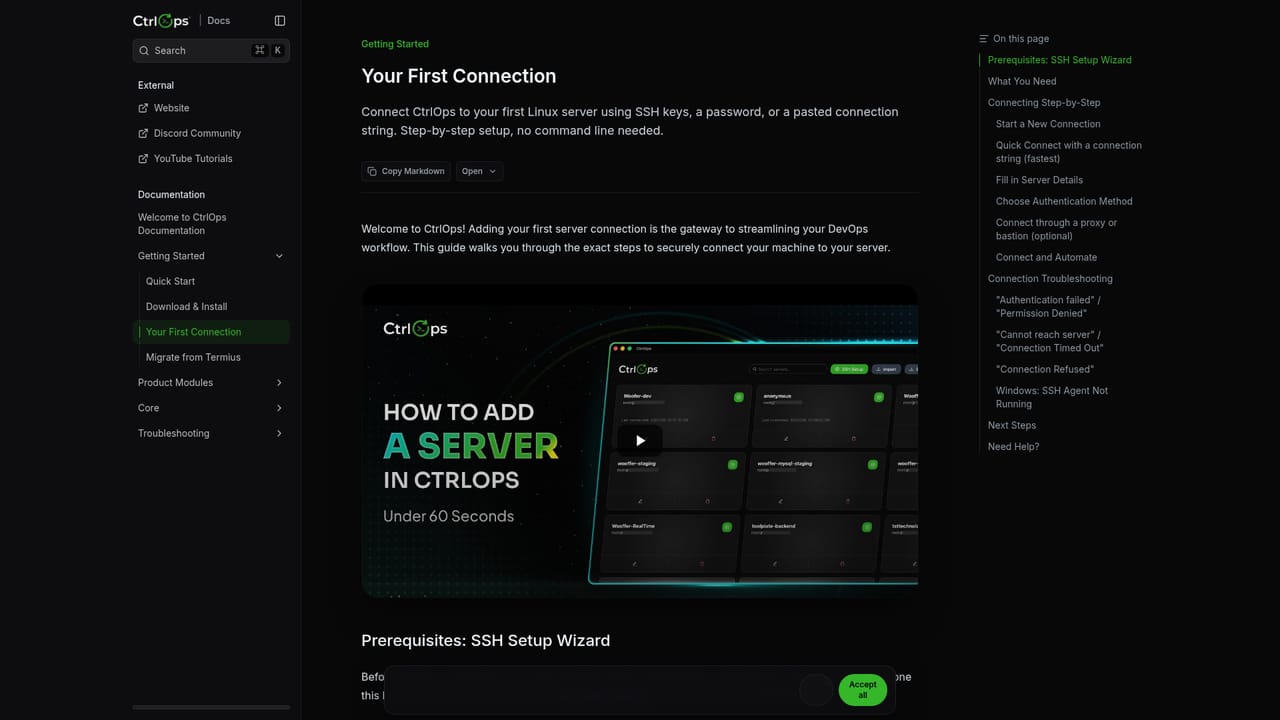
  2. 2Add your first server
    Enter the server address, user and SSH key to make the first connection. Credentials stay on your machine, and no agent is needed on the server.
    CtrlOps — Add your first server
  3. 3Ask the AI terminal for a task
    Describe a job in plain English, such as clearing disk space. Review the suggested command, then run or edit it.
    CtrlOps — Ask the AI terminal for a task
  4. 4Check live server health
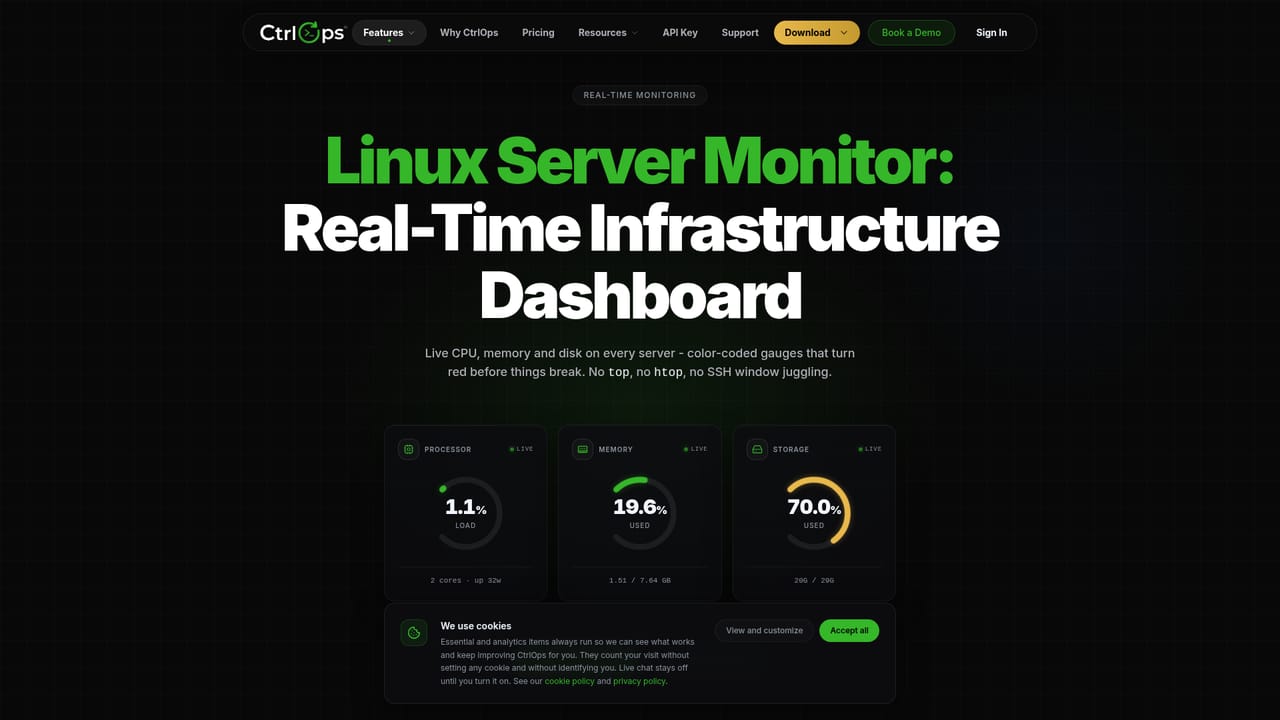
    Open monitoring to see CPU, memory, disk and network for each connected server, and run the security audit for a hardening score.
    CtrlOps — Check live server health
  5. 5Deploy an app from GitHub
    Fill in the repository, environment variables and domain in the deployment form, and let the app set up PM2, Nginx and SSL.

Pros and cons

Pros

  • Runs entirely on the user's machine, so SSH keys and credentials are never sent to a cloud serviceAI
  • No agent installation on servers; it connects over plain SSH to any provider or VPSAI
  • AI terminal shows each proposed command for approval before anything executesAI
  • Covers many jobs in one app: files, monitoring, audits, access scans and deploymentsAI
  • Fleet-wide access scan can remove a departed user from every server at onceAI

Cons

  • Desktop-only workflow; there is no browser-based or hosted dashboard for sharing a view with teammatesAI
  • Focused on Linux servers over SSH, so it does not manage cloud resources through provider APIsAI
  • The deployment form centers on PM2, Nginx and SSL, which may not suit container or Kubernetes setupsAI
  • Pricing after the one-month trial is not given on the homepage, so long-term cost needs checkingAI
  • Local-only design means no built-in cloud sync of server lists or settings is describedAI

How much does CtrlOps cost?

Free trial

A one-month free trial is offered, and no credit card is required to begin.

Learn more

Pricing

The homepage promises a free start with a one-month free trial and no credit card. Paid plan prices are not stated on the homepage; the pricing page covers them.

Learn more

Support

Getting-started documentation covers download and first connection, and a demo can be booked through a scheduling link. Further support channels are not described on the homepage.

Learn more

Integrations

Connects over SSH to any server, including AWS, Google Cloud, Azure, DigitalOcean and any VPS. Deployments pull from GitHub, and the AI terminal supports MCP servers.

Features

AI terminal with command approval, web search, MCP servers and saved scripts; visual file manager; live CPU, memory, disk and network monitoring; 25 security audits with PDF report; fleet access scanning; multi-server management; one-form deployment with PM2, Nginx and SSL.

Learn more

Frequently asked questions about CtrlOps

  • How much does CtrlOps cost?
    The homepage promises a free start with a one-month free trial and no credit card. Paid plan prices are not stated on the homepage; the pricing page covers them.
  • Does CtrlOps offer a free trial?
    A one-month free trial is offered, and no credit card is required to begin.
  • How do you use CtrlOps?
    The walkthrough on this page covers 5 steps: 1. Download the desktop app 2. Add your first server 3. Ask the AI terminal for a task 4. Check live server health 5. Deploy an app from GitHub.
  • What platforms does CtrlOps support?
    CtrlOps is available on MacOS, Windows and Linux.
  • What does CtrlOps integrate with?
    Connects over SSH to any server, including AWS, Google Cloud, Azure, DigitalOcean and any VPS. Deployments pull from GitHub, and the AI terminal supports MCP servers.
  • What are the limitations of CtrlOps?
    Desktop-only workflow; there is no browser-based or hosted dashboard for sharing a view with teammates. Focused on Linux servers over SSH, so it does not manage cloud resources through provider APIs. The deployment form centers on PM2, Nginx and SSL, which may not suit container or Kubernetes setups.

Status

StatusActive
Views0
Outbound clicks0
Added10/18/2026

Platforms

MacOSWindowsLinux

Pricing

Free TrialPaid