DubTab

Live subtitles and AI dubbing for any tab or app, in about half a second

Beginner
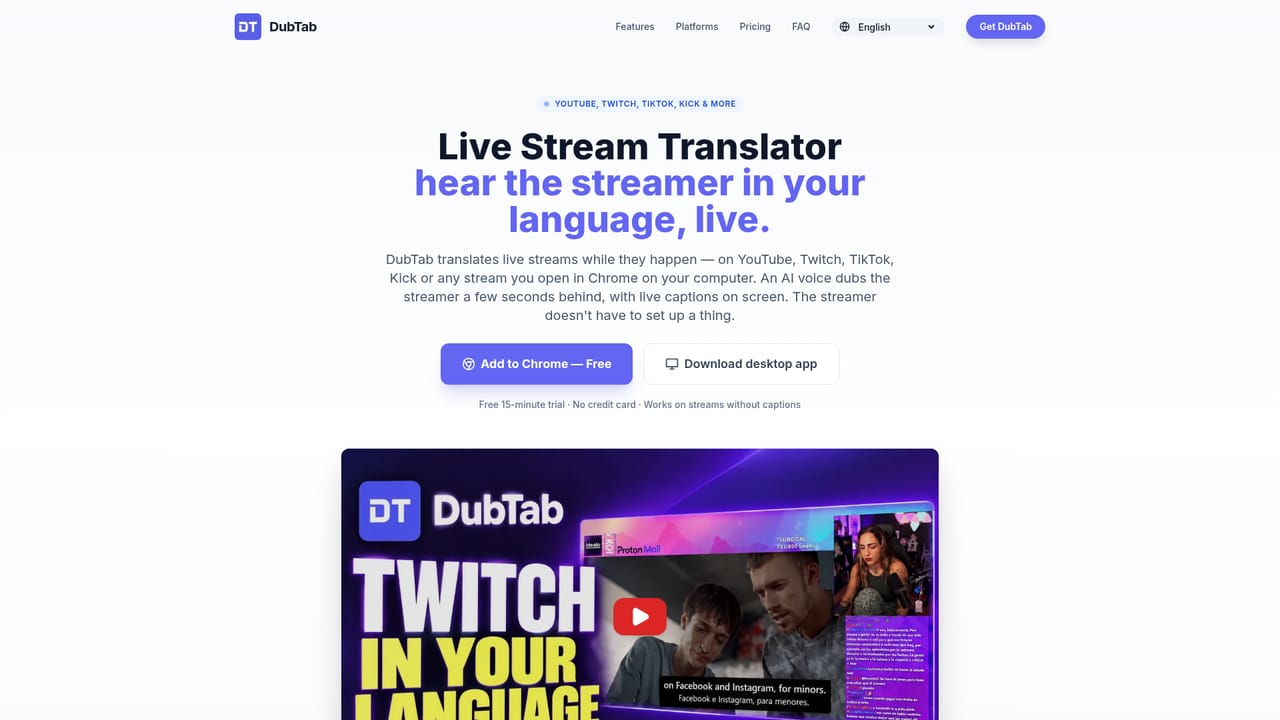
Screenshot of DubTab, Live subtitles and AI dubbing for any tab or app, in about half a second

What is DubTab?

DubTab translates whatever is playing in a browser tab or desktop app into live subtitles and optional AI dubbing with about half a second of delay. It offers a Chrome and Edge extension plus Windows and Mac apps, and needs no uploads.

DubTab is a real-time voice translator that listens to whatever is playing on a computer and turns it into live subtitles, AI dubbing, or both. Nothing is uploaded and no file is exported: the audio is translated as it plays, with a stated delay of roughly half a second, which is quick enough for livestreams, meetings and online lessons. It comes in two forms that share one account and one pool of hours. The browser extension targets Chrome and Edge and handles anything that plays in a tab, such as Coursera, Udemy, Skool, Whop, YouTube, Twitch and Netflix. The desktop app, built for Windows 11 and macOS 14.2 or later, captures every sound the machine makes or a single chosen app, which covers downloaded course files, VLC, Zoom, Discord and similar software. There is no Linux desktop build and no Windows 10 support, though the extension still runs on those systems. In practice, the user installs the extension or app, points it at a tab, an app or the whole system, picks source and target languages and a voice, and presses Start. Subtitles can be shown as translated text only or as bilingual captions with the original beside the translation, which suits language learners. Volume ducking lowers the original track under the dubbed voice. AI Summary and Ask AI draw on a separate credit allowance, so they never eat into translation hours. Transcription and translation cover more than 60 languages, while dubbing voices exist for major languages such as English, Chinese, Japanese, Korean, Spanish, French and German. Privacy handling is explicit: original audio and microphone input are not saved, and only the generated AI voice can optionally be stored in a private history. Within the wider market, DubTab sits closer to live captioning and interpretation tools than to upload-based video dubbing services. Its strength is immediacy across arbitrary sources, which suits learners, stream viewers and people in multilingual meetings, rather than polished, post-produced dubs for publishing.
How do you use DubTab?

  1. 1Install the extension or desktop app
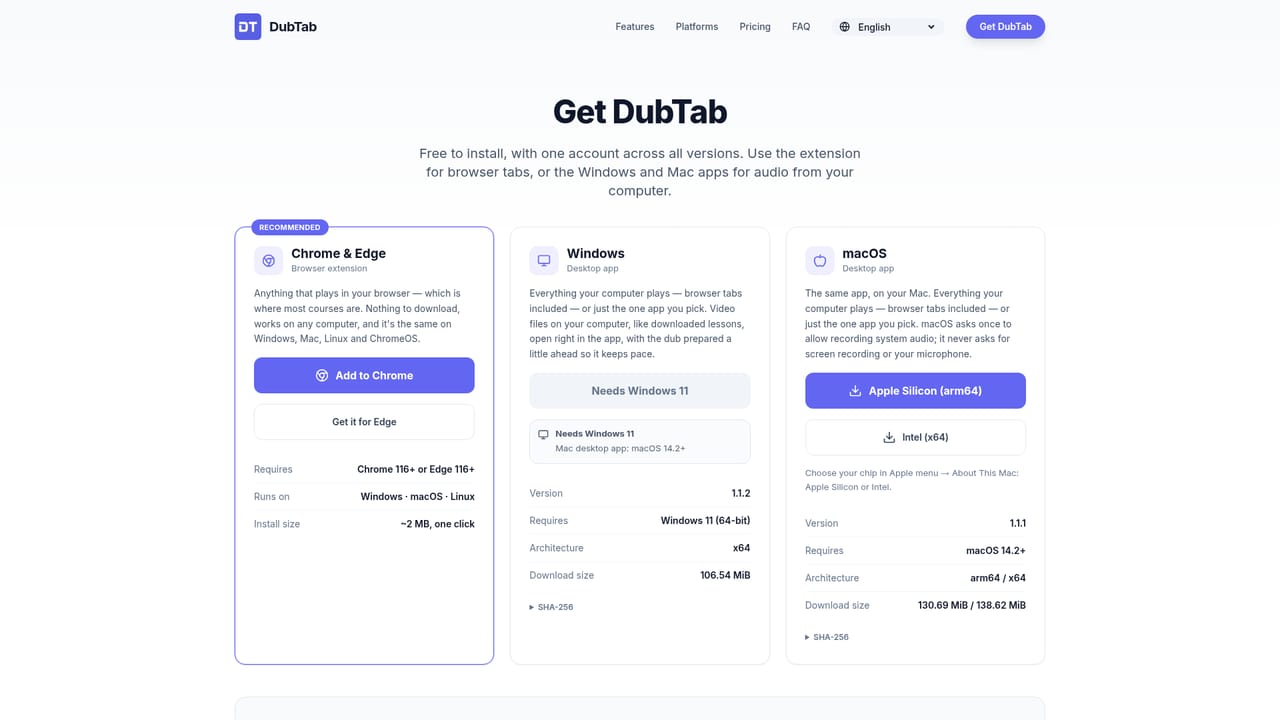
    Add the extension from the Chrome Web Store for browser tabs, or download the Windows 11 or macOS 14.2+ app for local files and other apps. Both use the same account.
    DubTab — Install the extension or desktop app
  2. 2Sign in and check your free minutes
    Create an account to get the one-time 15 minutes and 3 AI credits. No credit card is required for the free plan.
  3. 3Point DubTab at the audio
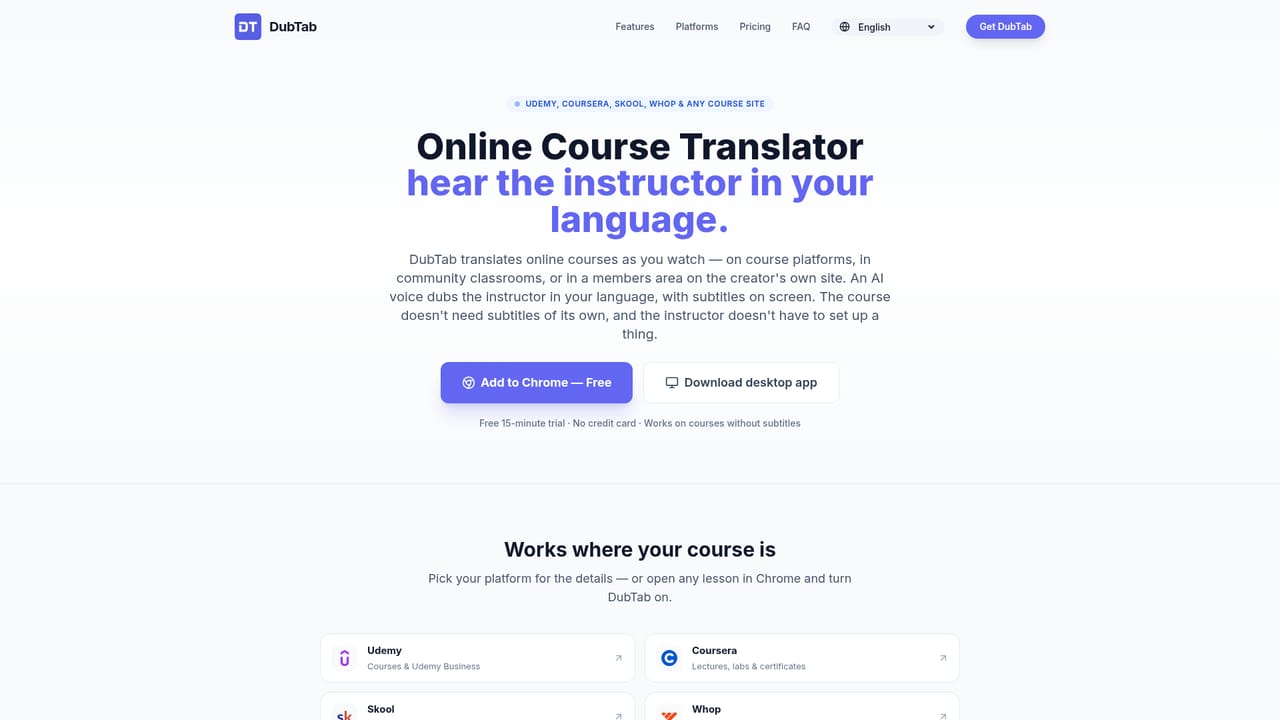
    Choose a browser tab, a single app or the whole system, depending on where the sound is playing.
    DubTab — Point DubTab at the audio
  4. 4Pick languages, voice and caption style
    Select the source and target languages and an AI voice, then choose bilingual captions or translated-only text. Adjust original volume ducking if dubbing is on.
  5. 5Press Start and follow along
    Subtitles and dubbing begin within about half a second. Try it on a live stream or a course lecture.
    DubTab — Press Start and follow along

Pros and cons

Pros

  • Translates audio as it plays with a stated delay of about 0.5 seconds, so it works for livestreams and meetingsAI
  • No uploads or exports: it works on whatever a tab or app is playingAI
  • Optional bilingual captions show original and translation together, useful for language learnersAI
  • One subscription and one hours pool cover both the browser extension and the desktop appAI
  • Original audio and microphone input are not saved, and saving the dubbed voice is off by defaultAI

Cons

  • The desktop app does not run on Windows 10 and has no Linux version, so those users depend on the extensionAI
  • The extension supports only Chrome and Edge, leaving Firefox and Safari users without a browser optionAI
  • Monthly hours do not roll over, and the free plan is a one-time 15 minutes that never resetsAI
  • Dubbing voices cover major languages only, a narrower set than the 60+ languages available for subtitlesAI
  • Output is generated live, so it is not suited to producing polished dubbed files for publishingAI

How much does DubTab cost?

Free trial

The free plan is a one-time 15 minutes of translation plus 3 AI credits. It does not reset monthly, and no credit card is required.

Learn more

Pricing

Free plan gives a one-time 15 minutes and 3 AI credits. Paid monthly plans: Starter $19 (9 hours), Pro $39 (20 hours), Power $69 (40 hours), Ultra $129 (80 hours). Yearly billing saves 17%. Team plan is custom via sales. Hours do not roll over.

Learn more

Support

All plans include email support and a Discord community. The Team plan adds dedicated account support and onboarding. The founder lists a direct support email.

Integrations

Works with any audio source: Coursera, edX, Udemy, Skool, Whop, YouTube, Twitch, Netflix and Bilibili in the browser, plus Zoom, Google Meet, Teams, VLC, Spotify, Discord and local files via the desktop app.

Learn more

Features

Real-time subtitles and AI dubbing at about 0.5s latency, optional bilingual captions, multiple AI voices with volume ducking, 60+ languages, tab, app or system audio capture, AI Summary and Ask AI, and private history for saved dubbed audio.

Frequently asked questions about DubTab

  • How much does DubTab cost?
    Free plan gives a one-time 15 minutes and 3 AI credits. Paid monthly plans: Starter $19 (9 hours), Pro $39 (20 hours), Power $69 (40 hours), Ultra $129 (80 hours). Yearly billing saves 17%. Team plan is custom via sales. Hours do not roll over.
  • Does DubTab offer a free trial?
    The free plan is a one-time 15 minutes of translation plus 3 AI credits. It does not reset monthly, and no credit card is required.
  • How do you use DubTab?
    The walkthrough on this page covers 5 steps: 1. Install the extension or desktop app 2. Sign in and check your free minutes 3. Point DubTab at the audio 4. Pick languages, voice and caption style 5. Press Start and follow along.
  • What platforms does DubTab support?
    DubTab is available on Browser extension, Windows and MacOS.
  • What does DubTab integrate with?
    Works with any audio source: Coursera, edX, Udemy, Skool, Whop, YouTube, Twitch, Netflix and Bilibili in the browser, plus Zoom, Google Meet, Teams, VLC, Spotify, Discord and local files via the desktop app.
  • What are the limitations of DubTab?
    The desktop app does not run on Windows 10 and has no Linux version, so those users depend on the extension. The extension supports only Chrome and Edge, leaving Firefox and Safari users without a browser option. Monthly hours do not roll over, and the free plan is a one-time 15 minutes that never resets.

Status

StatusActive
Views0
Outbound clicks0
Added10/18/2026

Platforms

Browser extensionWindowsMacOS

Pricing

FreemiumSubscription