Free trial
A free tier is available and covers a limited number of images per day at no cost, restricted to personal use. Commercial rights require a premium plan.
Learn moreAI upscaler that enlarges photos from 2x to 8x
Own Gigapixel AI Image Upscaler? Verify ownership to get a dofollow link

Gigapixel AI Image Upscaler is an AI image upscaler tool. A web-based AI upscaler that enlarges photos 2x to 8x with detail reconstruction, noise reduction, face enhancement, batch processing, and JPG, PNG, or TIFF export. The free tier covers a limited number of images per day, with paid plans for commercial rights and higher limits.
The Gigapixel AI Image Upscaler is a browser-based tool for enlarging low-resolution photos without the soft, blurry look that comes from conventional resampling. Users upload an image, choose a scaling factor between 2x and 8x, and the service returns a higher-resolution file. According to the site, a 500x500 pixel source can be pushed to 4000x4000 pixels, which is the kind of headroom needed for large-format printing, marketing assets, or archival restoration work. The engine is built on deep learning models trained on image pairs, and the vendor says it analyzes content context rather than simply interpolating new pixels. In practice that translates to several image-specific controls: detail and texture reconstruction, automatic noise and compression artifact reduction, and a separate face enhancement mode aimed at portraits. Batch processing lets users queue multiple files at once, and finished images can be exported as JPG, PNG, or TIFF at different quality settings. Source files can be JPEG, PNG, WebP, or TIFF, and the site recommends starting from the highest quality original available. The tool suits photographers rescuing old or low-resolution shots, designers working with client-supplied or stock imagery that cannot be reshot, restoration services handling family archives, and social media creators who want to crop into a frame without losing sharpness. Real estate and product photography are natural fits for the same reason: wide shots can be upscaled and then cropped for detail views. Because everything runs in a standard browser, there is nothing to install, which lowers the barrier for occasional users. Against dedicated desktop upscalers, the main trade-off is reach versus depth. This is a hosted service with a free daily allowance and paid tiers, so it competes on convenience and price rather than on fine-grained model selection or offline processing. The site is explicit that commercial rights to enhanced images require a premium plan, and free users are limited to personal use. Anyone processing sensitive or confidential imagery should confirm how uploads are handled before committing.
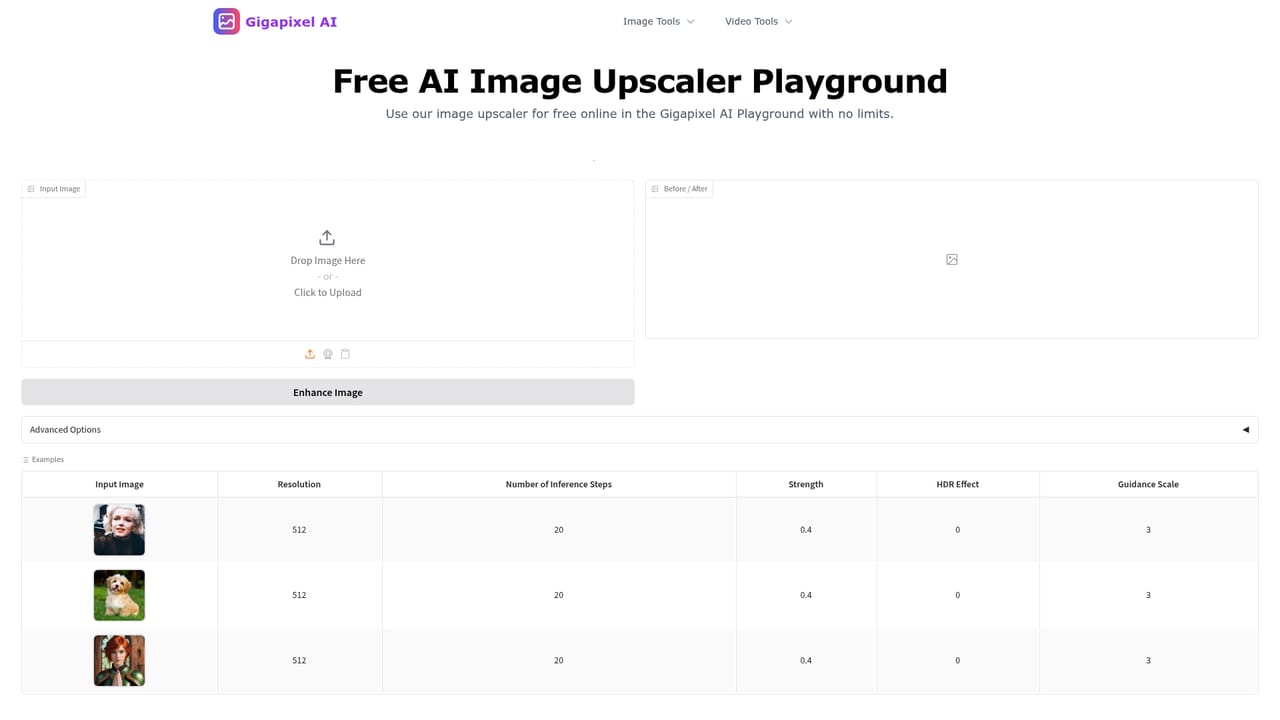
A free tier is available and covers a limited number of images per day at no cost, restricted to personal use. Commercial rights require a premium plan.
Learn moreThe homepage describes a free basic tier with a limited number of images per day and premium plans for higher resolution outputs, additional features, higher usage limits, and commercial rights. Specific prices and plan tiers are not listed on the homepage.
Learn moreDetail and texture enhancement, noise and compression artifact reduction, dedicated face enhancement for portraits, batch processing, scaling factors of 2x, 4x, 6x, and 8x, plus export to JPG, PNG, or TIFF. Supported input formats are JPEG, PNG, WebP, and TIFF.
 AI Angels400+ customizable AI girlfriends for NSFW chat, voice calls, and roleplay
 Candy AIExperience the future of companionship with AI friends who chat, role-play, and connect with you on a human level.
 ourdream.aiA vast AI roleplay platform with millions of characters for chat, images, video and voiceAI Angels400+ customizable AI girlfriends for NSFW chat, voice calls, and roleplayCandy AIExperience the future of companionship with AI friends who chat, role-play, and connect with you on a human level.ourdream.aiA vast AI roleplay platform with millions of characters for chat, images, video and voice


