Free trial
Free daily credits are advertised, letting users run core enhancement workflows, including the image and video upscalers, without committing to a paid plan.
Learn moreAI upscaling for images and video, with a full editing toolkit attached

GigapixelAI is a 4K upscale tool. A browser-based upscaler for images and video that rebuilds resolution up to 8x for stills and also bundles restoration, background removal, inpainting, generative image and video tools, and a library of third-party models. Free daily credits cover core workflows, with paid tiers for higher limits and larger files.
Gigapixel AI is a browser-based upscaling platform that takes low-resolution images and video clips and rebuilds them at higher resolution with recovered detail and reduced artifacts. The core promise is straightforward: upload a soft, noisy, compressed or archived file, pick an upscale strength of 2x, 4x or 8x, choose a model, preview the result and export. The homepage advertises support for common image formats such as JPG, PNG and WebP alongside common video formats, and positions the output for print, ecommerce listings, social posts, creative assets and client delivery. In practice the upscaler is one entry point into a much wider toolset. The same dashboard hosts a video upscaler, an image generator, a video generator, a photo restoration tool, a natural language image editor, background removal, object removal, inpainting, text and watermark removal, style transfer, background blur, a logo generator and an image to prompt converter. A model library sits underneath, grouping third-party engines for image work (ChatGPT Image 2.5 and 2, Nano Banana, Nano Banana 2 and Nano Banana Pro) and for video (Seedance 2.0, Kling 3.0, Veo 3.1 and Grok Imagine Video). Batch processing is supported, which matters for catalogue work and repeatable marketplace exports. The intended audience is broad rather than specialist. Marketers refreshing campaign creative, sellers sharpening product photography, photographers preparing galleries, designers scaling mockups and references, publishers prepping covers, and families digitising old prints are all named on the homepage. That framing tells you where it sits: it is a self-serve web utility competing with desktop upscalers and general image editors, not a studio retouching suite. Users who want one interface for both enhancement and light generative edits will find the combination convenient; users who need deep, colour-managed post-production will not. Quality expectations need calibrating. The homepage is candid that extremely damaged or tiny source files have limits, and that the tool aims to produce the cleanest useful upscale from the pixels available. Access is credit-based: free daily credits cover core workflows, while paid plans or credits unlock higher limits, faster processing, larger files and more advanced upscale options.

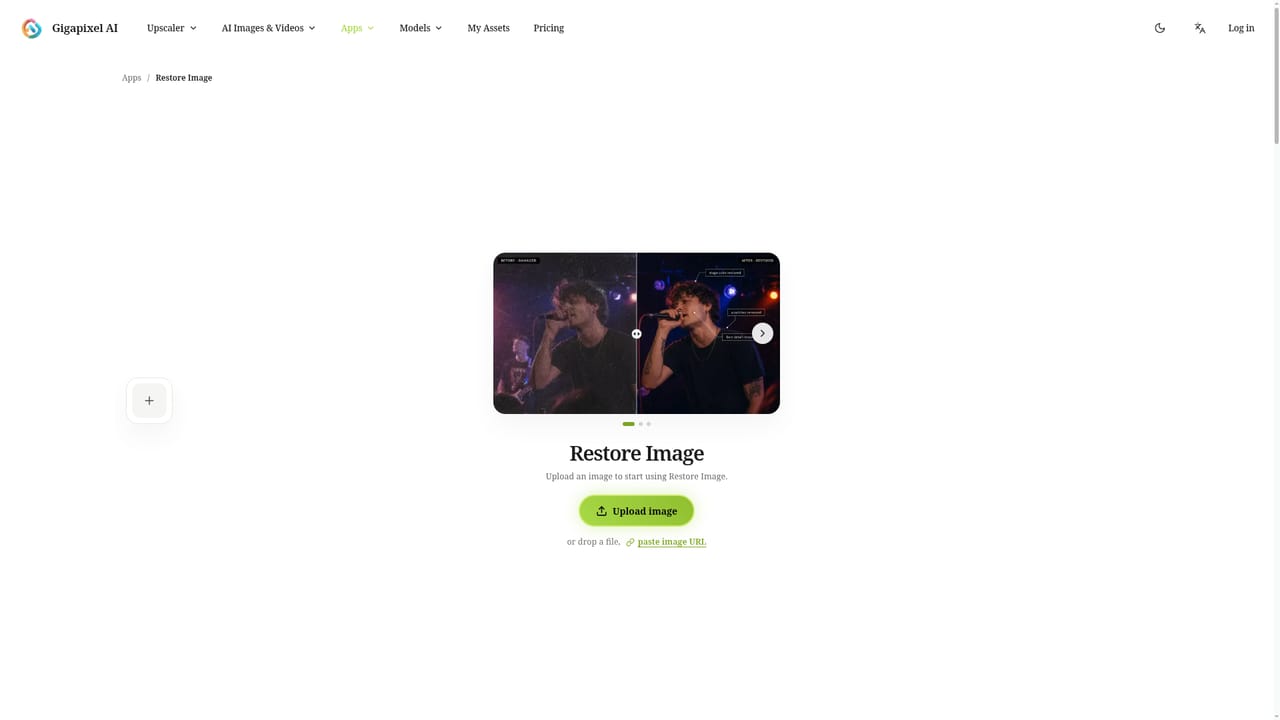

Free daily credits are advertised, letting users run core enhancement workflows, including the image and video upscalers, without committing to a paid plan.
Learn moreAccess is credit-based with a free tier. Free daily credits cover core enhancement workflows, and the homepage states that paid plans or credits unlock higher limits, faster processing, larger files and more advanced upscale options. No plan names, prices or credit rates are published on the homepage.
Learn moreSupport is handled through a contact form for upload failures, unexpected results, billing questions and feature suggestions. The homepage asks users to include the file type, task settings and a short description so the team can respond faster.
Learn moreImage upscaling at 2x, 4x and 8x, video upscaling, batch image processing, old photo restoration, natural language image editing, background removal, object and text removal, inpainting, style transfer, background blur, logo generation and image to prompt conversion. A model library adds image engines from OpenAI and Google and video engines from ByteDance, Kwai, Google and xAI.
Learn more AI Angels400+ customizable AI girlfriends for NSFW chat, voice calls, and roleplay
 Candy AIExperience the future of companionship with AI friends who chat, role-play, and connect with you on a human level.
 ourdream.aiA vast AI roleplay platform with millions of characters for chat, images, video and voiceAI Angels400+ customizable AI girlfriends for NSFW chat, voice calls, and roleplayCandy AIExperience the future of companionship with AI friends who chat, role-play, and connect with you on a human level.ourdream.aiA vast AI roleplay platform with millions of characters for chat, images, video and voice