Free trial
A 7-day free trial is offered with no credit card required, and exported files during the trial are watermark free.
Learn moreWindows desktop upscaler that takes old, blurry and anime footage to 4K or 8K
Own Nero AI Video Upscaler? Verify ownership to get a dofollow link

Nero AI Video Upscaler is a 4K upscale tool. A Windows-only desktop upscaler that rebuilds detail in old, compressed and animated video up to 8K, with dedicated models for live action, faces and 2D animation plus frame interpolation to 120 FPS.
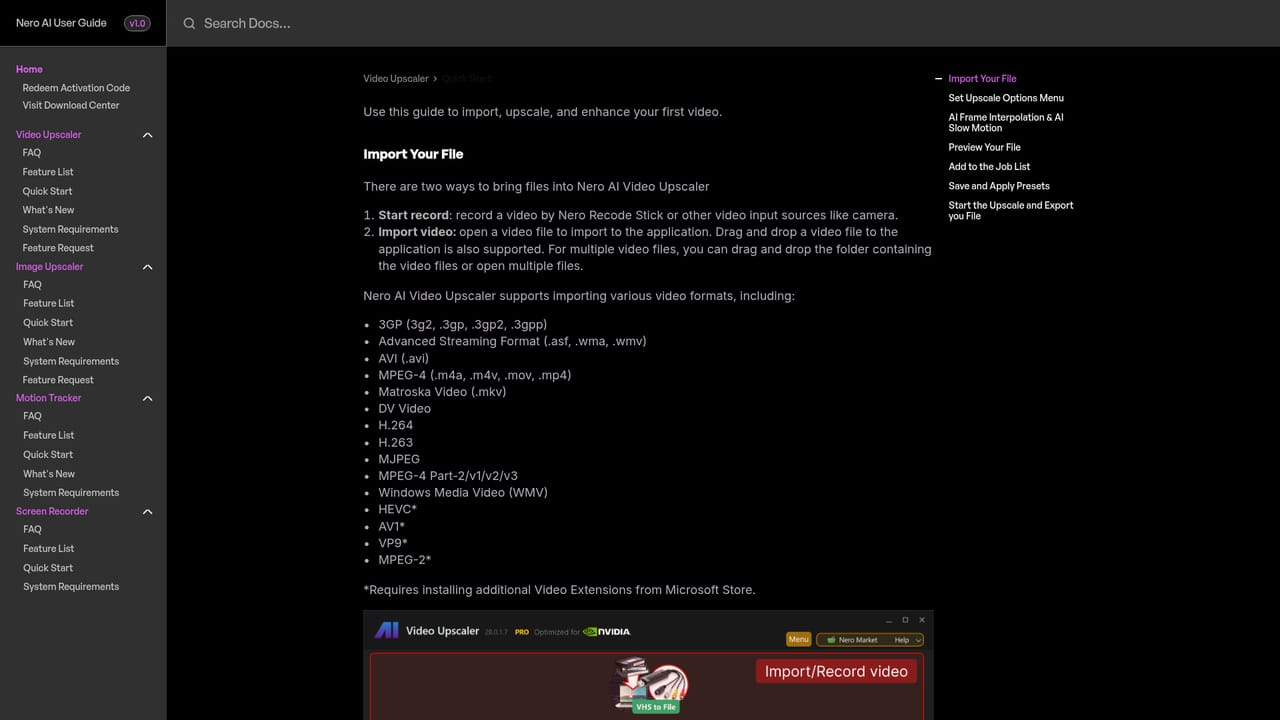
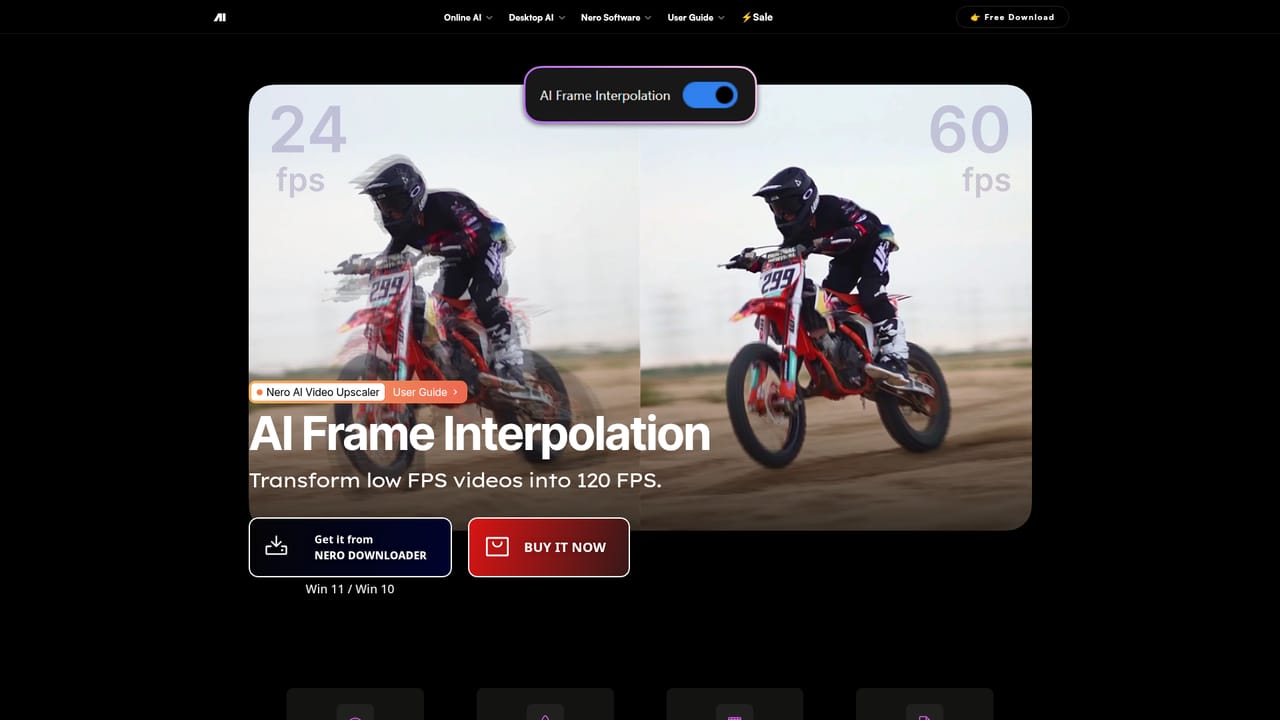
Nero AI Video Upscaler is a Windows desktop application that rebuilds detail in low-resolution, heavily compressed and older video footage, then writes it out at resolutions up to 7680x4320. Processing happens locally on the machine rather than in a browser tab, which matters for anyone with large files, long runtimes or material they would rather not upload. Exports land as MP4 using H.264 or H.265, and the tool accepts common containers including MP4, MOV, AVI, MKV and WMV. The model lineup is the core of the product. A Fast model trades some refinement for throughput, Realistic targets live-action and real-world footage, and Animation is tuned for anime, cartoons and other 2D work, preserving line work and original color while cleaning up compression artifacts. Face Enhancement concentrates on close-up and portrait material such as interviews and family recordings, Restoration addresses degraded source files that need texture rebuilt, and Versatile aims for a gentler enhancement that keeps more of the original detail. AI frame interpolation sits alongside the upscaling and can push frame rates to 120 FPS, which suits low-FPS clips, animation and AI-generated video. The practical workflow is short: import one file or a whole batch, pick a model and target resolution, preview the result in real time against the original, then process and export. Settings combinations can be saved as custom presets or started from built-in ones, and color controls cover brightness, contrast, saturation, sharpness and white balance. The tool is a reasonable fit for archivists, hobbyist restorers, anime and cartoon editors, and small content teams reviving old product or family footage. Hardware is the real gate: the site asks for a 2017-or-newer CPU, 8 GB RAM minimum with 32 GB recommended, 20 GB of free disk space, and a discrete GPU with 4 GB VRAM for 1080p to 4K work or 12 GB VRAM for 4K to 8K.
A 7-day free trial is offered with no credit card required, and exported files during the trial are watermark free.
Learn moreThe product page links to a Nero store checkout and mentions an AI Upscale Bundle that saves 20 percent, plus a Business Plan for commercial use available by email. No price figures appear on the page, and the 7-day trial requires no credit card.
Learn moreThe site advertises dedicated support alongside the download, and there is a quick start guide plus a what's new page covering product updates.
Learn moreSix upscaling models (Fast, Animation, Realistic, Versatile, Face Enhancement, Restoration), output up to 8K, AI frame interpolation to 120 FPS, real-time side-by-side preview, batch import, custom and built-in presets, and color adjustment for brightness, contrast, saturation, sharpness and white balance. Exports are MP4 in H.264 or H.265.
Learn more AI Angels400+ customizable AI girlfriends for NSFW chat, voice calls, and roleplay
 Candy AIExperience the future of companionship with AI friends who chat, role-play, and connect with you on a human level.
 ourdream.aiA vast AI roleplay platform with millions of characters for chat, images, video and voiceAI Angels400+ customizable AI girlfriends for NSFW chat, voice calls, and roleplayCandy AIExperience the future of companionship with AI friends who chat, role-play, and connect with you on a human level.ourdream.aiA vast AI roleplay platform with millions of characters for chat, images, video and voice