Image to Image

Turn any photo into a new one just by describing the change in plain words.

Beginner
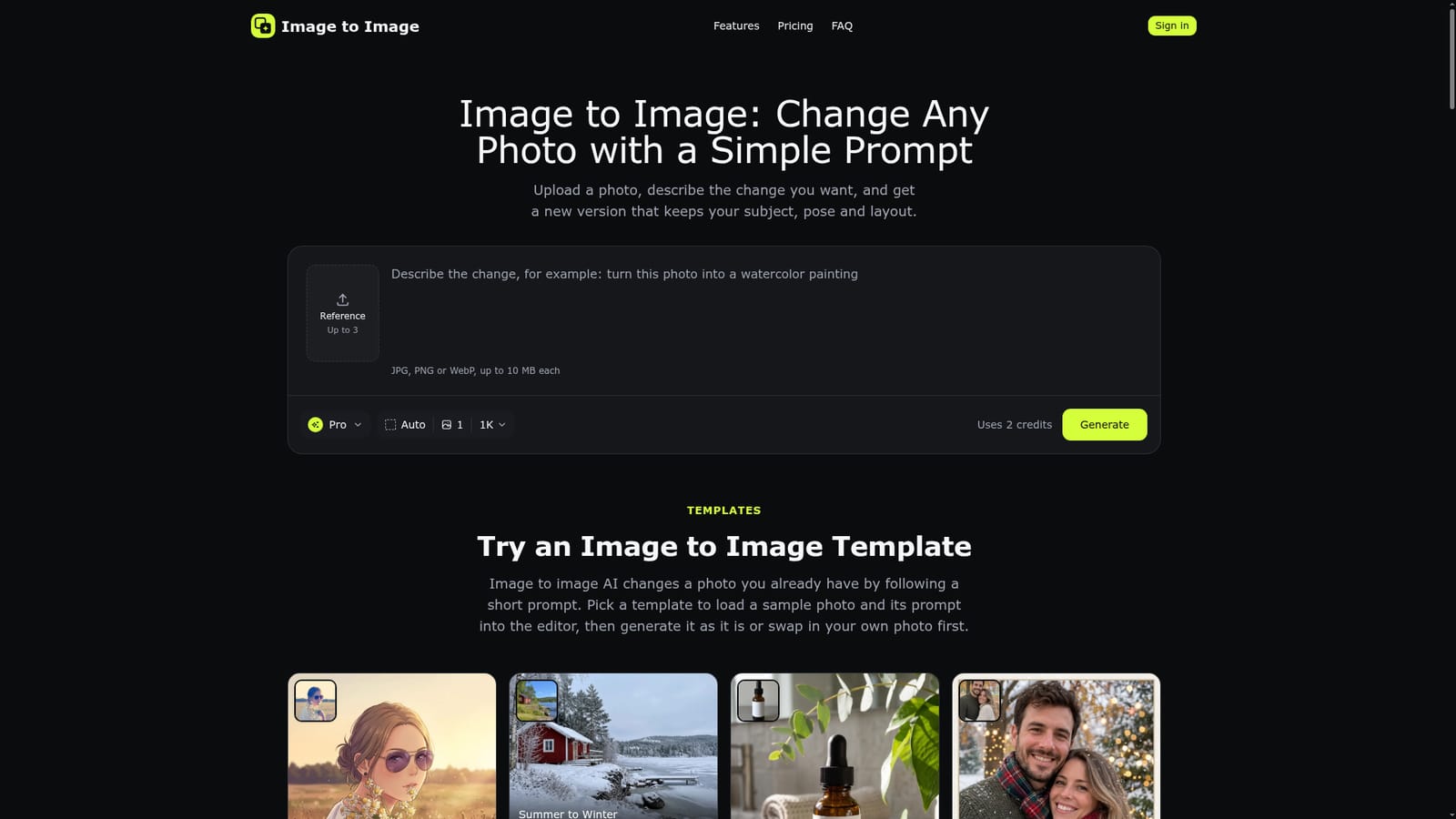
Screenshot of Image to Image, Turn any photo into a new one just by describing the change in plain words

What is Image to Image?

Image to Image is an image to image tool that turns any photo into a new one just by describing the change in plain words. A prompt based photo editor that changes a photo's style, background or details while keeping the original subject, pose and layout, with one-click templates and three output modes.

Image to Image is a browser based photo editor that turns a written instruction into a new version of an uploaded picture. Instead of starting from a blank canvas, the tool reads an existing photo and a short prompt, then produces a result that keeps the original subject, pose and composition while changing the style, background or specific details that were requested. Edits that would normally need masks, layers or selection tools in a traditional editor are handled with a sentence describing what should change and what should stay. The tool suits people who need fast visual variations without design training: online sellers who want product shots on new backgrounds, social media users restyling a selfie into anime or cartoon form, pet owners making painted portraits, and anyone testing a look for a mood board or a gift before committing to it. Up to three reference images can be combined in one edit, which lets a person, an object and a style be merged into a single result. In practice, a user uploads a JPG, PNG or WebP file, writes a prompt or loads one of the ready made style templates, picks a generation mode (Fast, Pro or Pro HD), and receives a result in roughly 20 to 40 seconds. Pro HD adds 2048 pixel output for print or storefront use, and every result carries an option to send it back through the editor for another round of changes, so a picture can be built up in small steps rather than one long prompt. Against general purpose text to image generators, Image to Image is narrower by design: it is built specifically to preserve what is already in a photo rather than generate a scene from scratch. That makes it a fit for incremental photo editing and product imagery rather than original concept art, and its freemium credit system keeps casual testing low cost while charging more for higher volume or higher resolution output.
How do you use Image to Image?

  1. 1Upload a photo
    Drop in a JPG, PNG or WebP file up to 10 MB, or add up to three reference images to combine a person, an object and a style in one edit.
    Image to Image — Upload a photo
  2. 2Describe the change or pick a template
    Write a short prompt naming what should change and what should stay, or load one of the ready-made style templates below the editor and adjust it.
  3. 3Choose Fast, Pro or Pro HD
    Pick a generation mode based on speed, detail accuracy or final resolution; Pro HD outputs 2048-pixel images suited to print or store listings.
  4. 4Generate and review the result
    Press Generate and compare the new image against the original in under a minute, checking that the subject and layout carried over as expected.
  5. 5Keep editing in small steps
    Use the Edit this result option to send the output back into the tool and apply another change, such as adjusting lighting after changing the background.
  6. 6Check credit usage and plans
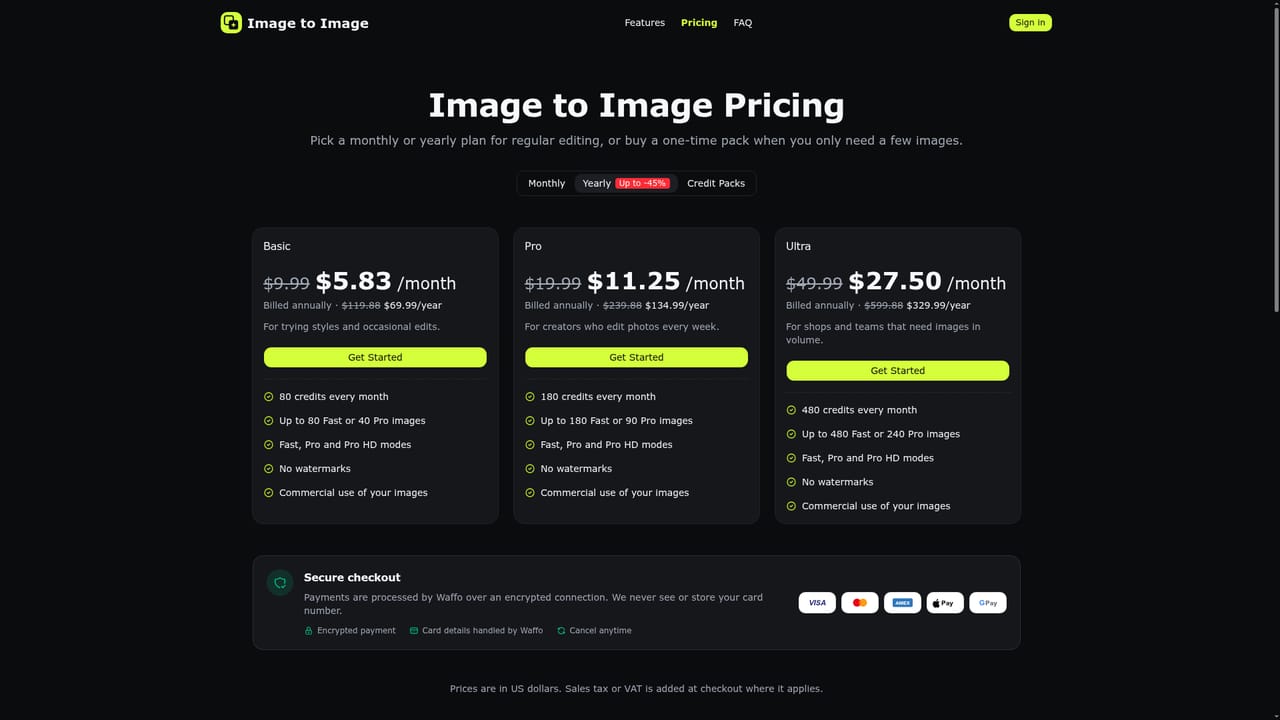
    Review how many credits each mode uses and compare monthly, yearly or one-time credit pack options before committing to regular use.
    Image to Image — Check credit usage and plans

Pros and cons

Pros

  • Keeps the subject, pose and layout intact while changing style or background, unlike blank-canvas generatorsAI
  • One-click templates cover anime, 3D cartoon, oil painting and other looks without writing a prompt from scratchAI
  • Results return in 20 to 40 seconds, with a direct option to feed the output back in for further editsAI
  • Pro HD mode outputs 2048-pixel images suited to store listings or print, not just screen-sized previewsAI
  • Commercial use of generated images is permitted, which matters for shop owners building product listingsAI

Cons

  • Free tier is limited to 2 credits per new account, enough for only one Pro-quality editAI
  • Uploads and results are auto-deleted after 7 days, so long-term storage depends on downloading images promptlyAI
  • File size is capped at 10 MB and only JPG, PNG and WebP are accepted, which rules out some camera or raw formatsAI
  • No mobile app is mentioned, so editing is tied to a web browser sessionAI
  • Content policy blocks certain edit types (e.g. making a real person appear to say or do something they did not), limiting some creative usesAI

How much does Image to Image cost?

Free trial

New accounts receive 2 free credits, enough for one Pro-quality edit, limited to one account per person and capped daily, before a paid plan or credit pack is needed.

Learn more

Pricing

Three monthly or yearly plans: Basic at $9.99/month (80 credits), Pro at $19.99/month (180 credits) and Ultra at $49.99/month (480 credits), with up to 45% off on annual billing. One-time credit packs are also available. Fast edits use 1 credit, Pro uses 2 and Pro HD uses 3.

Learn more

Support

Support is handled through a contact page, alongside an on-site FAQ covering file limits, processing time, data retention and usage rules.

Learn more

Features

Prompt-based photo editing that preserves subject, pose and layout; one-click style templates (anime, 3D cartoon, oil painting, watercolor and more); product background swaps; Fast, Pro and Pro HD (2048px) modes; iterative re-editing of results; 7-day result history.

Frequently asked questions about Image to Image

  • How much does Image to Image cost?
    Three monthly or yearly plans: Basic at $9.99/month (80 credits), Pro at $19.99/month (180 credits) and Ultra at $49.99/month (480 credits), with up to 45% off on annual billing. One-time credit packs are also available. Fast edits use 1 credit, Pro uses 2 and Pro HD uses 3.
  • Does Image to Image offer a free trial?
    New accounts receive 2 free credits, enough for one Pro-quality edit, limited to one account per person and capped daily, before a paid plan or credit pack is needed.
  • How do you use Image to Image?
    The walkthrough on this page covers 6 steps: 1. Upload a photo 2. Describe the change or pick a template 3. Choose Fast, Pro or Pro HD 4. Generate and review the result 5. Keep editing in small steps 6. Check credit usage and plans.
  • What platforms does Image to Image support?
    Image to Image is available on Web App.
  • What are the limitations of Image to Image?
    Free tier is limited to 2 credits per new account, enough for only one Pro-quality edit. Uploads and results are auto-deleted after 7 days, so long-term storage depends on downloading images promptly. File size is capped at 10 MB and only JPG, PNG and WebP are accepted, which rules out some camera or raw formats.

Status

StatusActive
Views0
Outbound clicks0
Added10/19/2026

Platforms

Web App

Pricing

FreemiumSubscriptionPaid