Free trial
A free entry point is offered on the homepage, so the core workflow can be tried before committing to a plan.
Learn moreFind, generate, edit and convert web images in one workspace

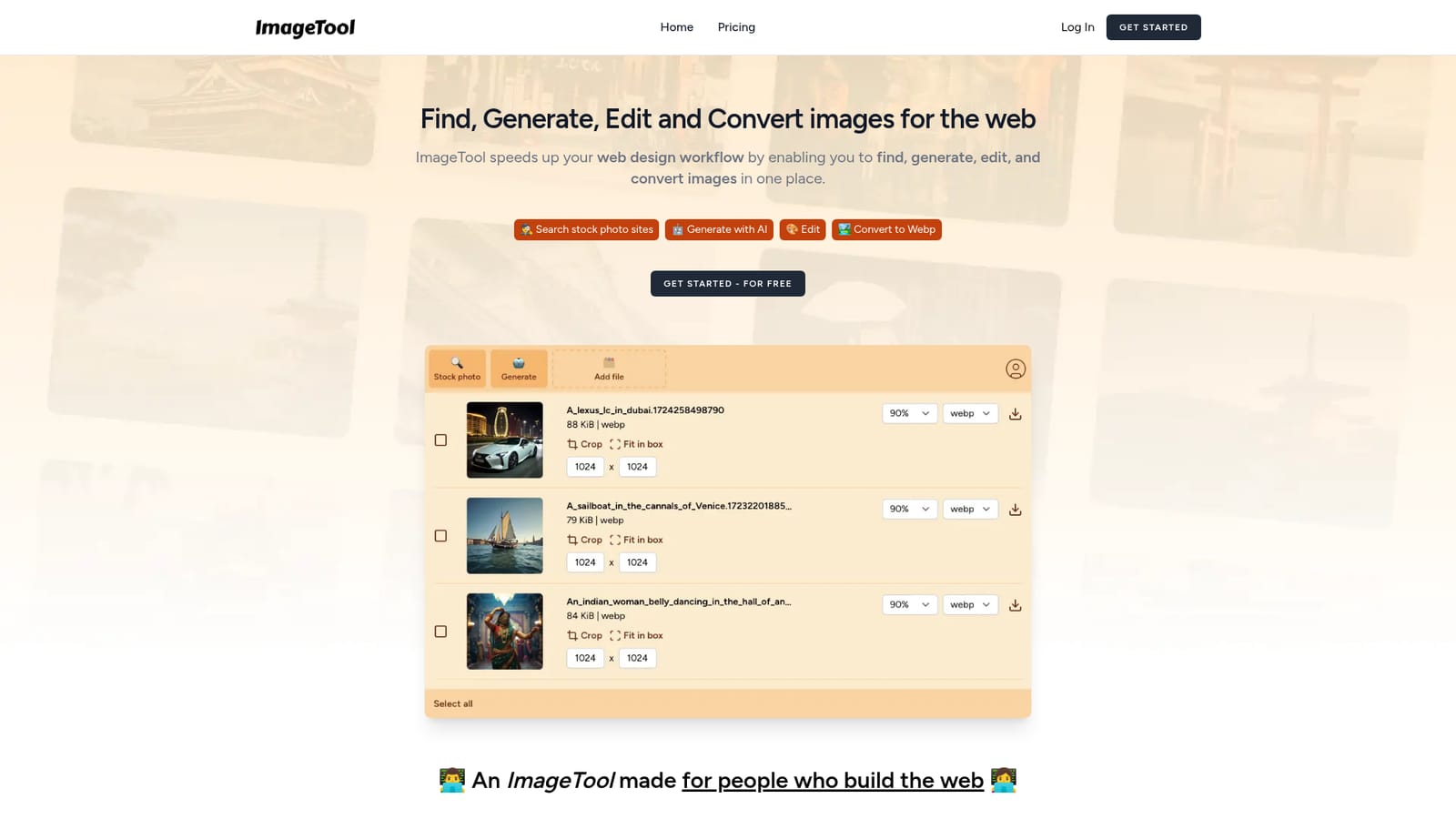
ImageTool is a generative image tool that finds generate, edit and convert web images in one workspace. A single web workspace that searches Unsplash, Pexels and Pixabay at once, generates images with AI, crops and bulk resizes them, then exports to WEBP and AVIF for faster pages.
ImageTool is a browser based workspace for the image chores that come up constantly when building websites. Instead of jumping between stock libraries, AI generators, a desktop editor and a file converter, it puts those four tasks behind one interface. The pitch is narrow and deliberate: this is not a general purpose photo editor for creative retouching, it is a production utility for people shipping pages. The search side queries Unsplash, Pexels and Pixabay at once. One keyword returns combined results from all three libraries, which removes the tab juggling that normally goes with hunting free stock photography. Licensing still belongs to each source, so users need to check the individual Unsplash, Pexels and Pixabay terms before publishing. Generated images sit alongside searched ones, and the site states that the yearly plan includes 500 AI generated images using current models. Editing covers the practical basics: cropping, compressing and bulk resizing so assets match the dimensions a layout expects. Uploads accept .webp, .avif, .png, .jpeg, .jpg, .heic and .gif files, with a 10 Mb ceiling per file. Custom images can be imported, so the tool works as a staging area for assets that did not come from a stock library or a prompt. Export is where the workflow closes. Images convert automatically into web friendly formats including WEBP and AVIF, which means no separate conversion site and no manual re-upload dance. The compression and conversion claims are described as unlimited on the homepage. The audience is front end developers, designers and small site owners who care about page weight and turnaround time more than layer based compositing. Anyone needing masks, curves or generative fill should pair it with a dedicated editor.
A free entry point is offered on the homepage, so the core workflow can be tried before committing to a plan.
Learn moreThe site advertises a free start and mentions that the yearly plan includes 500 AI generated images, with unlimited image conversion and compression. A full price list is not published on the homepage.
Learn moreSupport runs through a contact form on the site; no live chat or help centre is mentioned on the homepage.
Learn moreConnects directly to three free stock photo libraries: Unsplash, Pexels and Pixabay, all searchable from a single query.
Parallel search across Unsplash, Pexels and Pixabay, AI image generation, cropping, compression, bulk resizing, custom image uploads in seven formats, and automatic conversion to WEBP, AVIF and other web friendly outputs.
 AI Angels400+ customizable AI girlfriends for NSFW chat, voice calls, and roleplay
 Candy AIExperience the future of companionship with AI friends who chat, role-play, and connect with you on a human level.
 ourdream.aiA vast AI roleplay platform with millions of characters for chat, images, video and voiceAI Angels400+ customizable AI girlfriends for NSFW chat, voice calls, and roleplayCandy AIExperience the future of companionship with AI friends who chat, role-play, and connect with you on a human level.ourdream.aiA vast AI roleplay platform with millions of characters for chat, images, video and voice


