Free trial
New accounts get 10 free minutes after signing in with Google, with no credit card required. That equals up to 10 minutes of transcription or about 5 minutes of translation.
Learn moreLive speech translation and transcription in 100+ languages

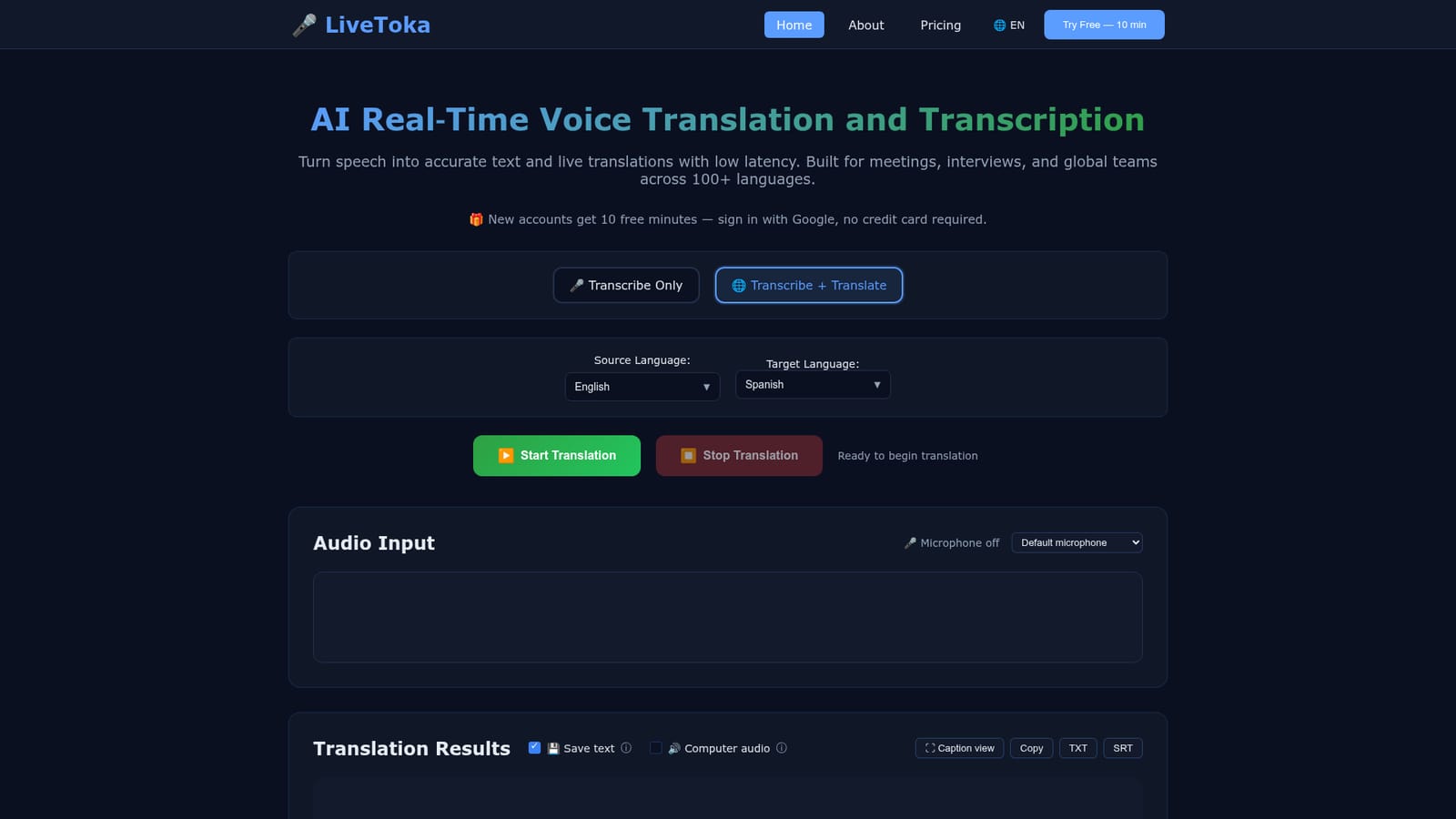
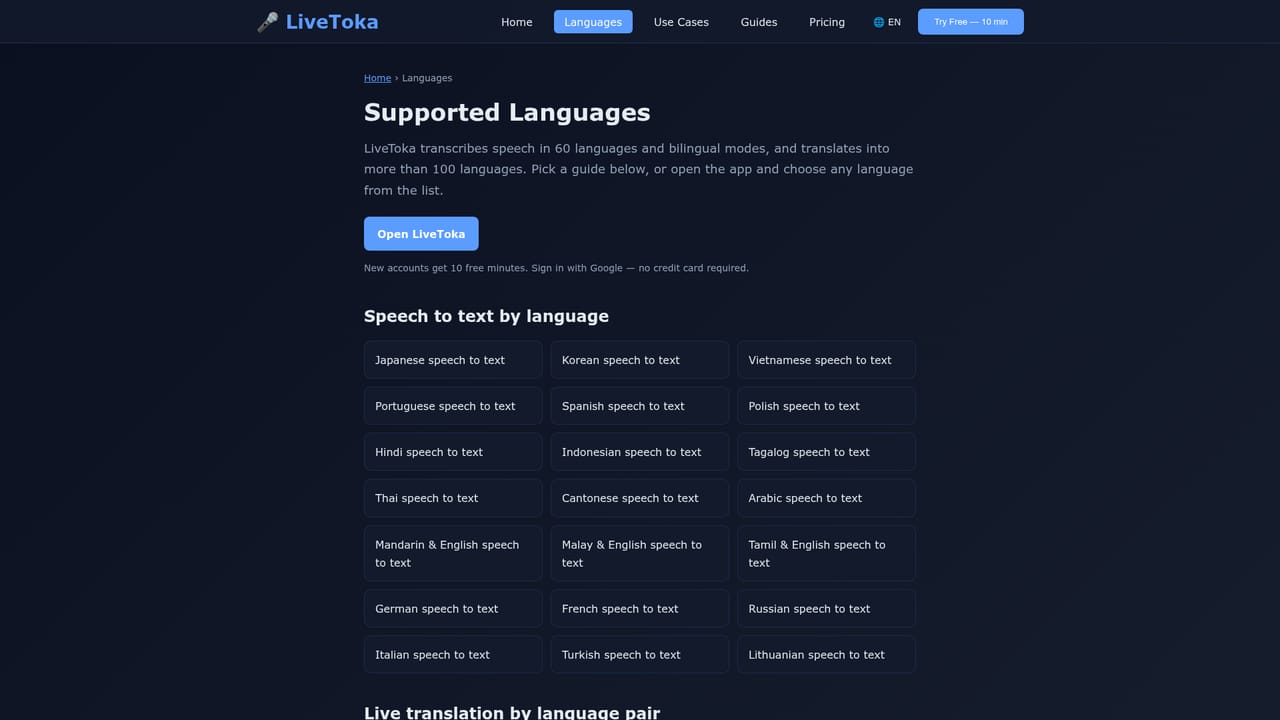
LiveToka turns speech into text and live translations in the browser, covering 55+ recognition languages and 100+ translation languages. It handles microphone input or tab audio, saves bilingual transcripts, and exports to TXT, SRT, CSV or JSON.
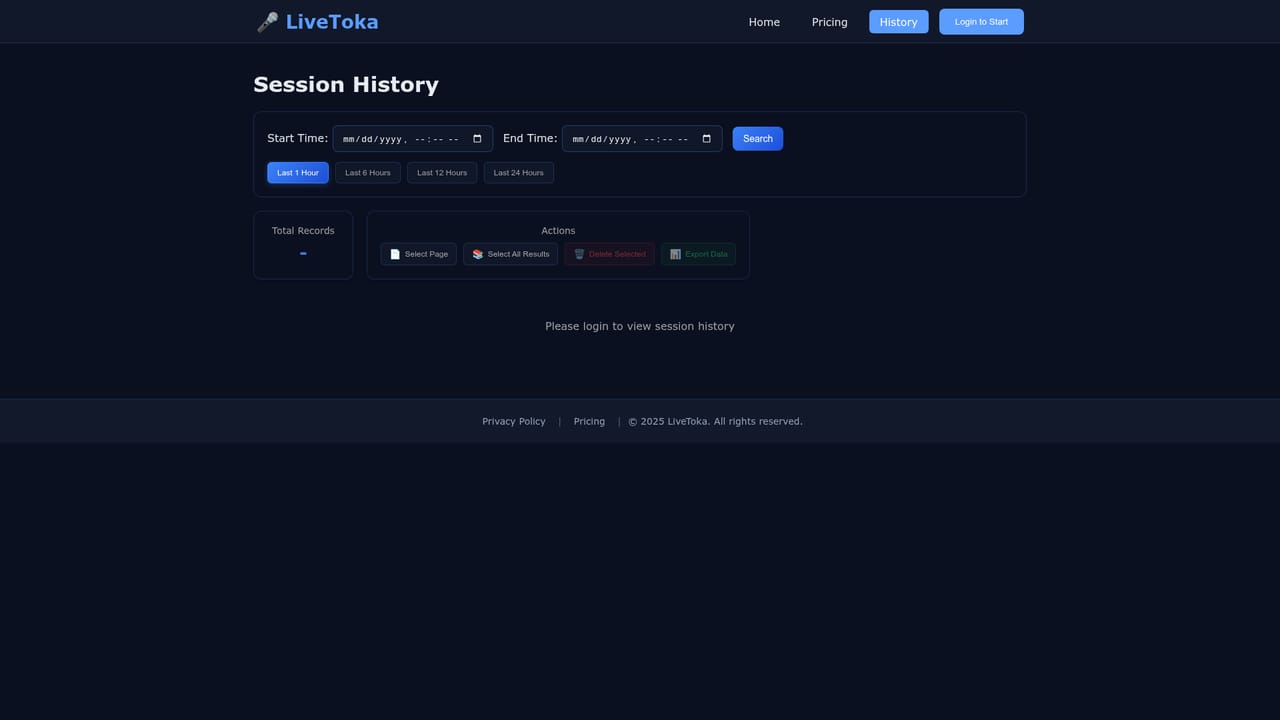
LiveToka is a browser based speech tool that converts spoken language into text and live translation at the same time. You pick a source language from a list of 55 or more, optionally choose a target language, press start, and the results stream into a panel as people speak. A second mode handles audio from another browser tab, which is how it captions web meetings, lectures or livestreams without any plugin or calendar connection. The product is aimed at people who have to follow speech they do not speak well: international teams on calls, interpreters and interviewers, support staff handling multilingual customers, students in cross border courses, and anyone watching a livestream in a foreign language. Bilingual modes for Mandarin and English, Spanish and English, Malay and English, and Tamil and English cover the common code switching cases where a speaker drifts between two languages mid sentence. In practice LiveToka works as a lightweight companion rather than a system of record. It does not join a meeting on your behalf. It sits alongside Zoom, Teams, Meet, Webex, YouTube Live or LINE while you run the call normally, and you can change languages mid conversation without restarting the session. Output can be copied, downloaded as TXT or SRT captions, or saved to a session history that supports search and CSV or JSON export. Against dedicated meeting notetakers, the tradeoff is deliberate. LiveToka puts real time translation and captions first, and does not promise speaker diarization, action item extraction or summaries on the homepage. Audio is described as processed in real time and never stored, and voice data is not used for model training. Anyone who mainly needs a searchable archive of what was said will find deeper meeting assistants, while anyone who needs to understand speech as it happens gets a leaner tool.
New accounts get 10 free minutes after signing in with Google, with no credit card required. That equals up to 10 minutes of transcription or about 5 minutes of translation.
Learn morePlans start at $9.9/month for usage beyond the free allowance. Translation draws credits at twice the rate of transcription, so the same credit buys half as many translated minutes as plain transcribed minutes. Exact plan tiers are listed on the pricing page.
Learn moreNo formal integrations or APIs are listed. LiveToka works alongside Zoom, Teams, Meet, Webex, YouTube Live and LINE by capturing audio from the browser rather than connecting to those services directly.
Real time transcription and translation with low latency, support for 55+ speech recognition languages and 100+ translation languages, four bilingual modes, tab or screen audio capture, caption view, TXT and SRT export, saved session history with CSV and JSON export, and domain aware translation described as tuned for technical content.
 AI Angels400+ customizable AI girlfriends for NSFW chat, voice calls, and roleplay
 Candy AIExperience the future of companionship with AI friends who chat, role-play, and connect with you on a human level.
 ourdream.aiA vast AI roleplay platform with millions of characters for chat, images, video and voiceAI Angels400+ customizable AI girlfriends for NSFW chat, voice calls, and roleplayCandy AIExperience the future of companionship with AI friends who chat, role-play, and connect with you on a human level.ourdream.aiA vast AI roleplay platform with millions of characters for chat, images, video and voice


