Pricing
A free plan covers all core features with 30 answers a month and no card required. More usage is available through an upgrade purchased inside the app; the public site does not list the paid tiers or their prices.
Learn moreOne shortcut captures your screen and streams AI answers back in seconds
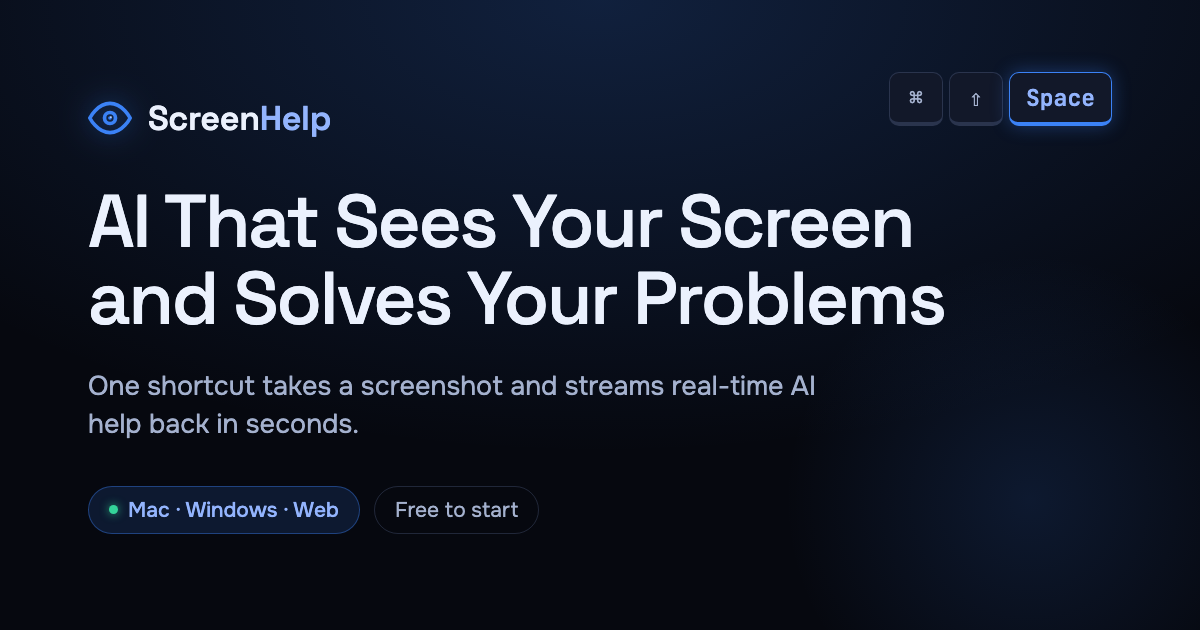
ScreenHelp is an AI screen analyzer tool. ScreenHelp captures your screen with a keyboard shortcut, reads it with AI vision and streams answers into an overlay that stays hidden during screen sharing. Built for exam prep, quiz help, coding errors and study materials, with a Mac and Windows desktop app plus a browser version that sends answers to your phone.
ScreenHelp is a screen-reading AI assistant built around a single keyboard shortcut. Press the key combination you configured and the tool grabs a screenshot, passes it through AI vision, and streams a response into a panel that only you can see. The vendor claims answers usually arrive in under two seconds. A live overlay sits on top of whatever is running, stays idle until a capture is triggered, and takes nothing until asked. Exam preparation is the clearest use case. Quiz questions, practice tests, study materials and forms on screen can all be submitted for explanation or a worked answer, and because the desktop app stays out of shared screens on Zoom, Microsoft Teams and Google Meet, it also avoids appearing in other people's recordings and screenshots. Students can nominate their own prompts instead of relying on a fixed behaviour, so a standing instruction like an explanation-only style or a step-by-step format travels with every capture. Practical use splits into two paths. The Mac and Windows desktop app delivers native shortcuts, an invisible overlay, a chat window that keeps the context of earlier captures for follow-up questions, and saved custom prompts. The browser version needs no installation and streams answers to a phone, which suits users on managed machines or Chromebooks. Both paths work the same way in principle: capture, analyse, respond. It sits closest to screen-aware study helpers and AI sidebar extensions, but differs by being keyboard-first and capture-triggered rather than always watching. The free tier caps usage at 30 answers a month, so heavy preparation schedules will need the paid upgrade sold inside the app. Buyers should also think carefully about where an invisible answer panel is acceptable: many exam and assessment settings treat this kind of assistance as prohibited, and the tool's design makes that risk a policy question rather than a technical one.
A free plan covers all core features with 30 answers a month and no card required. More usage is available through an upgrade purchased inside the app; the public site does not list the paid tiers or their prices.
Learn moreThe overlay is built to stay hidden while sharing on Zoom, Microsoft Teams and Google Meet, but no deeper integrations or connected apps are documented on the site.
Screen analysis for quizzes, tests, coding challenges and general guidance; custom prompts that ride along with each capture; keyboard shortcuts to trigger answers; a chat overlay that remembers past captures; and an overlay that stays invisible during Zoom, Teams and Meet shares, recordings and third-party screenshots.
 AI Angels400+ customizable AI girlfriends for NSFW chat, voice calls, and roleplay
 Candy AIExperience the future of companionship with AI friends who chat, role-play, and connect with you on a human level.
 ourdream.aiA vast AI roleplay platform with millions of characters for chat, images, video and voiceAI Angels400+ customizable AI girlfriends for NSFW chat, voice calls, and roleplayCandy AIExperience the future of companionship with AI friends who chat, role-play, and connect with you on a human level.ourdream.aiA vast AI roleplay platform with millions of characters for chat, images, video and voice