TranscribeAI

Local AI transcription for Mac, with no audio leaving your machine

Beginner
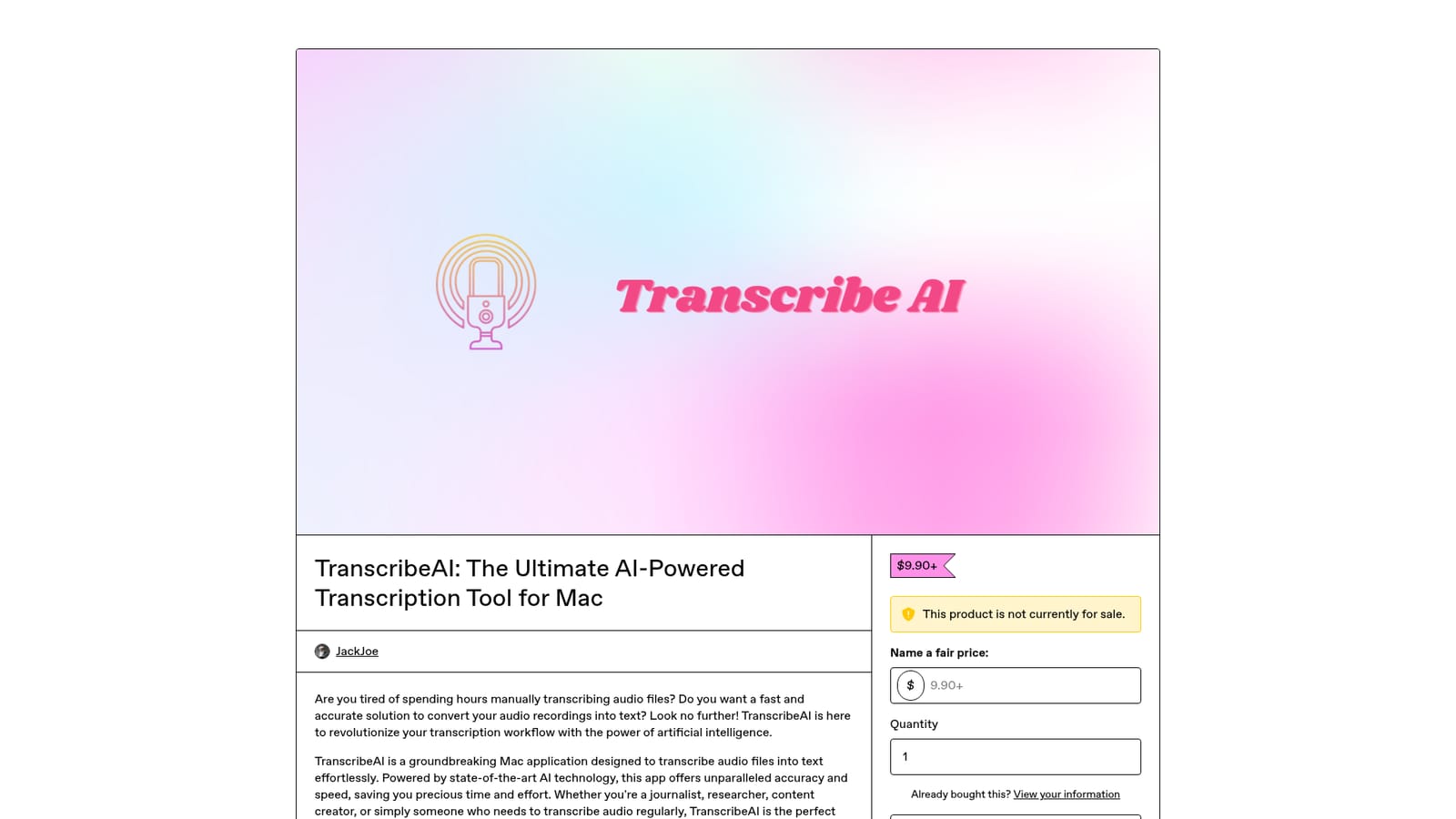
Screenshot of TranscribeAI, Local AI transcription for Mac, with no audio leaving your machine

What is TranscribeAI?

TranscribeAI is an AI transcriber tool. A Mac app that transcribes audio to text with a local AI model, exporting .srt, .vtt or .txt files, with language selection and no audio sent to servers. Requires macOS Ventura or later and is sold as a one time Gumroad purchase.

TranscribeAI is a native Mac application that turns audio recordings into text using an AI speech recognition model that runs entirely on the local machine. The developer states that no audio is uploaded to any server during processing, which makes the app relevant for journalists, researchers and content creators who work with interviews or recordings they cannot hand to a third party cloud service. The workflow is deliberately narrow. A user picks an audio file, chooses the transcription language, and the app produces a text output that can be saved as .srt, .vtt or .txt. Those three export formats cover the common cases: .srt and .vtt for subtitles and captions attached to video, .txt for research notes, meeting records or scripts. Language selection is exposed in the interface, so multilingual material can be handled by changing the target language rather than relying on automatic detection alone. The app is positioned as a one time purchase rather than a subscription, sold through Gumroad at a price starting at $9.90. It requires macOS Ventura (13.0) or later, so older Macs are out of scope. Its main trade-off against cloud transcription services is privacy against scale: local processing keeps files on the device, but the developer publishes no details about model size, supported audio lengths, accuracy benchmarks or hardware requirements beyond the operating system. TranscribeAI suits Mac users who transcribe occasionally and value keeping sensitive recordings offline. Buyers who need team collaboration, speaker diarization, API access or batch processing across large archives should compare it against dedicated cloud transcription platforms before purchasing. The listing page currently shows the product as not for sale, so availability should be confirmed before planning a purchase.

How do you use TranscribeAI?

  1. 1Buy and download the .dmg from Gumroad
    Open the product page, complete the purchase at the listed price, then download the TranscribeAI.dmg file offered on the listing.
    TranscribeAI — Buy and download the .dmg from Gumroad
  2. 2Install the app on macOS Ventura or later
    Mount the disk image and move the application into your Applications folder. Confirm your Mac runs macOS Ventura (13.0) or newer before starting.
  3. 3Select your audio file and language
    Load the recording you want to convert and choose the transcription language from the app's language selector so the model targets the right speech.
  4. 4Run the transcription
    Start the process and let the local model work through the audio. Because everything runs on the device, no network upload step is involved.
  5. 5Export as .srt, .vtt or .txt
    Pick the output format that matches your next step: subtitle files for video work, or plain text for notes and scripts.

Pros and cons

Pros

  • Processing happens on the local machine, so recordings are not uploaded to a serverAI
  • Exports to .srt, .vtt and .txt, covering subtitles, captions and plain text notesAI
  • Language can be set per transcription, which helps with non English recordingsAI
  • Interface is described as simple enough for users without technical backgroundAI
  • Sold as a one time purchase rather than a recurring subscriptionAI

Cons

  • Mac only and requires macOS Ventura (13.0) or later, so older machines are excludedAI
  • No published accuracy figures, supported file length limits, model details or hardware requirementsAI
  • No visible mention of speaker labels, timestamps beyond subtitle formats, batch queues or team featuresAI
  • Product page at review time states the item is not currently for sale, which creates purchase uncertaintyAI
  • No API, integrations or documented support channel beyond the Gumroad listingAI

How much does TranscribeAI cost?

Pricing

The Gumroad listing shows a price of $9.90 and up, with a name your own price field for buyers who want to pay more. It is a one time purchase of the Mac app rather than a subscription, and the page indicated the product was not currently for sale at the time of review.

Learn more

Features

Local AI transcription on Mac, language selection per job, fast processing, export to .srt, .vtt and .txt, a simple interface, and periodic updates from the developer. No audio is sent to servers during transcription.

Frequently asked questions about TranscribeAI

  • How much does TranscribeAI cost?
    The Gumroad listing shows a price of $9.90 and up, with a name your own price field for buyers who want to pay more. It is a one time purchase of the Mac app rather than a subscription, and the page indicated the product was not currently for sale at the time of review.
  • How do you use TranscribeAI?
    The walkthrough on this page covers 5 steps: 1. Buy and download the .dmg from Gumroad 2. Install the app on macOS Ventura or later 3. Select your audio file and language 4. Run the transcription 5. Export as .srt, .vtt or .txt.
  • What platforms does TranscribeAI support?
    TranscribeAI is available on MacOS.
  • What are the limitations of TranscribeAI?
    Mac only and requires macOS Ventura (13.0) or later, so older machines are excluded. No published accuracy figures, supported file length limits, model details or hardware requirements. No visible mention of speaker labels, timestamps beyond subtitle formats, batch queues or team features.

Status

StatusActive
Views0
Outbound clicks0
Added10/21/2026

Platforms

MacOS

Pricing

Paid