VoiceToText

Free voice to text tool with 30+ language support and real-time transcription.

Beginner
Screenshot of VoiceToText, Free voice to text tool with 30+ language support and real-time transcription

What is VoiceToText?

VoiceToText is a free browser-based speech recognition tool that turns live speech or uploaded audio and video files into editable text. It supports over 30 languages, offers basic editing and export options, and includes an audio recorder plus text-to-speech, all running in Google Chrome.

VoiceToText is a web-based speech recognition tool that converts spoken words into written text in real time. The homepage positions it as a free alternative to typing, aimed at anyone who wants to draft emails, documents, or essays by voice. It also accepts uploaded audio and video files for transcription, which broadens its use beyond live dictation to tasks like turning interviews or lecture recordings into editable text. The service claims 95 percent accuracy and more than 30 supported languages, including English, Hindi, Spanish, French, Tamil, Urdu, Bengali, and Gujarati, among many others. Users can add paragraphs, punctuation, and even smileys while dictating, and the editor provides basic formatting options such as bold and underline. Finished transcripts can be exported as txt, docx, or other formats. A built-in audio recorder lets you capture speech directly in the browser, and a text-to-speech feature reads text back aloud. In practice, the workflow is straightforward: open the site, start dictation or upload a file, edit the transcript inline, and export. The homepage lists use cases from doctors dictating patient notes and students transcribing lectures to content creators writing scripts and freelancers processing interviews. Because it runs only in Google Chrome and requires an internet connection, it is best suited to users who work primarily in the browser and do not need an installed desktop application. Among transcription tools, VoiceToText sits at the lightweight, free end of the spectrum. It does not advertise team collaboration, advanced speaker diarization, or deep third-party integrations on the homepage, so it competes on simplicity and language breadth rather than enterprise features. For quick dictation and file transcription without a paywall, it is a practical option, though users should expect to review the output given the stated 95 percent accuracy target.

How do you use VoiceToText?

  1. 1Open the speech-to-text page
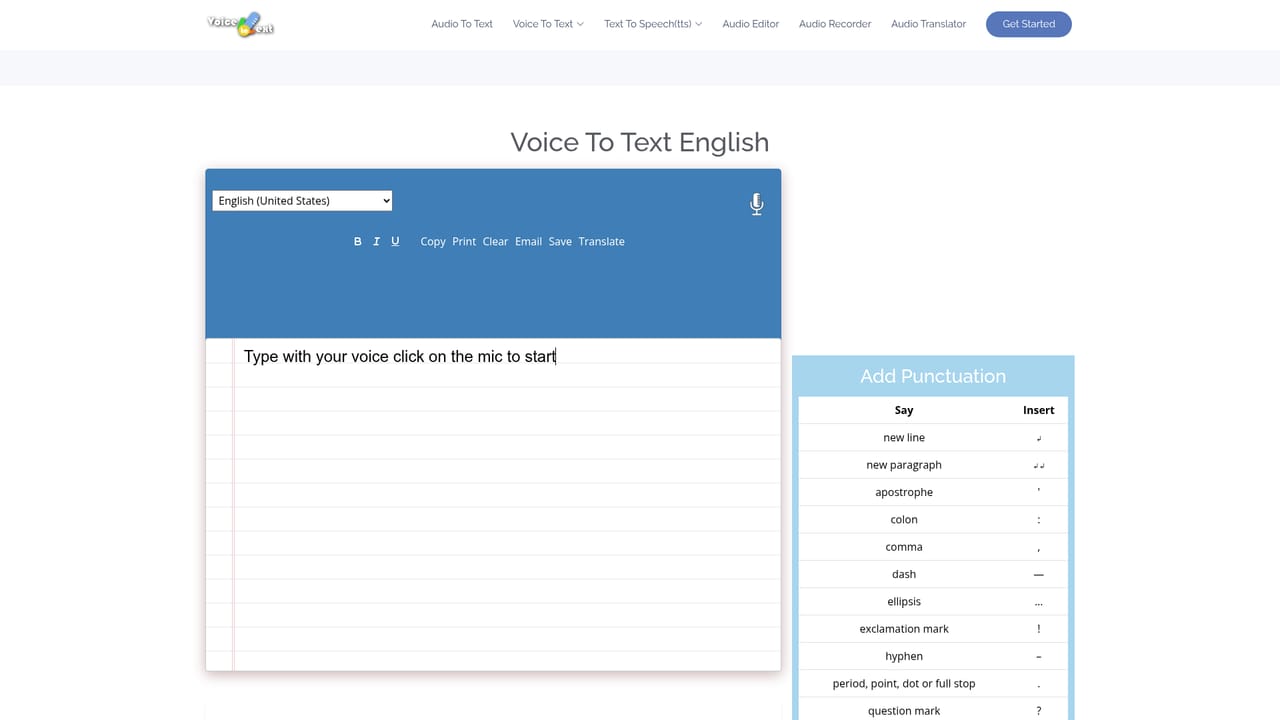
    Go to the speech-to-text page in Google Chrome to access the live dictation interface.
    VoiceToText — Open the speech-to-text page
  2. 2Choose your language and start recording
    Select from over 30 supported languages and click the start button to begin capturing your voice in real time.
  3. 3Speak and format your text
    Dictate naturally; the tool adds punctuation and paragraphs, and you can apply bold or underline afterward.
  4. 4Upload audio or video for transcription
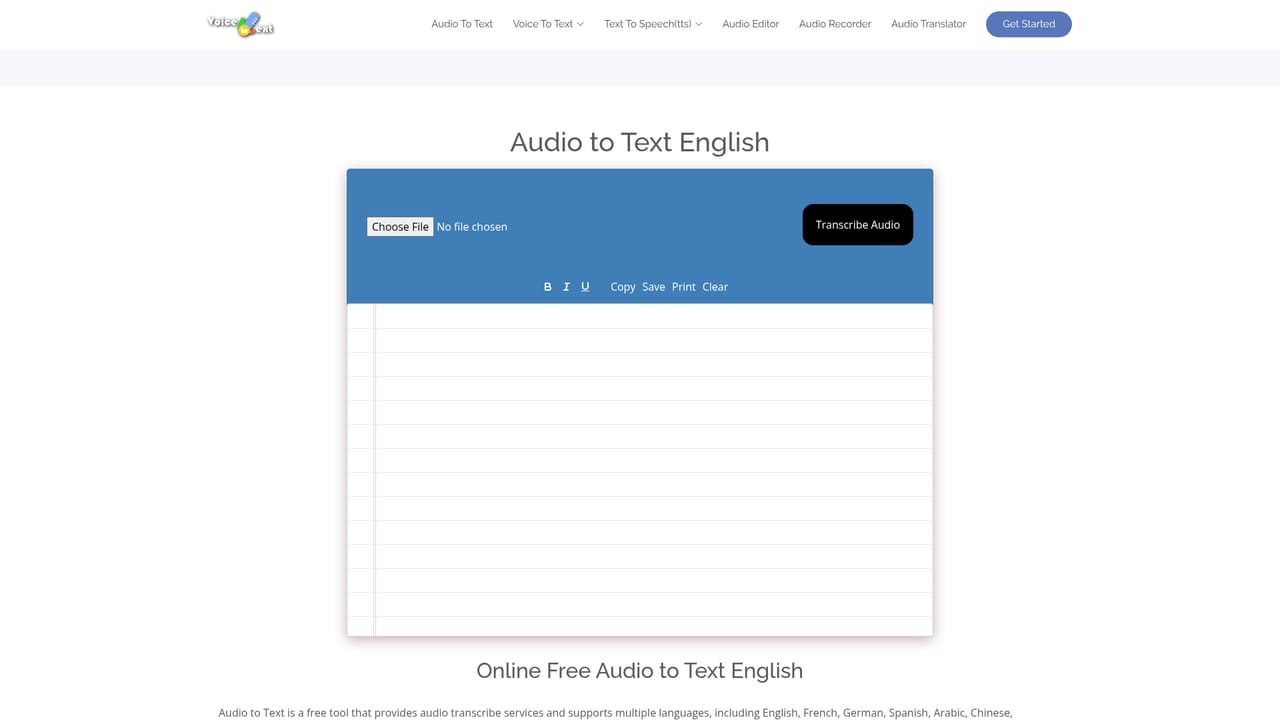
    If you have an existing recording, switch to the audio-to-text page and upload your file to convert it into text.
    VoiceToText — Upload audio or video for transcription
  5. 5Export the transcript
    Once the text is ready, export it in txt, docx, or another supported format for use in your documents.

Pros and cons

Pros

  • Free to use with no pricing tiers mentioned on the homepageAI
  • Supports more than 30 languages, including many Indian and Asian languagesAI
  • Real-time transcription with claimed 95 percent accuracyAI
  • Handles both live dictation and uploaded audio or video filesAI
  • Includes editing tools, export options, an audio recorder, and text-to-speechAI

Cons

  • Works only in Google Chrome, with no support for other browsersAI
  • Requires an internet connection; no offline mode is offeredAI
  • Accuracy claim of 95 percent means transcripts will still need manual reviewAI
  • No mention of team collaboration, speaker labels, or advanced integrationsAI
  • Homepage provides no detail on data privacy or how recordings are storedAI

How much does VoiceToText cost?

Features

Real-time speech-to-text with claimed 95 percent accuracy, support for over 30 languages, audio and video file transcription, basic editing tools (bold, underline), transcript export in txt, docx and other formats, an online audio recorder, and text-to-speech conversion.

Learn more

Frequently asked questions about VoiceToText

  • How do you use VoiceToText?
    The walkthrough on this page covers 5 steps: 1. Open the speech-to-text page 2. Choose your language and start recording 3. Speak and format your text 4. Upload audio or video for transcription 5. Export the transcript.
  • What platforms does VoiceToText support?
    VoiceToText is available on Web App.
  • What are the limitations of VoiceToText?
    Works only in Google Chrome, with no support for other browsers. Requires an internet connection; no offline mode is offered. Accuracy claim of 95 percent means transcripts will still need manual review.

Status

StatusActive
Views0
Outbound clicks0
Added10/21/2026

Platforms

Web App

Pricing

Free