Integrations
Works with Figma through plugins, Canva through plugins, PowerPoint and Keynote exports, SVG output, and JSON via the Visual Struct API.
Learn moreRebuild flat screenshots, PDFs and slides as editable design files
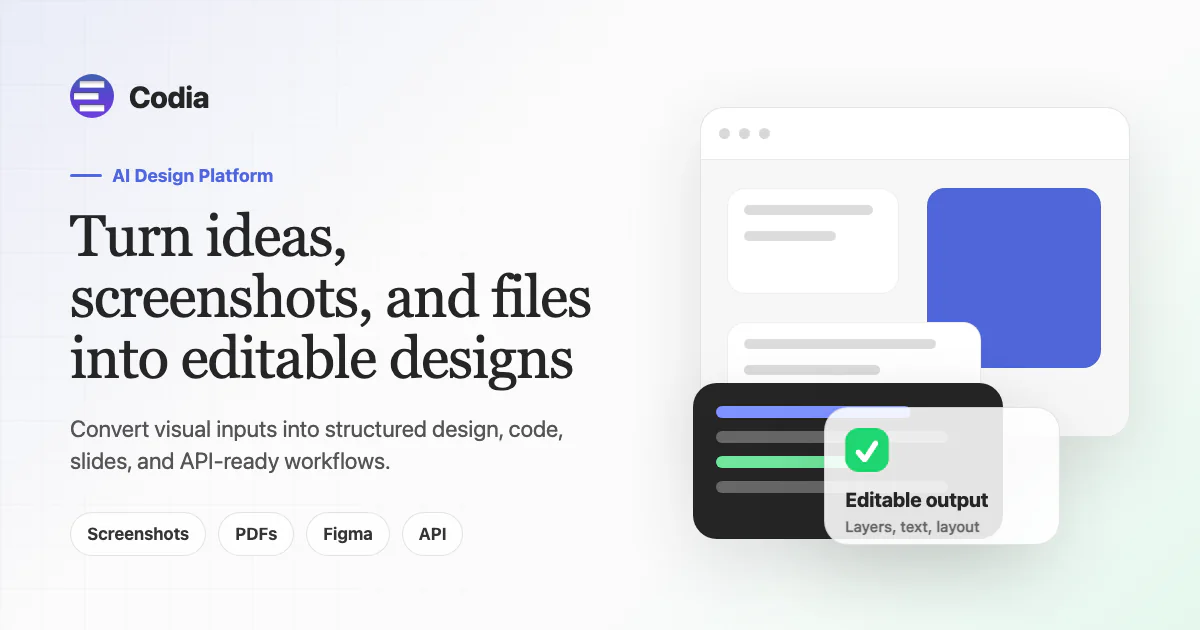
Codia converts screenshots, PDFs, PSDs, slides and images into editable Figma designs, PowerPoint decks, SVG and JSON, and turns Figma designs into responsive code. One platform with plugins, a Studio editor and an API for visual reconstruction.
Codia is a family of AI products built around one idea: most visual content is stuck in flat formats, and Codia reconstructs it into text, shapes, layers and layout objects you can actually edit. The platform bundles a design-to-code converter, a screenshot to Figma plugin, PDF and PSD to Figma converters, an image to SVG tool, a prompt driven UI generator, and NoteSlide, which turns PDFs, image exports and NotebookLM deck dumps into editable PowerPoint and Keynote files. A shared engine called Codia AI Vision handles the reconstruction by reading grids, sections, alignment, typography, icon shapes and colour, then rebuilding each element as its own layer. Practical use splits into two tracks. Design teams feed screenshots, app screens, websites, posters and product images into the Studio or the Figma plugins to recover editable layers instead of rebuilding a reference by hand. Developers use the same conversion pipeline in reverse: Figma designs become responsive frontend code, and the Visual Struct API returns JSON, SVG or Figma output from a UI image for automation. Marketers sit in between, reusing converted visuals across slides, social posts and landing pages. The company is candid about limits. Its own product examples describe clean source files as the best case, note that OCR quality depends on source quality, and recommend designer review after conversion. So Codia works best as a fast first pass that removes the mechanical rebuild, not as a hands-off pipeline. It competes with dedicated screenshot-to-code tools and Figma plugins, but its breadth across PowerPoint, Figma, Canva, SVG and JSON is wider than most single purpose converters. Expect to check text accuracy and layer grouping on every output before it ships.
Works with Figma through plugins, Canva through plugins, PowerPoint and Keynote exports, SVG output, and JSON via the Visual Struct API.
Learn moreScreenshot, PDF, PSD and web page to Figma conversion; image to SVG vectorisation; prompt to editable UI generation; Figma to responsive code; NoteSlide for converting and generating editable PowerPoint decks; Canva plugins for Figma to Canva handoff; Codia AI Vision engine for layout, typography, shape and style reconstruction; Visual Struct API for structured JSON and SVG output.
Learn more AI Angels400+ customizable AI girlfriends for NSFW chat, voice calls, and roleplay
 Candy AIExperience the future of companionship with AI friends who chat, role-play, and connect with you on a human level.
 ourdream.aiA vast AI roleplay platform with millions of characters for chat, images, video and voiceAI Angels400+ customizable AI girlfriends for NSFW chat, voice calls, and roleplayCandy AIExperience the future of companionship with AI friends who chat, role-play, and connect with you on a human level.ourdream.aiA vast AI roleplay platform with millions of characters for chat, images, video and voice