Snappify

Turn code snippets into animated, interactive presentations and infographics.

Beginner API
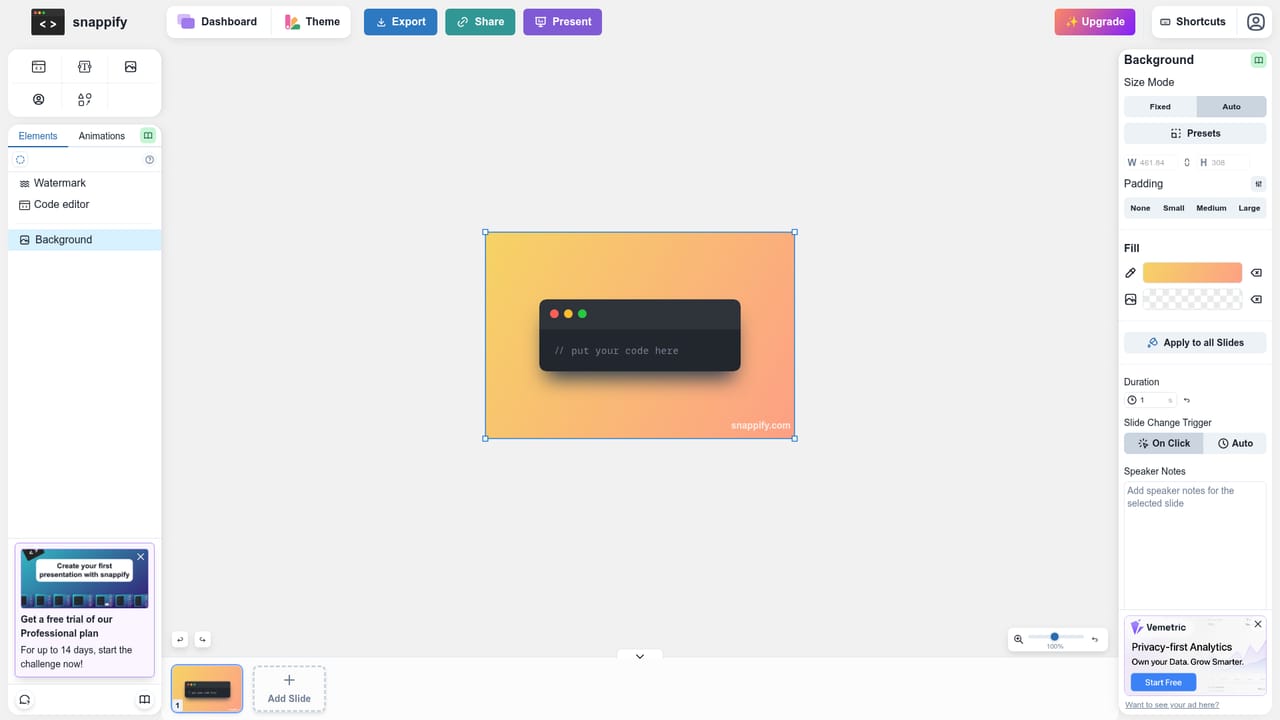
Screenshot of Snappify, Turn code snippets into animated, interactive presentations and infographics

What is Snappify?

Snappify is a code animation tool that turns code snippets into animated, interactive presentations and infographics. Snappify is a code-first design and presentation tool for developers, educators and technical teams.

Snappify is a design and presentation tool built specifically for code. Instead of pasting fragments into slide decks that were never meant for monospace text, you build slides, infographics and short videos inside an editor that treats syntax highlighting, code windows and line-level annotations as first-class elements. A single slide can hold several code snippets arranged by drag and drop, rich text explanations beside them, arrows pointing at specific lines, and custom images or language logos. Added and removed lines can be marked, and the surrounding code can be blurred or grayed out so the viewer's eye lands on the part that matters. The tool serves several groups. Developers who explain code on social media get branded visual cards with a profile name and avatar for X, GitHub, Instagram or LinkedIn. Teachers and course creators get animations and step by step explanations that build up a concept instead of showing a wall of text. Teams get interactive slides where viewers can copy snippets and follow links, plus embedded infographics that stay copyable on Hashnode, Notion and Medium. The editor also organizes snippets in a library, so a growing collection of examples stays searchable rather than scattered across screenshots. In practice the workflow is editor-first: pick a template or start blank, add code elements and text, style the branding, then export as an image, share a public URL or render video. Video export is labelled experimental on the site, with MP4 and GIF output and frame rates that depend on plan. Embedding and public links are metered by monthly views, which matters for anyone publishing to a high traffic blog. Snappify competes with generic design tools like Figma and Canva and with plain slide software, but its edge is the native handling of code, highlighting and copyable embeds. Teams that mostly produce non-technical slides will find it narrower than those alternatives, while developers who publish code constantly will find the reverse.

How do you use Snappify?

  1. 1Open the editor and pick a starting point
    Sign in and launch the editor, then either start from a blank canvas or browse the template gallery for a layout that matches your topic. Templates are organized around common uses such as social cards, slides and explanations.
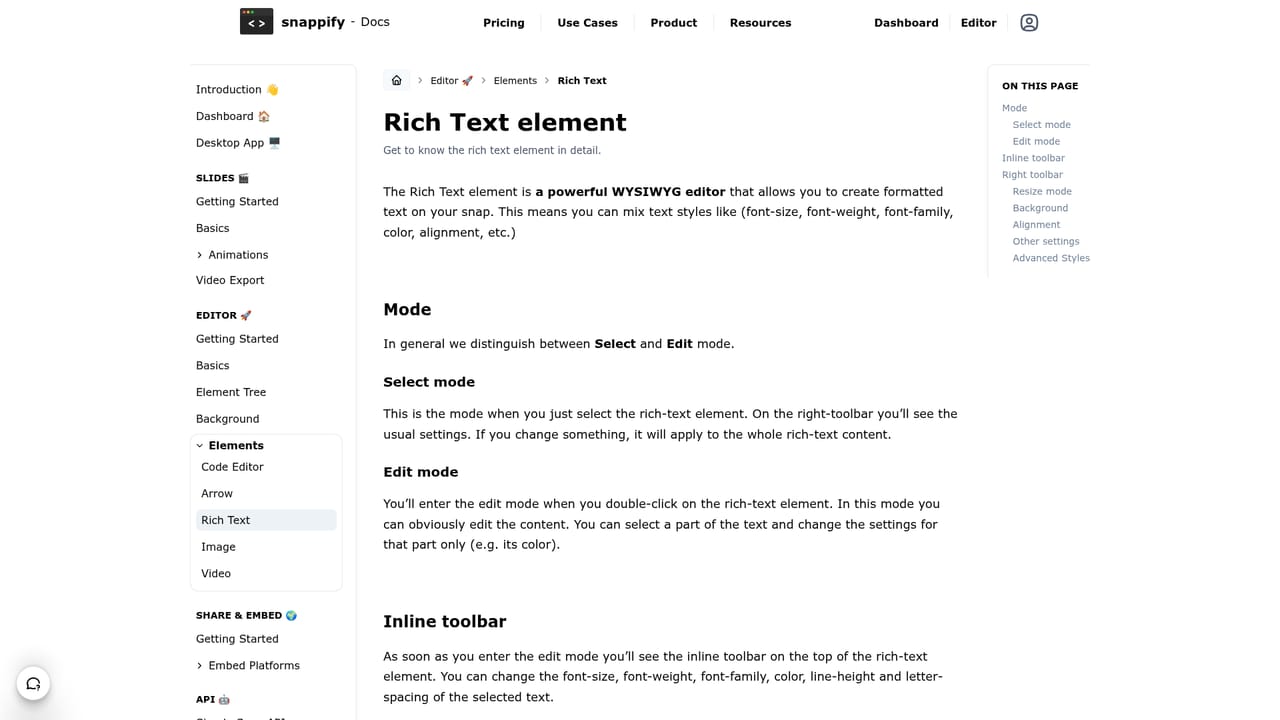
    Snappify — Open the editor and pick a starting point
  2. 2Add and configure code elements
    Insert a code element, paste your snippet and choose the language. Repeat for as many windows as the slide needs, then drag them into position; each slide can hold several snippets so you can compare versions side by side.
    Snappify — Add and configure code elements
  3. 3Annotate with text, arrows and highlighting
    Use the rich text editor to place explanations next to the code and add arrow elements that point at specific lines. Apply blur, opacity or gray-out to parts of the snippet, and mark lines as added or removed to show a change.
    Snappify — Annotate with text, arrows and highlighting
  4. 4Build a multi-slide presentation
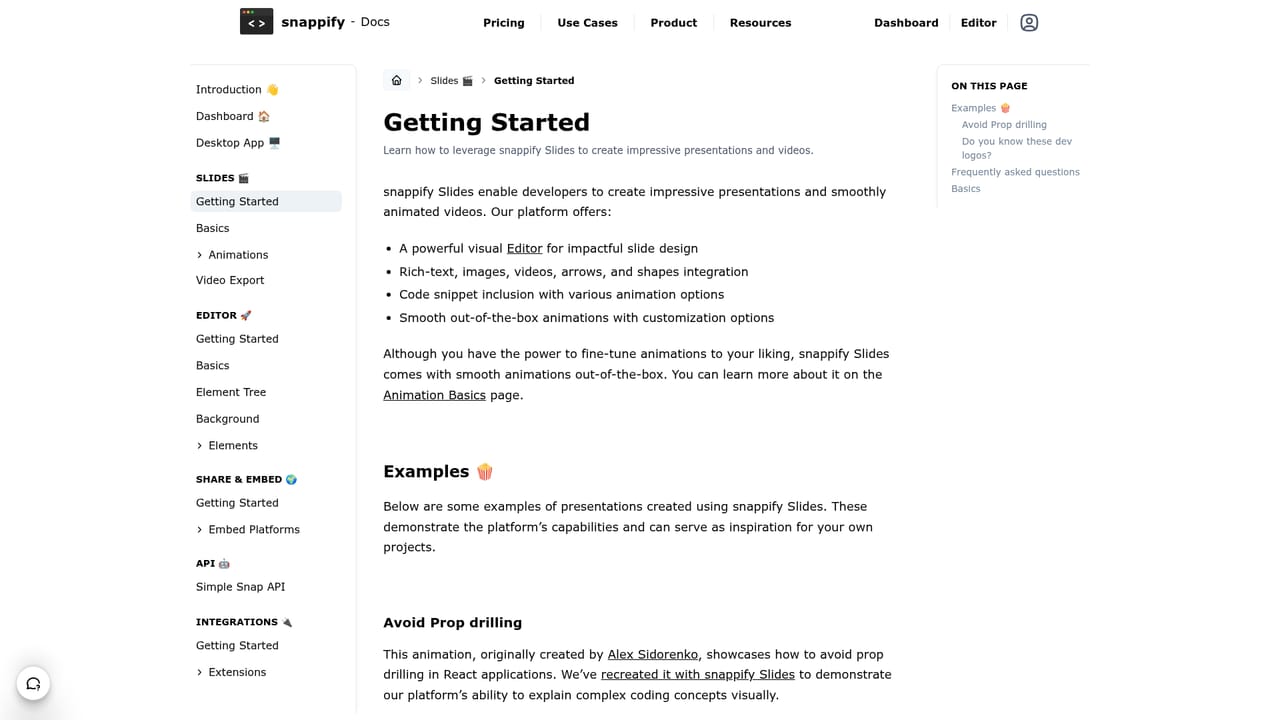
    Extend the deck with additional slides and set up interactive elements so viewers can copy code and follow links. The slides documentation covers how presentations are structured and shared.
    Snappify — Build a multi-slide presentation
  5. 5Embed or share the result
    Publish the visual as a public URL or embed it in a blog or documentation page so readers can copy snippets in place. Supported platforms include Hashnode, Notion and Medium, and the embedding guide covers the setup.
  6. 6Export video or images
    When the design is ready, export a still image or render the animations as MP4 or GIF. Video export is experimental and frame rate or scale depends on your plan, so check the video export page before relying on it for production.

Pros and cons

Pros

  • Code snippets are native elements with highlighting, blur, gray-out and added or removed line marksAI
  • Multiple code windows per slide can be arranged by drag and drop for side by side comparisonsAI
  • Interactive embeds let readers copy snippets directly on Hashnode, Notion and MediumAI
  • Branding controls cover avatar and username for X, GitHub, Instagram and LinkedInAI
  • A snippet library and dashboard keep a growing collection of code examples organizedAI

Cons

  • Video export is still labelled experimental, and 30fps output carries a watermark on lower tiersAI
  • Public link and embed views are capped by plan, which can bottleneck high traffic publishingAI
  • Several editor essentials such as custom images per slide and library images are tightly limited on Free and StarterAI
  • No native iOS or Android app is listed, so work happens in the browserAI
  • The product is tuned for code, so non-technical slide decks fit poorly compared with general design toolsAI

How much does Snappify cost?

Pricing

Four tiers priced in USD with a 33 percent saving on yearly billing: Free at $0, Starter at $5 per month billed $60 yearly, Professional at $9 per month billed $108 yearly and Team at $32 per month billed $384 yearly. Plans differ on storage, AI explanations, slides per presentation, video frame rate and scale, view limits, API calls and team members.

Learn more

Support

Live chat support is available, with response priority tied to plan: low priority on Free, medium on Starter, high on Professional and highest on Team.

Integrations

The homepage lists a VS Code extension and an IntelliJ plugin, embedding support for Hashnode, Notion and Medium, and basic API access for Snap calls starting on paid plans. A Discord community is also linked for users.

Learn more

Features

Highlights include multiple code windows per slide with drag and drop arrangement, rich text and arrow annotations, line marking and focus effects such as blur and gray-out, branding with avatar and social usernames, a snippet library and dashboard, interactive slides and embeds for Hashnode, Notion and Medium, experimental MP4 and GIF video export, and AI code explanations with plan-based quotas.

Learn more

Frequently asked questions about Snappify

  • How much does Snappify cost?
    Four tiers priced in USD with a 33 percent saving on yearly billing: Free at $0, Starter at $5 per month billed $60 yearly, Professional at $9 per month billed $108 yearly and Team at $32 per month billed $384 yearly. Plans differ on storage, AI explanations, slides per presentation, video frame rate and scale, view limits, API calls and team members.
  • Does Snappify have an API?
    Yes, Snappify offers an API.
  • How do you use Snappify?
    The walkthrough on this page covers 6 steps: 1. Open the editor and pick a starting point 2. Add and configure code elements 3. Annotate with text, arrows and highlighting 4. Build a multi-slide presentation 5. Embed or share the result 6. Export video or images.
  • What platforms does Snappify support?
    Snappify is available on Web App.
  • What does Snappify integrate with?
    The homepage lists a VS Code extension and an IntelliJ plugin, embedding support for Hashnode, Notion and Medium, and basic API access for Snap calls starting on paid plans. A Discord community is also linked for users.
  • What are the limitations of Snappify?
    Video export is still labelled experimental, and 30fps output carries a watermark on lower tiers. Public link and embed views are capped by plan, which can bottleneck high traffic publishing. Several editor essentials such as custom images per slide and library images are tightly limited on Free and Starter.

Status

StatusActive
Views0
Outbound clicks0
Added10/21/2026

Platforms

Web App

Pricing

FreePaidSubscription