Free trial
Daily free use is advertised on the homepage, and free credits are issued after signing in. No trial length or credit amount is stated.
Learn moreTurn any photo into a sketch, painting or cartoon in one upload.
Own Picture to Drawing AI? Verify ownership to get a dofollow link
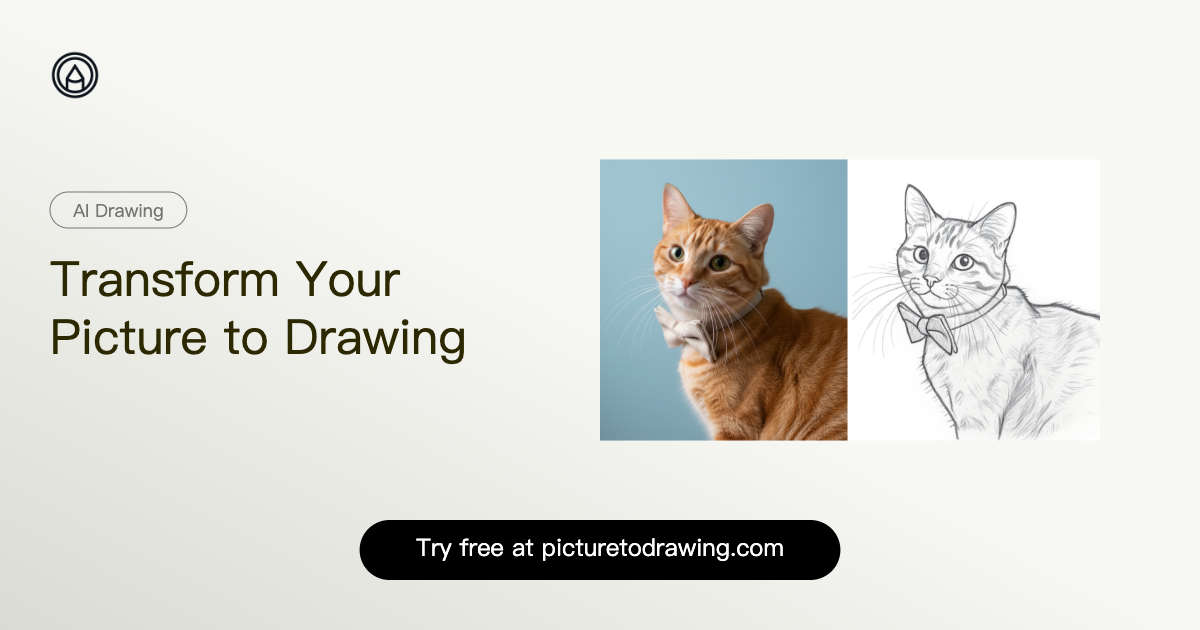
Picture to Drawing AI is a convert image to 2D tool that turns any photo into a sketch, painting or cartoon in one upload.
Picture to Drawing AI is a browser based photo conversion tool. It takes an ordinary photograph (a portrait, a pet picture, a landscape) and reworks it into a chosen artistic style. The catalogue is the product: pencil sketches in several variants, line drawings, ink watercolor, oil and watercolor painting looks, intaglio engraving, silkscreen print, flat illustration, low poly, pixel art, felt doll, manga, 90s retro anime, chibi, Pixar style 3D, superhero comic, storybook and a Snoopy inspired cartoon look. Most styles also carry a style preview image so the output can be judged before uploading anything. The workflow is deliberately short. A visitor picks a style from the gallery, drops a JPG, PNG, WEBP or HEIC file into the upload box (or clicks into the file picker), optionally selects a ratio, and starts the conversion. Sample pictures are provided for anyone who wants to test the pipeline without their own file. An auto ratio option matches the proportions of the source image, which matters when a portrait is destined for a profile picture or a print slot. The tool suits people who need a stylized version of one specific photo rather than generated art from a text prompt: a gift sketch of a couple, a cartoon avatar for a team page, a line drawing to trace, a painterly version of a holiday shot. Because the styles are preset rather than open ended, results are consistent and repeatable, which is useful for matching a set of images to one visual theme. A separate photo to photo style transfer route exists for reference images that fall outside the gallery. Alternatives include general purpose image generators and heavier desktop editors with filter packs. This one is narrower: no layer editing, no manual brush work, and the artistic range is bounded by the listed presets. Daily free use is advertised, with free credits granted after signing in.
Daily free use is advertised on the homepage, and free credits are issued after signing in. No trial length or credit amount is stated.
Learn morePhoto to drawing conversion in a browser, with a gallery of preset styles covering pencil sketch, line drawing, ink watercolor, oil and watercolor painting, intaglio engraving, silkscreen print, low poly, pixel art, flat illustration, felt doll, manga, retro anime, chibi, 3D cartoon, superhero comic and storybook looks. Supports JPG, PNG, WEBP and HEIC uploads, sample images, ratio matching and a separate photo to photo style transfer route.
Learn more AI Angels400+ customizable AI girlfriends for NSFW chat, voice calls, and roleplay
 Candy AIExperience the future of companionship with AI friends who chat, role-play, and connect with you on a human level.
 ourdream.aiA vast AI roleplay platform with millions of characters for chat, images, video and voiceAI Angels400+ customizable AI girlfriends for NSFW chat, voice calls, and roleplayCandy AIExperience the future of companionship with AI friends who chat, role-play, and connect with you on a human level.ourdream.aiA vast AI roleplay platform with millions of characters for chat, images, video and voice