Free trial
A free usage quota is available when you sign up, letting you try transcription and subtitle generation before subscribing. The homepage states no length, minute or feature limits for that quota.
Learn moreAI captions that transcribe, translate and export in minutes

SubtitleGen is an online AI subtitle generator that transcribes video and audio, produces editable captions and translates them into multiple languages, then exports formats such as .srt. It runs in the browser with no install, accepts major media formats, and offers a free starting quota before you subscribe.
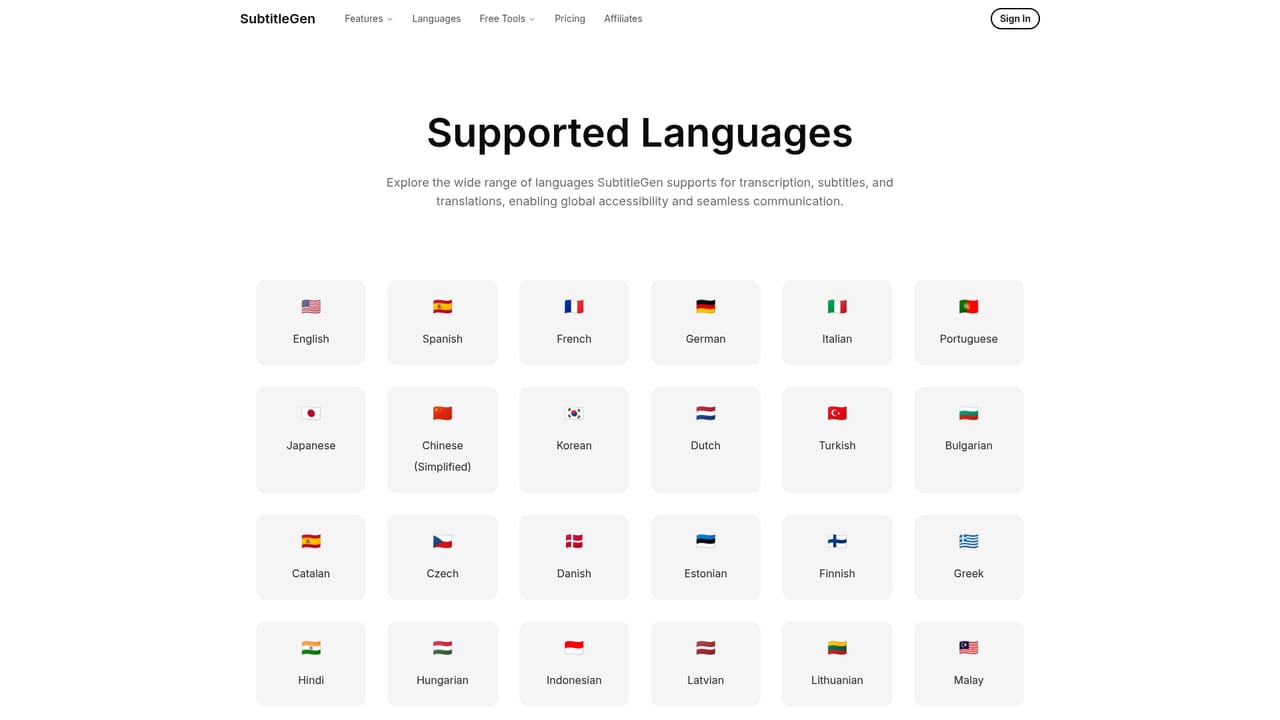
SubtitleGen is a browser based subtitle and transcription service aimed at creators who publish video across more than one language. You upload an audio or video file, the platform transcribes the speech automatically, and it returns timed subtitle lines you can review before exporting. The vendor claims accuracy of up to 99.8 percent and says files are processed in seconds to minutes depending on length and size. No installation is required; the whole workflow runs in a web browser on any device. The practical loop is four stages: upload, auto-generate, review, export. The review stage matters most, because automatic transcription still benefits from a human pass, especially with overlapping speech, heavy accents, background music or specialist vocabulary. An in-browser editor lets you correct wording, adjust line breaks and fine-tune timing. Translation is built into the same flow, so a finished transcript can be pushed into other languages without a separate tool. The site lists English, Spanish, French, German, Italian, Portuguese, Japanese, Chinese, Korean, Dutch and Turkish, with a dedicated languages page for the fuller set. Export produces standard subtitle files such as .srt that drop into YouTube or an editing timeline. Who it suits: solo YouTubers and course creators who want captions without a manual transcription pass, small teams localising a back catalogue, and social media producers who need burned-in or sidecar captions quickly. It is also a reasonable fit for accessibility work, where accurate captions are a requirement rather than a nice extra. Where it sits: the field is crowded, with dedicated captioning tools, general transcription services and built-in editor features all competing. SubtitleGen's pitch is the combination of transcription, translation and a lightweight editor behind one login, with no software install and a free starting quota so you can judge output quality on your own footage before committing. It is not a full video editor, so expect to finish the job elsewhere. For teams handling confidential material, the privacy and security claim on the site is worth verifying against your own requirements before uploading sensitive content.

A free usage quota is available when you sign up, letting you try transcription and subtitle generation before subscribing. The homepage states no length, minute or feature limits for that quota.
Learn moreAutomatic transcription of video and audio with advertised accuracy of up to 99.8 percent, AI subtitle generation, multi-language translation, an in-browser subtitle editor, export to formats such as .srt, support for major media formats including MP3, MP4, WAV, FLAC and WEBM, and browser-only access with no installation.
 AI Angels400+ customizable AI girlfriends for NSFW chat, voice calls, and roleplay
 Candy AIExperience the future of companionship with AI friends who chat, role-play, and connect with you on a human level.
 ourdream.aiA vast AI roleplay platform with millions of characters for chat, images, video and voiceAI Angels400+ customizable AI girlfriends for NSFW chat, voice calls, and roleplayCandy AIExperience the future of companionship with AI friends who chat, role-play, and connect with you on a human level.ourdream.aiA vast AI roleplay platform with millions of characters for chat, images, video and voice


