Free trial
Signing up grants 10 free credits, enough for roughly 5 seconds of 720p output, 2.5 seconds of 1080p or just over a second at 4K. It functions as a paid trial rather than an ongoing free tier.
Learn moreBrowser-based AI upscaling to 1080p, 2K and 4K
Own VideoUpscale.net? Verify ownership to get a dofollow link
VideoUpscale.net is a 4K upscale tool. A browser-based AI video upscaler that sharpens low-resolution clips and exports to 1080p, 2K or 4K. Credit-based pricing scales with output resolution, model and frame rate, with a small free credit allowance for testing.
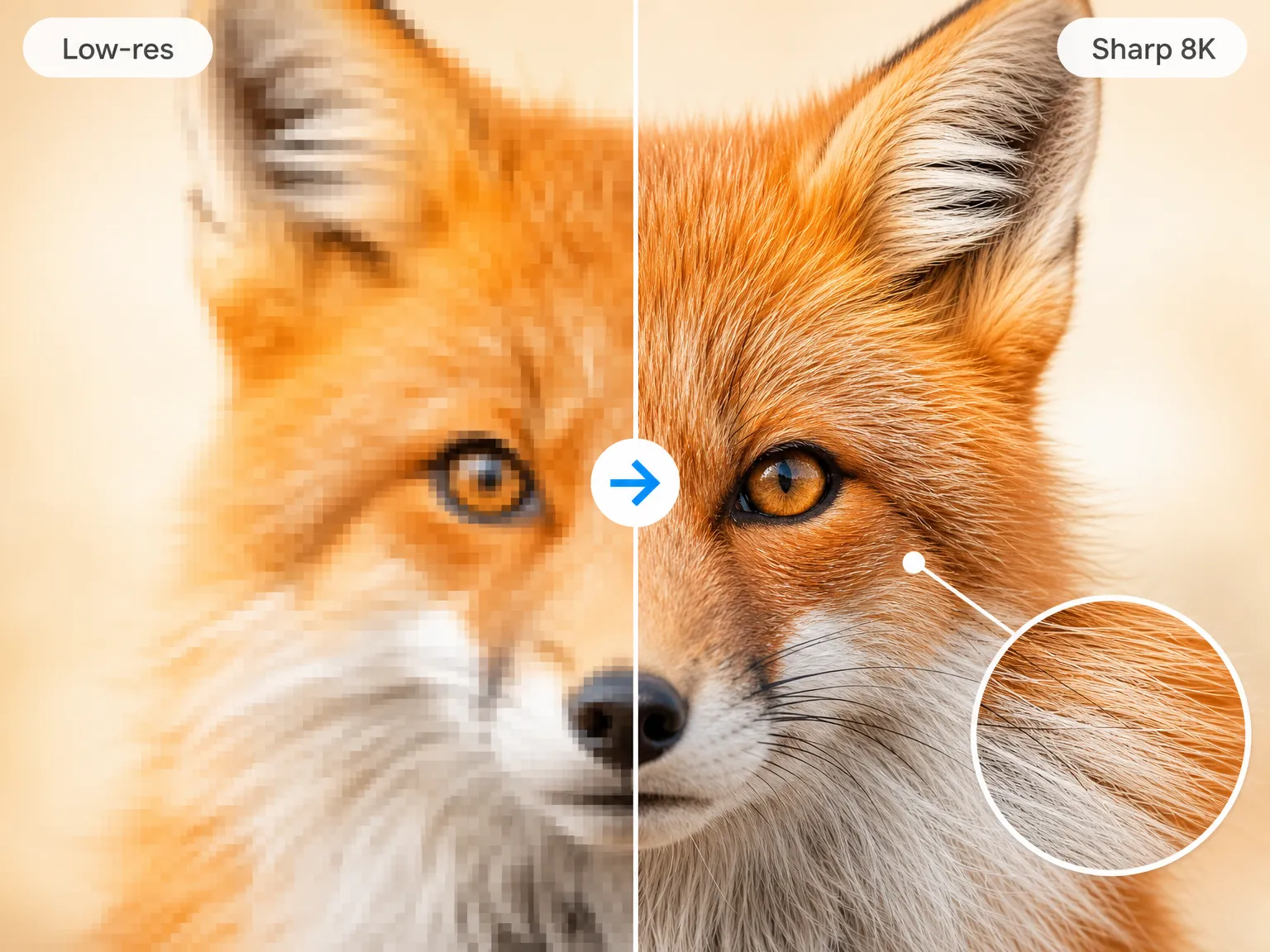
VideoUpscale.net is a browser-based video upscaling service that rebuilds low-resolution footage frame by frame instead of stretching it. Upload a clip in MP4, MOV, AVI or WebM (the current ceiling is 500MB), pick an output tier up to 4K, and the service analyzes edges, textures and visible structures to produce a sharper result with less pixelation. Audio is left untouched wherever possible, so the work is purely visual. The tool covers several distinct jobs under one roof. Denoise and restore models (Artemis, Nyx, Proteus) target blurry, noisy or heavily compressed material, including old family footage and vintage video. A separate animation pipeline built on Gaia 2 handles anime, CG, screen recordings and motion graphics at a lower credit cost. There are also preset entry points for gaming clips, YouTube uploads, product demos and social media clips. Output can be pushed to 60fps for fast motion such as sports or gameplay, and motion preservation is a stated design goal so talking-head footage does not end up jittery. The natural audience is creators and small teams who need a quick resolution bump without installing desktop software: YouTube and Shorts publishers reworking compressed clips, marketers refreshing demo reels, editors cleaning archival material, and hobbyists restoring family tapes. Because everything runs in the browser, there is no GPU requirement or install step, which is where it differs from desktop suites such as Topaz Video AI. The tradeoff is that pricing is metered per processed second rather than per export, and the 500MB upload cap rules out long or high-bitrate source files. Usage is governed by credits: 2 per second for 720p output, 4 for 1080p and 8 for 4K, with 60fps doubling the rate and Gaia 2 halving it. New accounts receive 10 free credits to test the pipeline before committing. Results depend heavily on source quality; extremely compressed or very low-resolution footage will improve but not transform.
Signing up grants 10 free credits, enough for roughly 5 seconds of 720p output, 2.5 seconds of 1080p or just over a second at 4K. It functions as a paid trial rather than an ongoing free tier.
Learn moreThree monthly plans: Basic at $40 ($21.90 annual) with 500 credits, Pro at $60 ($36.90 annual) with 1000 credits, and Ultimate at $250 ($148.90 annual) with 4300 credits. Annual billing saves 20 percent and a one-time option is listed. Credits burn per processed second: 2 for 720p, 4 for 1080p, 8 for 4K, doubled for 60fps and halved on Gaia 2.
Learn morePriority support is listed as a plan benefit and the site carries a FAQ covering formats, privacy and pricing. No dedicated help centre or ticket system is described on the homepage.
Frame-by-frame AI upscaling to 720p, 1080p, 2K and 4K with blur, noise and compression cleanup. Model choices include Proteus, Artemis, Nyx, Gaia, Gaia HQ, Gaia CG, Starlight and Gaia 2. Optional 60fps output, motion preservation, unchanged audio, before and after previews, preset flows for anime, YouTube, gaming and demos, and a commercial use license on every plan.
 AI Angels400+ customizable AI girlfriends for NSFW chat, voice calls, and roleplay
 Candy AIExperience the future of companionship with AI friends who chat, role-play, and connect with you on a human level.
 ourdream.aiA vast AI roleplay platform with millions of characters for chat, images, video and voiceAI Angels400+ customizable AI girlfriends for NSFW chat, voice calls, and roleplayCandy AIExperience the future of companionship with AI friends who chat, role-play, and connect with you on a human level.ourdream.aiA vast AI roleplay platform with millions of characters for chat, images, video and voice